❌ Crypto.com
Obtaining the API Key
Danger
WARNING: Do NOT use the same API key that you have created for other services.
To get the API keys for your Crypto.com account, click on settings on the Crypto.com menu and then Select API Keys from the Settings menu.
Once inside, click on API Keys menu then click on Create a new API Key.
Once the pop-up appears, make sure you:
Name the API key
Acknowledge the warning
The screenshots below will show you how the settings should look like before you click on Save.
Danger
If you are running an Enterprise license, please use the IP address of your machine/server instead of the ones written in the platform.
Warning
Make sure you copy the API keys before selecting Save. You'll be required to supply the 2FA token to Save.
Adding the API to HaasOnline TradeServer Cloud
Log in to TradeServer Cloud.
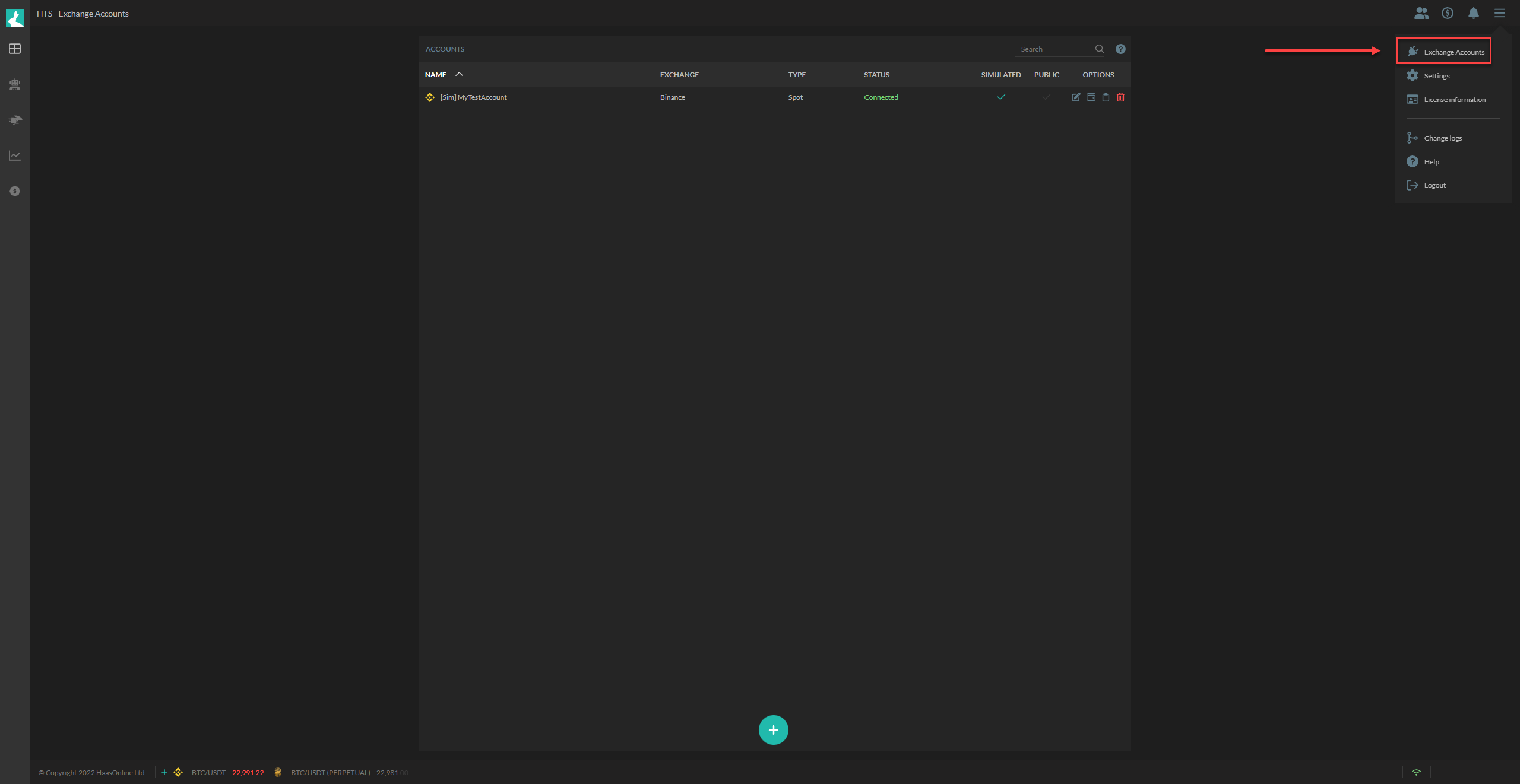
Click on the <img src="/assets/image-481.png" alt="" data-size="line" icon and select Exchange Accounts
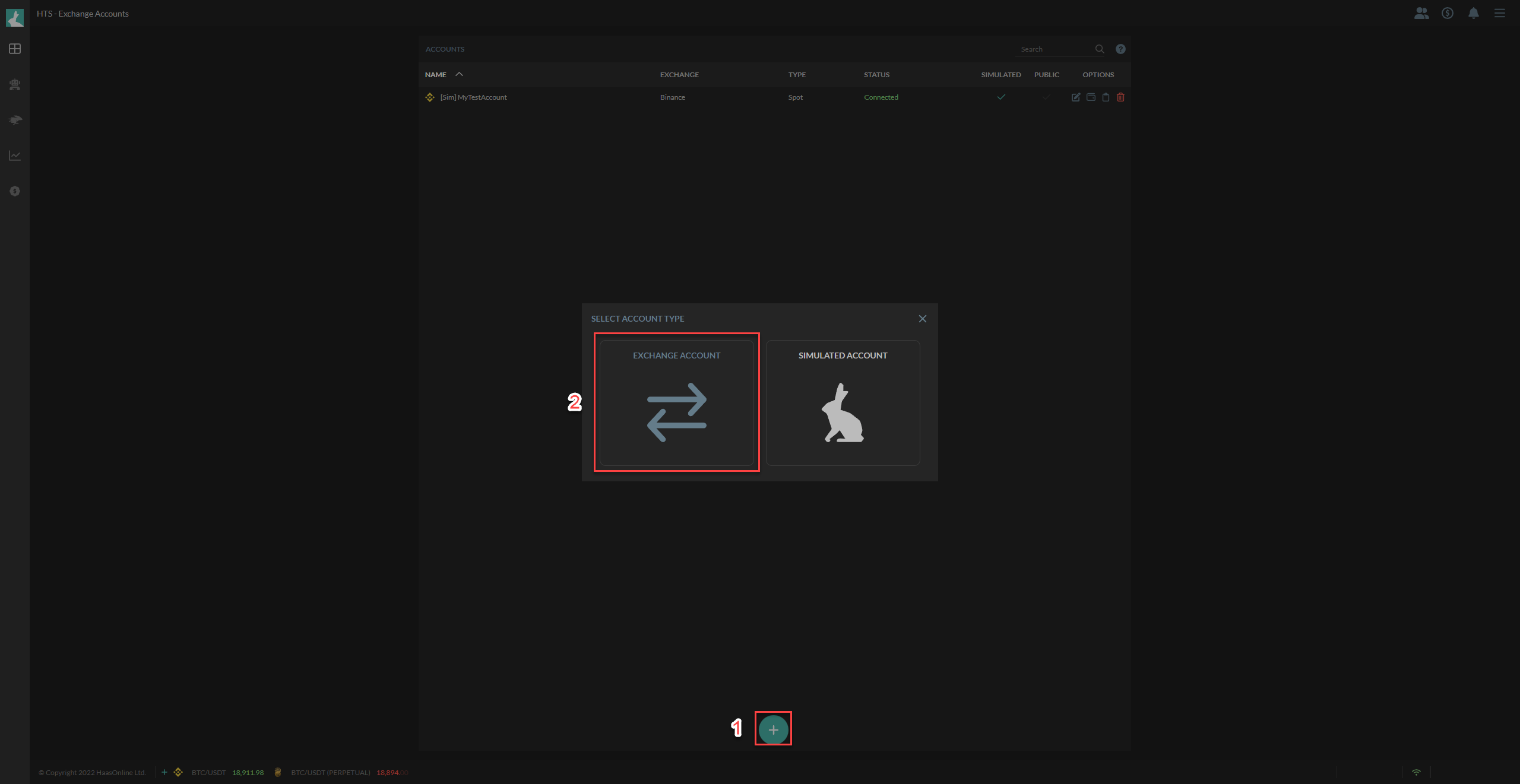
- Click on the <img src="/assets/image-419.png" alt="" data-size="line" icon.
- Select
Exchange Account.
From the list of exchanges that we support, click on Crypto.com.
Enter the Account name.
Paste the public API Key in the TradeServer Cloud window under Public Key. Repeat the same for API Secret but paste it under Private Key.
Info
Though it might not be necessary, it might be best if you make sure to check for spaces at the start and at the end of the API/Private Key after you paste them.
Once that is done, the TEST KEYS button should be active for you to press. Click on it.
Should the test pass, you will be able to click on Submit to add the API key to the platform.