Bot management
Welcome to the Bot Management page! This page allows you to manage your bots and their trading strategies. Below, you'll find a list of the different features and options available on this page.
New: Create Bot Wizard
Looking to create a new bot? We recommend using the new Create Bot wizard from the left sidebar. It offers a guided experience with templates and beginner-friendly bot types. You can still use the "+" button below for quick bot creation.
Clone a paper-traded bot to a live account and start it.
Adding a New Bot
To add a new bot, click on the floating "+" button at the bottom of the page. This will open up the "Add Bot" window. In this window, you can specify the name of the bot, the account it needs to use, and the market it will be trading in. Once you've filled in these details, click the "Save" button. This will save your bot and take you to the Bot Setup page, where you can configure your bot's trading strategy and settings.

Viewing Your Bots
The Bot Management page has several tabs that allow you to view and manage your bots:
- All Bots: Shows a list of all your bots.
- Favorite Bots: Shows a list of all your favorite bots.
- Active Bots: Shows a list of all your bots that are currently active.
- Idle Bots: Shows a list of all your bots that are currently disabled.
- Open Positions: Shows a list of all the positions of your bots.
- Open Orders: Shows a list of all the open orders of your bots.
Bot Setup Page
The Bot Setup page allows you to configure your bot's trading strategy and settings. Here are some of the sections you'll find on this page:
- Strategy: Allows you to select the trading strategy for your bot.
- Settings: Allows you to configure various settings for your bot, such as trade size, stop loss, take profit, and more.
- Save: Saves the bot's configuration and activates the bot.
- Deactivate: Deactivates the bot.
- Delete: Deletes the bot (use with caution!).
- Back: Takes you back to the Bot Management page.
- Test: Allows you to backtest your bot's trading strategy and settings using historical market data.
Script Plots on the Trade Chart
A backtest shows everything your script draws: indicators, bands, levels and markers. A running bot can show them too. Click the chart icon (a line chart) on the bot's trade chart toolbar to turn on Show script plots. The setting is saved with the bot and is off by default.
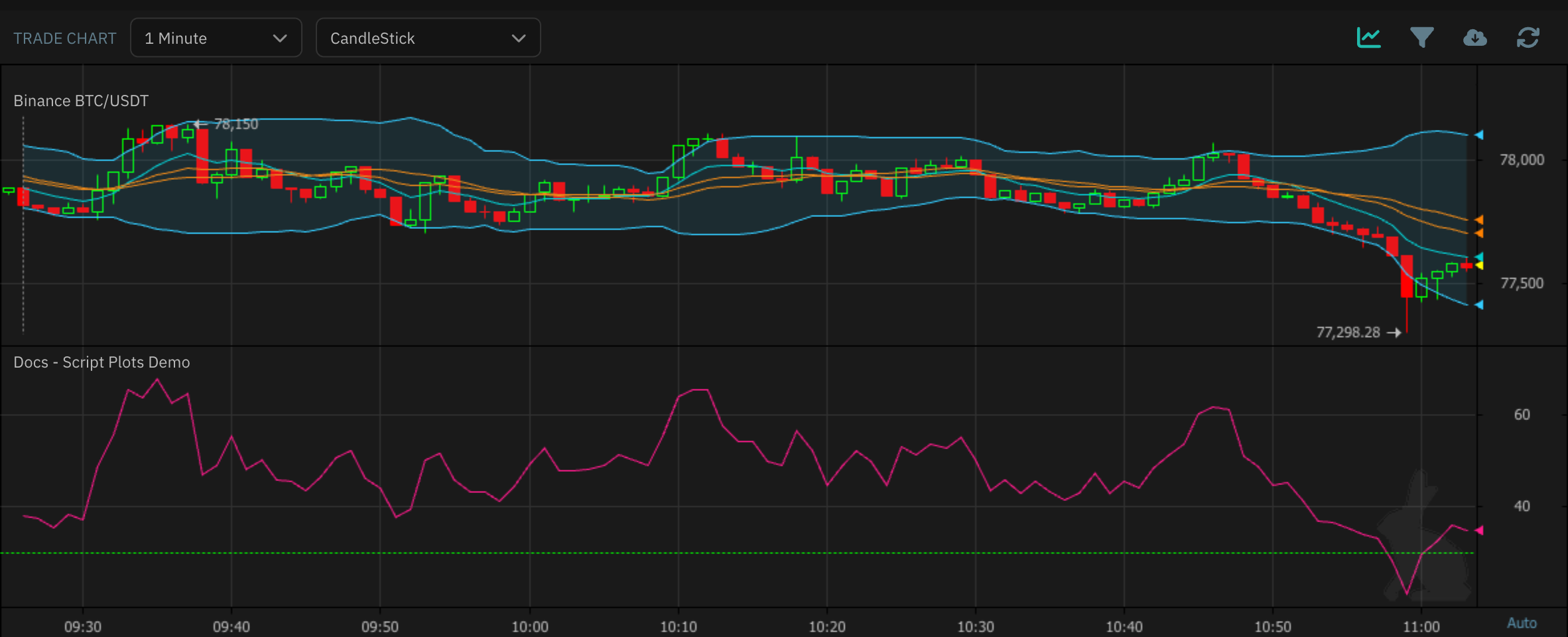
- Plots are recorded from the moment you turn them on, while the bot runs. Earlier candles have none, and a dashed vertical line marks where the recording starts.
- Plots are recorded at the script's interval. If the chart is set to another interval, the icon is grayed out; click it to switch the chart to the script's interval.
- Only the bot's main market gets plots. Other markets on the chart show candles and trades only.
- The chart keeps a rolling window of recent candles: 2,000 at 1 to 5 minutes, 1,000 up to 1 hour, 500 up to 4 hours, 300 up to 1 day and 200 above that.
- The plots refresh shortly after each candle closes.
- If your script draws extra panes, use the filter icon to hide the ones you don't need.
- Changing the script, its settings or its parameters, or resetting the bot's chart, clears the recording and starts a new one from that moment.
- Turning the toggle off clears the recording. A new one starts when you turn it back on.
- Candles your script marks with
MarkCandle(or a candle pattern block) are marked on the price chart (chart 0) only. ChartAddAxisLabelandSetStackedAreaOpacityonly apply in backtests.
Canceling Open Orders
On the "Open Orders" tab, you'll find a "Cancel all orders" button. Clicking this button will cancel all your open orders for all your bots. Please use this button with caution!
Info
The number of bots which can be activated/running depends on the license type