Dashboard
With the dashboard, you can create your own page with information that you need at a glance. For example, you can make dashboard pages with market information and news or you can make your own page to see your accounts and bots at once.
In a dashboard, you can add widgets. We have described those in the sub-topics.
Info
The number of dashboards which can be added/created depends on the license type
Dashboard Basics
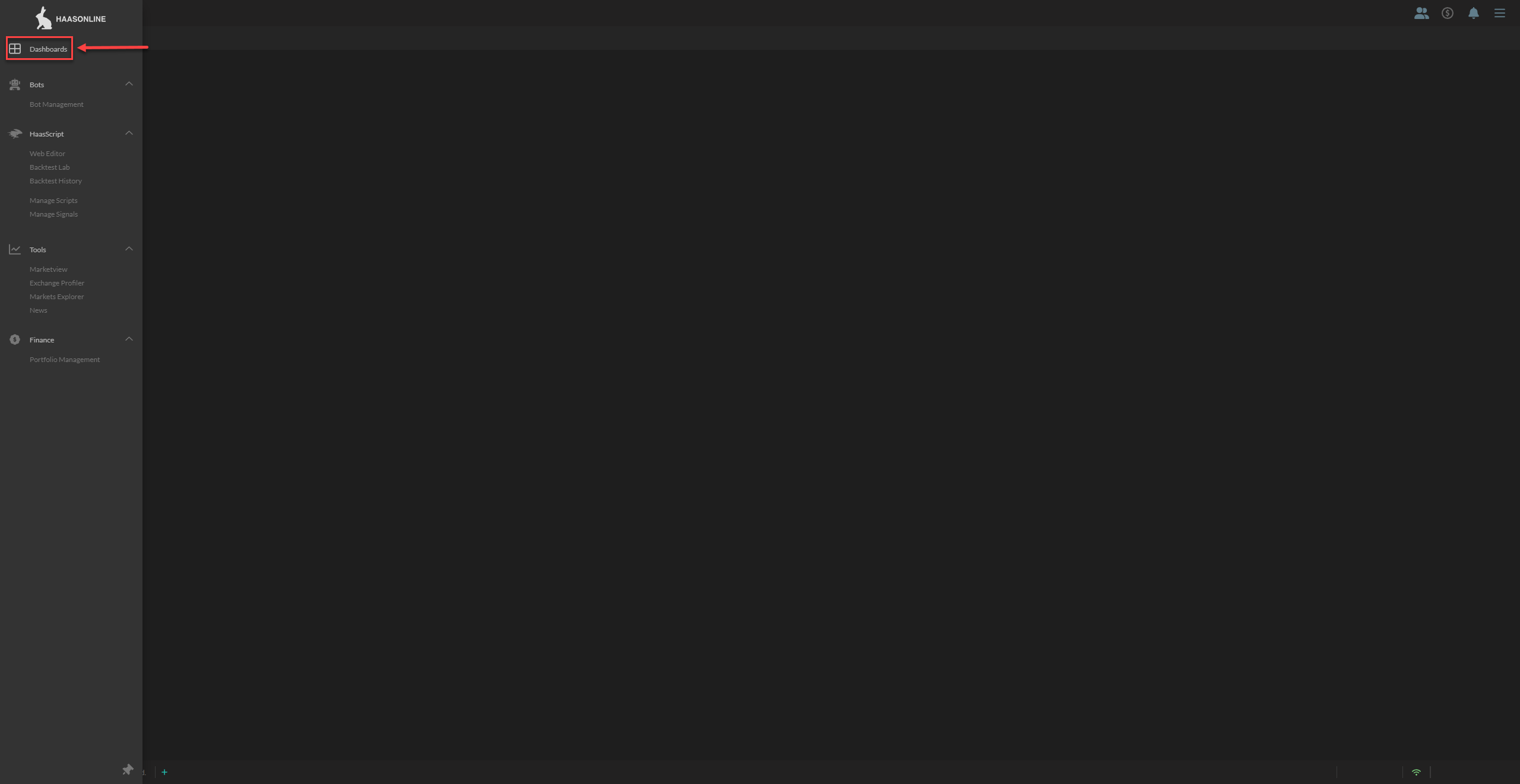
Hover over the left pane and click on Dashboards when it expands.
Upon entering the Dashboard for the first time, you are asked to set up your first dashboard. Click Create default dashboard to start with a curated set of widgets (portfolio balance table, account data overview, your bots and the news tracker), or Start blank to begin with an empty one.
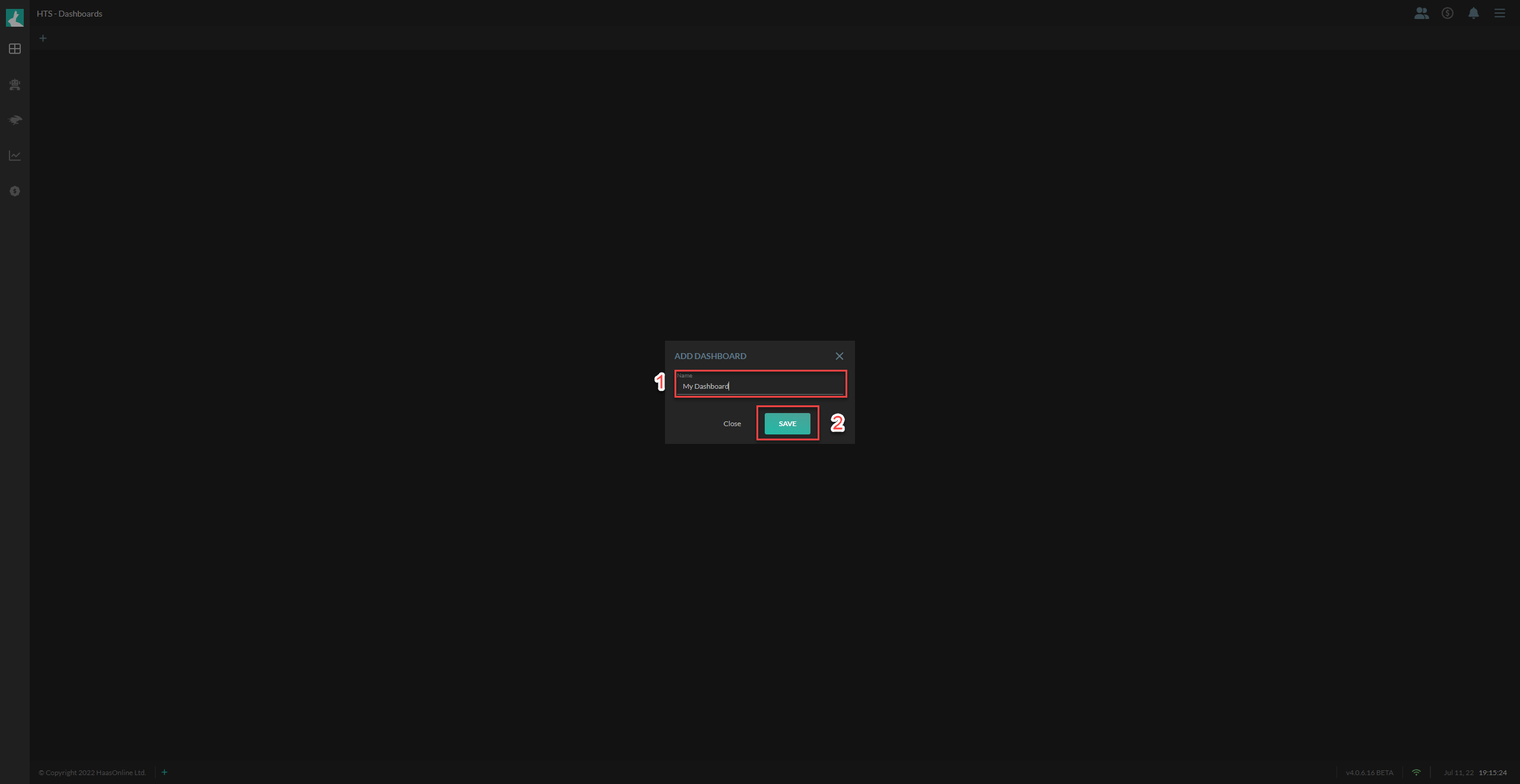
To add another dashboard later:
- Click the
+to the left of your dashboard tabs - Enter a name for the dashboard
- Click on Save to create an empty dashboard
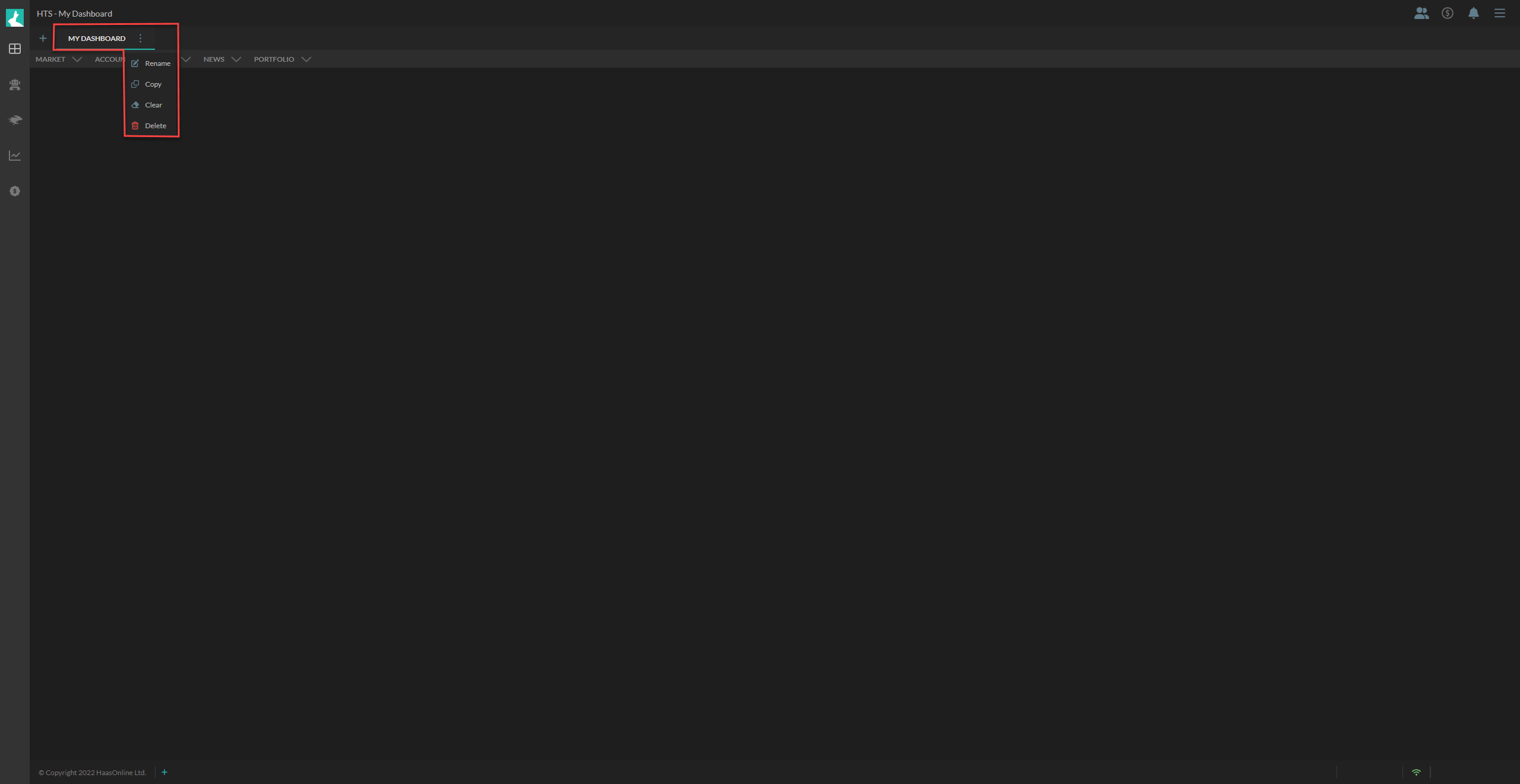
You can rename, copy, clear the contents or even delete your Dashboard by clicking on the 3-dots beside the name of your dashboard
Widgets for your Dashboard
Here's a list of all the available widgets for your Dashboard listed by type:
- Ticker
- Chart
- Orderbook
- Trades
- Price information
- Price compare chart
- Volume compare chart
- Orderbook spread compare chart
- All data
- Current balance
- Open orders
- Open positions
- Trade History
- List
- Chart
- Profit chart
- Log
- Orders
- Positions
- Reports
- Settings
- Report - profit
- Report - orders
- Report - positions
- Report - performance
- Report - custom
- News tracker
- News searcher
- Live videostream
- Balance chart
- Balance table
- Trade frequency chart
- Trade frequency table
- Order Overview
- Manual Orders Overview
- Smart Trade history
