Settings
The settings page is where you can customize the user interface of the platform. In the General section, you can configure the display language, theme, ticker bar alignment, and default selections for accounts, markets, exchanges, and intervals. You can also control how limit orders behave in simulated accounts and backtests. In the Notifications section, you can enable browser and push notifications, assign sounds to platform events, and connect third-party notification services like Discord and Telegram. In the Security section, you can manage your username, password, and two-factor authentication.
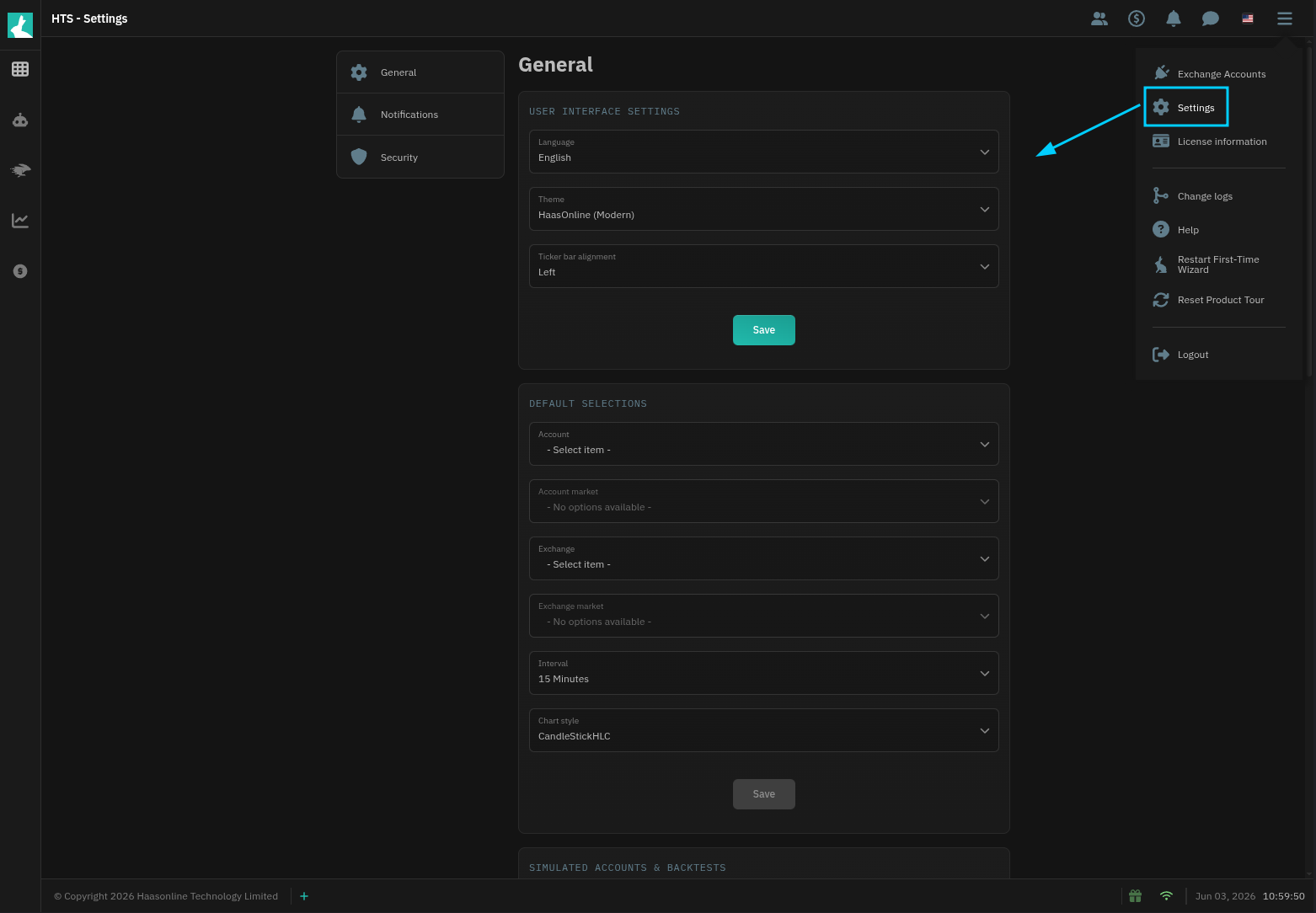
General settings
Language
Sets the display language for the platform interface.
Theme
Choose a color theme for the platform interface from the available options.
Ticker bar alignment
Controls the alignment of the price ticker bar displayed at the bottom of the platform (left, center, or right).
Default selections
The Default selections section lets you set fallback values that are pre-selected throughout the platform.
- Account and Account market set the defaults used in the web editor, labs, and backtesting — wherever an account context is needed.
- Exchange and Exchange market set the defaults for charts, market view, and dashboard widgets — where an exchange is needed but an account is not.
- Interval sets the default candle interval for charts.
- Chart style sets the default chart display style (CandleStick, CandleStickHLC, HeikinAshi, OHLC, HLC, CloseLine, Line, or Mountain).
Simulated Accounts & Backtests
This setting controls when limit orders are considered filled in simulated accounts and during backtests.
- Fill when touched — The limit order is filled as soon as the price reaches (touches) the limit price.
- Fill when breached — The limit order is filled only when the price moves past (breaches) the limit price.
Notification settings
Notification types
Control how the platform alerts you about events. Each notification type can be enabled for browser notifications, push notifications, or both. Available types include General, Security, bot order and position events, order lifecycle events (placed, failed, cancelled, completed), and HaasScript alerts.
Sound settings
Assign sounds to platform events. Four event types are available — Info, Success, Warning, and Error — each with a dropdown to choose the sound that plays when that event occurs. Use the play button next to each dropdown to preview the selected sound.
Third Party Notifications
Connect Discord and Telegram to receive notifications through these platforms. Each service shows its connection status and provides icons to configure the integration, manage users, and delete the connection.
Setup Discord Notification Bot
Security settings
Security settings are managed through the main HaasOnline website. Click the Open security settings button — you will be signed in automatically. From there you can change your username, change your password (confirmed by entering your 2FA code), generate a new 2FA code, and view or revoke approved devices.