Binance
Obtaining the API Key
Danger
Do NOT use the same API key that you have created for other services.
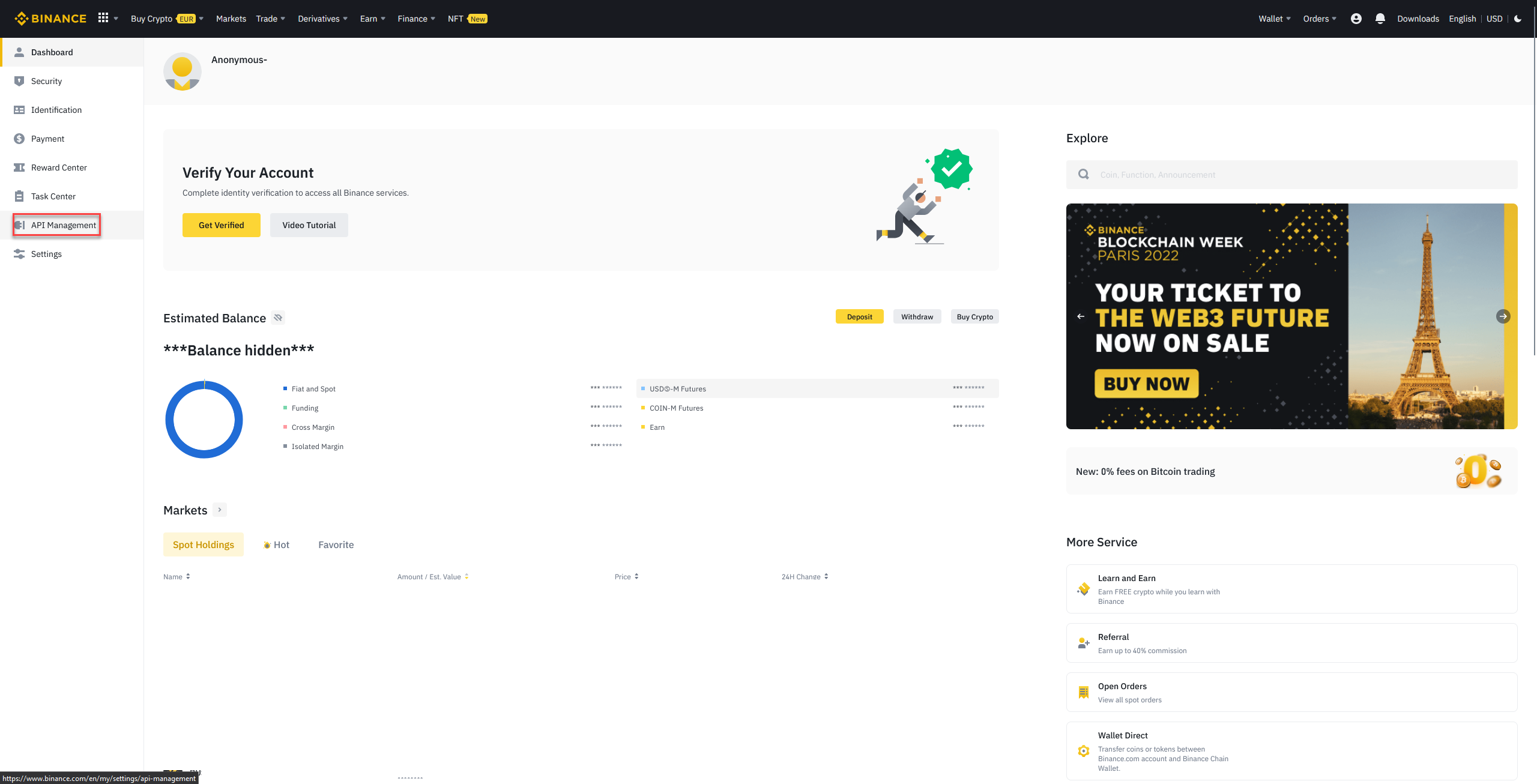
- Log in to Binance(dot)com
- Click on
API Management - Click on
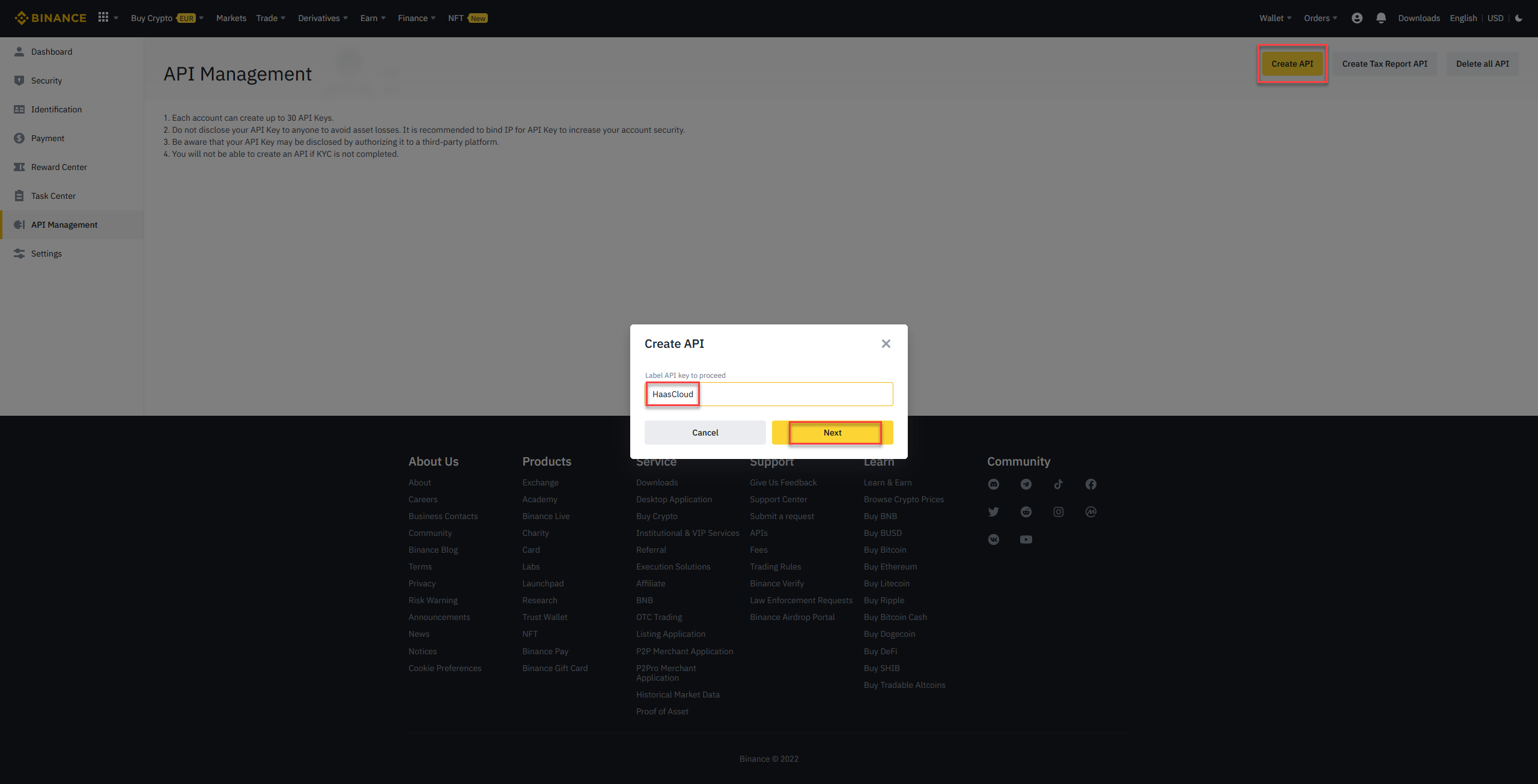
Create API - Enter a name for the API key
- Click on
Next - Complete the security verification for the API key creation
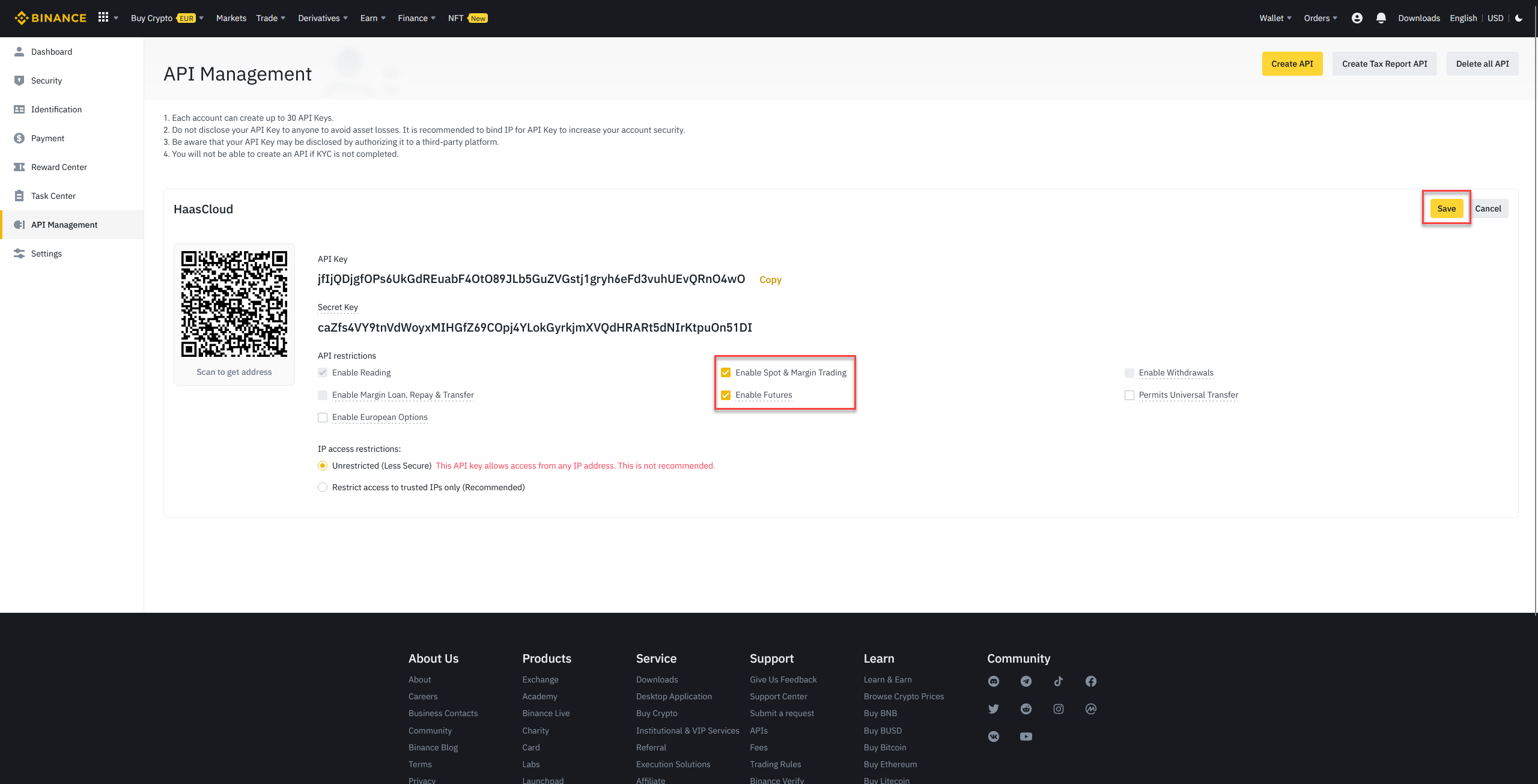
- Once the API key is created, click on
Edit restrictions - Click on the box next to
Enable Spot & Margin Tradingand/orEnable Futures - Only enable Futures if you trade on USDT and/or COIN Futures.
- Select
IP restrictionsand enter the IP address:- If you are running an Enterprise license, use the IP address of your machine/server
- If you are trading on HaasOnline Cloud, enter the IP address shown in the HaasOnline UI during exchange account setup
- Click on
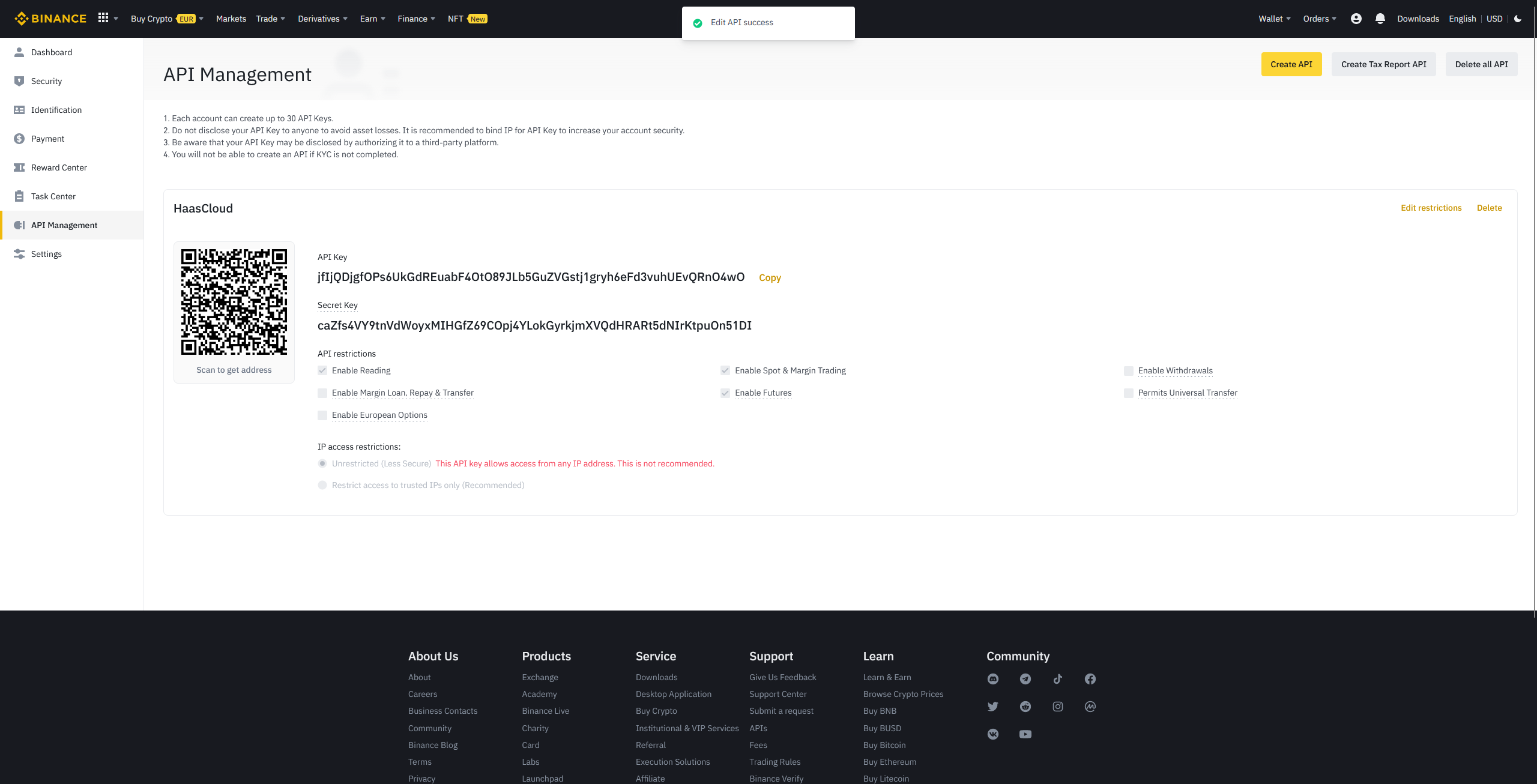
Save - A small pop-up that looks like
 will appear
 - Keep the page open and log in to your HaasOnline TradeServer and navigate to the Exchange Accounts page.