Creating Bots
Creating a trading bot in HaasOnline TradeServer Cloud is easy with our three-path approach. Whether you want to pick a curated strategy, clone a configuration template, or browse the full script library, we've got you covered.
Bot configuration workflow: build a bot, then backtest, paper trade, and go live.
Getting Started
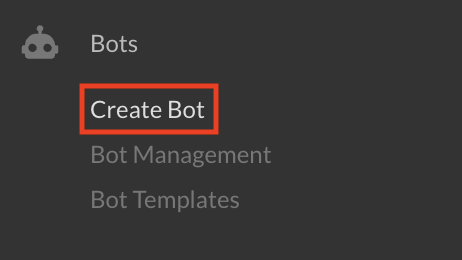
To create a new bot, click "Create Bot" in the left sidebar.
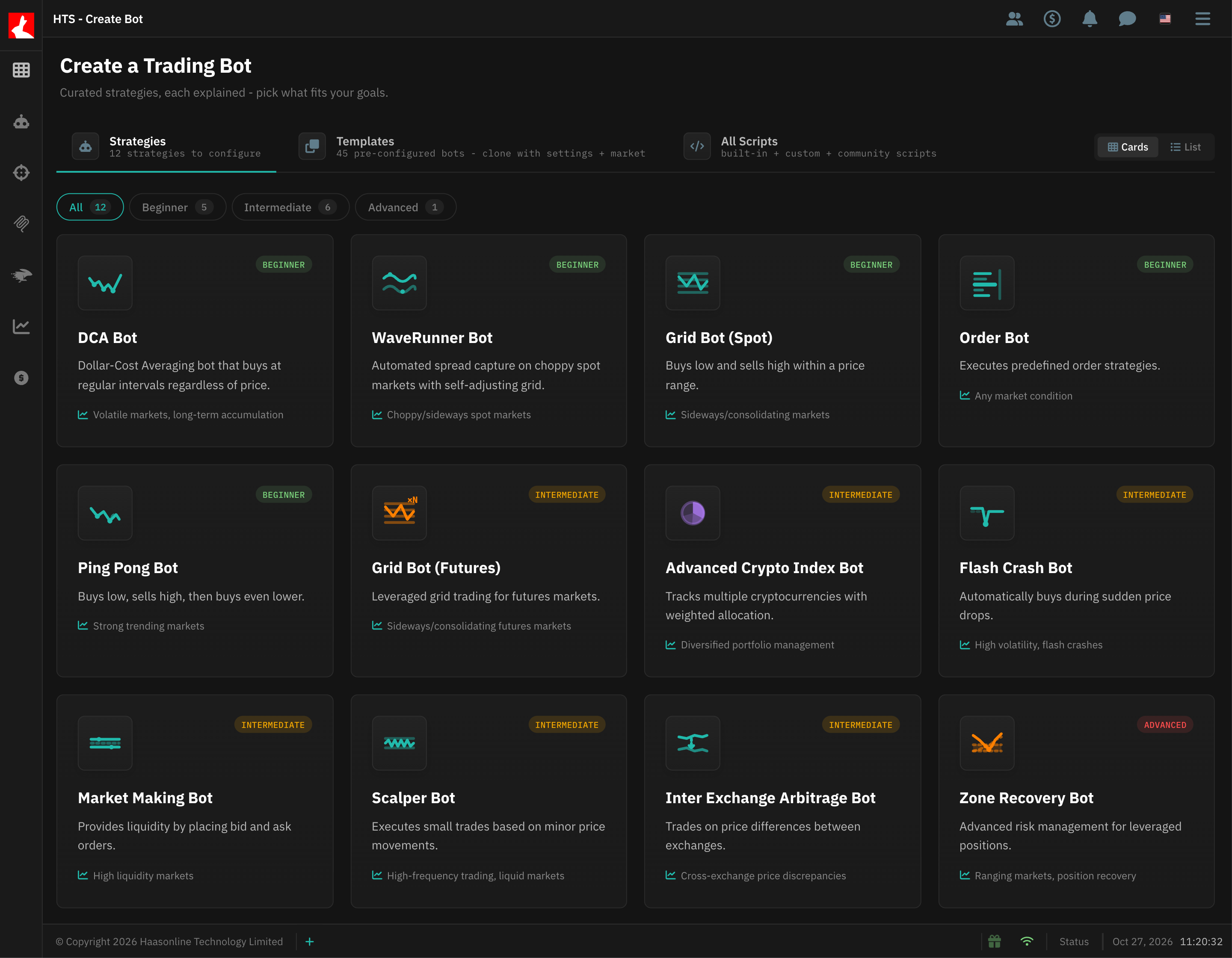
The Create a Trading Bot page has three tabs, one for each way to create a bot:

- Strategies: curated bot types, each explained, that pick the right script for you
- Templates: pre-configured bots you clone with their settings and market
- All Scripts: every built-in, custom, and community script
Method 1: Strategies (Recommended)
Choose from curated bot types. Each bot type automatically uses the correct script.
Steps
- Open the Strategies tab (it opens by default)
- Filter the strategies by difficulty with the All, Beginner, Intermediate and Advanced buttons, and switch between Cards and List at the top right
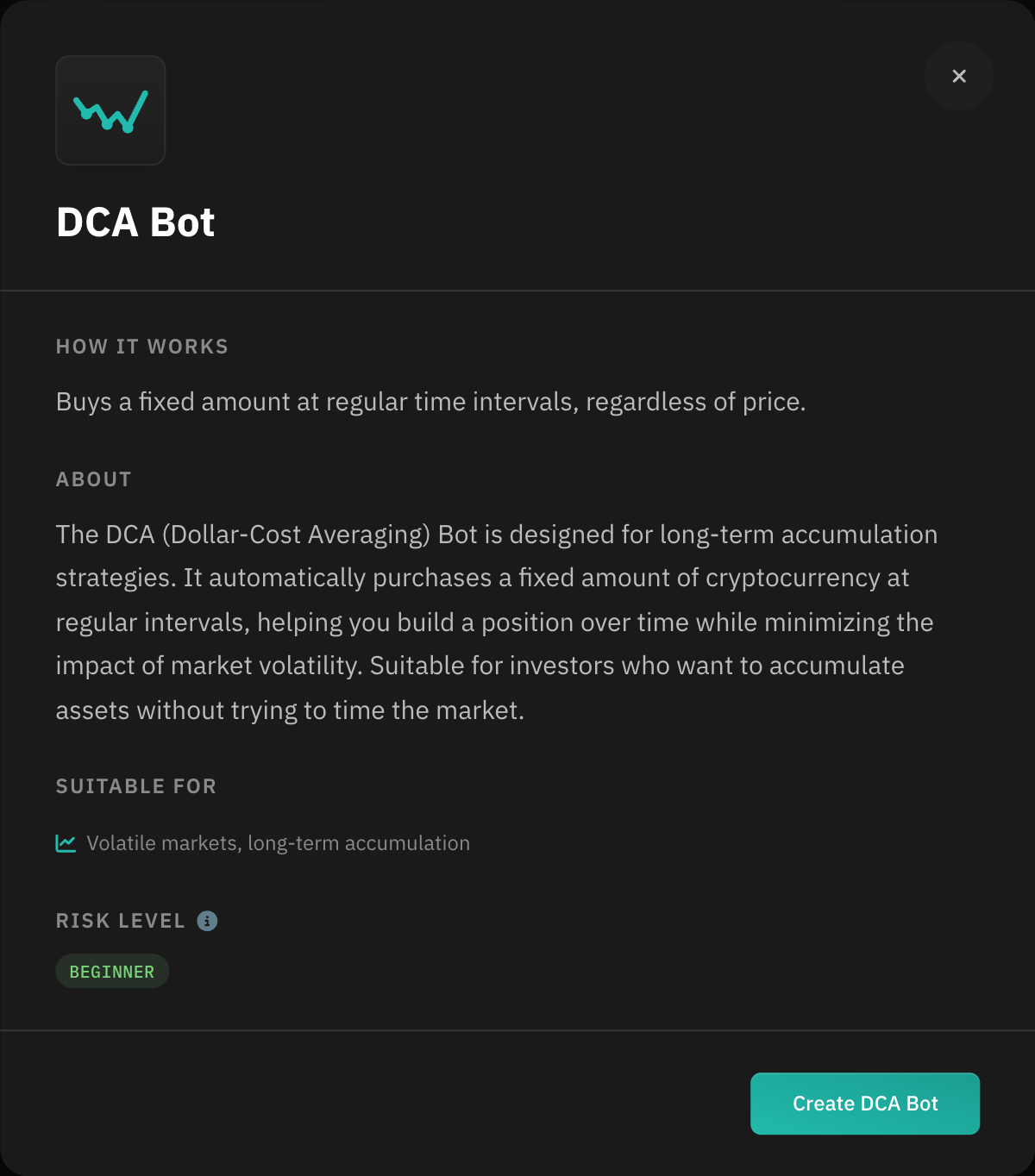
- Click a strategy card to open its details: how it works, what it is suitable for, and its risk level
- Click "Create [strategy name]" (for example "Create DCA Bot")
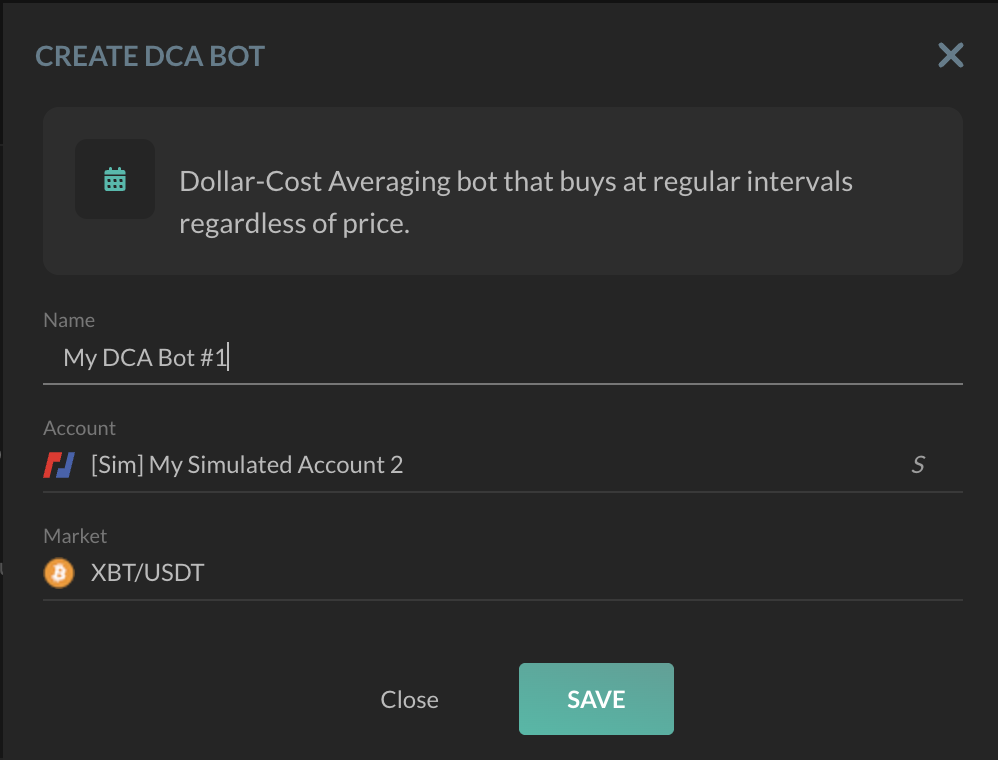
- In the configuration modal:
- Name: Enter a name (a suggestion such as "My DCA Bot #1" is filled in)
- Account: Select your exchange account
- Market: Choose your trading pair
- Click "Save" to create your bot
Available Strategies
Beginner
DCA Bot
- Description: Dollar-Cost Averaging bot that buys at regular intervals regardless of price
- Best for: Long-term accumulation, minimizing impact of volatility
- Market conditions: Volatile markets, long-term accumulation
- Script: Haasonline Original - Dollar Cost Average Bot
WaveRunner Bot
- Description: Automated spread capture on choppy spot markets with a self-adjusting grid
- Best for: Capturing the spread on repeated buy-sell pairs
- Market conditions: Choppy/sideways spot markets
- Script: Haasonline Original - WaveRunner
- Note: Spot only
Grid Bot (Spot)
- Description: Buys low and sells high within a price range
- Best for: Capturing value from market oscillations
- Market conditions: Sideways/consolidating markets
- Script: Haasonline Original - Grid Bot (Spot)
Order Bot
- Description: Executes predefined order strategies
- Best for: Systematic scaling in or out of positions
- Market conditions: Any market condition
- Script: Haasonline Original - Order Bot
Ping Pong Bot
- Description: Buys low, sells high, then buys even lower
- Best for: Scalping in trending markets
- Market conditions: Strong trending markets
- Script: Haasonline Original - Ping Pong Bot
Intermediate
Grid Bot (Futures)
- Description: Leveraged grid trading for futures markets
- Best for: Profiting from ranging markets with leverage
- Market conditions: Sideways/consolidating futures markets
- Script: Haasonline Original - Grid Bot (Futures)
- ⚠️ Note: Higher risk due to leverage
Advanced Crypto Index Bot
- Description: Tracks multiple cryptocurrencies with weighted allocation
- Best for: Diversified portfolio management
- Market conditions: Any market
- Script: Haasonline Original - Advanced Index Bot
Flash Crash Bot
- Description: Automatically buys during sudden price drops
- Best for: Capturing value during market panic
- Market conditions: High volatility, flash crashes
- Script: Haasonline Original - Flash Crash Bot
Market Making Bot
- Description: Provides liquidity by placing bid and ask orders
- Best for: Earning spreads in liquid markets
- Market conditions: High liquidity markets
- Script: Haasonline Original - Market Making Bot
Scalper Bot
- Description: Executes small trades based on minor price movements
- Best for: High-frequency trading
- Market conditions: Liquid markets with frequent price changes
- Script: Haasonline Original - Scalper Bot
Inter Exchange Arbitrage Bot
- Description: Trades on price differences between exchanges
- Best for: Capturing cross-exchange inefficiencies
- Market conditions: Cross-exchange price discrepancies
- Script: Haasonline Original - Inter Exchange Arbitrage Bot
- ⚠️ Note: Requires accounts on multiple exchanges
Advanced
Zone Recovery Bot
- Description: Advanced risk management for leveraged positions
- Best for: Recovering from losing positions
- Market conditions: Ranging markets, position recovery
- Script: Haasonline Original - Zone Recovery Bot
- ⚠️ Note: High risk, high complexity. Requires deep understanding of leverage.
Recommended Starting Points
For beginners, we recommend starting with:
- DCA Bot - Simple and effective for long-term accumulation
- Grid Bot (Spot) - Great for learning how grid strategies work
- Order Bot - Perfect for planned entry/exit strategies
Strategy Disclaimer
Strategy Disclaimer
These bot types are provided as execution frameworks, not trading recommendations. Each bot type represents a technical implementation pattern. Users must independently configure, test, and validate all parameters before deployment. This does not constitute investment advice or an endorsed strategy. You are solely responsible for all trading decisions and outcomes.
Method 2: Templates
The fastest way to get started. Clone a pre-configured bot template.
Jurisdictional Restrictions
Templates are not available to US persons. If you are in a restricted jurisdiction, this feature will not be accessible.
Steps
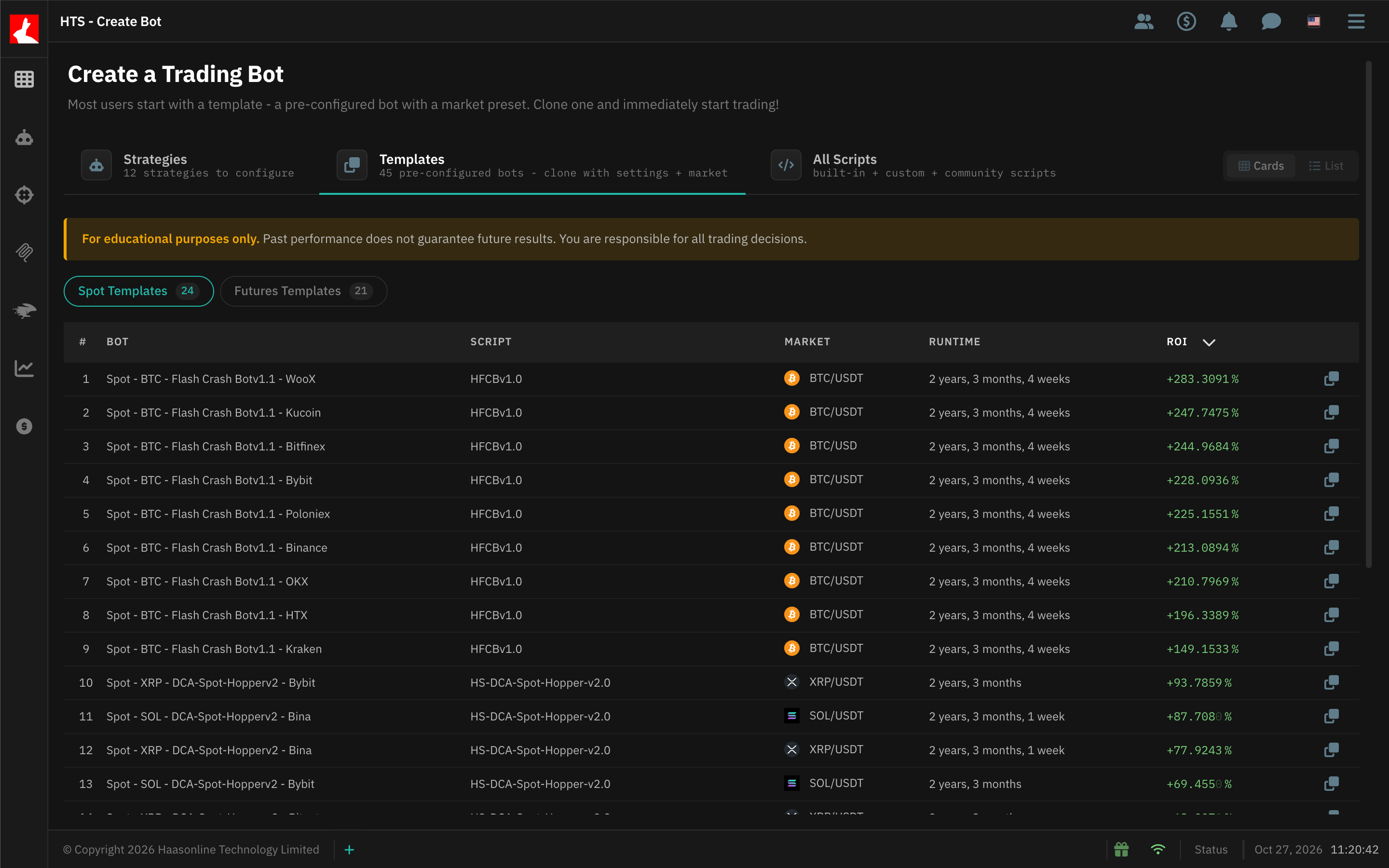
- Open the Templates tab
- Switch between Spot Templates and Futures Templates, then browse the list of configuration templates:
- Bot name
- Script
- Market
- Runtime
- ROI
- Click the bot name or the clone icon for your chosen template
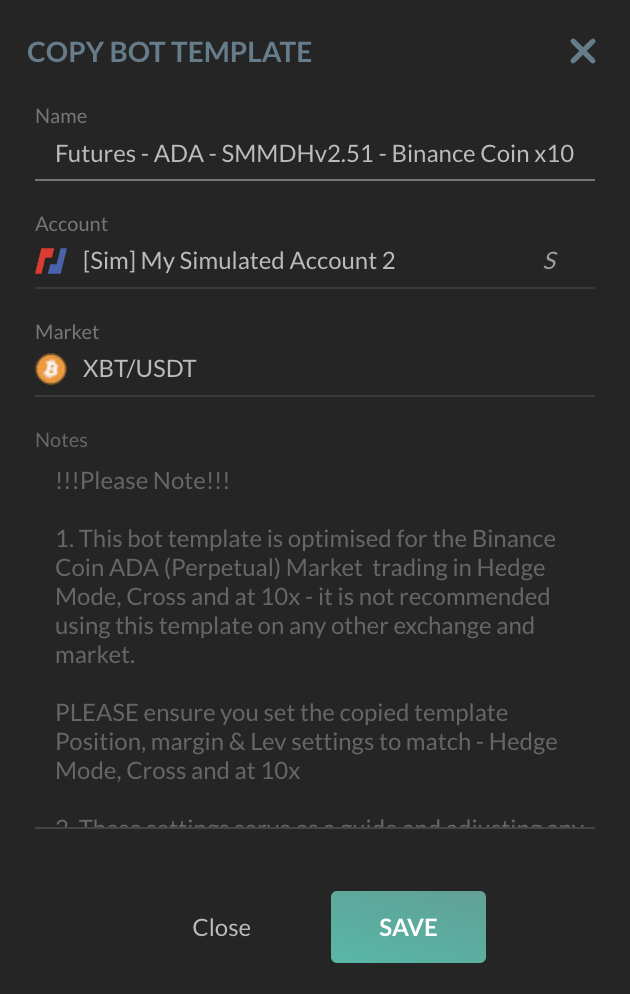
- In the Copy bot template modal:
- Name: Customize the name (or use the default)
- Account: Select which exchange account to use
- Market: Choose the trading pair (pre-selected if available)
- Notes: Read the template description (read-only)
- Click "Save" to create your bot
About Configuration Templates
Configuration Template
This is a configuration template that demonstrates one possible implementation. It is not a recommended strategy or optimal configuration. Users must customize all parameters, test thoroughly, and validate suitability for their own trading objectives and risk tolerance.
When to Use Templates
✅ Best for: Users who want to start trading quickly with example configurations ✅ Advantage: Pre-configured settings to demonstrate typical implementations ✅ Note: You can modify the bot's settings after creation
Learn more about Bot Templates
Method 3: All Scripts
For experienced users who want full control over script selection. Browse the complete HaasScript library.
Steps
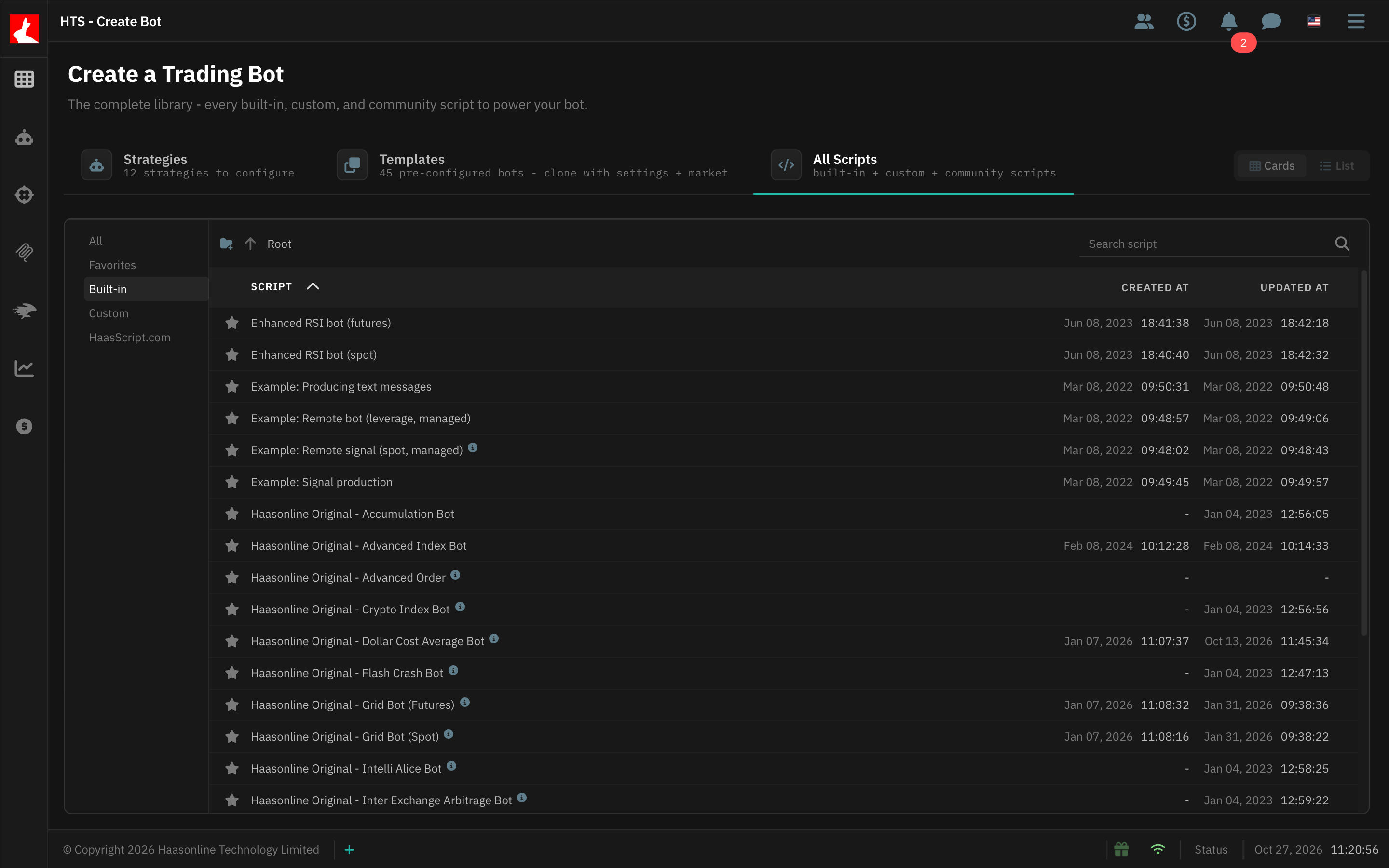
- Open the All Scripts tab
- Browse scripts using the script browser:
- All: View all available scripts
- Favorites: Your starred scripts
- Built-in: Official Haasonline scripts
- Custom: Scripts you've created
- HaasScript.com: Community scripts
- Use the Search script field to find specific scripts
- Click any script to select it
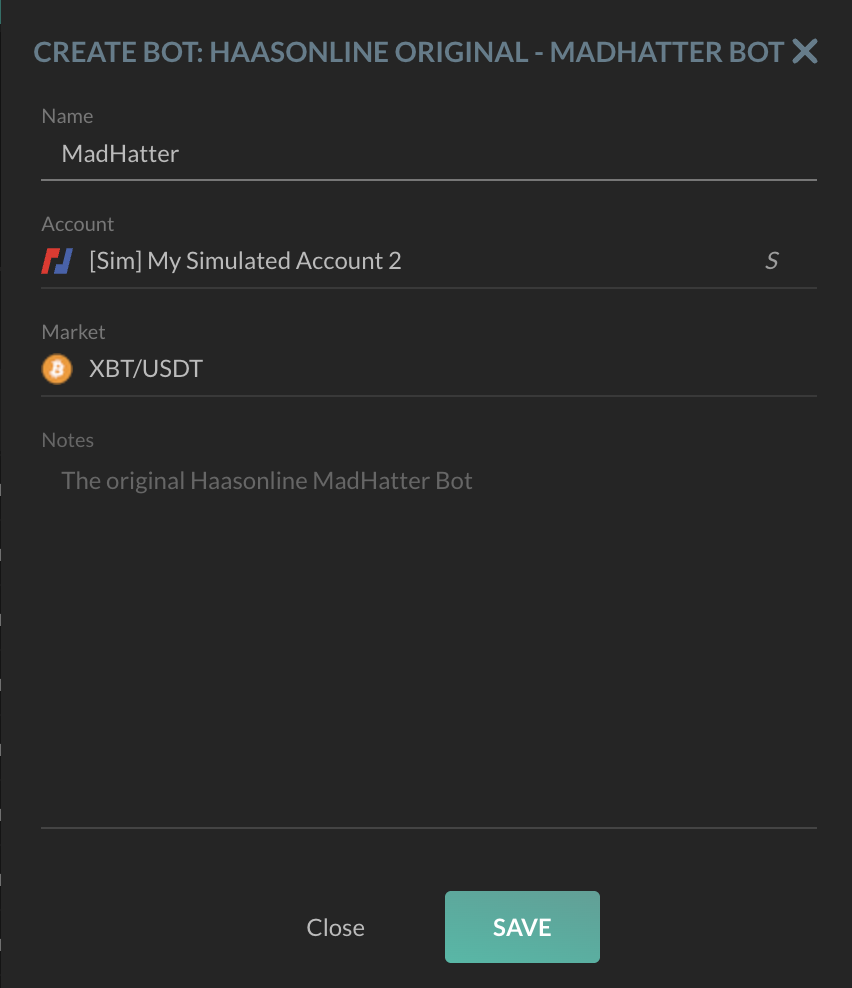
- In the configuration modal:
- Name: Enter a name
- Account: Select your account
- Market: Choose your trading pair
- Notes: Review the script description (read-only)
- Click "Save" to create your bot
When to Use All Scripts
✅ Best for: Users who want to use specific custom scripts or experimental strategies ✅ Advantage: Access to the complete script library ✅ Note: Requires understanding of HaasScript and bot configuration
After Creating Your Bot
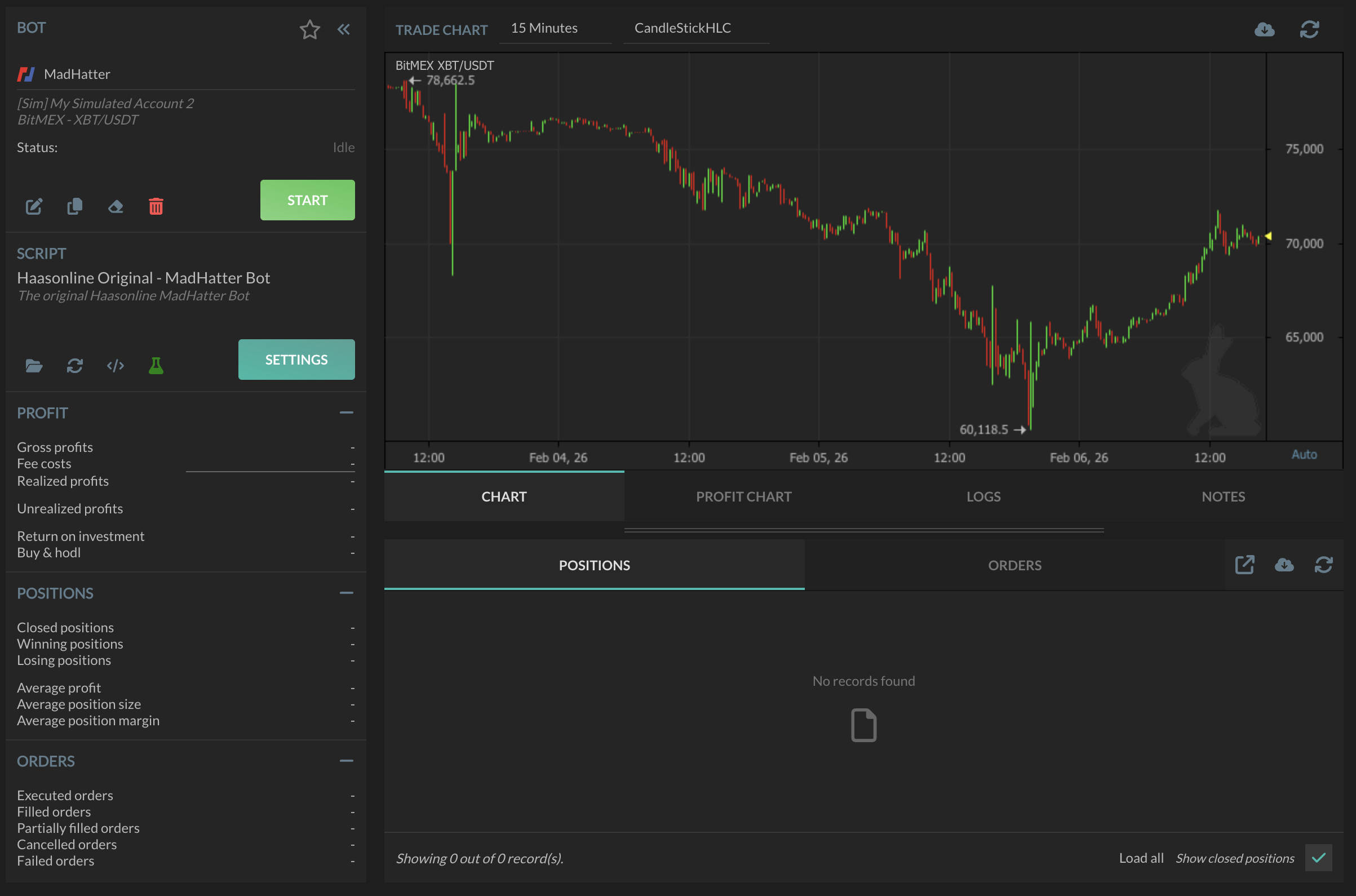
Once your bot is created, you'll be taken to the Bot Setup page where you can:
- Configure strategy-specific settings
- Set position sizing and risk management
- Enable safety features (stop loss, take profit)
- Start or stop your bot
- View logs and performance metrics
Good Practices
- Start with a simulated account to test your bot
- Use proper risk management (position sizing, stop loss)
- Monitor performance regularly
- Backtest your strategy before going live
Alternative Method: Bot Management
You can also create bots from the Bot Management page by clicking the floating "+" button. This uses the traditional two-step flow (enter details, then select script).