Skip to content

Bit2me

Obtaining the API Key

Danger

WARNING: Do NOT use the same API key that you have created for other services.

To get the API keys for your Bit2me account, click on the profile icon on the top right of the Bit2me main page and then click My account from the menu.
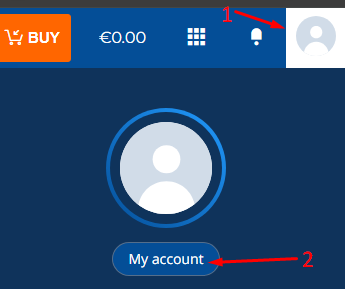
Cryptocurrency trading platform HaasOnline interface showing "My account" user profile section with account settings.

Once inside, click on API Management menu.

HaasOnline cryptocurrency trading platform with account profile, cards, referrals, security, and API management sections.

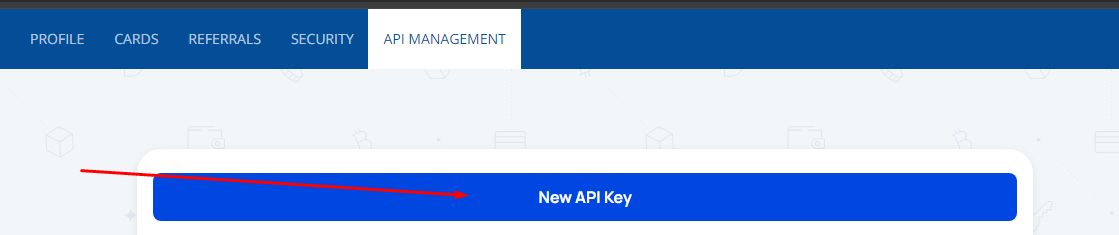
Click New API key

HaasOnline API Management dashboard with "New API Key" button highlighted.

Name you API key and click Create.

![New API Key dialog prompting user to enter a name for their API Key on the HaasOnline trading platform.](/assets/image-12.png)

Start by selecting Edit for the newly created API key and configure as indicated below and then click Save then copy the keys followed by Cancel to exit the menu
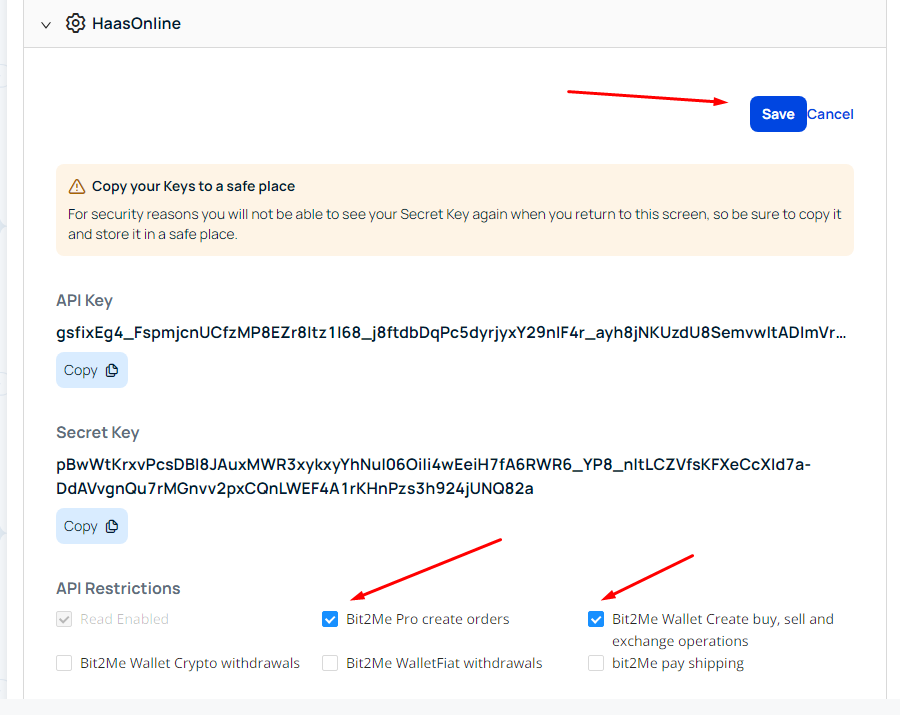
Cryptocurrency trading platform HaasOnline dashboard with API key, Secret Key, and API Restrictions details displayed.

Adding the API to HaasOnline TradeServer Cloud

Log in to TradeServer Cloud.

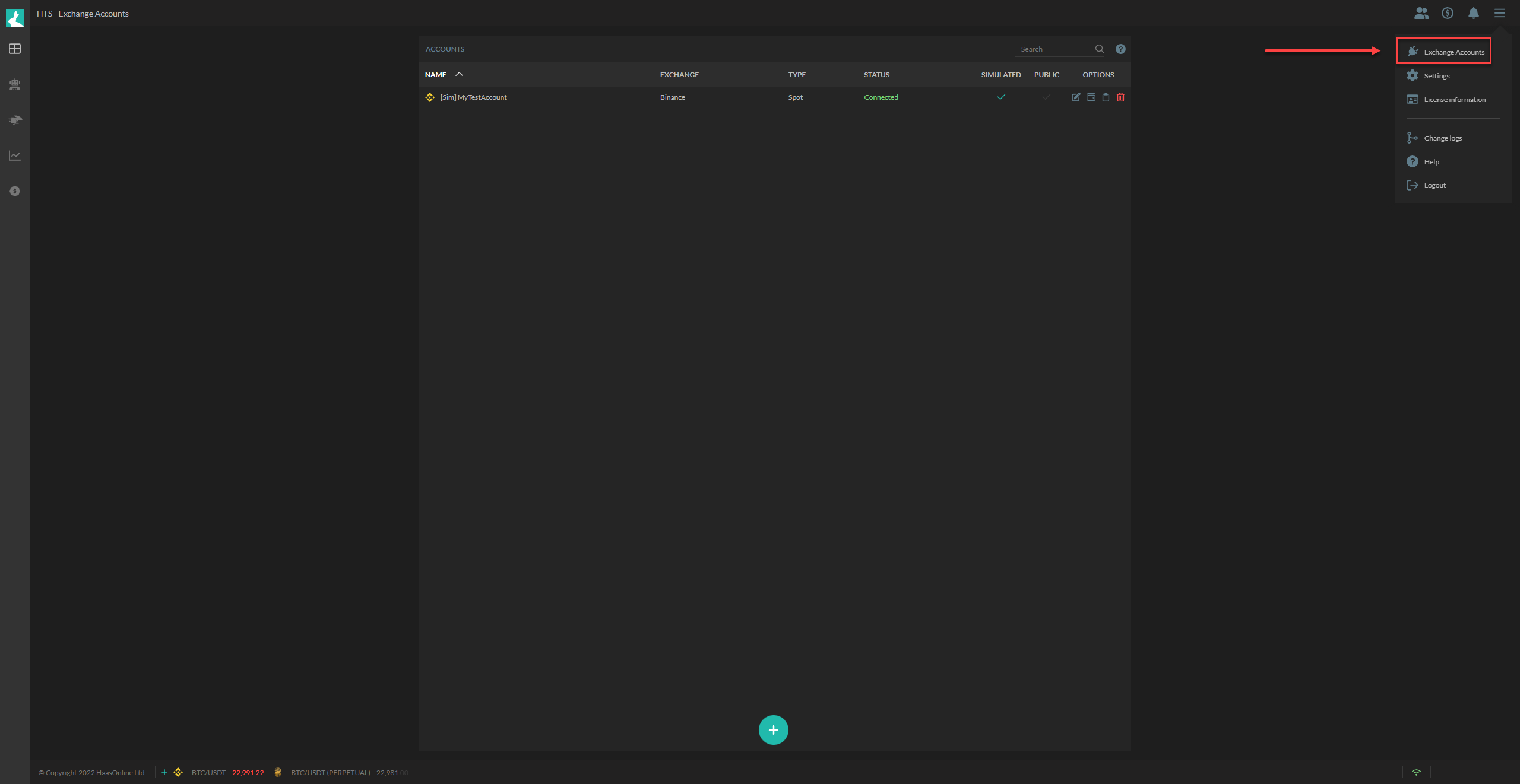
Click on the <img src="/assets/image-481.png" alt="" data-size="line" icon and select Exchange Accounts

Cryptocurrency exchange accounts management interface with Exchange Accounts panel and Connect status indicator

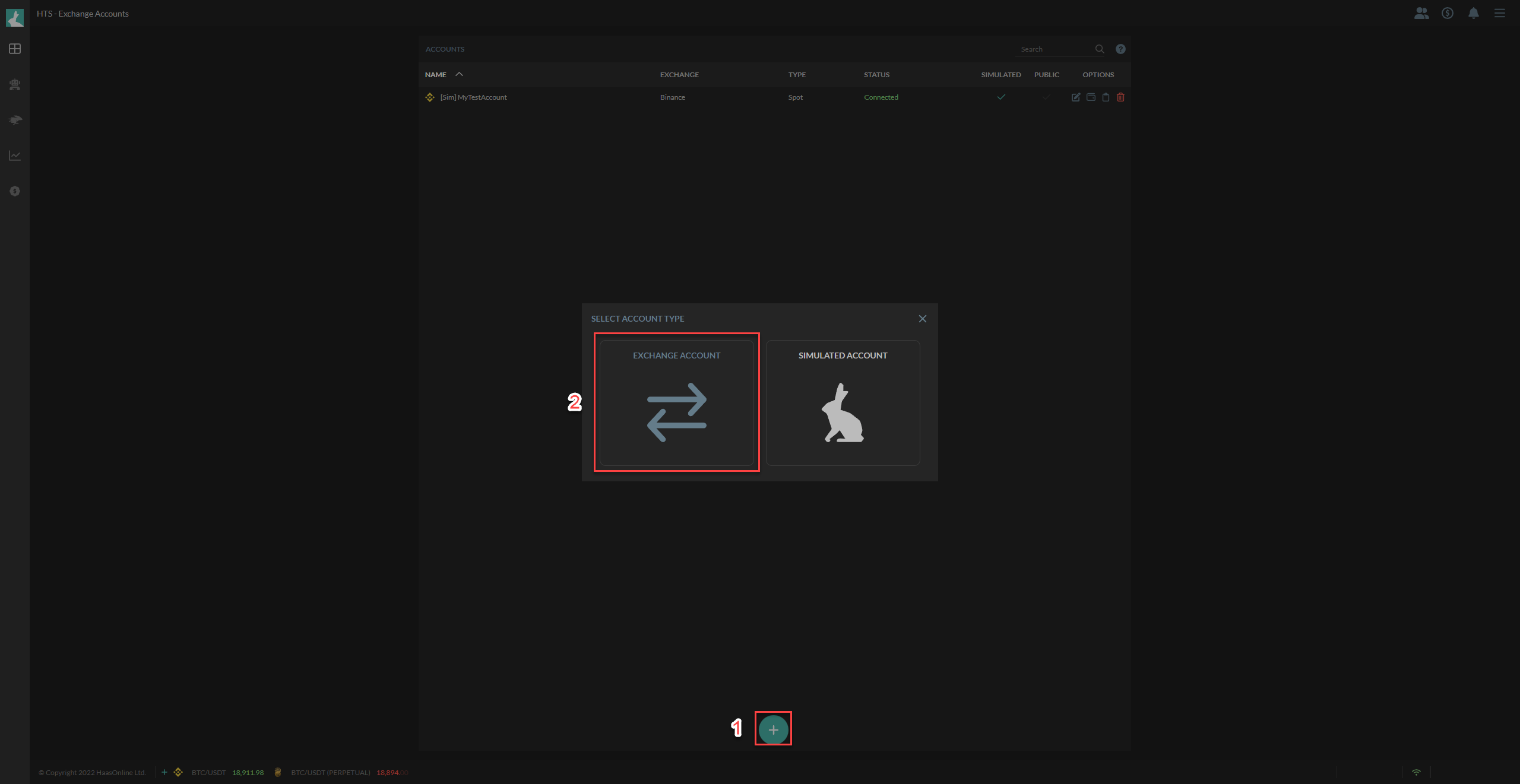
  1. Click on the <img src="/assets/image-419.png" alt="" data-size="line" icon.
  2. Select Exchange Account.

HaasOnline exchange account management interface with 'Exchange Account' and 'Simulated Account' options.

From the list of exchanges that we support, click on Bit2me.

![Cryptocurrency exchange platform menu showing Bit2Me as one of the available exchange options.](/assets/image-14.png)

Name the account and fill in the API keys.

![Bit2Me account setup screen with IP addresses, account name, API Key, and API Secret fields for exchange configuration.](/assets/image-15.png)

Once that is done, the TEST KEYS button should be active for you to press. Click on it.

Should the test pass, you will be able to click on Submit to add the API key to the platform.