❌ HitBTC
Obtaining the API 
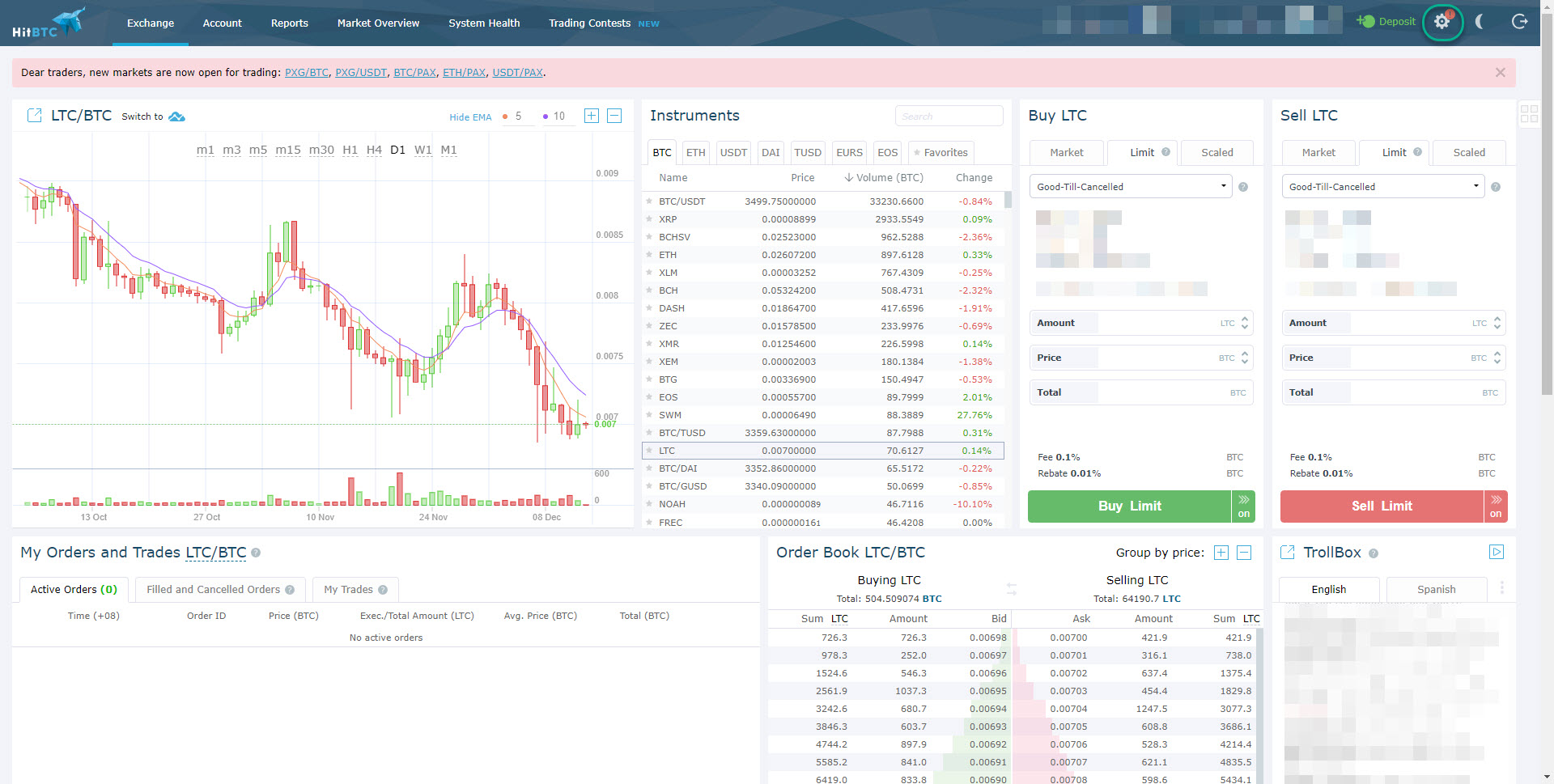
To get the API keys for your HitBTC account, you need to log in and click on the gear icon on the top right
In this page, click on API keys and then click on New API key
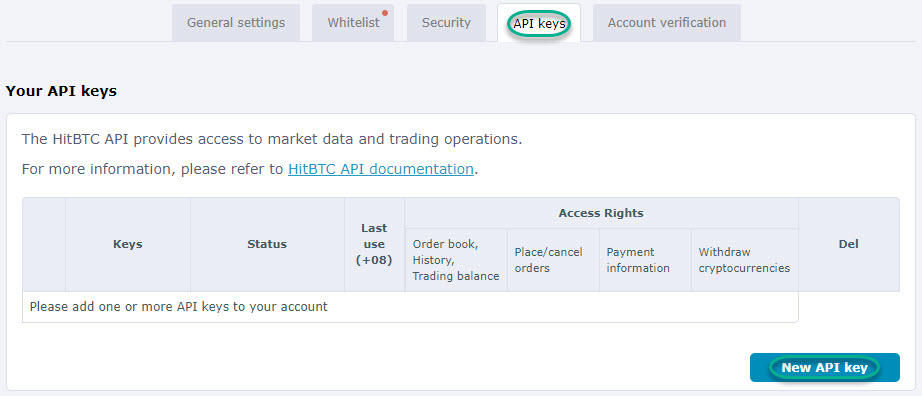
This will automatically give you the API and Secret that you will need to copy to HaasOnline TradeServer. We recommend that you copy these immediately.
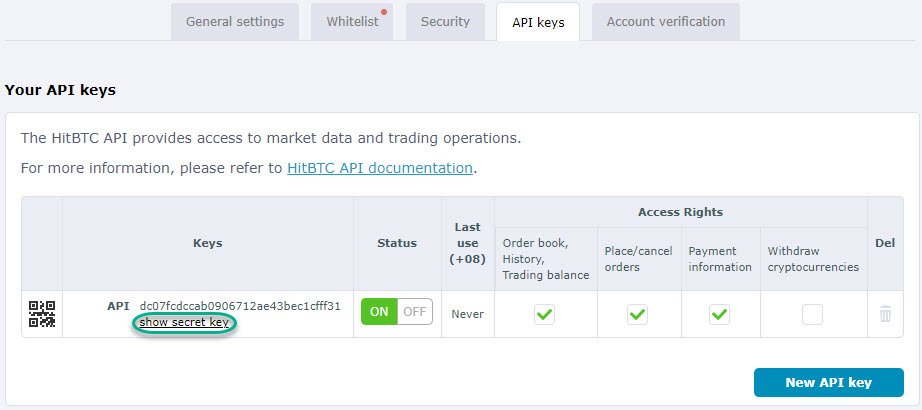
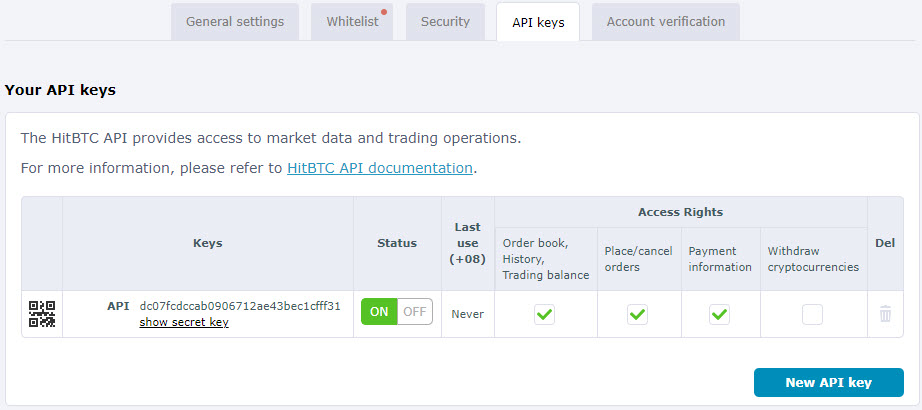
You will need to enable Order book, History, Trading balance, Place/cancel orders and Payment information before you can use the API.
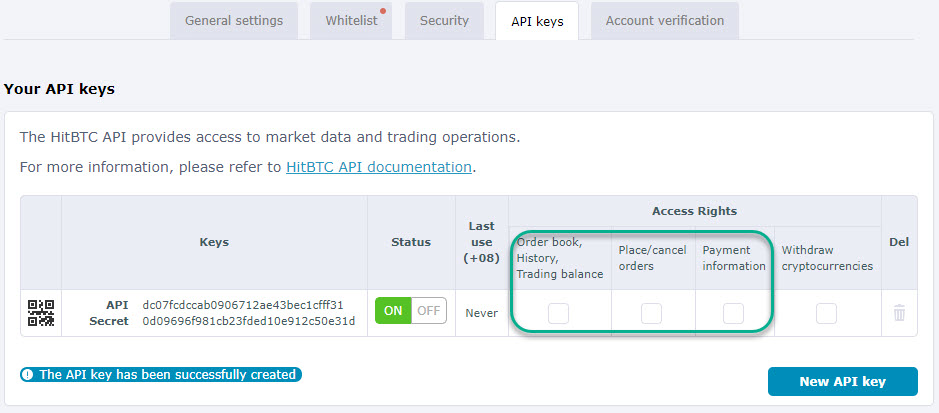
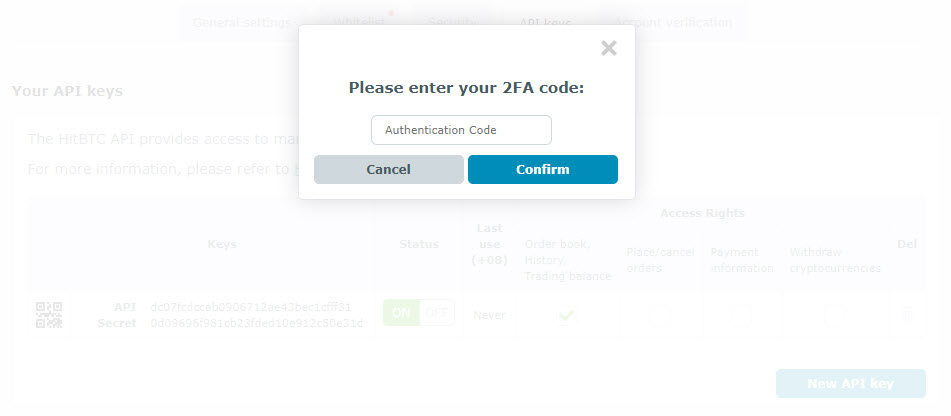
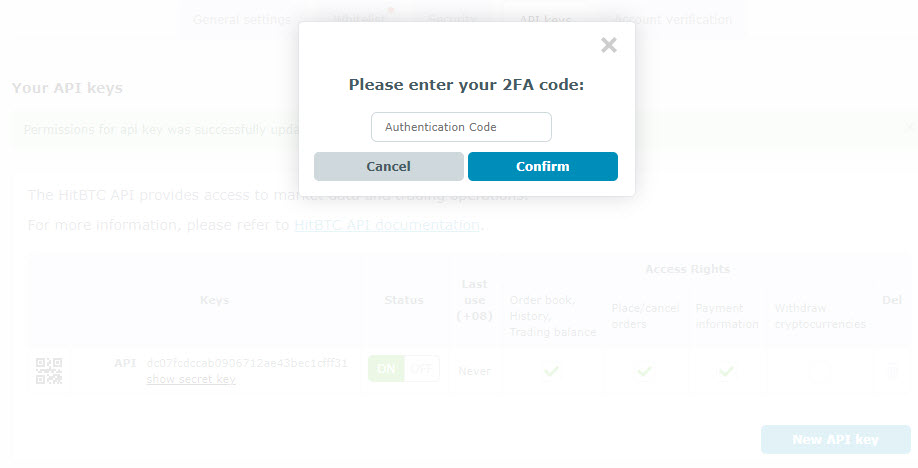
Once you click on Order book, History, Trading balance, HitBTC will request for your 2FA code. Enter it.
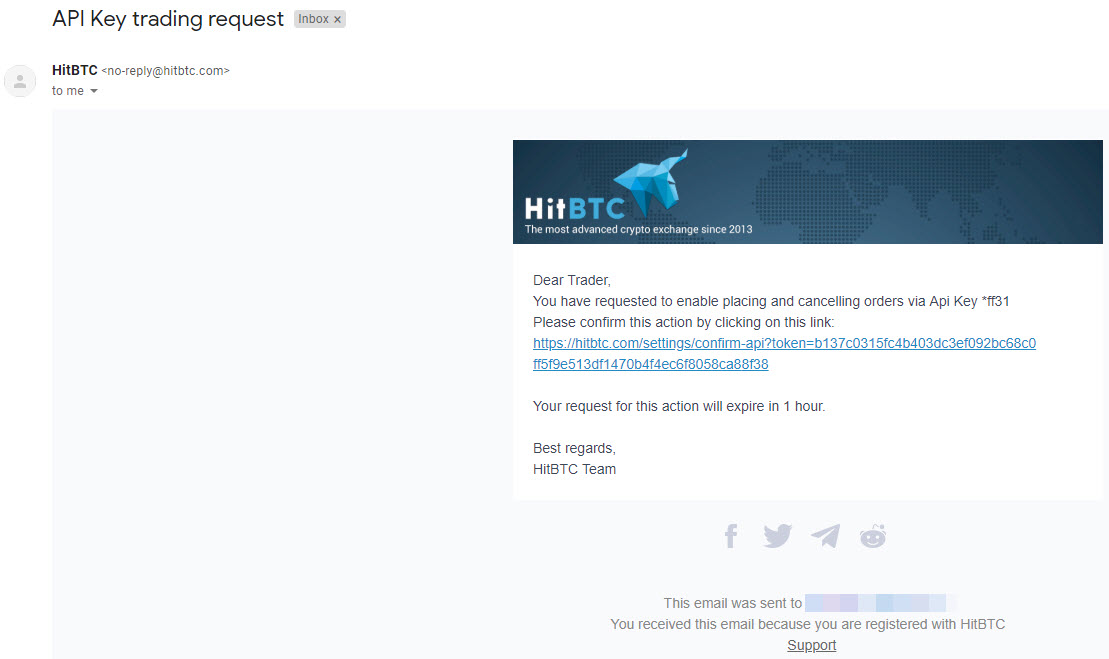
Then proceed to click on Place/cancel orders where it will require email authentication. Log in to your email and click on the link provided in the email. This will bring you back to HitBTC and Place/cancel orders will be enabled.
Next, we will have to enable Payment Information. This will require you to enter your 2FA code again.
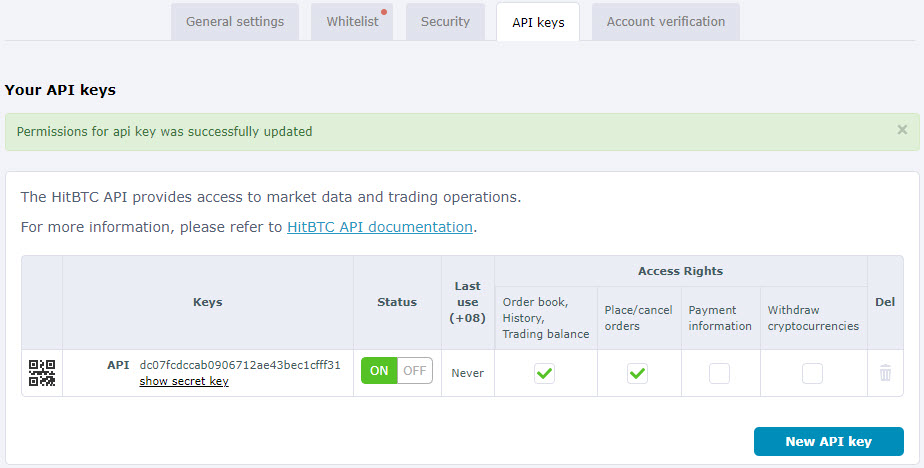
Your completed API key should look like this:
Warning
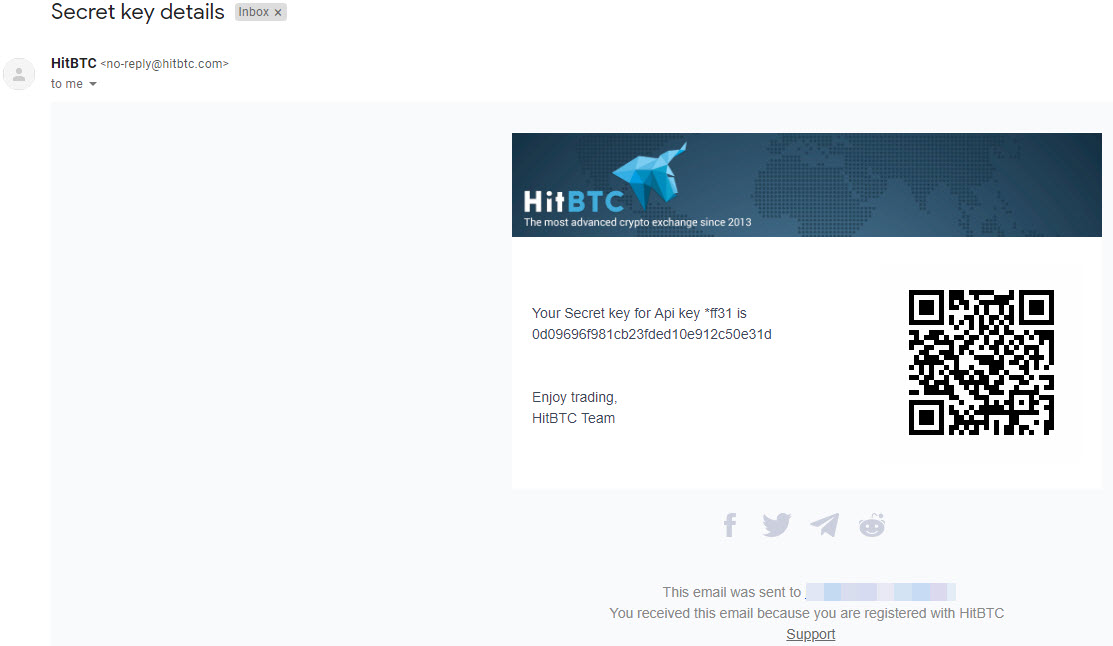
If you did not copy Secret earlier, you can just click show secret key and an email will be sent to you. It will also be shown on the page.