Getting Started
Getting Started
To begin trading with TradeServer, you first need to set up an exchange account. Simply click on the menu icon in the upper right-hand corner of the screen and select "Exchange Accounts" from the drop-down menu. From there, you can create a real or simulated account using the wizard provided. We recommend starting with a simulated account.
Once you have set up your account, verify that it is working correctly by clicking on the wallet icon in the upper right-hand corner of the screen. This will display your account's wallet.
Learn to Backtest
Next, open the web editor and load a scalper bot to begin learning how to backtest. You can access the web editor from the left-hand menu by clicking on "Web Editor" and then selecting "Open". Once the bot is loaded, you will be able to view its logic in the web editor. Use this opportunity to run some backtests and get a feel for how to test a script, bot, or strategy.
Set Up Your First Bot
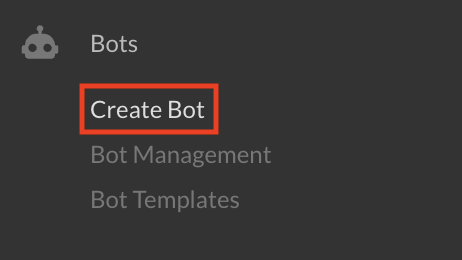
After becoming comfortable with backtesting, you can create your first bot. Click "Create Bot" in the left sidebar to access the bot creation wizard.
There are three ways to create a bot, depending on your experience level:
Option 1: Quick Start with Templates (Fastest)
The quickest way to get started is to clone a configuration template:
Jurisdictional Restrictions
Templates are not available to US persons. If you are in a restricted jurisdiction, this feature will not be accessible.
- Click the "Browse Templates →" button in the Quick Start banner
- Browse available configuration templates organized by strategy type
- Click on a template's name or the clone icon
- Customize the bot name, select your account and market
- Your bot is created with optimized settings!

About Templates
Configuration templates are pre-configured bots provided for educational purposes to demonstrate typical implementations. Users must independently evaluate, test, and customize all settings before deployment.
Option 2: Standard View (Recommended for Beginners)
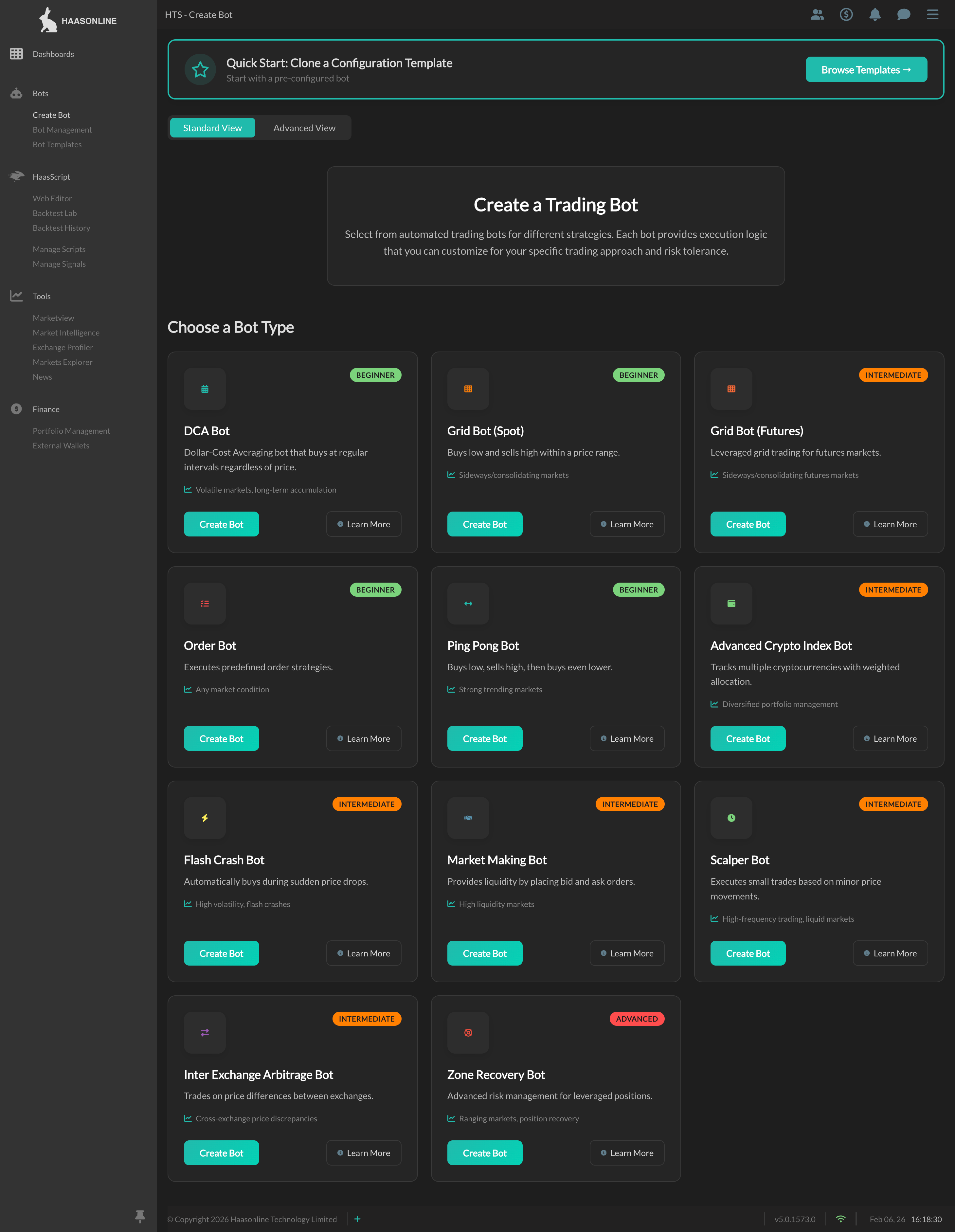
For a guided experience, use Standard View to choose from beginner-friendly bot types:
- Stay in "Standard View" (default)
- Browse bot types organized by category:
- Accumulation Strategies: DCA Bot, Grid Bots, Index Bot
- Market Making & Trading: Order Bot, Ping Pong, Scalper, Arbitrage
- Risk Management: Flash Crash Bot, Zone Recovery Bot
- Click a bot type card (e.g., "DCA Bot" or "Grid Bot (Spot)")
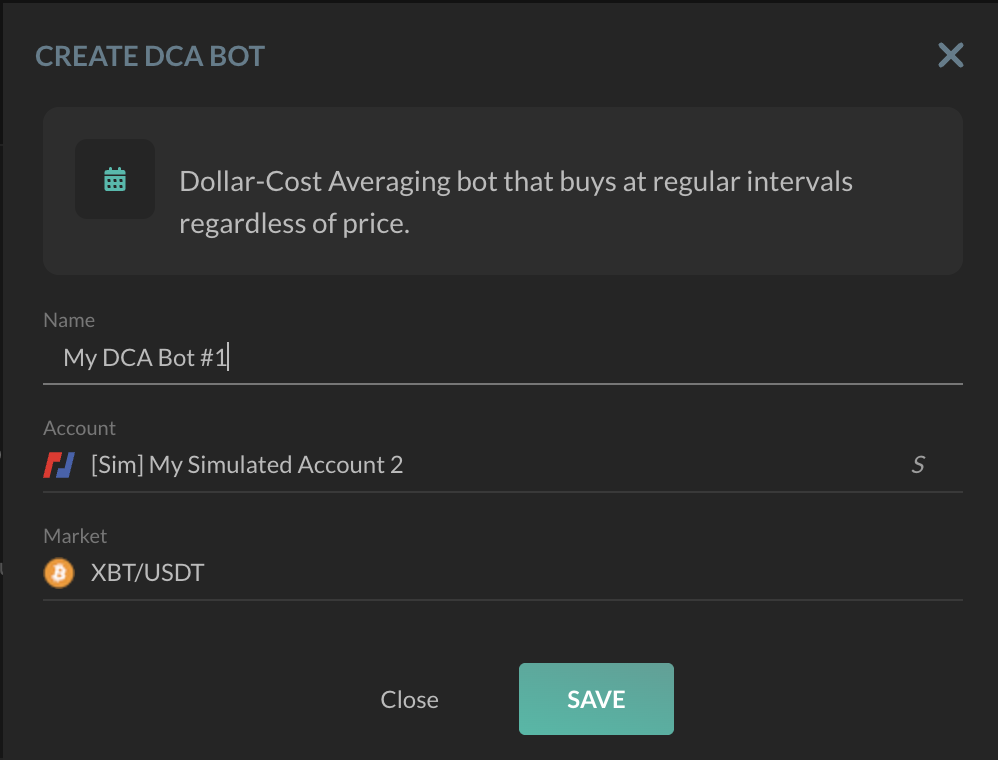
- Fill in your bot name, select account and market
- The bot is automatically configured with the correct script!
Recommended starter bots:
- DCA Bot - Best for long-term accumulation strategies. Buys at regular intervals regardless of price.
- Grid Bot (Spot) - Best for sideways/ranging markets. Places buy and sell orders within a price range.
Read detailed guide on Creating Bots
Option 3: Advanced View (Full Control)
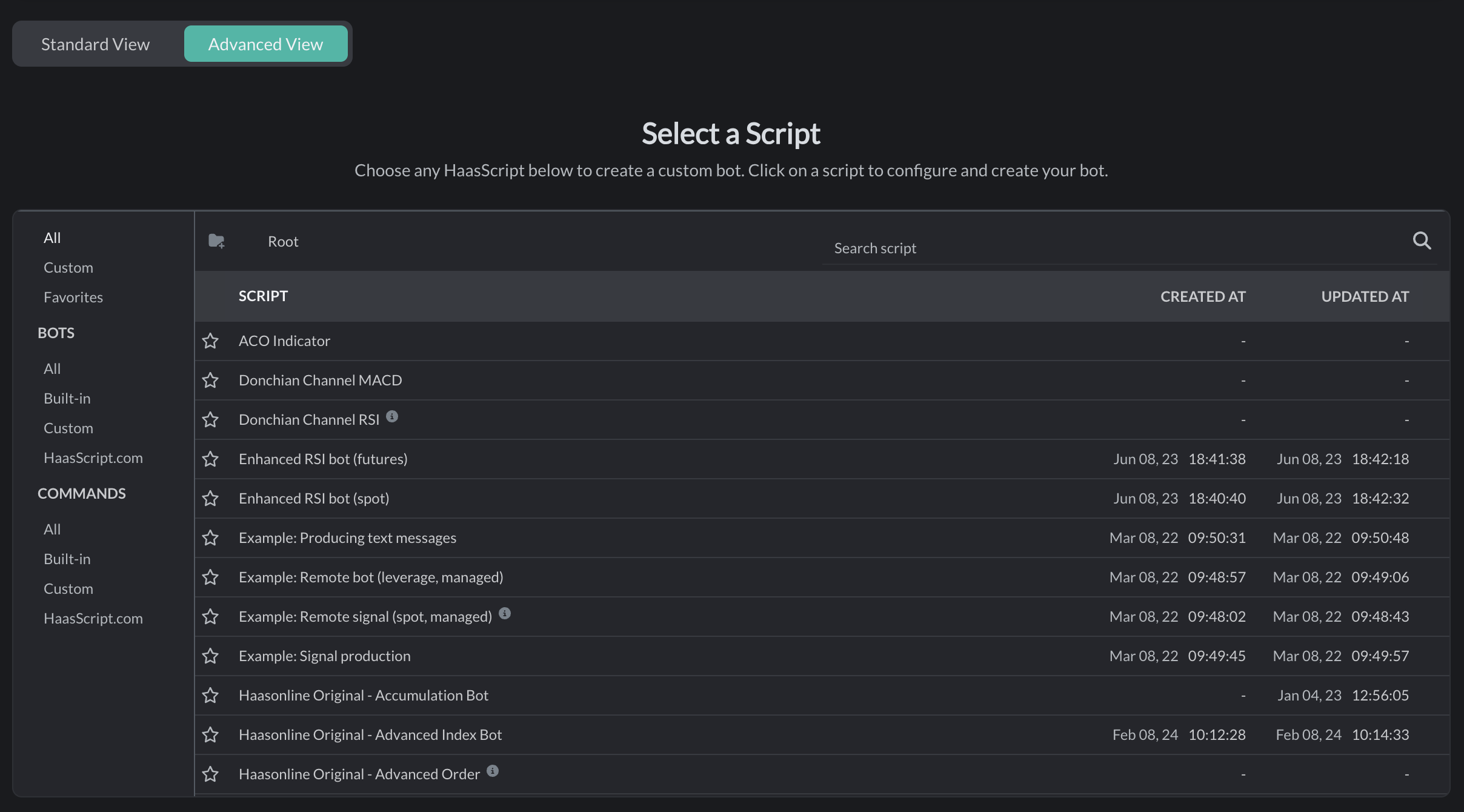
For experienced users who want to select a specific HaasScript:
- Switch to "Advanced View" tab
- Browse the complete script library with search and folders
- Click any script to create a custom bot
- Configure name, account, and market
- Your bot is created with your selected script
Alternative Method
You can also create bots from Bot Management by clicking the "+" floating button at the bottom. This uses the original two-step flow.
Once your bot is created, you'll be taken to the Bot Setup page where you can configure its strategy settings, start/stop the bot, and monitor its performance.
Learn to Use Labs
The TradeServer platform features Backtest Labs, which scans your strategy to determine the most optimal settings. Access Backtest Labs from the left-hand menu and create a new test. Name the test and select the script to be tested. You will then be directed to the lab test setup page, where you can configure the market to be used and what properties of the script to test.
Good Practices
It's recommended to start with a simulated/paper account first to see what would happen if you were to run a bot in a live environment.
Before running any bots, it's a good idea to compile a plan that outlines how much you are willing to risk and how you will allocate your risk. It should also specify entry and exit points, stop-loss levels, and profit targets. Regularly monitor your bot's performance using the logs and statistics provided by TradeServer, and make any necessary adjustments to prevent further losses.
Continuously backtest and optimize your scripts to find the most effective settings for different market conditions. Diversify your portfolio by spreading risk across different markets and strategies. Stay informed about market news, events, and trends to adjust your strategies and bots to changing market conditions.