Setup Telegram Notification Bot
This page is a walkthrough guide for connecting TradeServer Cloud to Telegram. Once connected to the Telegram bot, TradeServer Cloud will push notifications to the bot. These notifications can come from manual orders or bots that you've set up.
Notification Overview 
Below is a list of the currently available notifications that can be pushed from TradeServer Cloud to Telegram.
- Completed orders (bot & manual orders through TradeServer Cloud)
- Cancelled orders (bot & manual orders through TradeServer Cloud)
- Historical orders (data from API)
All Bots 
- Activating/Deactivating
- Trade amount error
- Coin/Funds position switch
- Order execution
Specific 
- Trade Bots - Safety triggered.
- Accumulation Bots - Deactivated by max amount.
- Crypto Index Bots - Stop-Loss triggered.
- Email Bot - Stop-Loss triggered.
- Email Bot - Email matched.
- Flash Crash Bot - Out of range by x%.
- Flash Crash Bot - Safety activated.
- Flash Crash Bot - Follow The Trend deactivated.
- Order Bot - Order triggered.
- Inter-Exchange Arbitrage Bot - Deactivated by max amount.
Message Profile 
Each bot has its own message profile that can ignore or push notifications. To edit a Trade Bot's message profile:
- Open the bot and click on “Message Profile” under the Quick Links
- Open the context menu on the bot page, list or widget and click on “Message Profile.”
To edit a Custom Bot's message profile:
- Open the custom bot and click on “Message Profile” under the options dropdown.
- Open the context menu on the bot page, list or widget and click on “Message Profile.”
Telegram Notification Guide
Info
The screenshots for this guide were taken from the web version of Telegram. The layout might be different on the mobile version of the application.
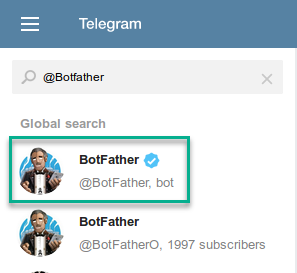
- Open Telegram and search for @BotFather (note that there may be a few fakes in your search, only choose the one with a blue tick beside the name). If you cannot find it, click on this link and it will automatically open your Telegram application to the correct channel: https://telegram.me/botfather
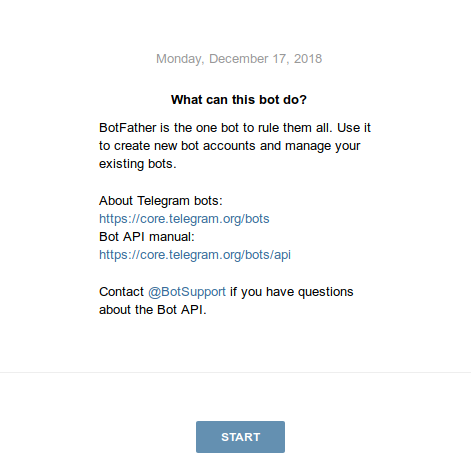
- Click on
Start(if that is not available, type/start) and a list of options will be made available for you.
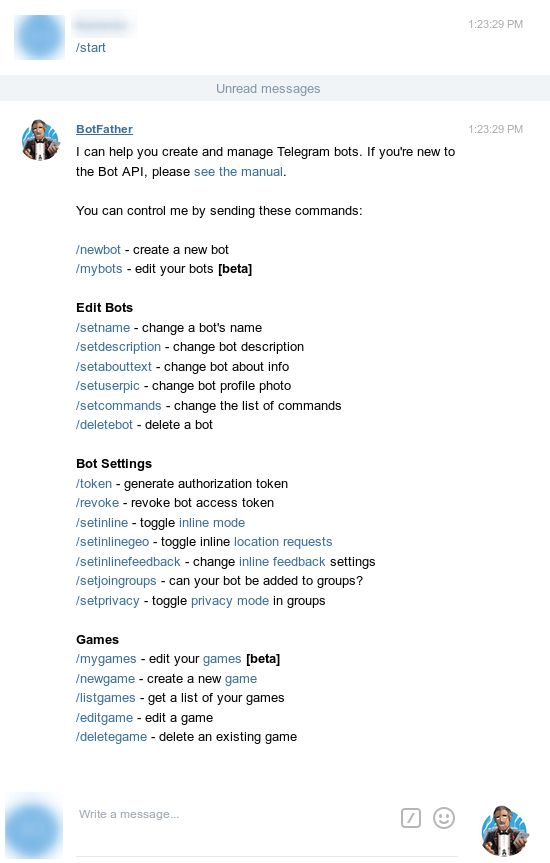
- You can click on or type out
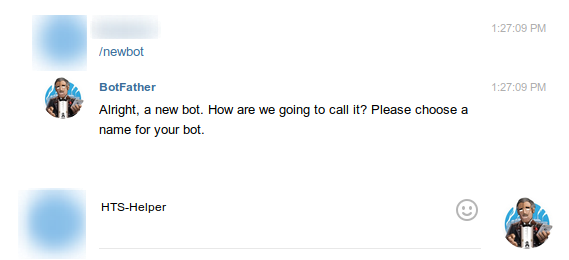
/newbot. BotFather will then ask you to name your notification bot. We recommend that you type in something that you would easily recognize. In this example, it will beHTS-Helper.
- BotFather will ask you for the username of this new bot that you are trying to create. Choose a simple username that you would be able to remember. In our example it will be
HTS_Helper_bot.
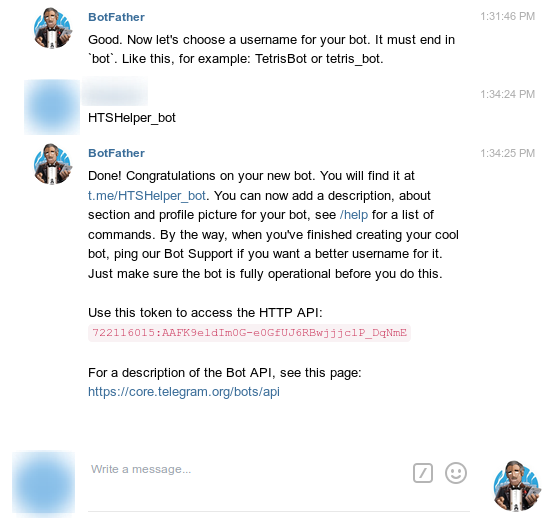
- Congratulations! You've created your new Telegram notification bot. Copy the
HTTP APIaccess token and we'll paste it into HTS. - Log in to your HTS and go to
Settingsand then click onNotification. Here you'll see a section for Discord and Telegram Notifications.
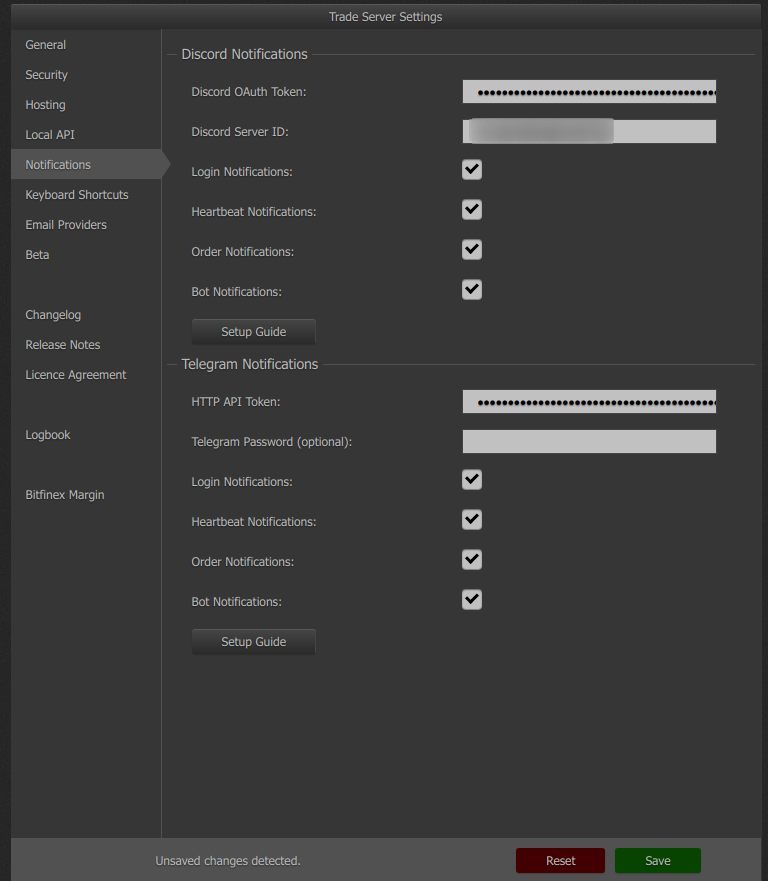
- Paste your
HTTP APIaccess token into the provided field and clickSave. - You can now search for the bot's username that you have created earlier in Telegram. In this example, it is
@HTS_Helper_bot.
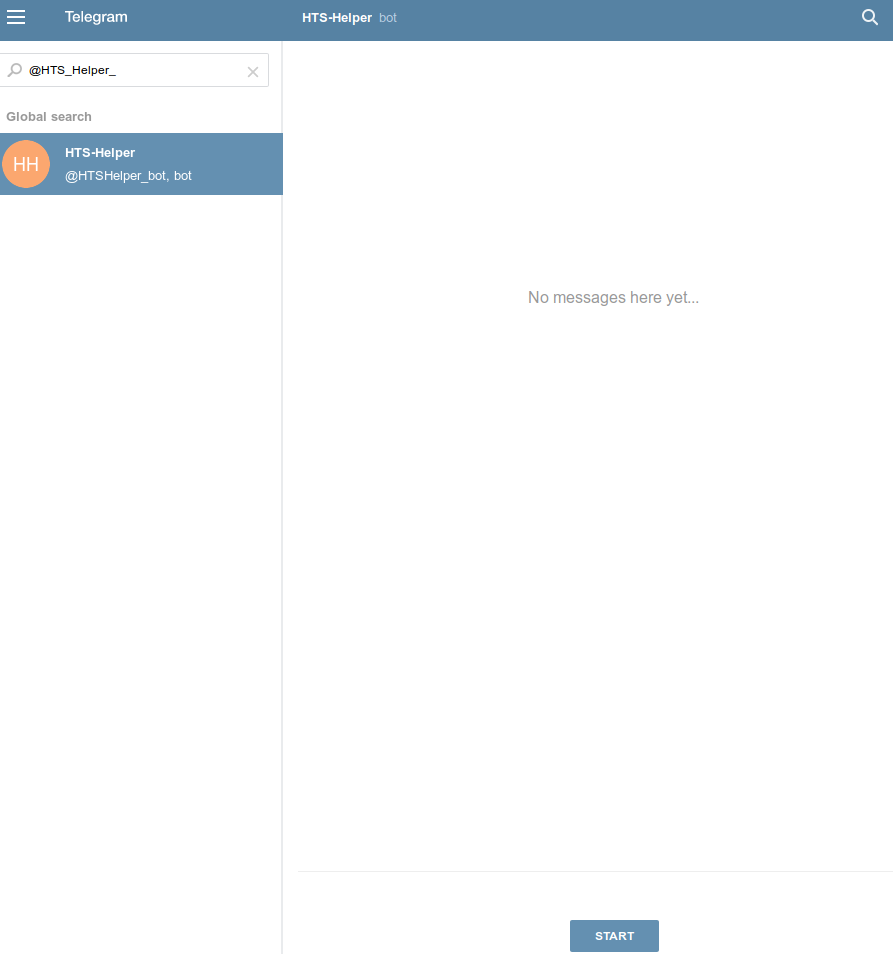
- Click on
Start(if that's not available, type/start) and some help text will pop up.
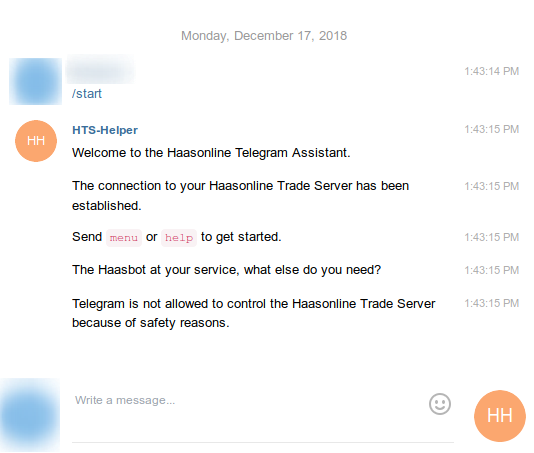
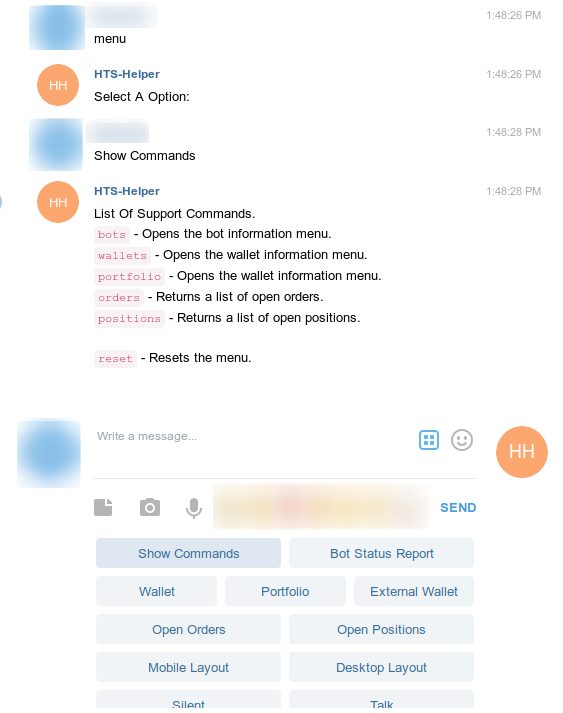
- You can type in
menuorhelpto see the available options. - Clicking on
Show Commandswill provide a list of commands that can help you.
Video Guide
You can connect your trade server to telegram messenger to receive updates in the mobile app.