AI Agent Access on Cloud
HaasOnline TradeServer Cloud exposes a Model Context Protocol (MCP) endpoint, so you can connect Claude, Cursor, VS Code or any MCP-compatible agent to your account and work with your bots, scripts and market data in conversation.
Connecting takes one command or one click. There is no API key to create or paste — your agent runs a standard browser authorization flow and you approve it on a HaasOnline page.
Self-hosting instead?
If you run TradeServer on your own hardware, the setup is different — it uses an API key rather than a browser flow. See MCP Server (self-hosted).
Availability
AI agent access is included on the Standard, Pro and TradeServer plans, and throughout your free trial.
It is not included on the Starter plan. If your plan does not include it, the authorization screen will tell you so and link to the plan comparison rather than connecting.
Setup
Everything below lives on one page — open AI Agent → Connect an agent in the sidebar.
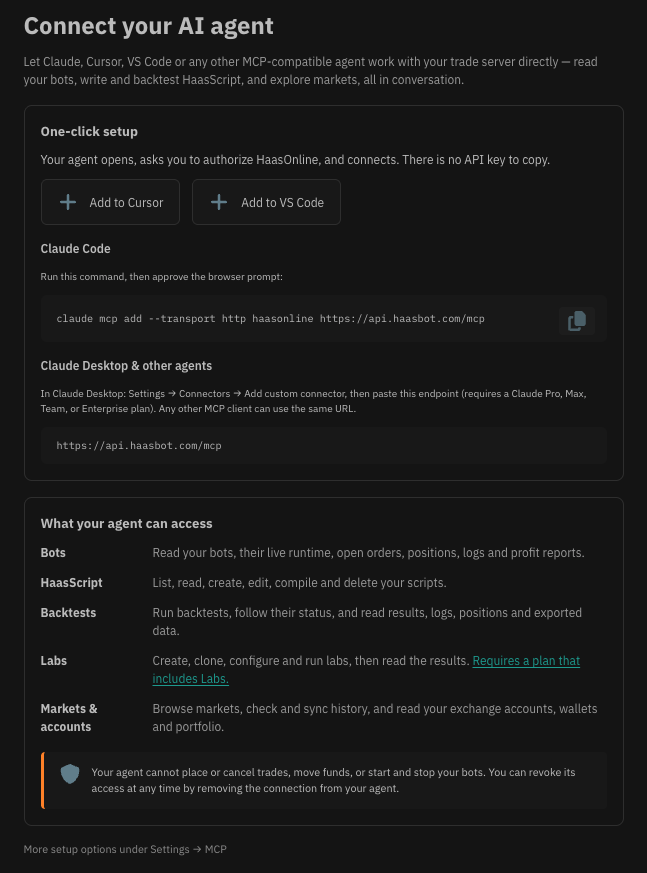
Option 1 — one click
Open AI Agent in the sidebar and use the connect buttons for Cursor or VS Code. Your agent opens, asks you to authorize HaasOnline, and connects.
Option 2 — Claude Code
Run this command, then approve the prompt that opens in your browser:
Option 3 — Claude Desktop and other clients
In Claude Desktop, go to Settings → Connectors → Add custom connector and paste the endpoint below. This requires a Claude Pro, Max, Team or Enterprise plan. Any other MCP client that supports remote servers over HTTP can use the same URL.
What happens when you approve
The connection uses OAuth 2.1 with PKCE — the same mechanism that lets an application read your calendar or your repositories. In short:
- Your agent registers itself and sends you to a HaasOnline authorization page.
- You review what is being requested and approve it.
- HaasOnline issues your agent a token scoped to MCP access only.
Your exchange API keys are never given to the agent. The MCP server authenticates against your account on your behalf.
Access tokens are short-lived and refresh automatically, so you should not need to repeat this.
Revoking access
Remove the connection from your AI client and its token stops working. There is nothing to clean up on the HaasOnline side.
What your agent can and cannot do
Once connected, your agent has access to the full tool set — see the Tools Reference for the complete list.
In summary, it can:
- Read your bots, their live runtime, open orders, positions, logs and profit reports
- List, read, create, edit, compile and delete HaasScripts
- Run backtests and read results, logs, positions and exported data
- Create, clone, configure and run Labs, then read the results — on plans that include Labs
- Browse markets, check and sync history, and read your exchange accounts, wallets and portfolio
It cannot:
- Place or cancel trades
- Move or withdraw funds
- Start or stop your bots
Those tools do not exist in the MCP interface, so no prompt can cause them.
Your agent can delete work
Creating, editing and deleting scripts, Labs and backtests is most of what makes an agent useful, and it is genuinely destructive. Treat a connected agent the way you would treat any assistant with write access to your work.
Treat what your agent reads as untrusted
Your agent reads text you did not necessarily write: bot names, script source, backtest logs, market data. Anyone who can get text in front of it — a shared script, a copied bot name — can attempt to plant instructions for it to follow. This is called prompt injection, and it is the main security consideration for any MCP connection, not something specific to HaasOnline.
What contains the damage here is that the dangerous actions are simply absent: no tool can place a trade, move funds, or start a bot, so no instruction can cause one. What an agent can be talked into is destroying work — deleting a script, a Lab or a backtest, or overwriting script source.
Practical guidance:
- Leave tool confirmation on. Most clients ask before running a tool. Turning on "always allow" or auto-run removes the one checkpoint between an injected instruction and a deleted script.
- Be careful combining MCP servers. An agent connected to both HaasOnline and some other source can carry instructions from that source into actions here.
- Read what it proposes before approving, particularly anything that deletes or overwrites.
- Import scripts you did not write with the same caution you would apply anywhere else.
Rate limits
To keep a looping agent from exhausting shared capacity, tool calls are limited to 60 per minute per user. A small set of expensive operations — starting backtests and Lab executions, creating and cloning Labs, and syncing market data — is additionally limited to 20 per hour.
Exceeding a limit returns a 429 response so your agent can back off rather than retry into the same wall.
Getting better results — instructions and skills
A connected agent can call every tool, but it does not yet know how HaasScript work is best done here — which limits apply, which order to do things in, or which mistakes fail silently. A misconfigured backtest, for instance, reports success at 100% while having executed nothing.
We publish a set of ready-made instruction files that fix this, free and open, in the haasscript-ai-reference repository:
- A project instruction — paste
project-instructions/cloud.mdinto your assistant's custom instructions. It covers the tool reference, the mandatory pre-flight before any backtest, plan limits, and the common gotchas. (Self-hosted TradeServer has its own edition — the tool surfaces differ.) - Three skills for deeper work, loaded by your agent only when relevant: script development, results performance analysis, and export instrumentation for capturing per-decision data to tune against.
Installation and per-file detail are in the repository's README. The same repo also holds the full HaasScript command reference in AI-readable form.
Troubleshooting
"Your plan does not include AI agent access" — the plan you are on does not include MCP. See the plan comparison for which ones do.
The connection fails immediately after approving — check you are connecting to https://api.haasbot.com/mcp, not the app address you log in at. They are different hosts.
Claude Desktop rejects the endpoint — its custom connector requires an HTTPS address and a Claude Pro, Max, Team or Enterprise plan.