Adding an API to the Platform
Adding the API to HaasOnline TradeServer
Danger
Do NOT use the same API key that you have created for other services.
Warning
Certain exchanges mandate the inclusion of provided IP addresses for successful connectivity to our platform. While the exchange-specific guide lists some IP addresses, these may not be current. For the most up-to-date IP addresses to whitelist, consult the Exchange Accounts page.
If you are running a TradeServer license, use the IP address of your machine or server instead.
Log in to the HaasOnline TradeServer.
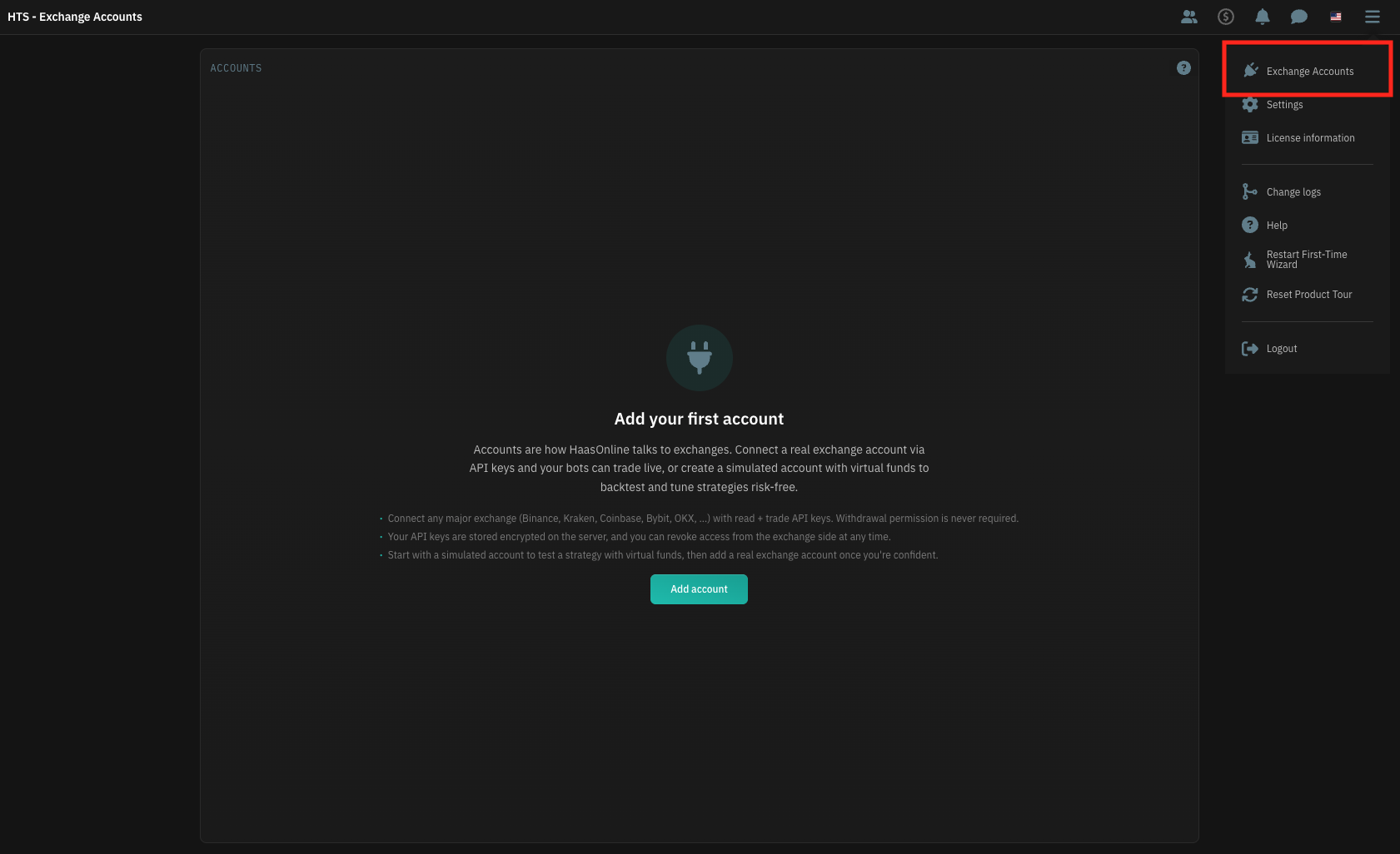
Click on the user menu icon in the top right and select Exchange Accounts.
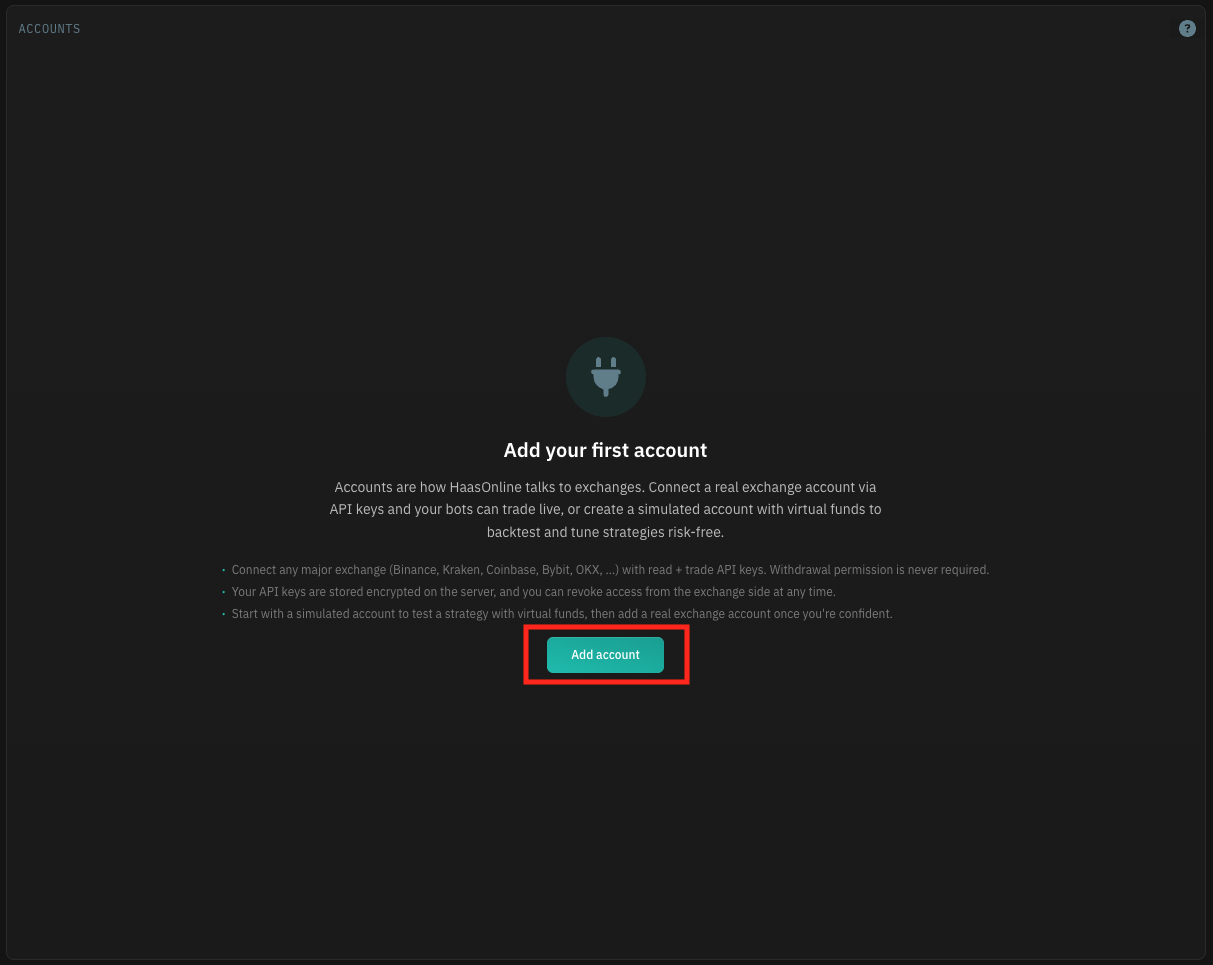
Click the + button at the bottom of the accounts list (on an empty page it reads Add account).
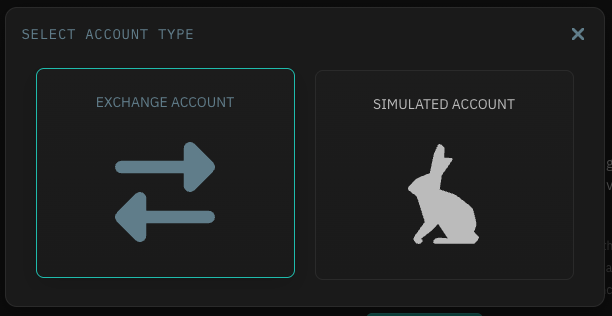
Select Exchange account.
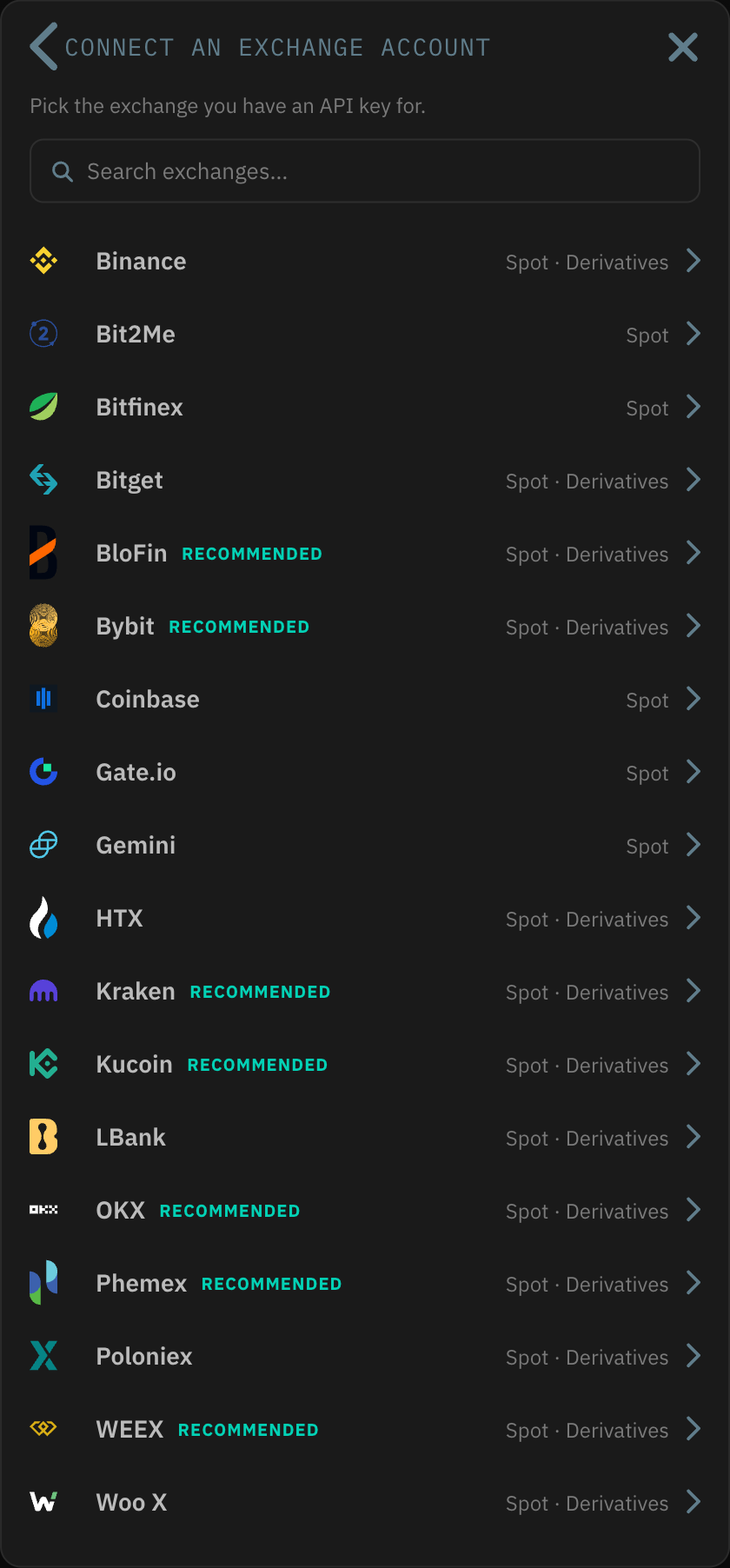
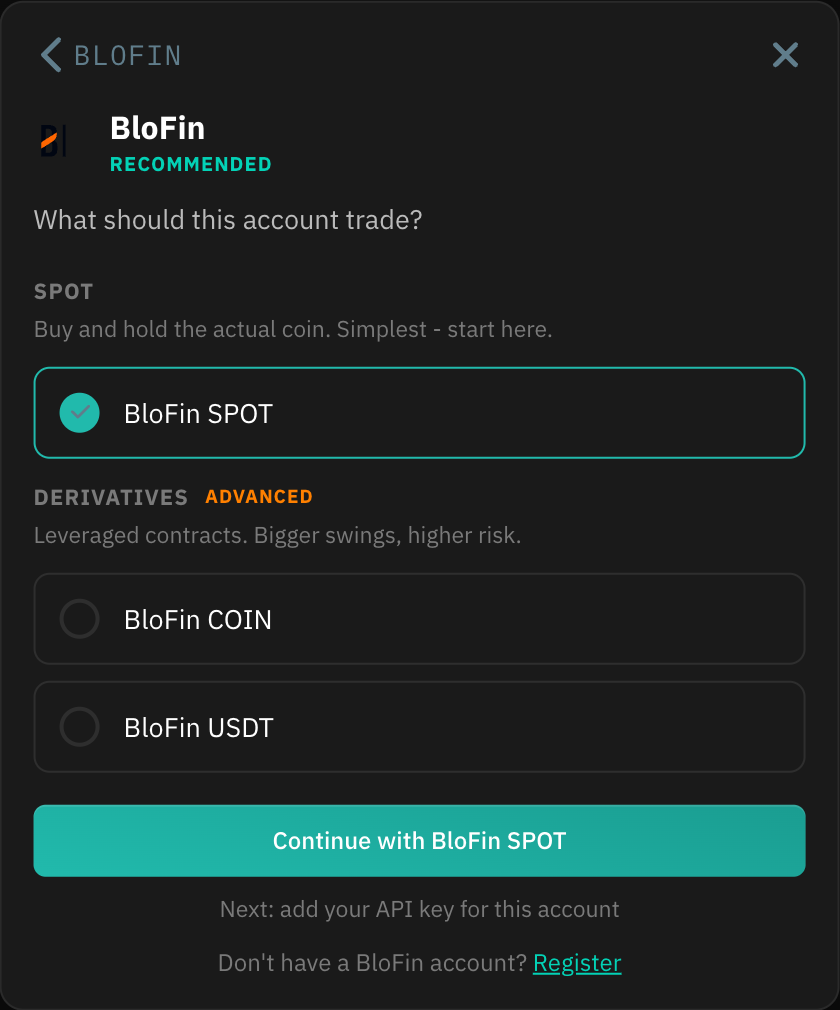
In Connect an exchange account, click your exchange, or type its name in the search box. Each row shows whether the exchange offers Spot, Derivatives or both.
If the exchange has more than one market, choose what this account should trade: a Spot market, or a Derivatives market such as a USDT or coin-margined perpetual. Each market is its own exchange account, so repeat these steps to add another. Click the Continue with … button, which names the market you picked. If you don't have an account at the exchange yet, the Register button at the bottom of the setup form takes you to its sign-up page.
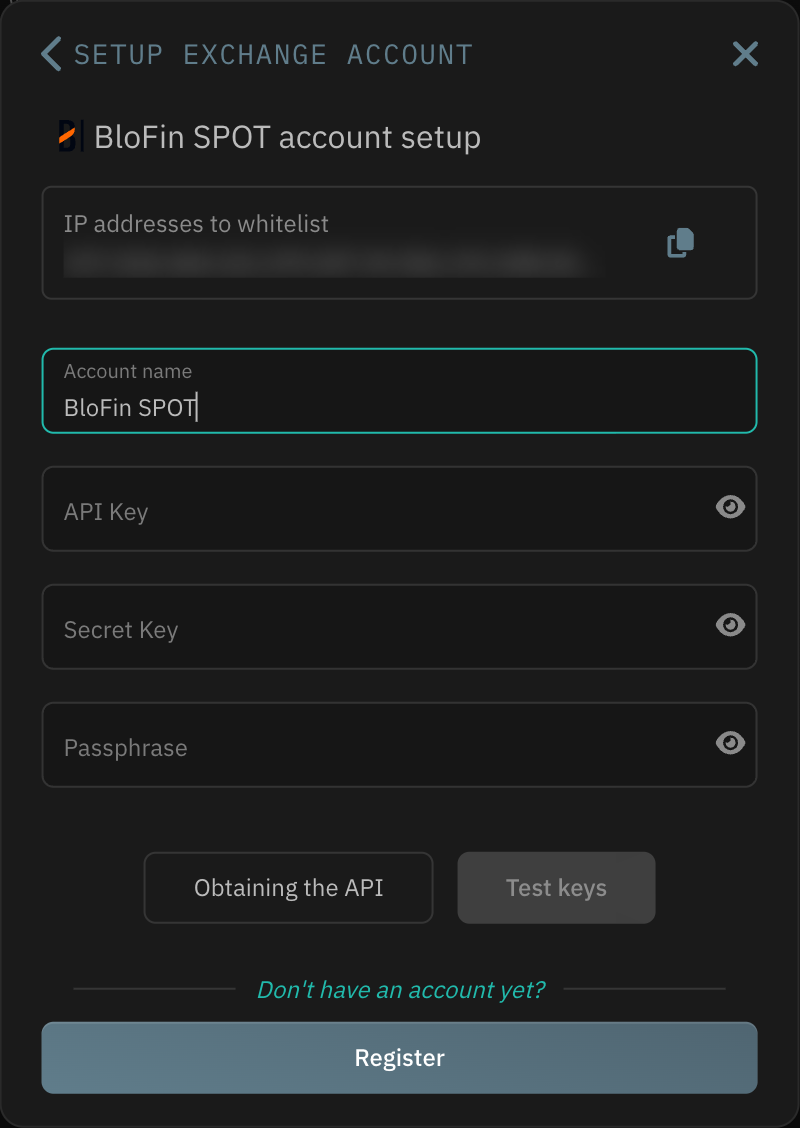
The setup form opens. At the top, IP addresses to whitelist lists the addresses to allow on the exchange's API key page; use the copy icon to grab them. Enter an Account name, then paste the keys from the exchange's API Management page. Field names vary by exchange (for example Public key / Private key, API Key / Secret Key, or ID / API Secret, plus Passphrase where the exchange uses one); your exchange's guide says which value goes in which field.
Info
Check for spaces at the start and end of each key after you paste it. Stray spaces are a common cause of a failed key test.
Click Test keys. When the test passes, click Save account to add the account to the platform.
If an error message pops up, please contact Support: