Kraken Futures
This guide covers API setup for Kraken Futures. For spot/margin, see Kraken. Both products are now managed from the same Kraken Pro settings page, but each has its own API key — a spot key won't authenticate to the futures venue and vice versa.
Obtaining the API
Sign in to Kraken Pro and open Settings → Connections & API. You can also reach it from the profile icon in the top-right corner: select Settings, then open the Connections & API tab.
Scroll past the Spot trading API section to Futures trading API and click Create API key.
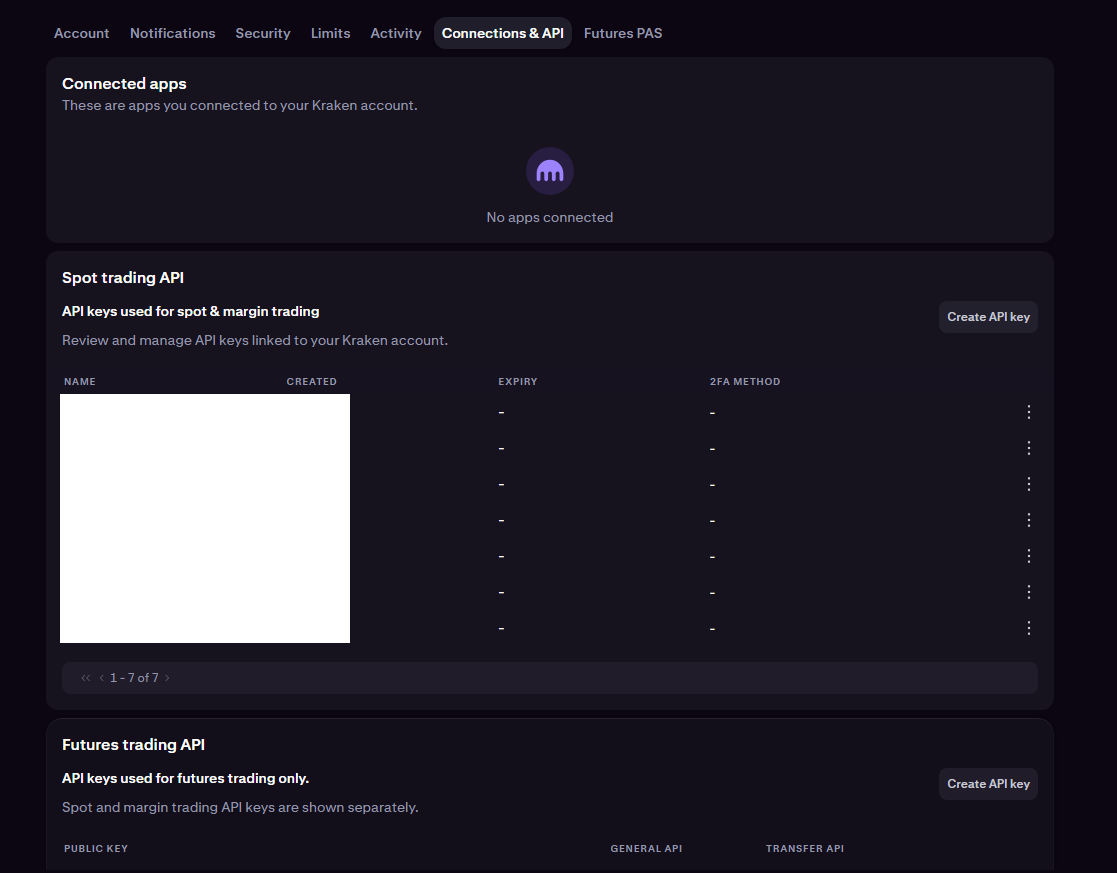
Configure the key
The Add Futures API key dialog opens.
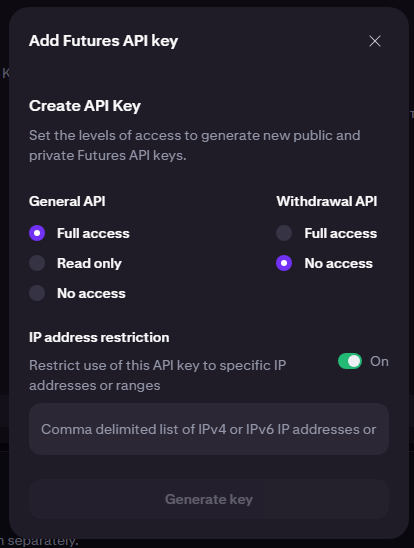
Set the access levels — each permission is a radio button with Full access, Read only, and No access:
- General API — select Full access. This is the level HaasOnline needs to place, modify, and query futures orders.
- Withdrawal API — leave at No access. HaasOnline never needs withdrawal permission.
Danger
Do not grant the Withdrawal API any level of access. HaasOnline never needs withdrawal permission to trade on your behalf. Enabling it means a leaked API key could drain your futures wallet — a trading-only key limits the blast radius to trades on your existing balance.
Then configure:
- IP address restriction — turn On and paste your IP address(es) into the Comma delimited list of IPv4 or IPv6 IP addresses or ranges field.
Info
For IP address restriction:
- If you are running an TradeServer license, use the IP address of your machine/server
- If you are trading on HaasOnline TradeServer Cloud, enter the IP address shown in the HaasOnline UI during exchange account setup
Click Generate key.
Verify with 2FA
Kraken prompts you to confirm the action with your authenticator app.
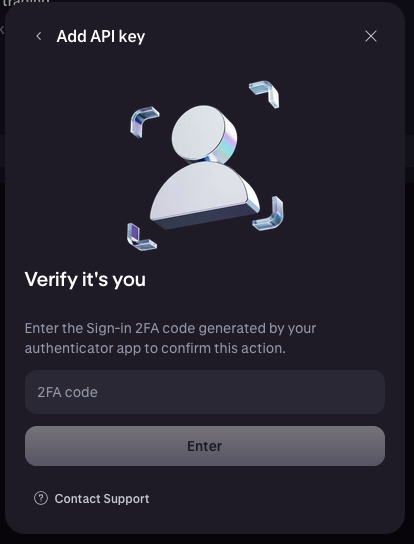
Enter the 6-digit code from your authenticator app and click Enter.
Copy the keys
The API key created view opens with both credentials:
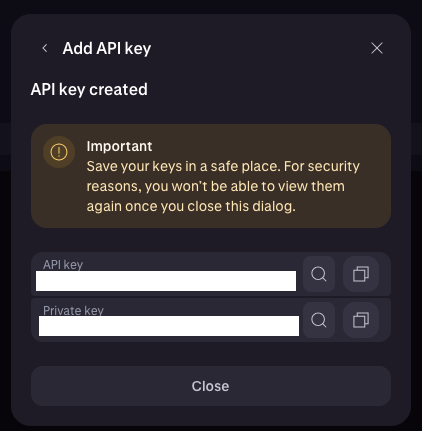
Copy both values immediately:
- API key — the public identifier.
- Private key — used to sign requests.
Danger
Save both values before closing this dialog. Kraken does not show them again after you close it. If you lose either value, you'll have to delete the key and create a new one.
Click Close once both are saved.
Adding the API to HaasOnline TradeServer Cloud
Log in to TradeServer Cloud.
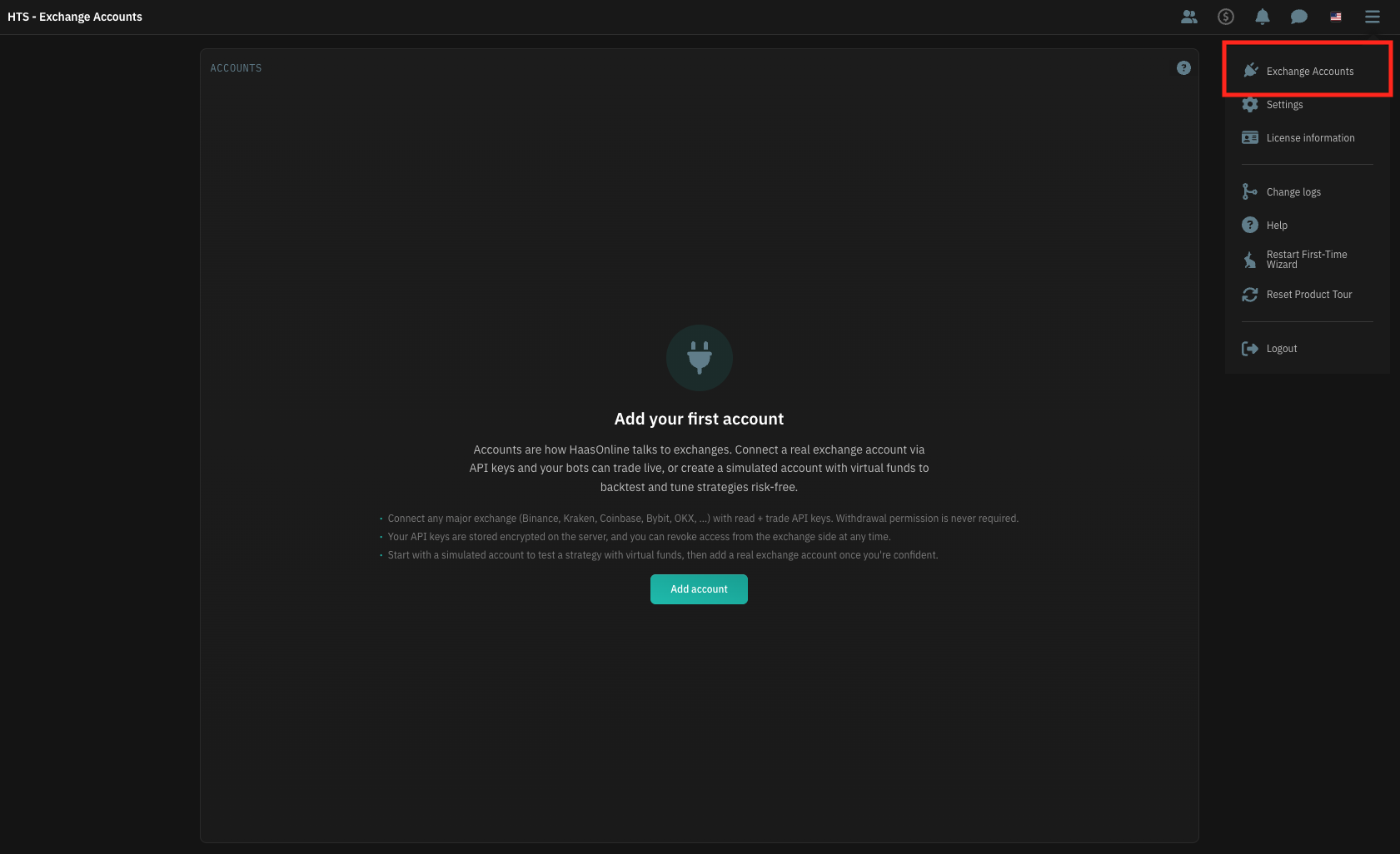
Click on the user menu icon in the top right and select Exchange Accounts.
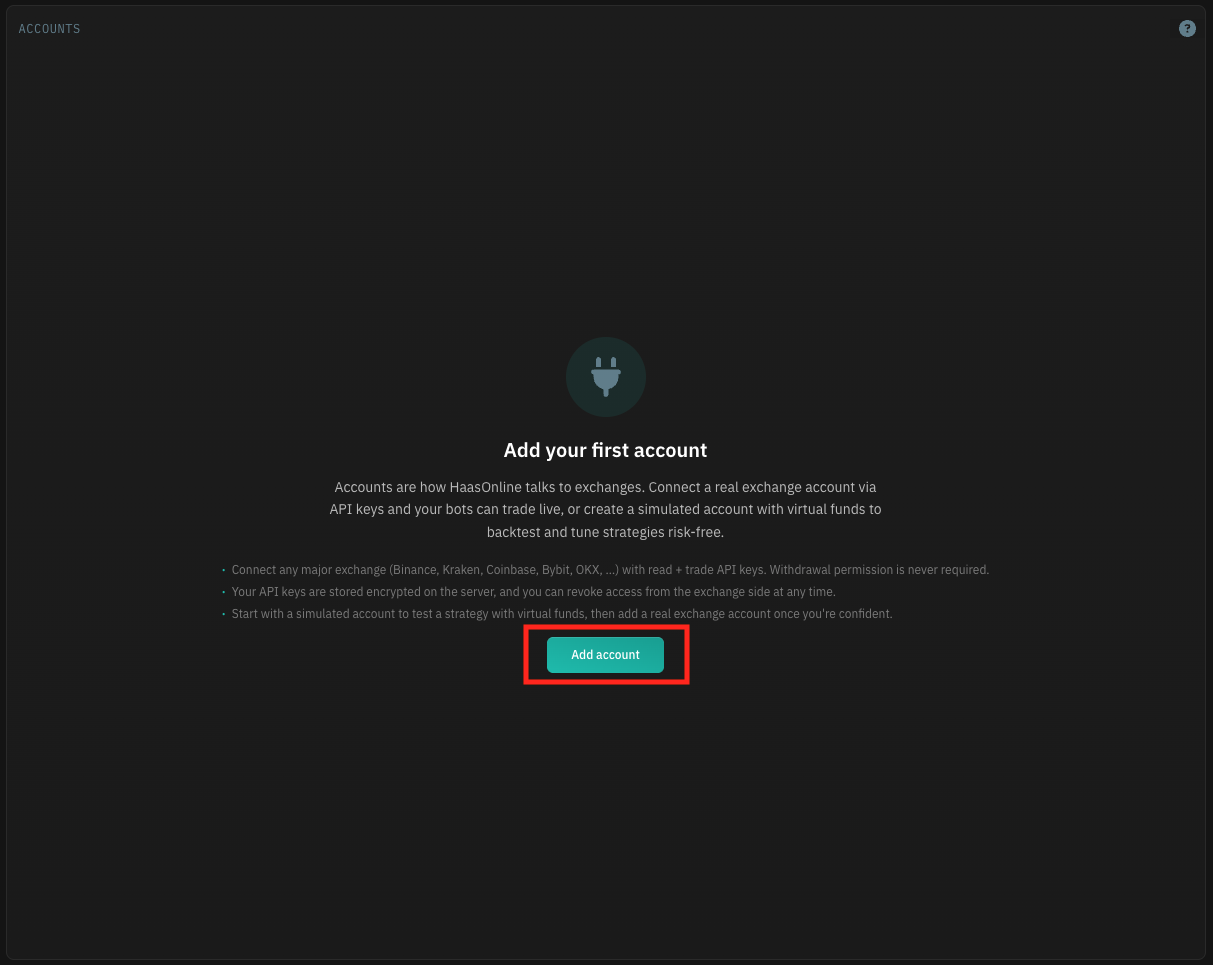
Click Add account.
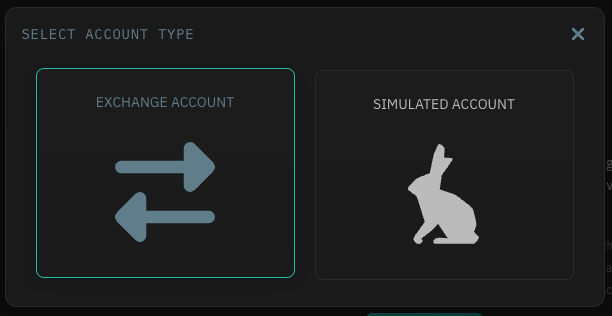
Select Exchange Account.
From the list of supported exchanges, choose Kraken Futures.
Enter an Account name, then paste the values from Kraken:
- Public Key → the Kraken
API key - Private Key → the Kraken
Private key
Info
Check for stray spaces at the start and end of the API key and Private key after pasting — they're a common source of "invalid credentials" errors.
Once the fields are filled in, the TEST KEYS button becomes active. Click it. If the test passes, click Submit to add the account to the platform.