BloFin
Obtaining the API Key
Danger
Do NOT use the same API key that you have created for other services.
To get the API keys for your BloFin account, follow these steps:
- Log in to your BloFin account
- Click the profile icon in the top right corner
- Click API from the dropdown menu
-
Click + Create API Key

-
Click Application Name and choose HAAS from the list
- Enter a descriptive name for your API key
- Check the Trade box to enable trading permissions
-
Enter a secure passphrase

Info
Make sure to store your passphrase securely. You will need it when configuring the API in HaasOnline.
-
Enter the IP address:
- If you are running an TradeServer license, use the IP address of your machine/server
- If you are trading on HaasOnline TradeServer Cloud, enter the IP address shown in the HaasOnline UI during exchange account setup
-
Click Next
- Confirm your password and complete the 2FA authentication
Once the API key is created, you will see your API credentials displayed on the screen.
Warning
Make sure to copy both your API Key and Secret Key immediately. The Secret Key will only be shown once.
Keep this page open and proceed to add the credentials to your HaasOnline TradeServer.
Adding the API to HaasOnline TradeServer
Log in to your HaasOnline TradeServer.
Navigate to the Exchange Accounts page (user menu in the top right, then Exchange Accounts). The Adding an API to the Platform guide shows these first steps with screenshots.
- Click the + button at the bottom of the accounts list (on an empty page it reads Add account)
- Select Exchange account
- In Connect an exchange account, click BloFin
-
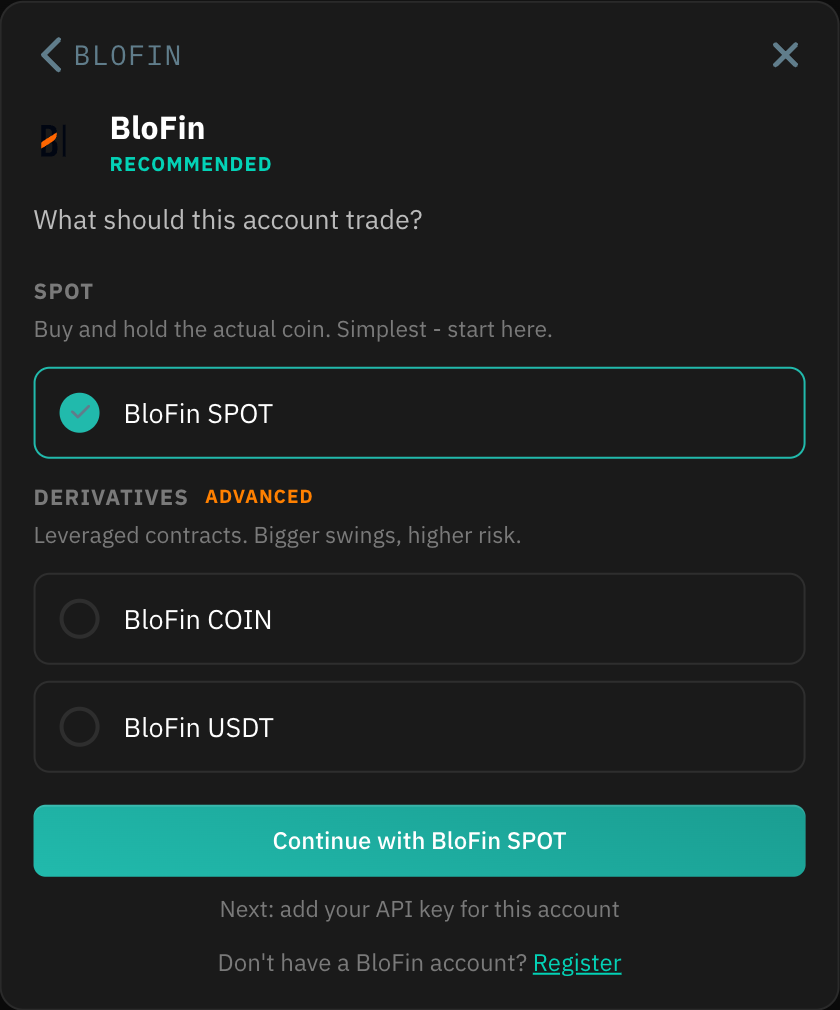
Under What should this account trade?, choose BloFin SPOT for spot trading, or BloFin COIN / BloFin USDT under Derivatives for the coin- and USDT-margined perpetual futures, then click the Continue with … button, which names the market you picked. Each is a separate exchange account, so add one for every market you want to trade. If you don't have a BloFin account yet, the Register button in the setup form takes you to BloFin's sign-up page
-
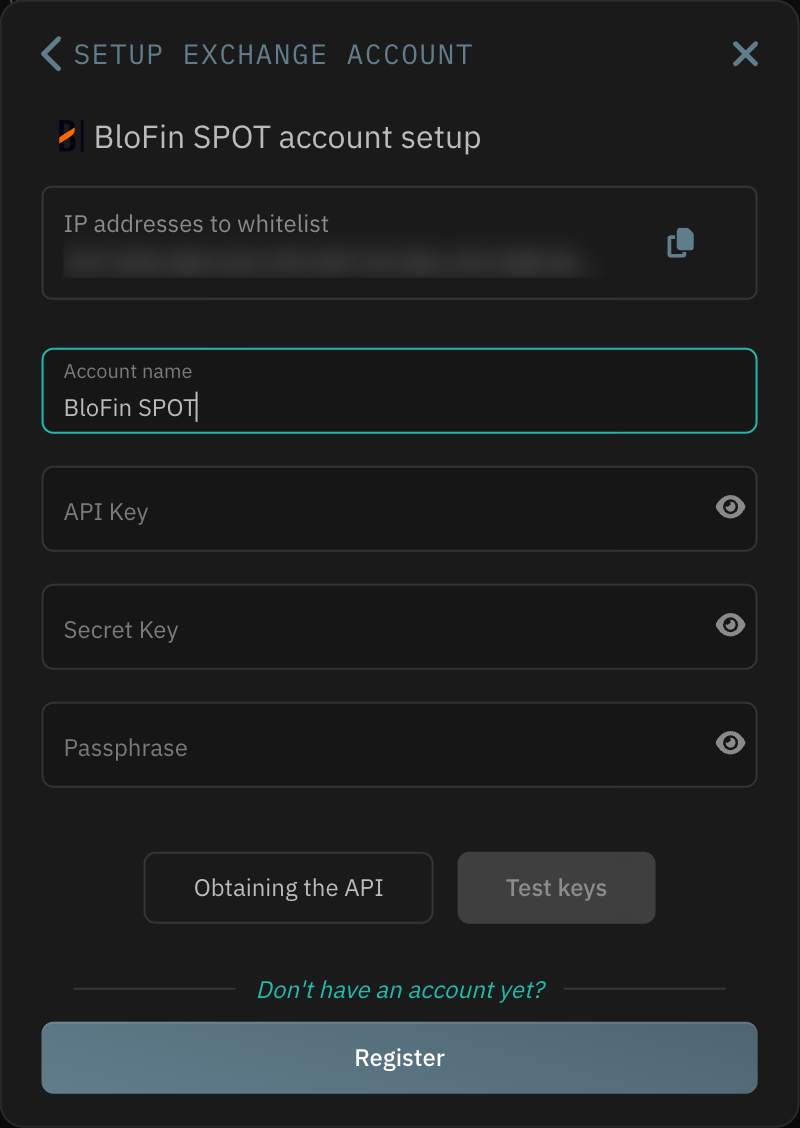
Enter an Account name
- Paste your API Key from BloFin into the API Key field
- Paste your API Secret from BloFin into the Secret Key field
-
Enter the Passphrase you created in BloFin
Info
Make sure there are no extra spaces at the beginning or end of the keys when pasting.
-
Click Test keys to verify the connection
- If the test passes, click Save account to add the account to the platform
Your BloFin exchange account is now connected and ready to use with HaasOnline!