LBank
Obtaining the API Key
Danger
WARNING: Do NOT use the same API key that you have created for other services.
If you don't have an LBank account yet, sign up at LBank.
To get the API keys for your LBank account, click the profile icon at the top right of the LBank main page, then select My API from the menu.

Fill in the Creating new API form:
- Note the name: any name that identifies the key (for example
HaasOnline). - Permissions: enable Trade, and Futures if you will trade LBank Futures. Leave Withdraw and Transfer off.
- Verification method: HmacSHA256.
- IP Address: on HaasOnline TradeServer Cloud, paste the addresses shown under IP addresses to whitelist in the HaasOnline account setup form; on a self-hosted TradeServer license, use the public IP address of your machine or server.
- Email verification code and 2FA Verification: the codes LBank sends you and the one from your authenticator app.
Then click Add.
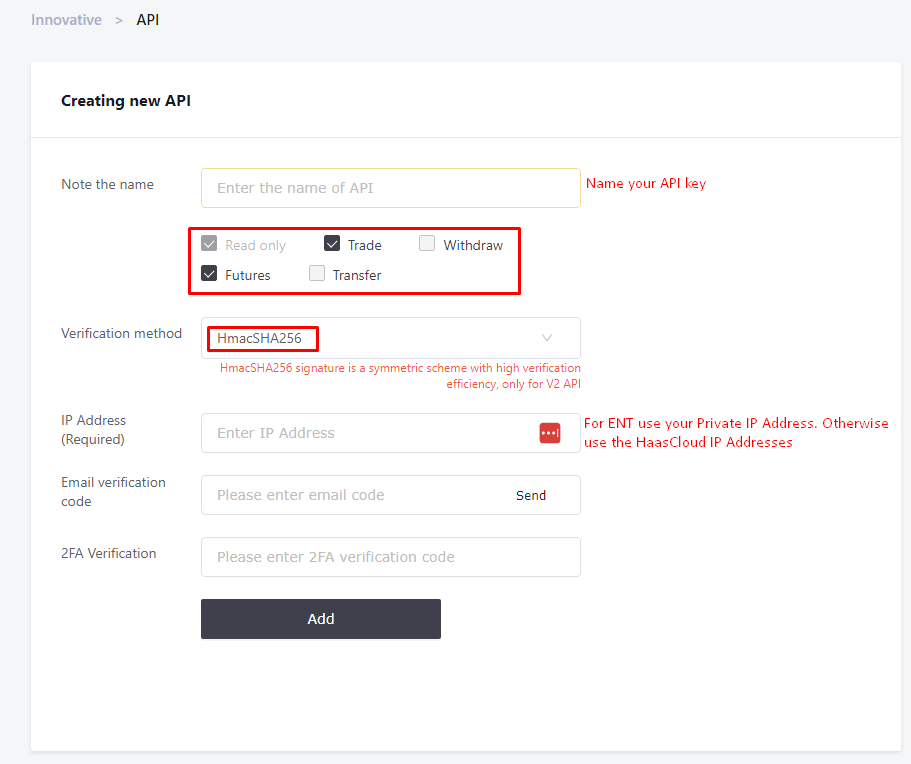
The red note in this screenshot is out of date: on a self-hosted TradeServer, use your server's public IP address, not a private one.
LBank then shows the new API Key and Secret Key:
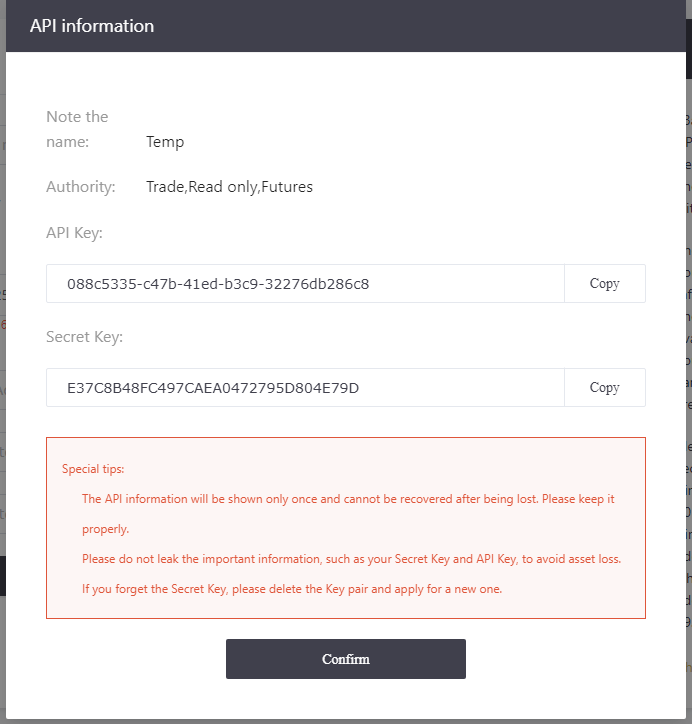
Keep the pop-up open and move on to the next step.
Adding the API to HaasOnline TradeServer
Log in to TradeServer.
Click on the user menu icon in the top right and select Exchange Accounts
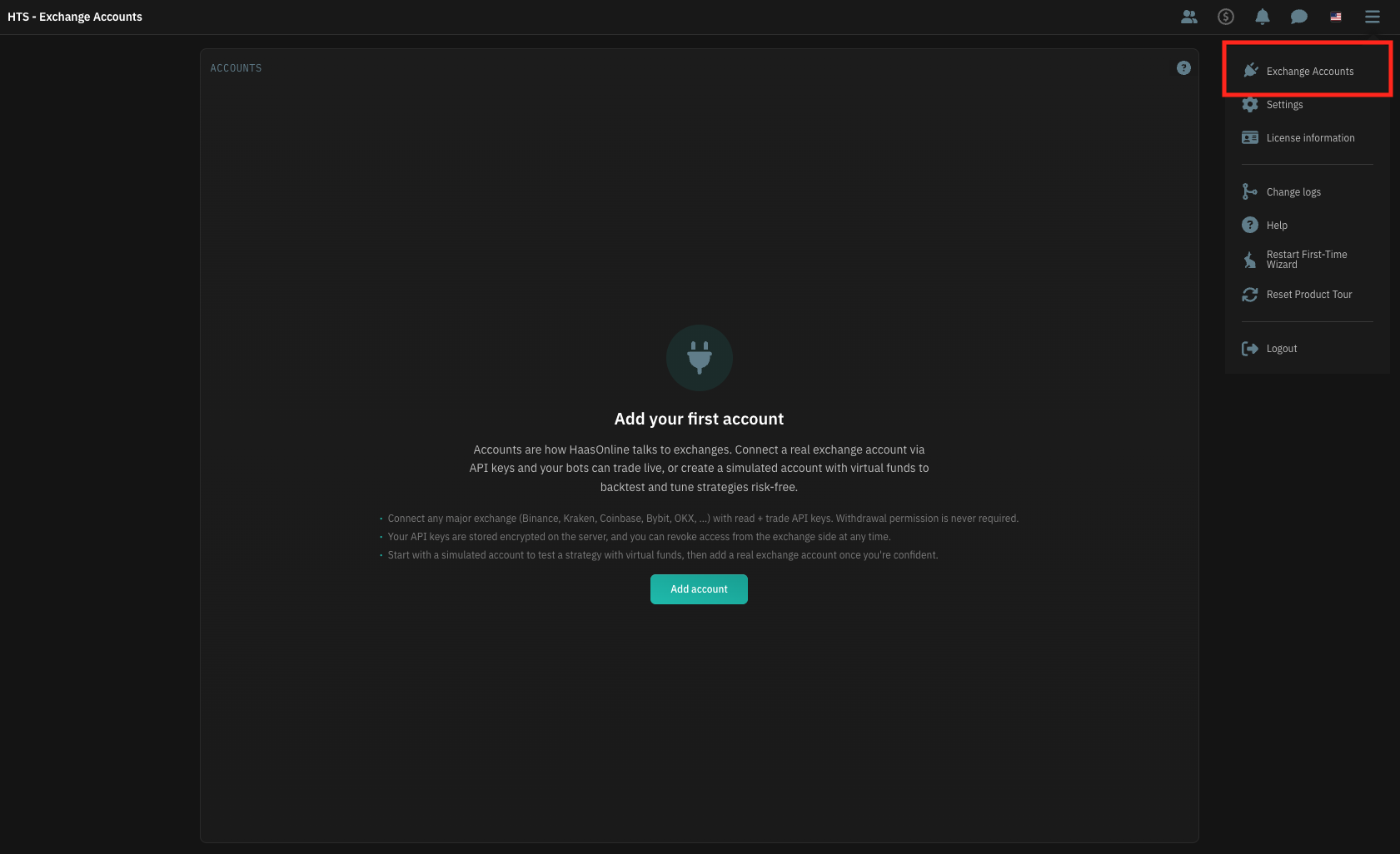
Click the + button at the bottom of the accounts list (on an empty page it reads Add account).
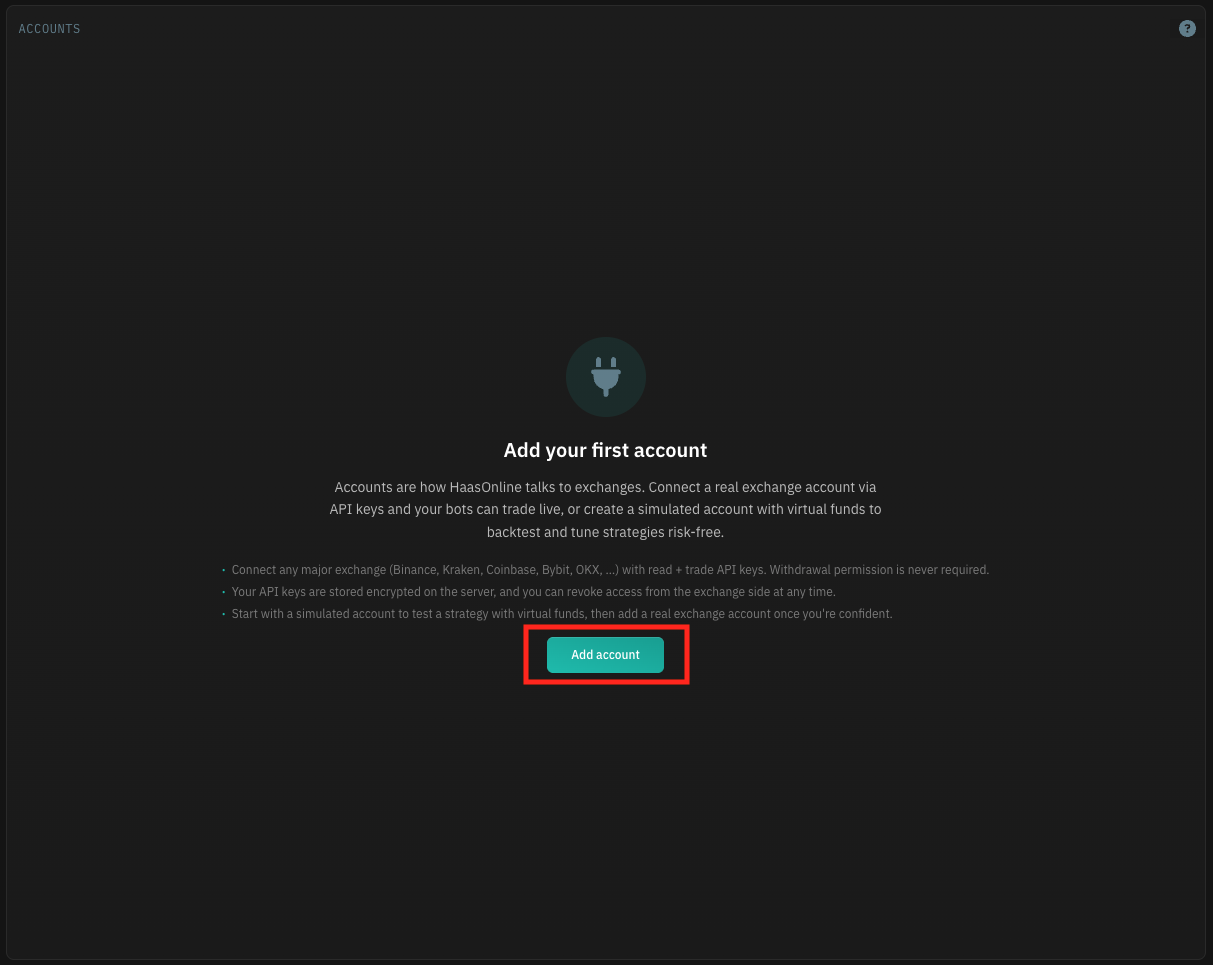
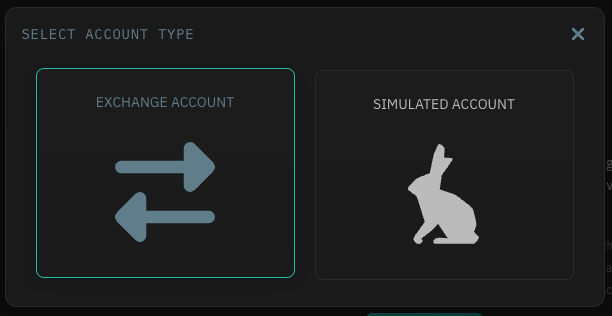
Select Exchange account.
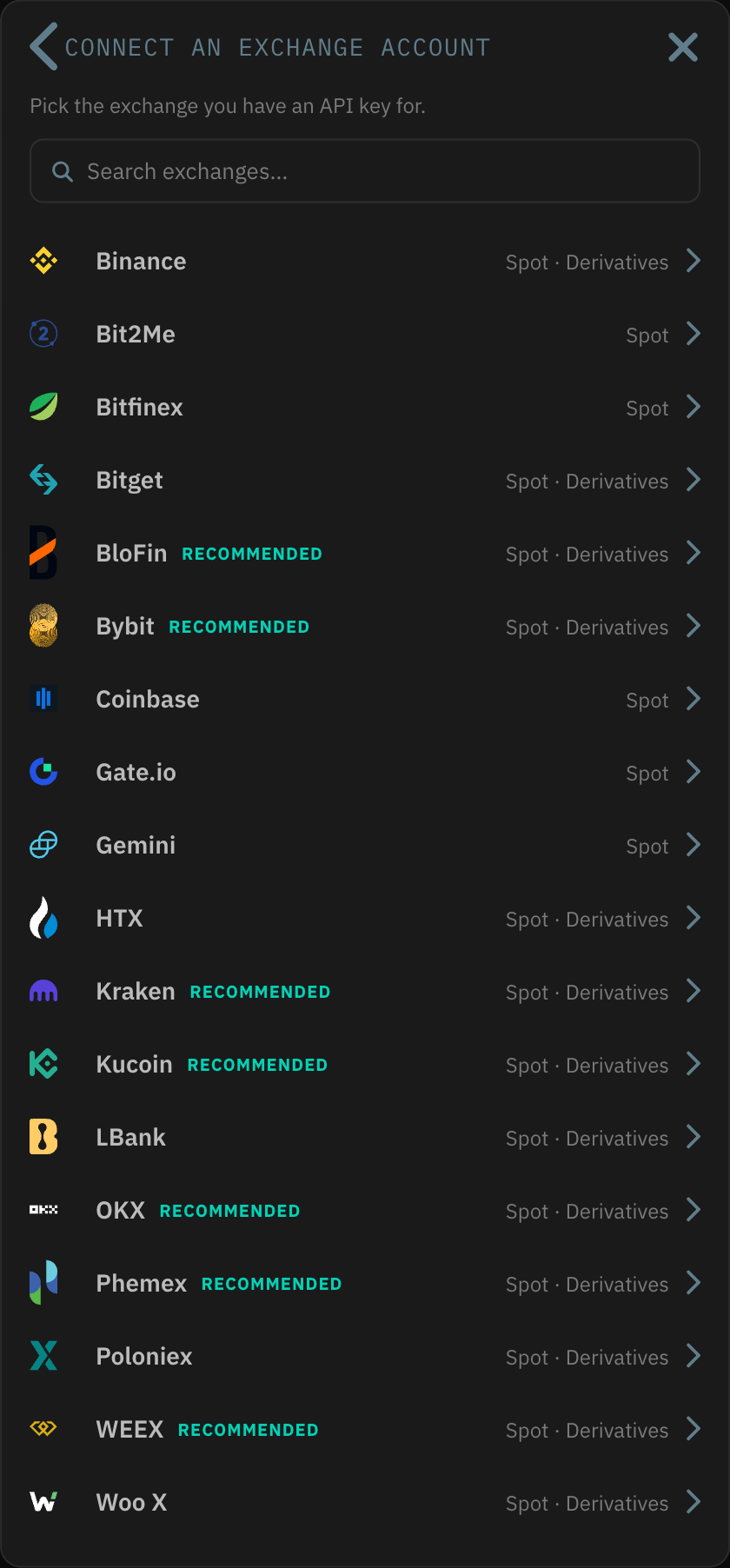
In Connect an exchange account, click LBank (or type it in the search box).
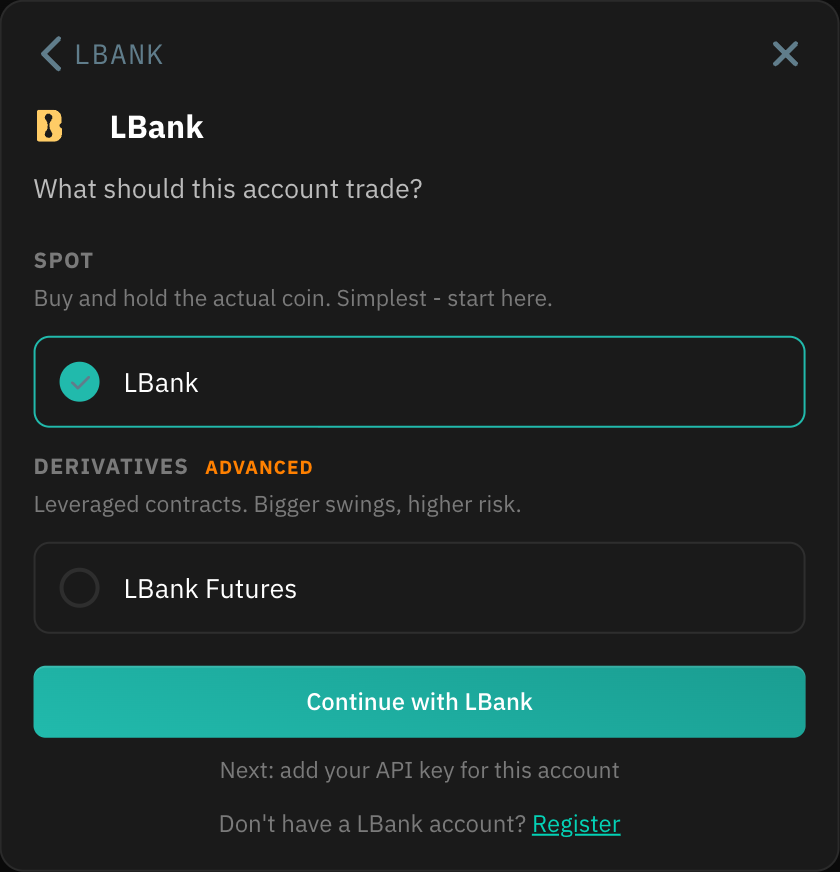
Choose what this account should trade: a Spot market, or a Derivatives market. Each market is its own exchange account, so repeat these steps to add another one with the same API key, if you enabled it for that market. Click the Continue with … button, which names the market you picked.
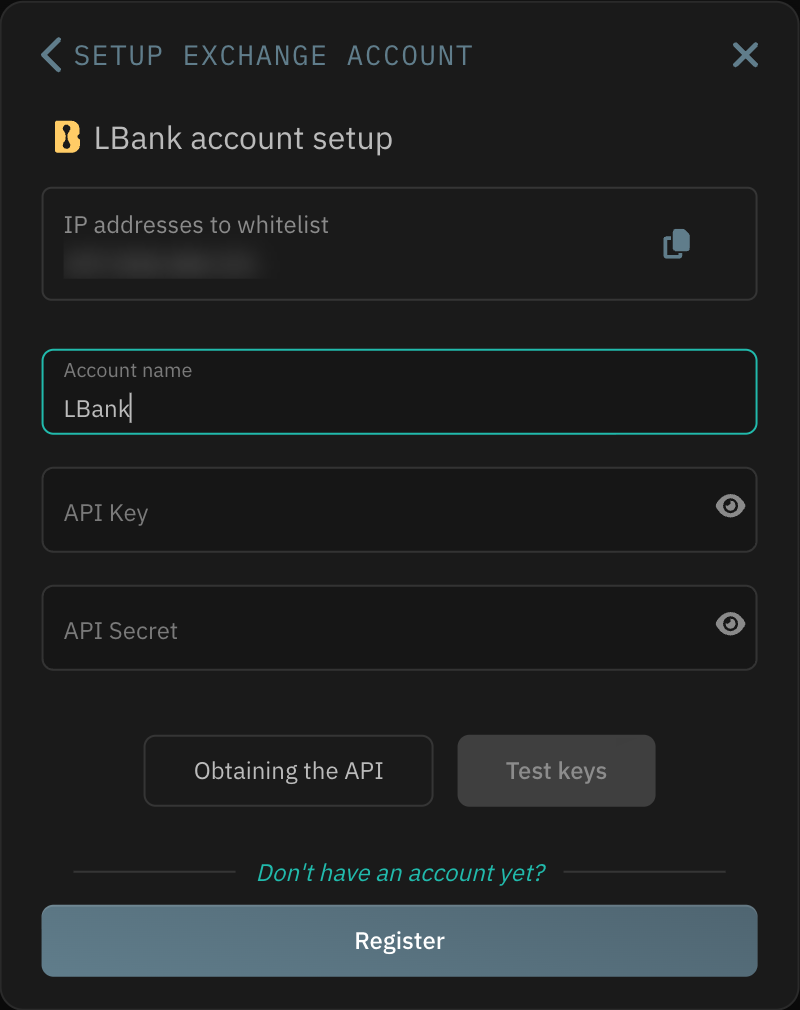
Enter an Account name.
From the LBank API Management page earlier, click on Copy under API Key and paste it in the TradeServer window under API Key. Repeat the same for API Secret but paste it under API Secret.
Info
Check for spaces at the start and end of each key after you paste it. Stray spaces are a common cause of a failed key test.
Click Test keys. When the test passes, click Save account to add the account to the platform.