WOO X
HaasOnline connects to WOO X spot (Woo X in HaasOnline) and futures (Woo X Futures). A WOO X key comes with three values, and HaasOnline needs all of them: the API Key, the API Secret and the Application ID.
If you don't have a WOO X account yet, sign up at WOO X.
Obtaining the API Key
Log in to WOO X on the web, click your profile icon and open Subaccounts and API.
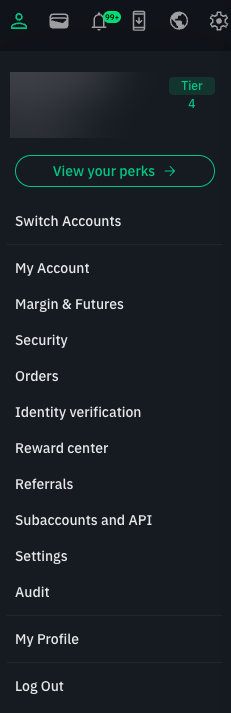
Create a new API key there.
Configure the key
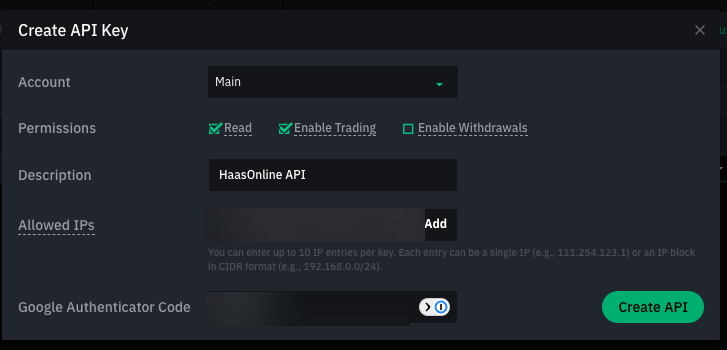
Fill in the Create API Key dialog:
- Account: the account HaasOnline should trade, usually Main.
- Permissions:
- Read: enable.
- Enable Trading: enable.
- Enable Withdrawals: leave disabled.
- Description: any name that identifies the key (for example
HaasOnline). - Allowed IPs: paste the IP addresses shown in HaasOnline and click Add. WOO X takes up to 10 entries per key.
- Google Authenticator Code: the 6-digit code from your authenticator app.
Danger
Do not enable Enable Withdrawals. HaasOnline never needs it to trade for you, and a trading-only key limits what a leaked key could do.
Info
For the allowed IPs:
- On HaasOnline TradeServer Cloud, paste the addresses shown under IP addresses to whitelist in the HaasOnline account setup form (use its copy icon).
- On a self-hosted TradeServer license, use the public IP address of your machine or server.
Click Create API.
Copy the keys
WOO X shows the new key's three values:
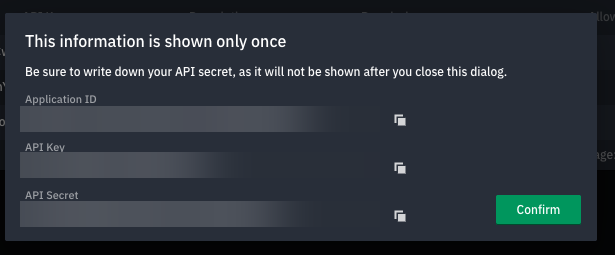
- Application ID: goes in the HaasOnline Application ID field.
- API Key: goes in the HaasOnline Public key field.
- API Secret: goes in the HaasOnline Secret key field.
Danger
Copy all three before you click Confirm. WOO X shows this information only once. If you lose the API Secret, delete the key and create a new one.
Adding the API to HaasOnline TradeServer Cloud
Log in to HaasOnline TradeServer Cloud and open Exchange Accounts from the user menu in the top right. The Adding an API to the Platform guide shows these first steps with screenshots.
- Click the + button at the bottom of the accounts list (on an empty page it reads Add account)
- Select Exchange account
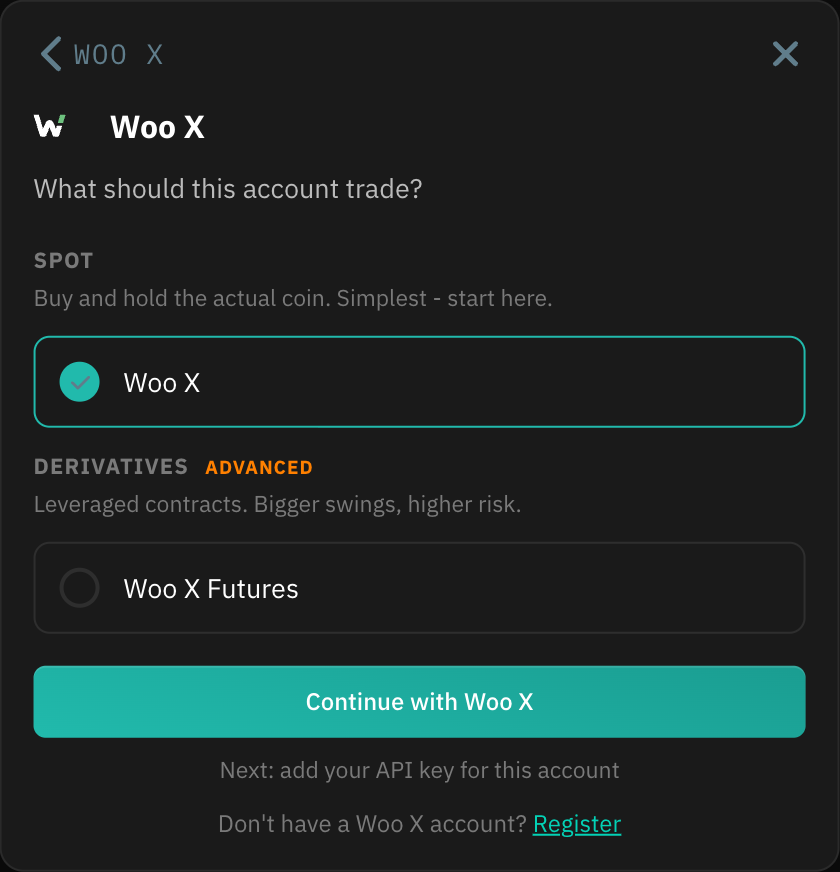
- In Connect an exchange account, click Woo X
-
Under What should this account trade?, choose Woo X for spot trading or Woo X Futures under Derivatives, then click Continue with .... Each market is a separate HaasOnline account.
-
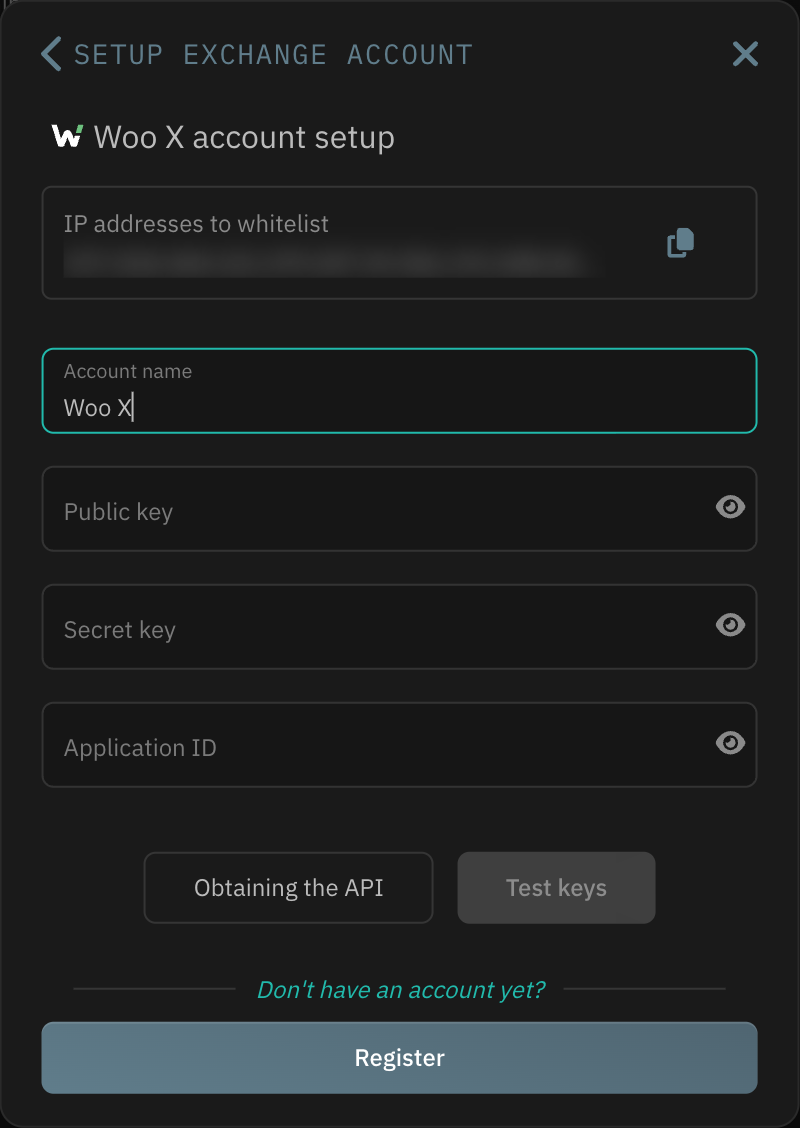
Enter an Account name, then paste the values from WOO X:
- Public key → the WOO X
API Key - Secret key → the WOO X
API Secret - Application ID → the WOO X
Application ID
Info
Check for spaces at the start and end of each value after you paste it. Stray spaces are a common cause of a failed key test.
- Public key → the WOO X
-
Click Test keys. When the test passes, click Save account
If the test fails, check that Enable Trading is on, that all three values are in the right fields, and that the allowed IPs match the addresses shown in HaasOnline. If it still fails, contact Support.