KuCoin
This guide covers API setup for both KuCoin spot and KuCoin Futures. Both markets share a single KuCoin account, and a single API key can grant access to either or both — the difference is which exchange type you pick inside HaasOnline.
Obtaining the API
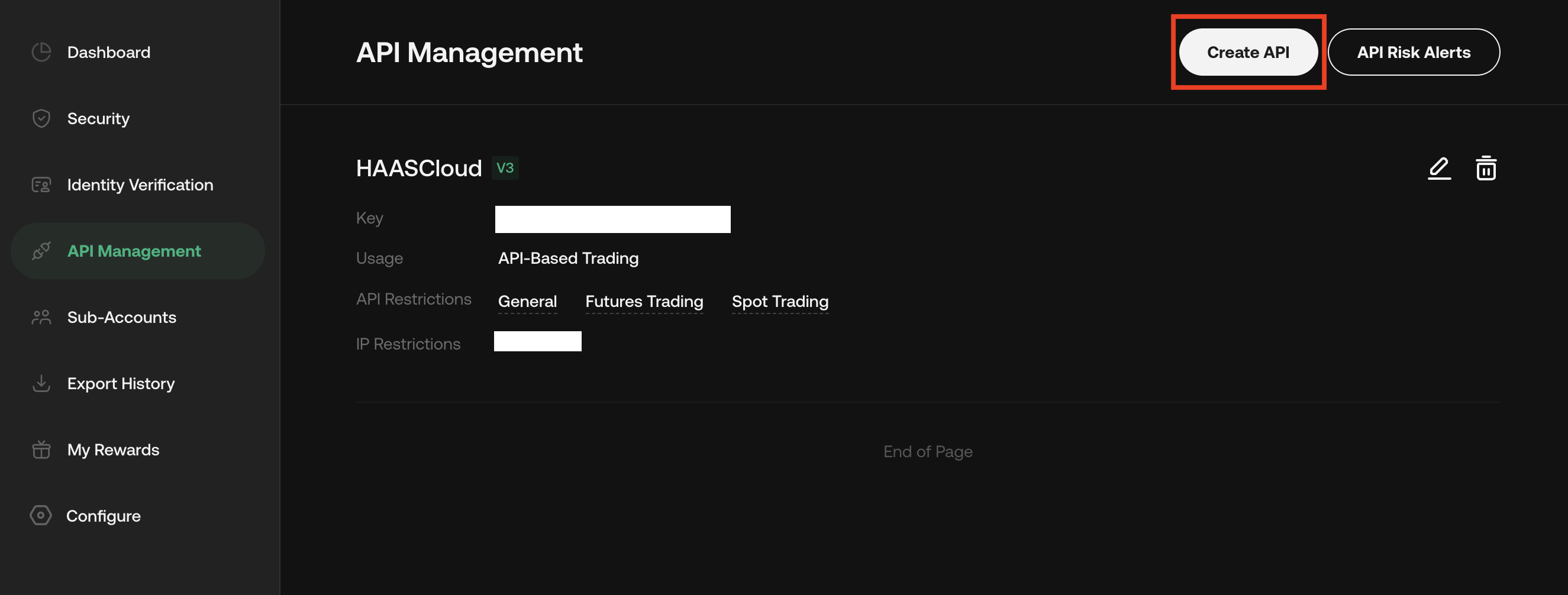
Log in to KuCoin and visit https://www.kucoin.com/account. In the left sidebar, click API Management, then click Create API in the top-right corner.
On the Create API page, the flow differs between HaasOnline TradeServer Cloud and TradeServer / self-hosted installations. Pick the tab below that matches your setup.
Select the Link Third-Party Apps tab. In the Name of Third-Party App dropdown, pick HaasOnlineBot — KuCoin has partnered with HaasOnline so Cloud users don't need to manage IP whitelists manually.
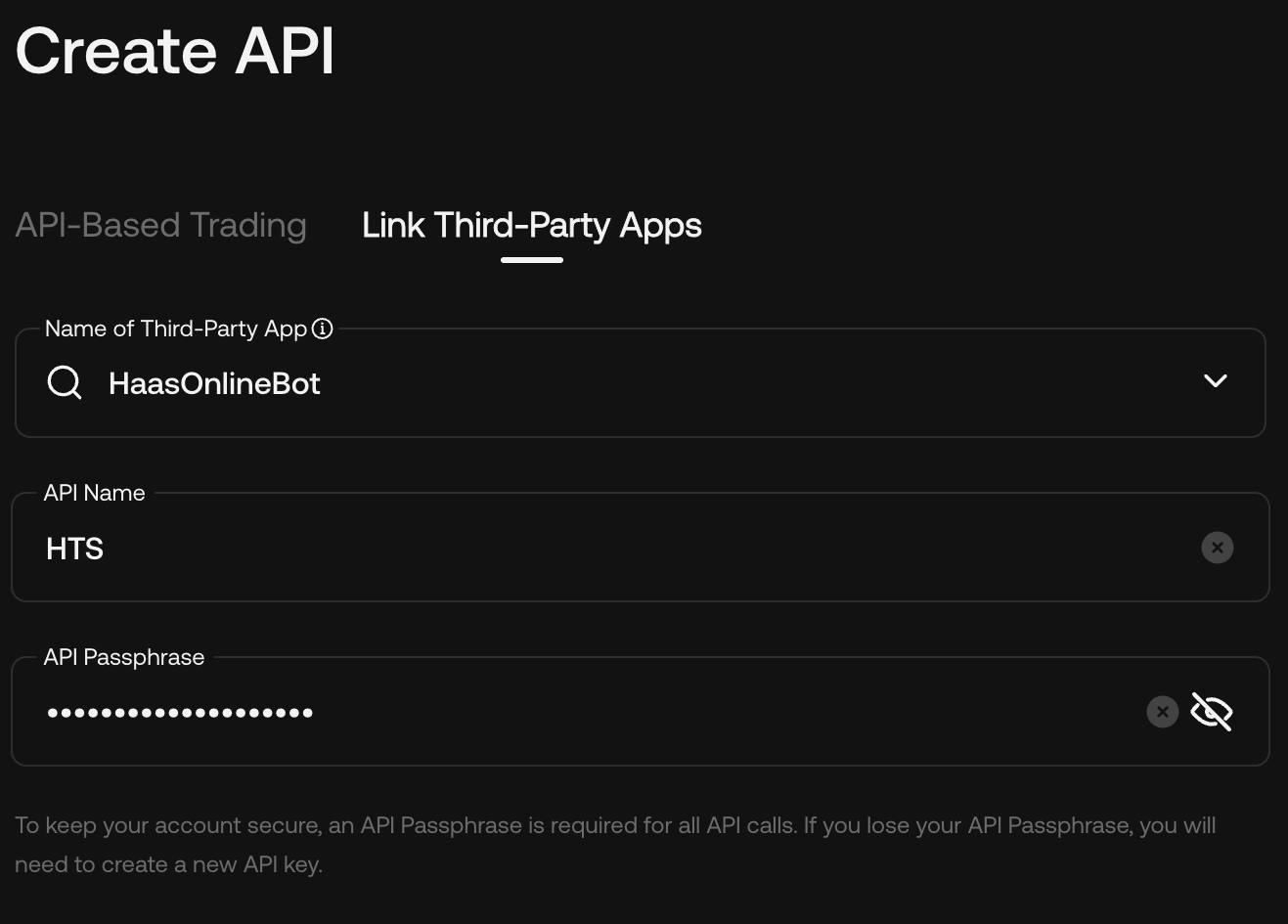
Fill in:
- API Name — any label that identifies this key (e.g. "HaasOnline").
- API Passphrase — pick a strong passphrase and record it. KuCoin cannot recover it, so losing it means creating a new API key.
Scroll down to API Restrictions and enable the markets you'll trade.
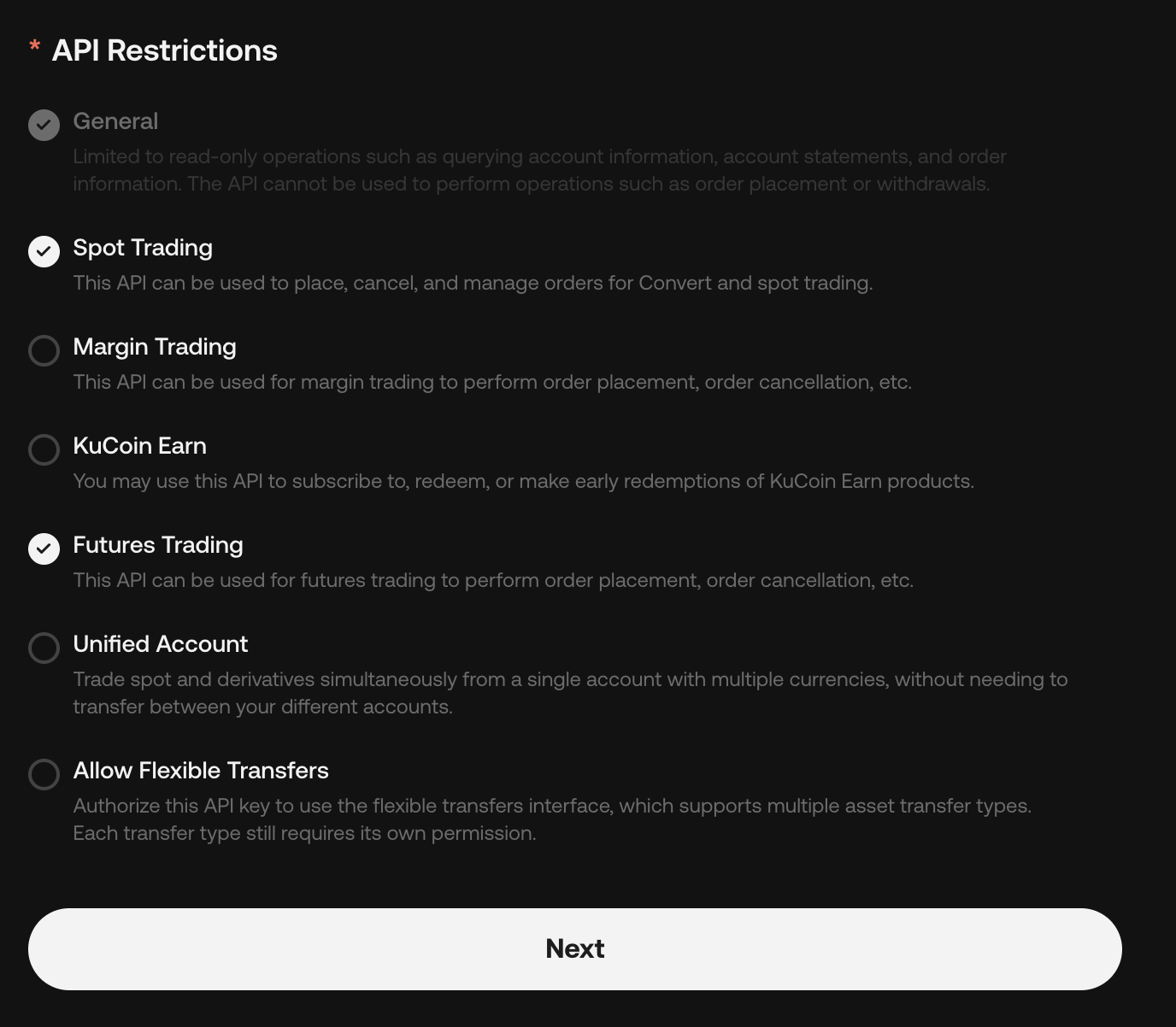
- General — always enabled; covers read-only operations like account info, balances, and order history.
- Spot Trading — enable if you plan to trade spot markets.
- Futures Trading — enable if you plan to trade KuCoin Futures.
- Margin Trading — enable only if you plan to run margin strategies.
- KuCoin Earn, Unified Account, Allow Flexible Transfers — leave disabled unless you have a specific reason.
Tip
Enabling both Spot Trading and Futures Trading on a single key lets you use the same credentials for the KuCoin and KuCoin Futures exchange types in HaasOnline.
Click Next. A Security Verification modal opens — confirm your identity to continue:
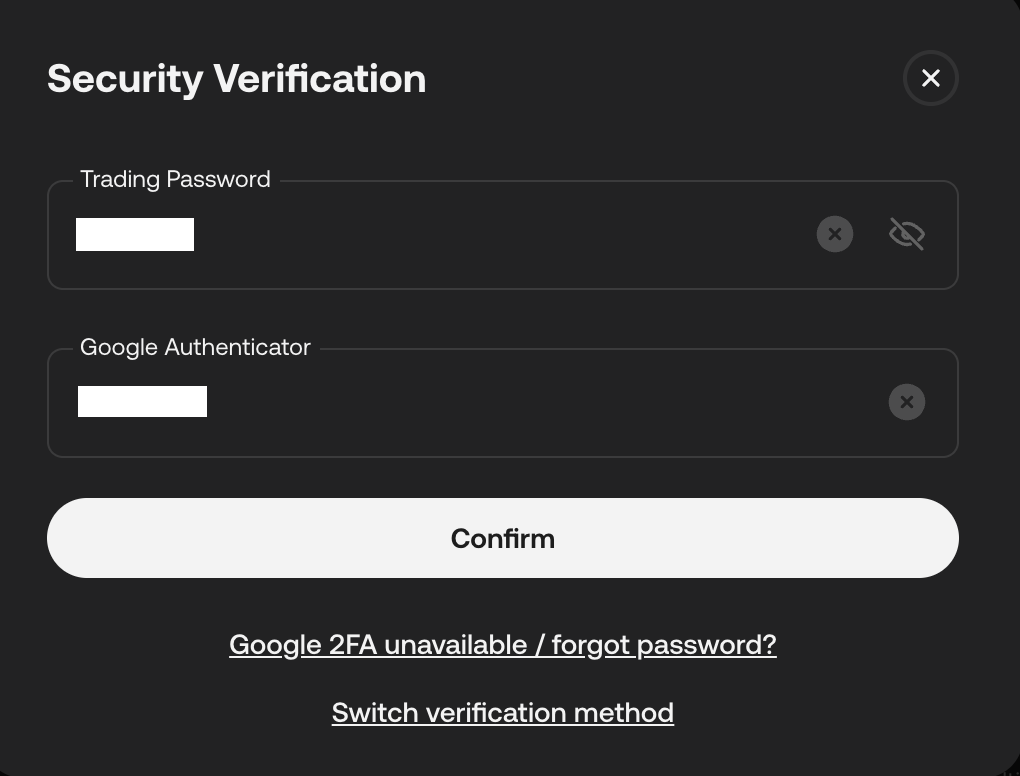
- Trading Password — the password you set on KuCoin specifically for trading (not your login password).
- Google Authenticator — the 6-digit code from your 2FA app.
Info
KuCoin may additionally email you a verification code during this step. If so, check your inbox and enter the code in the modal. If Google Authenticator is unavailable, use Switch verification method to pick email or SMS instead.
Click Confirm. The API Created modal then opens with your credentials:
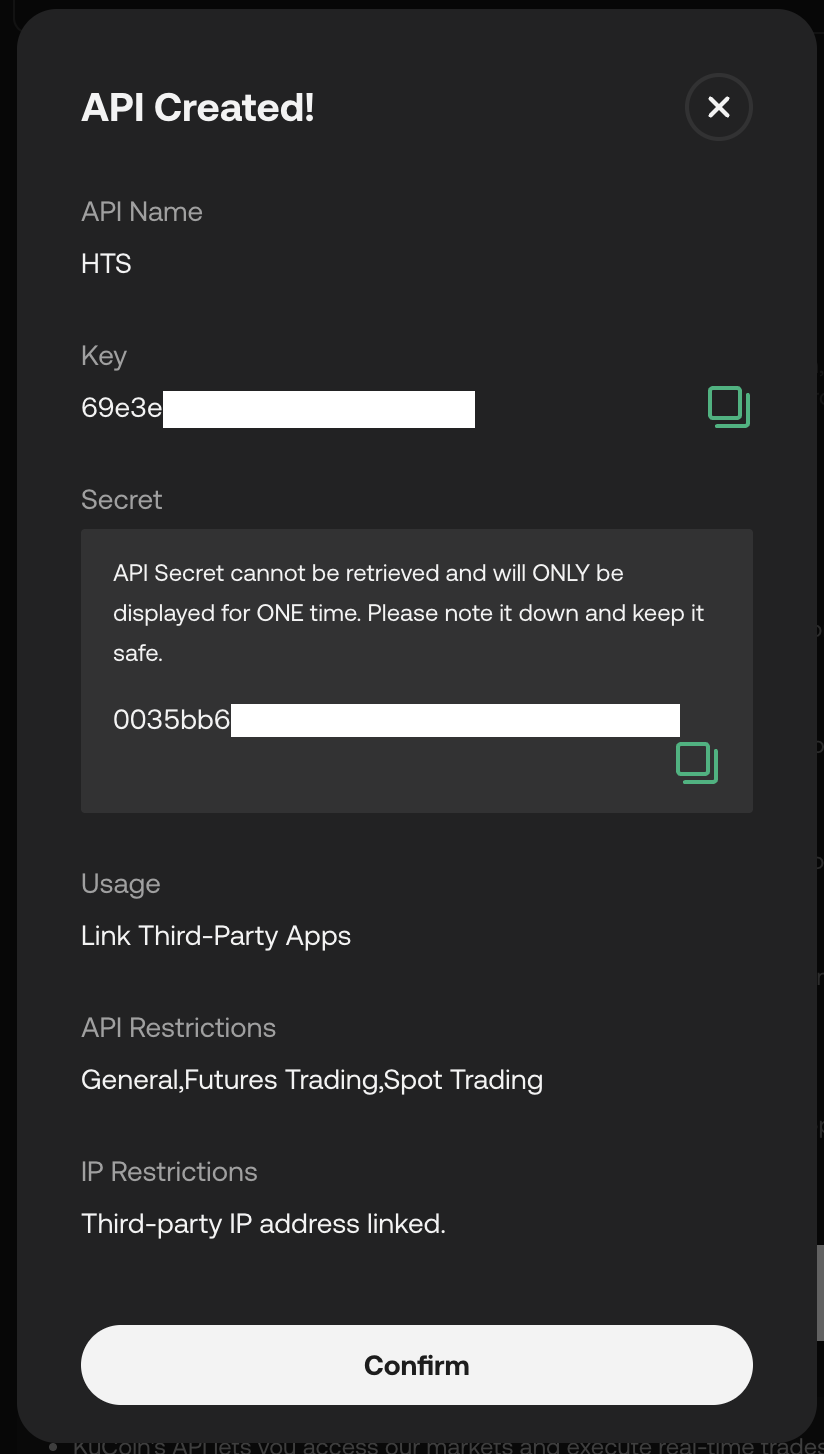
Copy both values immediately:
- Key — the public identifier for your API key; you can view this again later in API Management.
- Secret — shown only once. If you close the modal without copying it, you'll have to delete the key and create a new one.
Together with the API Passphrase you set earlier, these three values — Key, Secret, and Passphrase — are what you'll paste into HaasOnline. Click Confirm to close the modal.
Select the API-Based Trading tab and fill in:
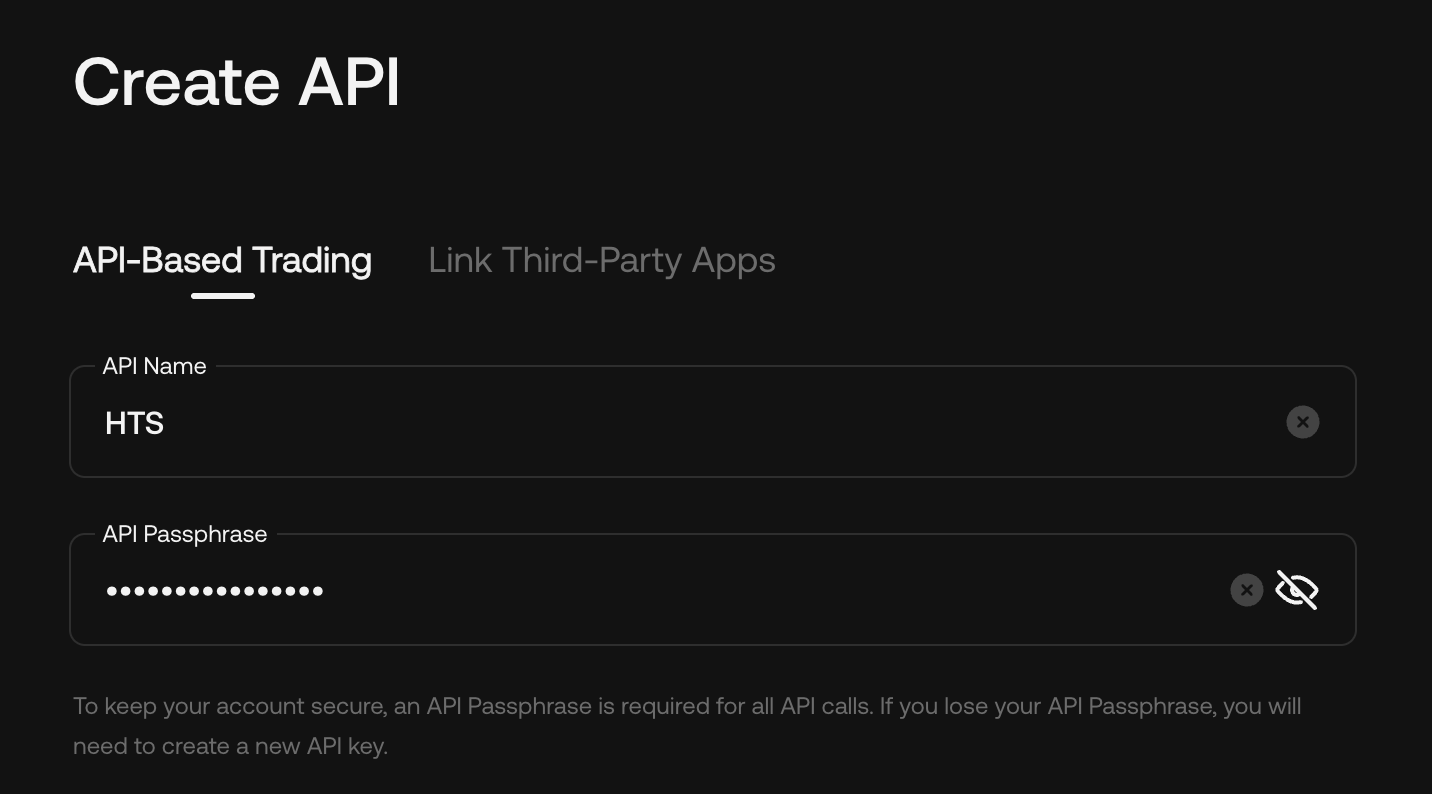
- API Name — any label that identifies this key (e.g. "HTS").
- API Passphrase — pick a strong passphrase and record it. KuCoin cannot recover it, so losing it means creating a new API key.
Scroll down to API Restrictions and enable the markets you'll trade.
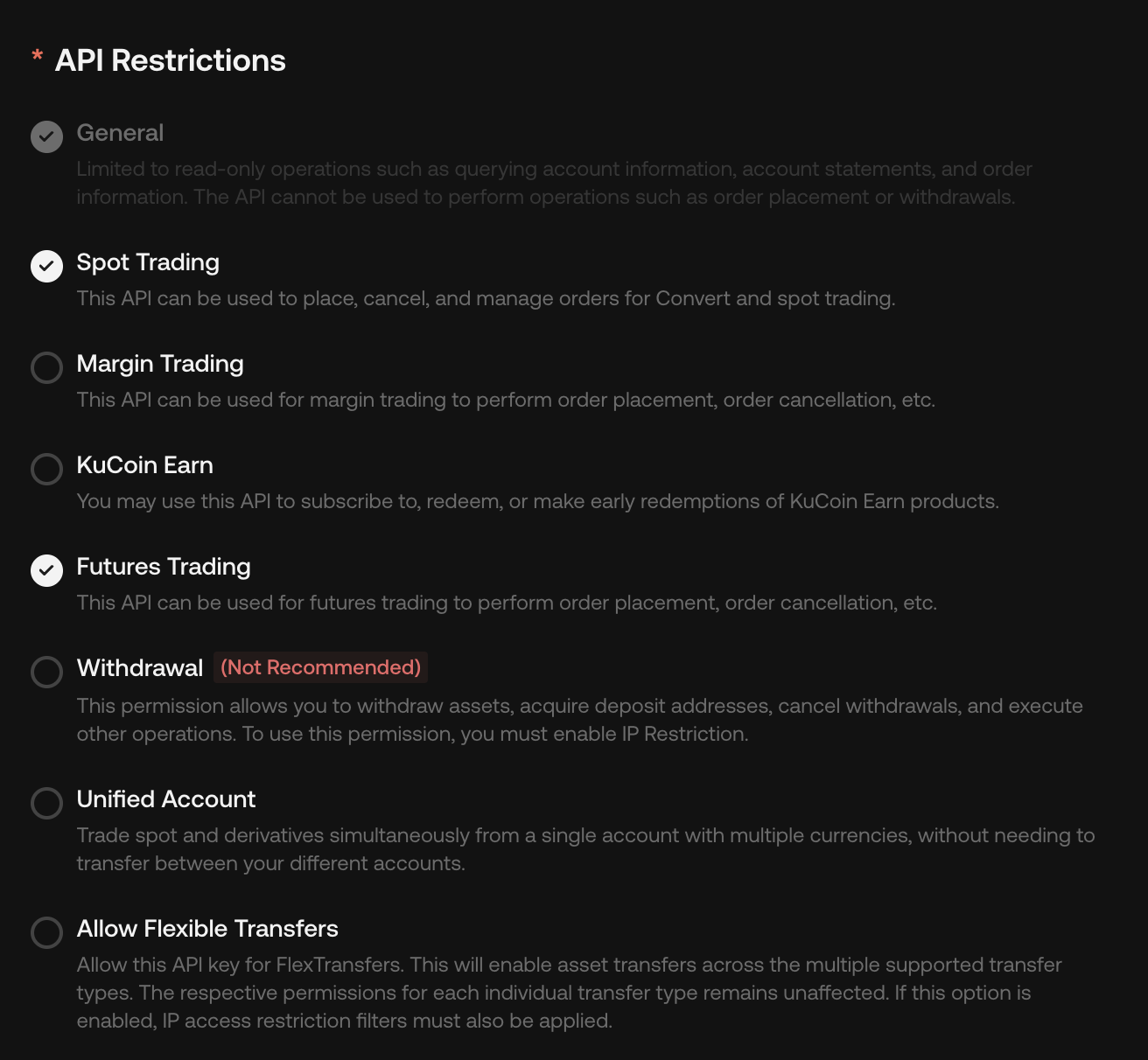
- General — always enabled; covers read-only operations like account info, balances, and order history.
- Spot Trading — enable if you plan to trade spot markets.
- Futures Trading — enable if you plan to trade KuCoin Futures.
- Margin Trading — enable only if you plan to run margin strategies.
- KuCoin Earn, Unified Account, Allow Flexible Transfers — leave disabled unless you have a specific reason.
Danger
Do not enable Withdrawal. HaasOnline never needs withdrawal permission to trade on your behalf. Enabling it means that a leaked API key could drain your KuCoin account — a trading-only key limits the blast radius to trades on your existing balances.
Tip
Enabling both Spot Trading and Futures Trading on a single key lets you use the same credentials for the KuCoin and KuCoin Futures exchange types in HaasOnline.
Scroll further to IP Restrictions. Keep Restrict to Trusted IPs Only selected and add the public IP address of the machine running your HaasOnline installation, then click Add. Repeat to whitelist additional servers (up to 50 IPs, IPv4 or IPv6).
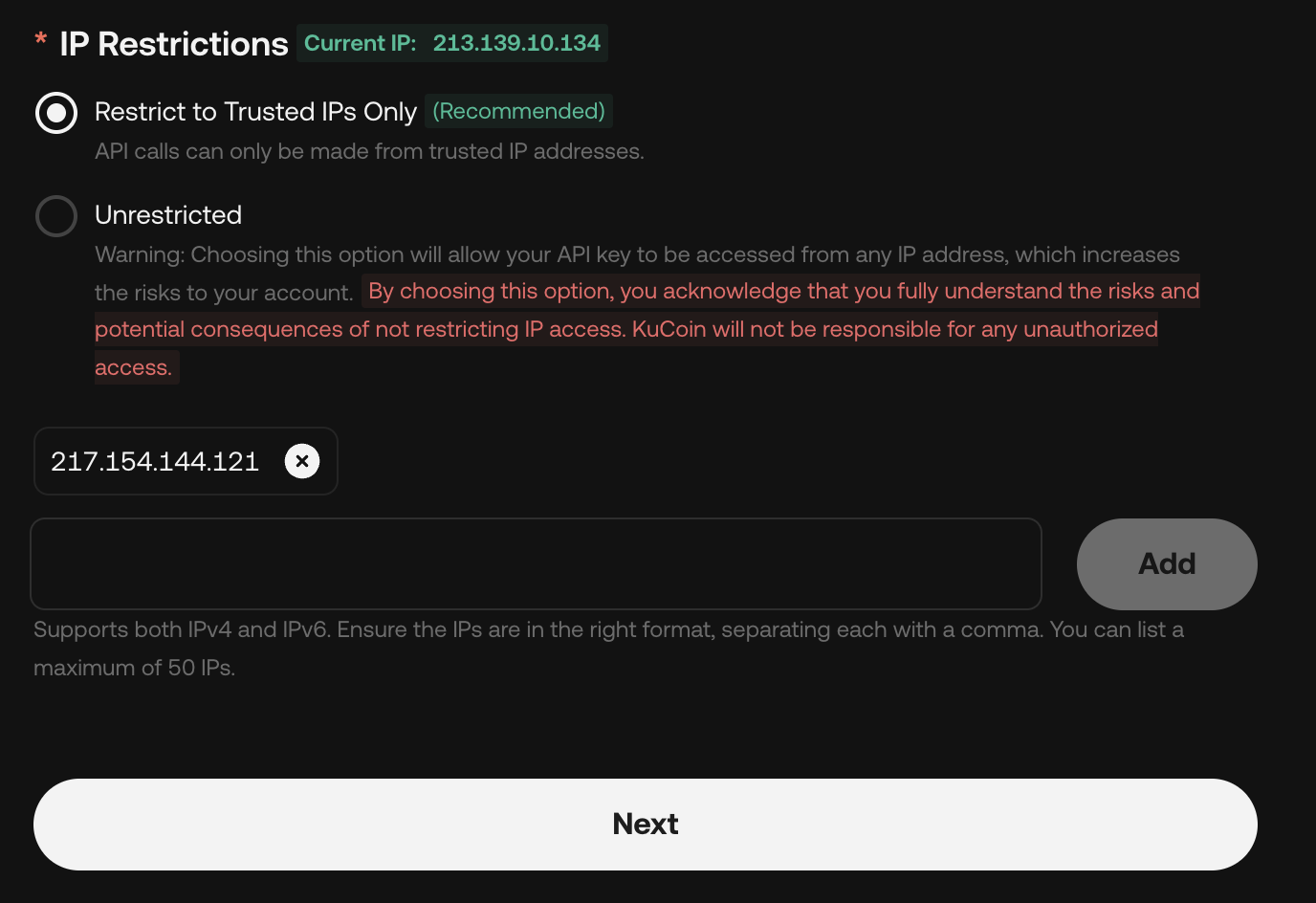
Danger
Do not select Unrestricted. A stolen API key with no IP whitelist can be used from anywhere in the world against your account.
Click Next. A Security Verification modal opens — confirm your identity to continue:
- Trading Password — the password you set on KuCoin specifically for trading (not your login password).
- Google Authenticator — the 6-digit code from your 2FA app.
Info
KuCoin may additionally email you a verification code during this step. If so, check your inbox and enter the code in the modal. If Google Authenticator is unavailable, use Switch verification method to pick email or SMS instead.
Click Confirm. The API Created modal then opens with your credentials:
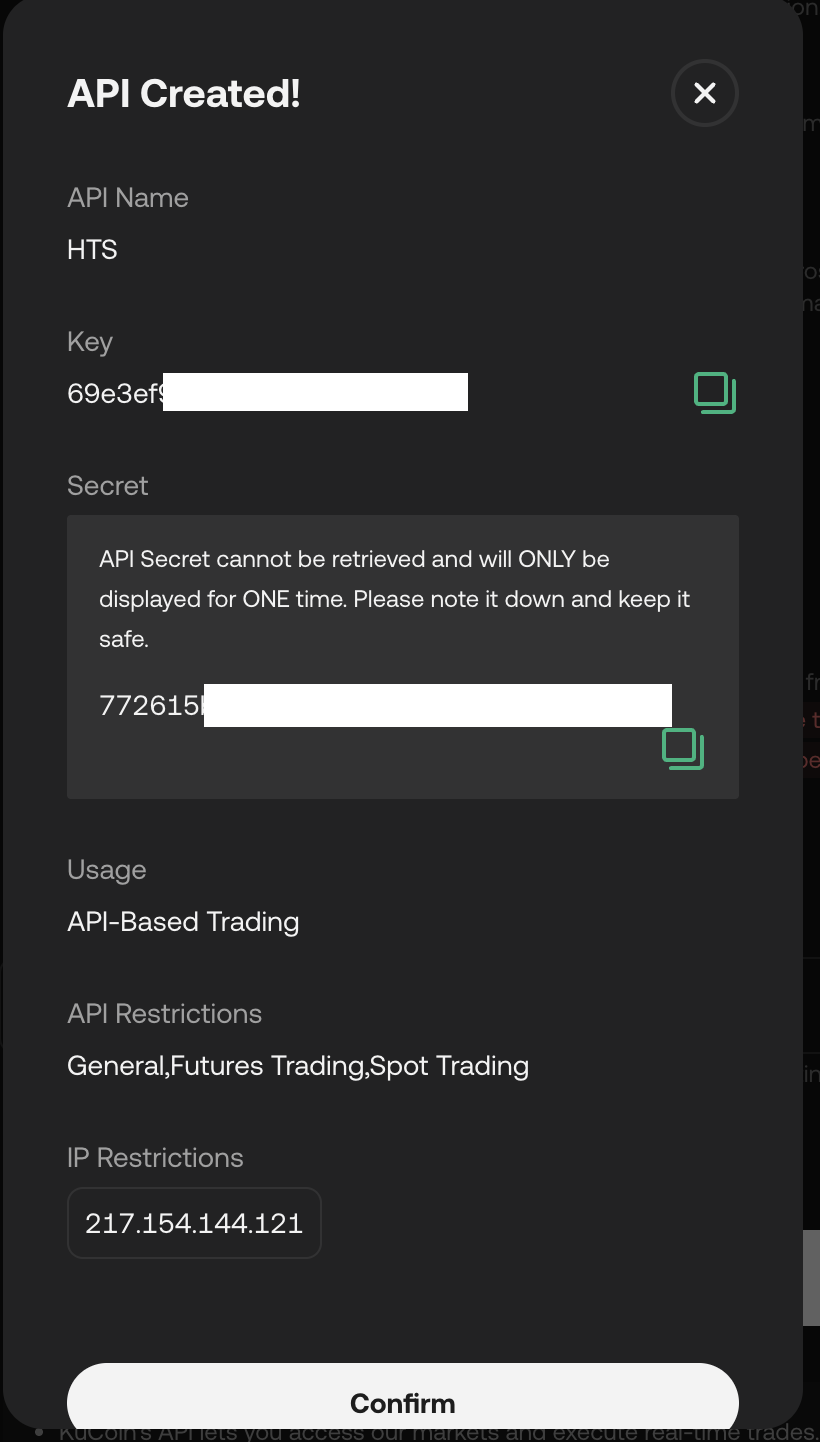
Copy both values immediately:
- Key — the public identifier for your API key; you can view this again later in API Management.
- Secret — shown only once. If you close the modal without copying it, you'll have to delete the key and create a new one.
Together with the API Passphrase you set earlier, these three values — Key, Secret, and Passphrase — are what you'll paste into HaasOnline. Click Confirm to close the modal.
Adding the API to HaasOnline TradeServer Cloud
Log in to TradeServer Cloud.
Click on the user menu icon in the top right and select Exchange Accounts.
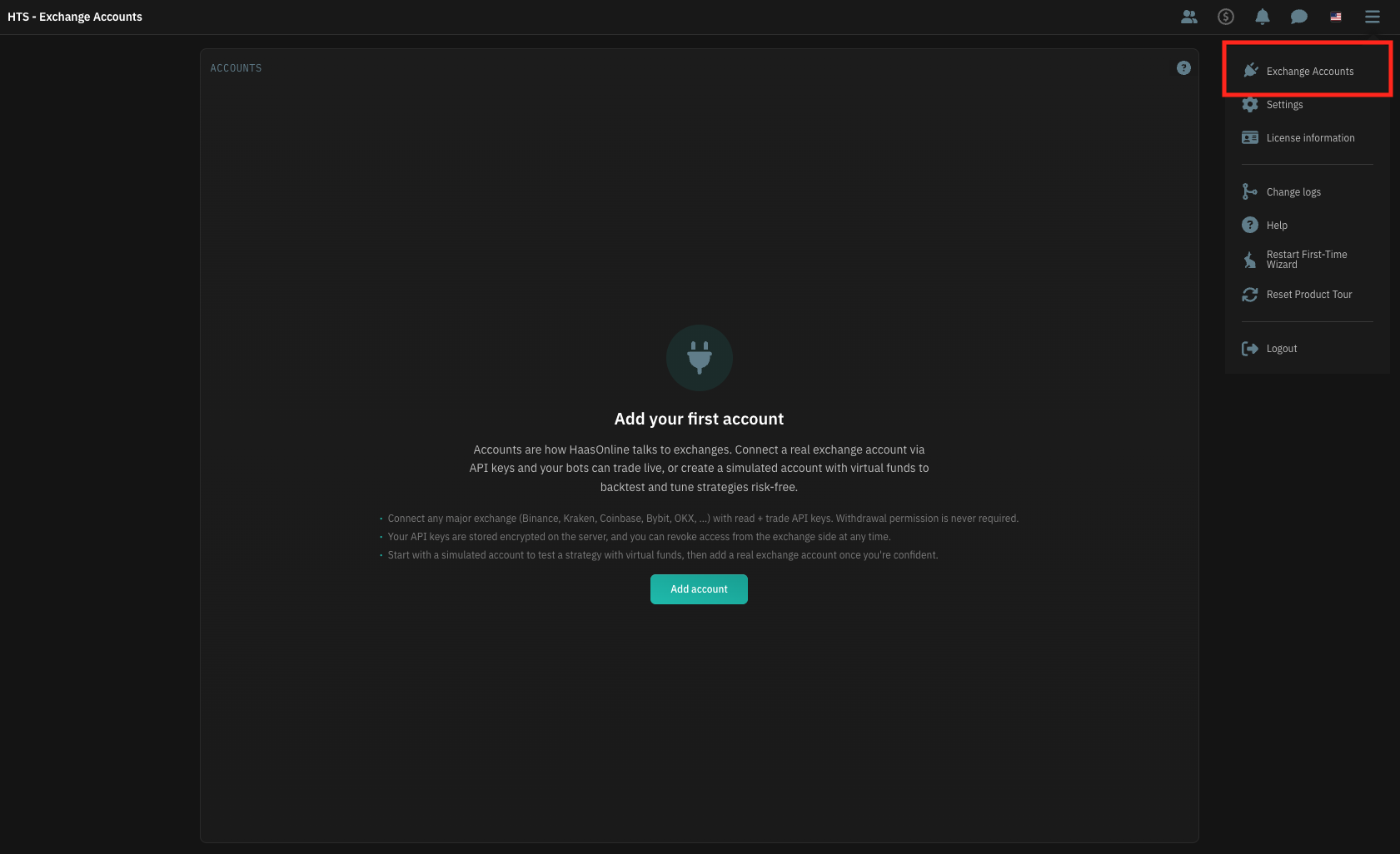
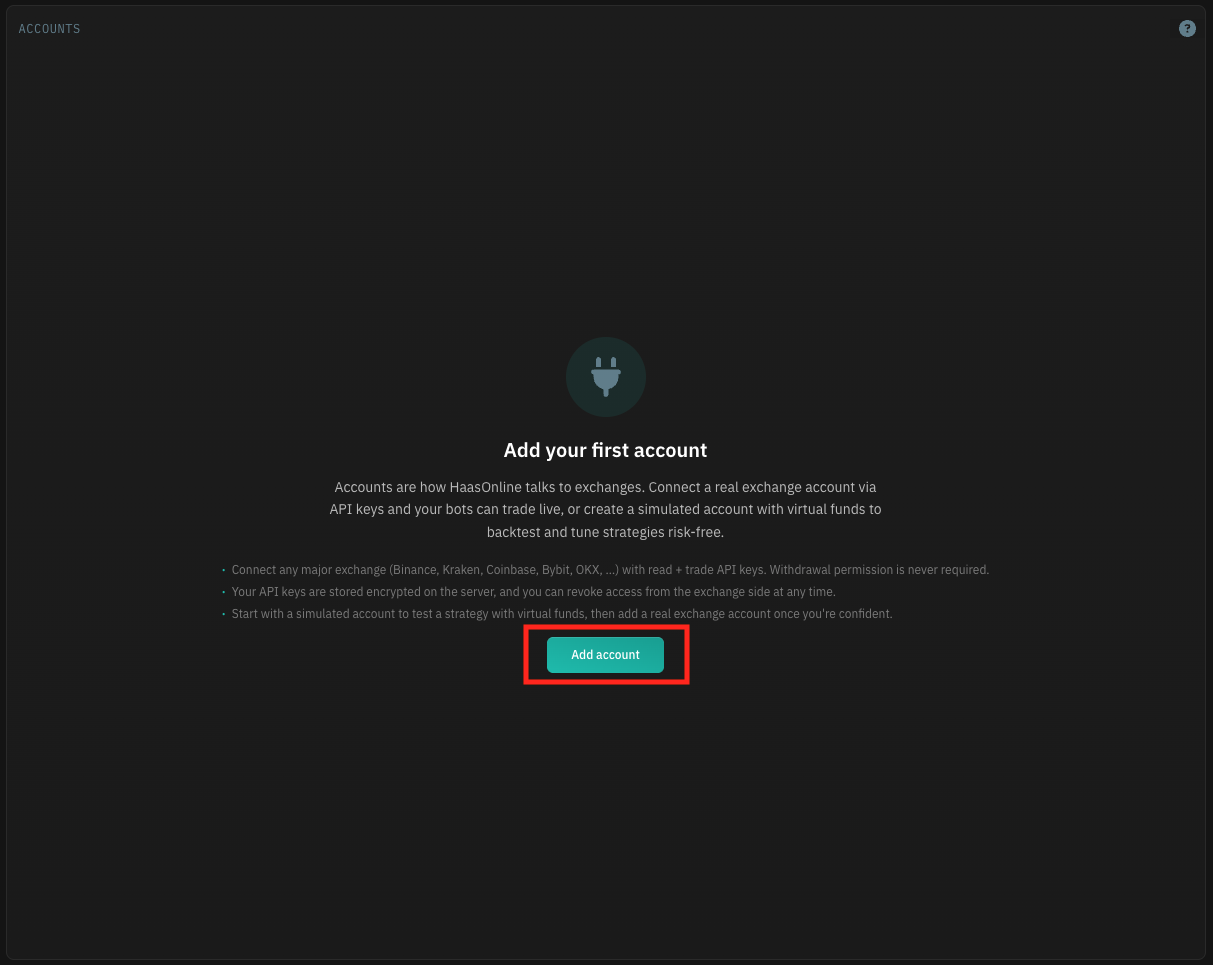
Click Add account.
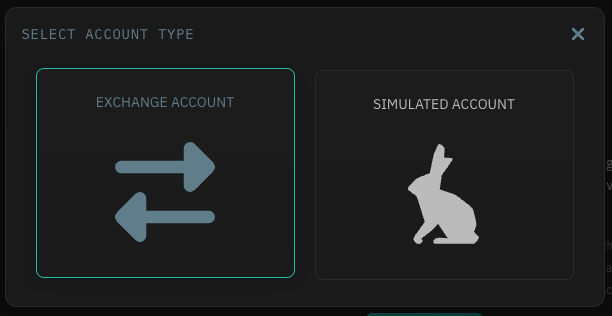
Select Exchange Account.
From the list of supported exchanges, choose KuCoin for spot trading or KuCoin Futures for futures trading. The API key you created above will work for whichever market you enabled its permissions for.
Enter an Account name, then paste the values from KuCoin:
- Public Key → the KuCoin
Key - Private Key → the KuCoin
Secret - Passphrase → the passphrase you set when creating the API
Info
Check for stray spaces at the start and end of the Key, Secret, and Passphrase after pasting — they're a common source of "invalid credentials" errors.
Once the fields are filled in, the TEST KEYS button becomes active. Click it. If the test passes, click Submit to add the account to the platform.