Gate.io
HaasOnline connects to Gate.io spot trading. The key needs only the Spot Trading permission, and it should be bound to HaasOnline's IP addresses: Gate.io disables keys that aren't bound to an IP after 90 days.
If you don't have a Gate.io account yet, sign up at Gate.io.
Obtaining the API Key
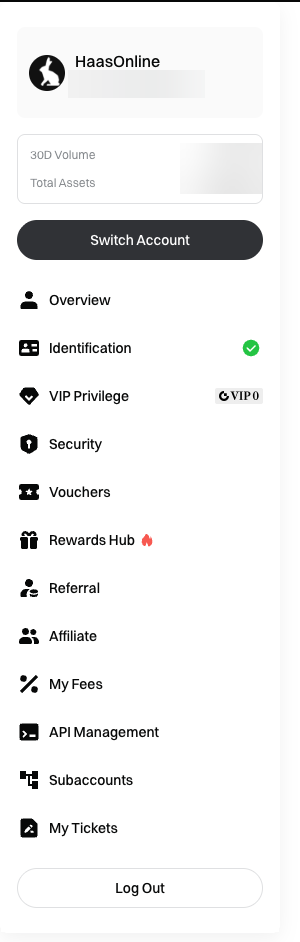
Log in to Gate.io, hover over your profile icon and click API Management.
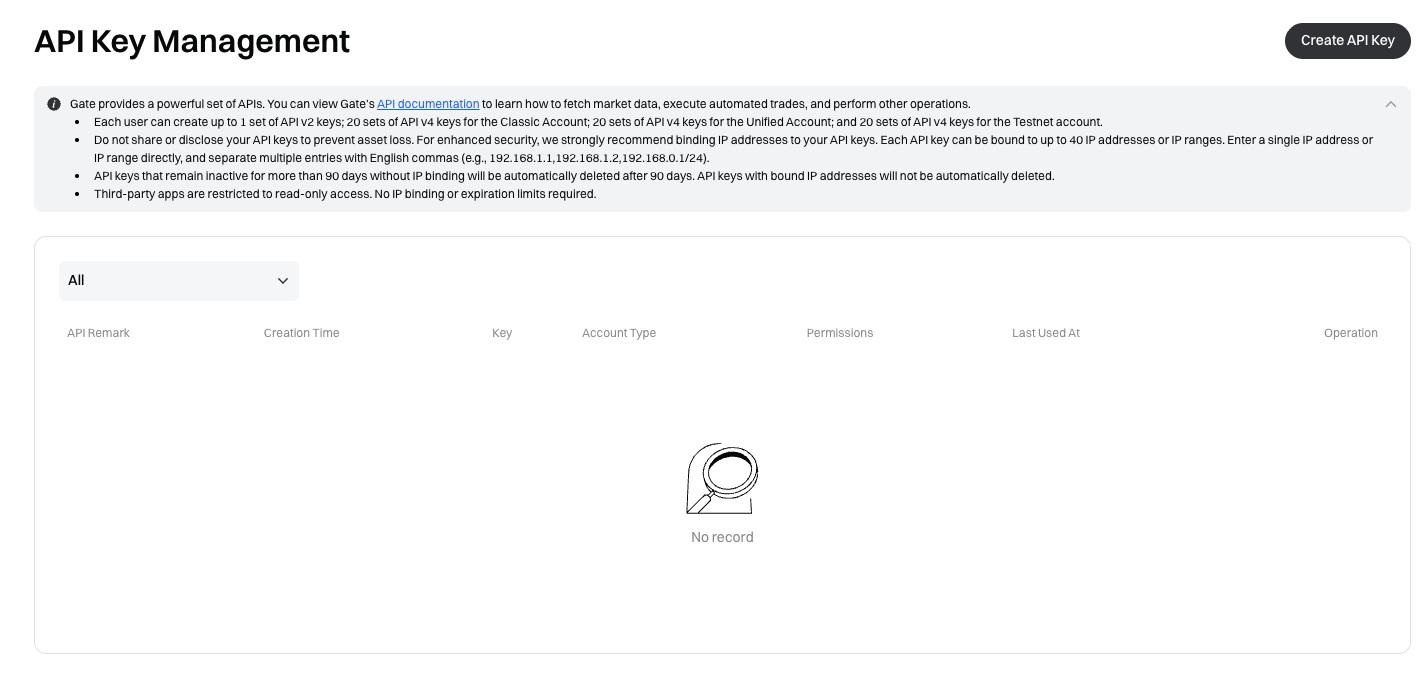
On API Key Management, click Create API Key.
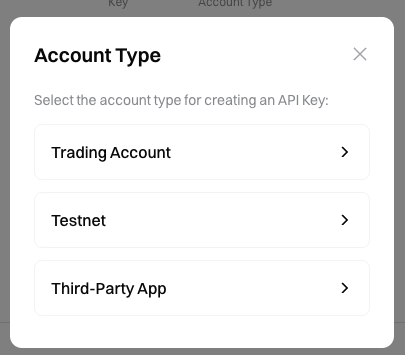
Gate.io asks which account type the key is for. Choose Trading Account. (Testnet is Gate.io's practice environment, which HaasOnline doesn't connect to, and Third-Party App keys are a different, read-only kind of key.)
Configure the key
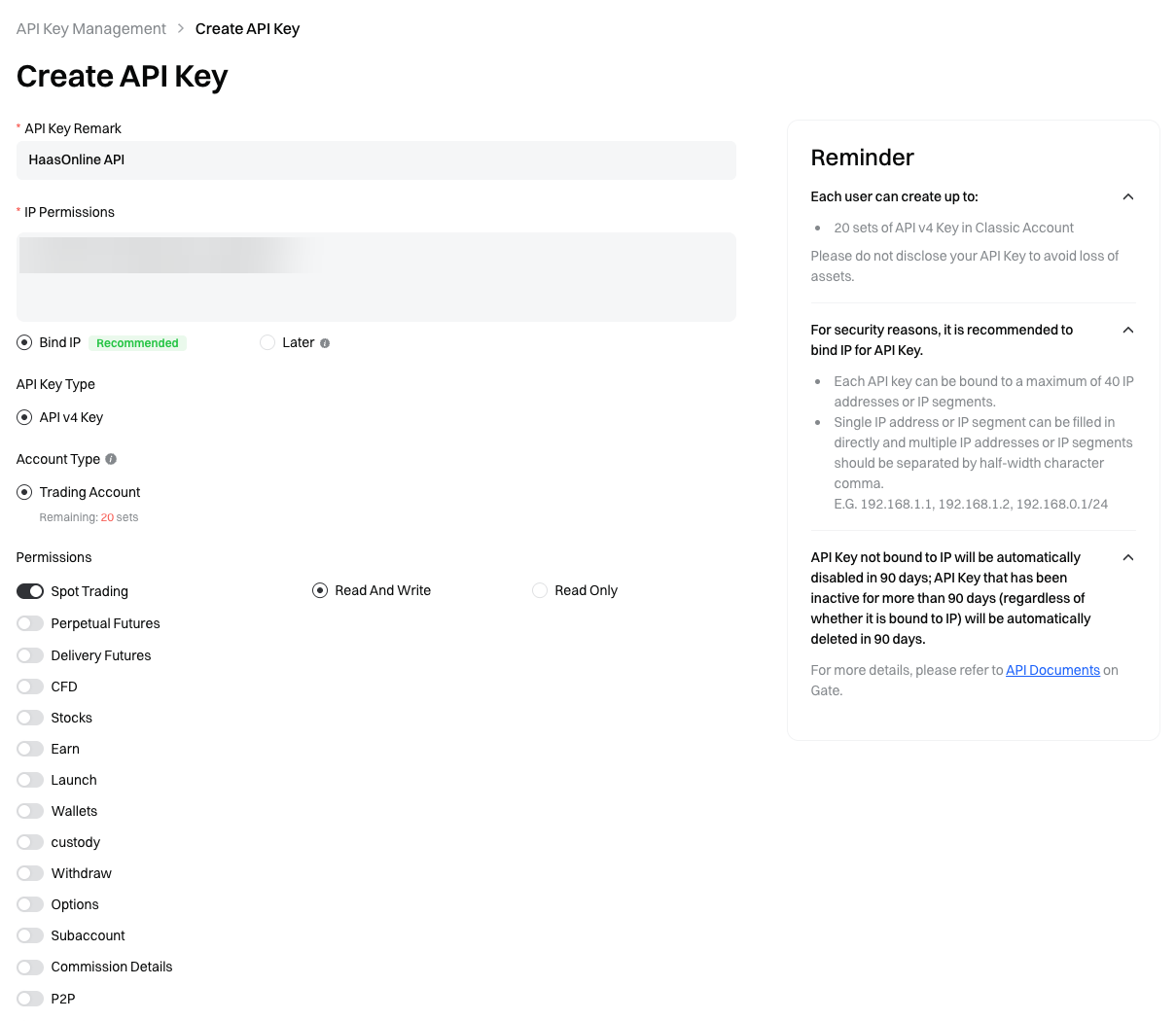
Fill in the Create API Key form:
- API Key Remark: any name that identifies the key (for example
HaasOnline). - IP Permissions: choose Bind IP and paste the IP addresses shown in HaasOnline, separated by commas.
- API Key Type: API v4 Key.
- Account Type: Trading Account.
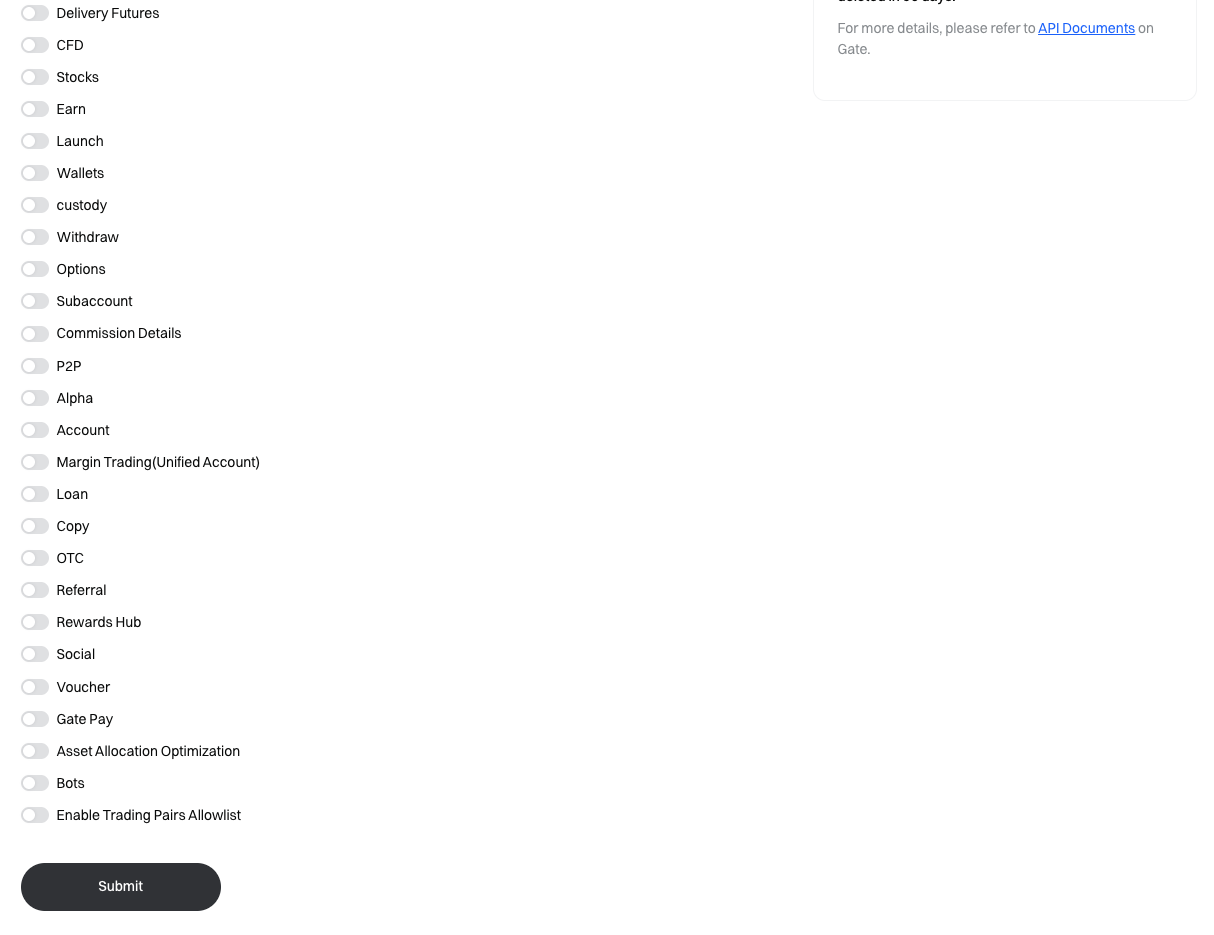
- Permissions: switch on Spot Trading and choose Read And Write. Leave every other permission switched off, including Perpetual Futures, Delivery Futures, Wallets and Withdraw. HaasOnline only trades Gate.io spot.
Danger
Do not enable Withdraw or Wallets. HaasOnline never needs them to trade for you, and a trading-only key limits what a leaked key could do.
Info
For the IP binding:
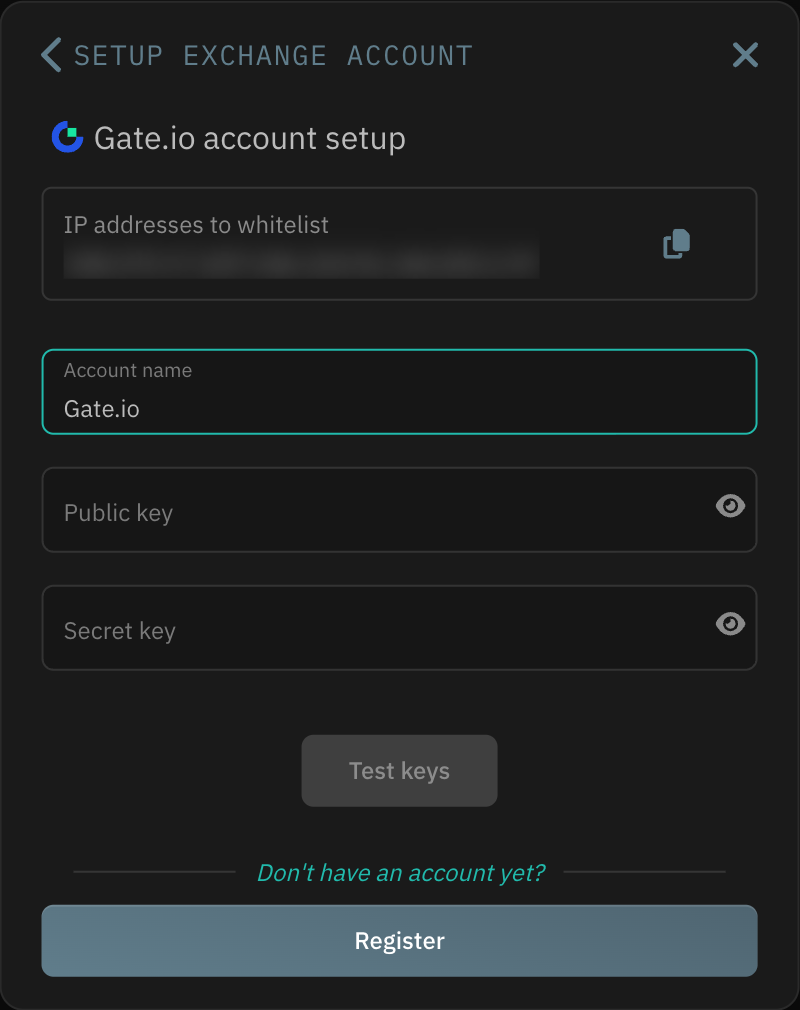
- On HaasOnline TradeServer Cloud, paste the addresses shown under IP addresses to whitelist in the HaasOnline account setup form (use its copy icon).
- On a self-hosted TradeServer license, use the public IP address of your machine or server.
Gate.io's own rules: a key not bound to an IP is disabled after 90 days, and any key that goes unused for more than 90 days is deleted, bound or not.
Scroll down past the rest of the permissions, all left off, and click Submit.
Confirm and verify
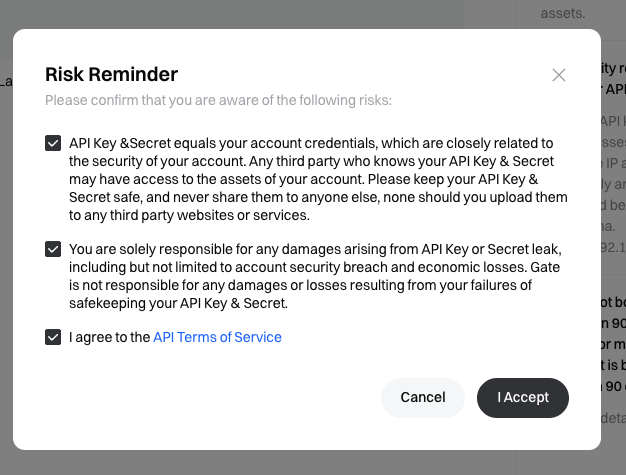
Gate.io shows a Risk Reminder about keeping the key safe. Check the three boxes and click I Accept.
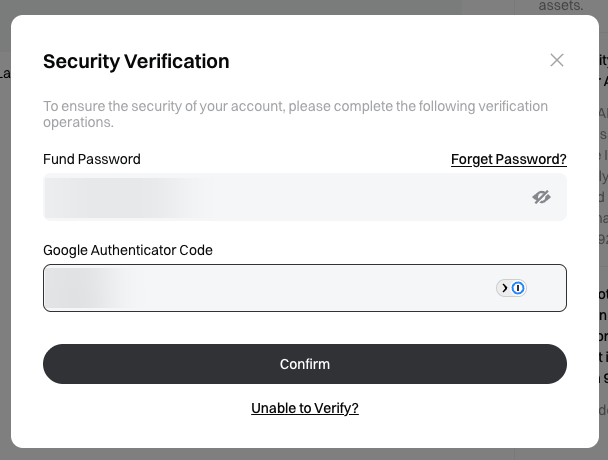
In Security Verification, enter your Fund Password and Google Authenticator Code, then click Confirm.
Copy the keys
API Key is created successfully shows the new key:
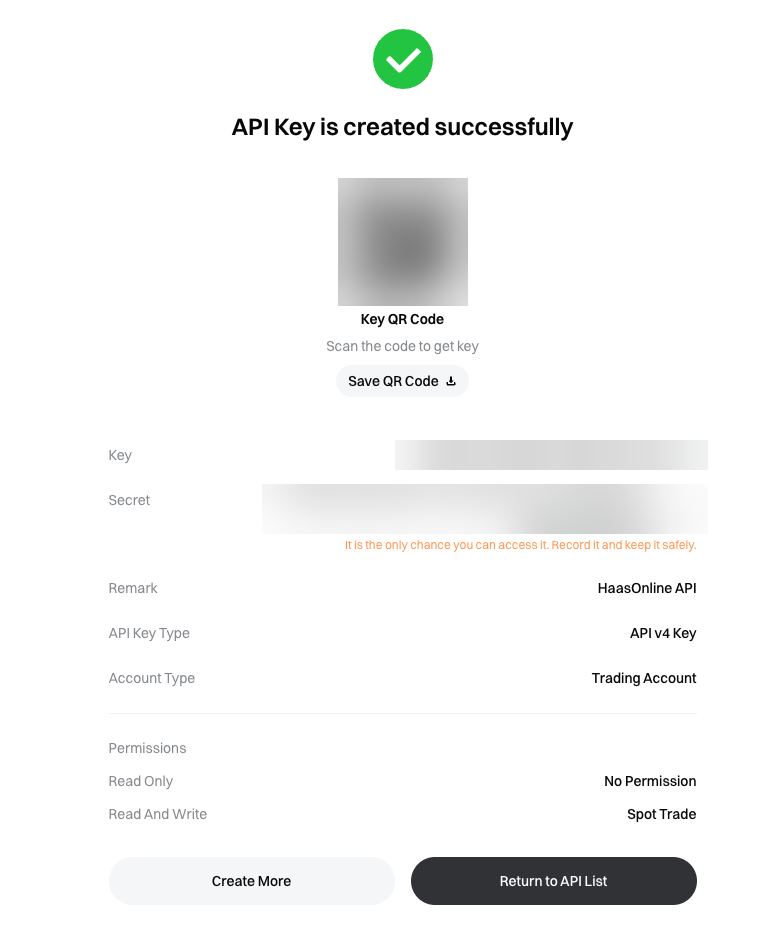
- Key: goes in the HaasOnline Public key field.
- Secret: goes in the HaasOnline Secret key field.
Danger
Copy the Secret now. Gate.io shows it only once ("It is the only chance you can access it"). If you lose it, delete the key and create a new one.
Adding the API to HaasOnline TradeServer Cloud
Log in to HaasOnline TradeServer Cloud and open Exchange Accounts from the user menu in the top right. The Adding an API to the Platform guide shows these first steps with screenshots.
- Click the + button at the bottom of the accounts list (on an empty page it reads Add account)
- Select Exchange account
- In Connect an exchange account, click Gate.io. It has one market, so the setup form opens next
-
Enter an Account name, then paste the values from Gate.io:
- Public key → the Gate.io
Key - Secret key → the Gate.io
Secret
Info
Check for spaces at the start and end of each value after you paste it. Stray spaces are a common cause of a failed key test.
- Public key → the Gate.io
-
Click Test keys. When the test passes, click Save account
If the test fails, check that Spot Trading is set to Read And Write and that the key is bound to the IP addresses shown in HaasOnline. If it still fails, contact Support.