Close or reduce a Smart Trade
Close all or part of a Smart Trade's position at any time once its entry has filled. You don't need to remove its take profit and stop loss first.
Until the entry fills, the row says "Reduce and Close now are available once the entry has filled." A trade that can't be covered offers only Close now and Remove. That happens when the entry filled but what it bought is below the market's minimum at the exit price, or there is nothing to cover: no price is watched and no exit will fire. Close now is grayed out if the entry bought nothing; use Remove then.
Close now
Close now sells everything a Smart Trade holds with one market order, and ends the trade as Closed by you (on spot it can end Reduced, see If it can't close). Anything still waiting for the trade (an added order or a limit reduce) is canceled first, so nothing is left behind on the exchange.
- Click Close now on the Smart Trade's row (Order Overview, a dashboard widget or the Smart Trades tab on Marketview), or in the Edit window.
- Check the window: the amount, the estimated price and the estimated PnL, and anything still waiting, for example "Waiting adds cancelled first: Buy 10 XRP at 1.4500" and "Waiting reduces cancelled first: 10 XRP at 1.4580".
- Click Close now in the window. HaasOnline cancels anything still waiting for the trade, then closes everything it holds with one market order. On a hedge-mode account only the trade's own side is closed.
- A first message says the order was sent: "Close now sent: selling at market. The outcome is shown when it fills." A second gives the outcome, for example "Closed by you on XRP/USDT Long (Demo Futures): position closed."
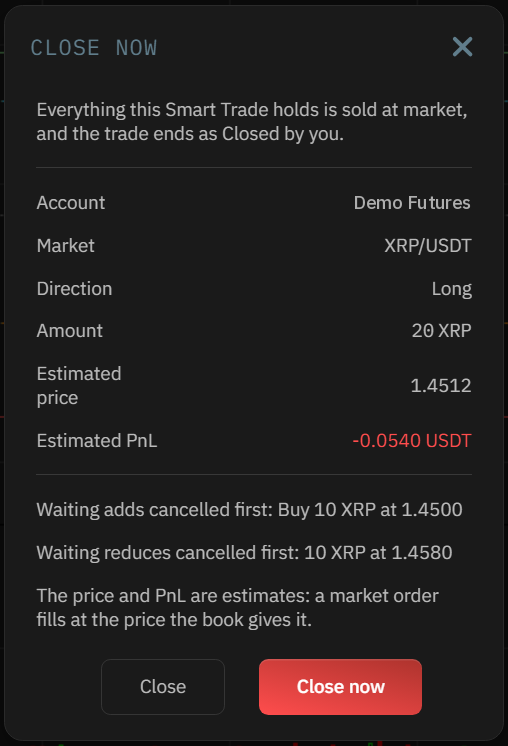
Changed your mind? Click Close in the window and nothing happens. If the trade is a lot, the window title names the lot, and only that lot is closed.
Reading the window
| Line | Example | What it tells you |
|---|---|---|
| Account · Market · Direction | Demo Futures · XRP/USDT · Long | Which trade you're closing. On spot, Direction shows "-": closing a spot trade can only be a sell. |
| Amount | 20 XRP | Everything the trade holds |
| Estimated price | 1.4512 | Roughly where the market order will fill |
| Estimated PnL | −0.0540 USDT | Roughly what the trade makes or loses |
| Waiting adds cancelled first | Buy 10 XRP at 1.4500 | An added order that hasn't filled, canceled before the close |
| Waiting reduces cancelled first | 10 XRP at 1.4580 | A limit reduce that hasn't filled, canceled before the close |
The price and PnL are estimates: a market order fills at the price the order book gives it. On a short, the window still says the trade is sold; it closes the short.
Afterwards
The trade leaves the SMART TRADES section, and its lines disappear from the chart. The Trades list shows the fill as Smart Trade · Closed by you, and Smart Trade history shows the outcome Closed by you, with the PnL. A reduce made earlier shows on the line underneath, for example "Reduced: 5 at 1.5040", and an outcome can combine steps, for example Target 1, then closed by you.

If it can't close
- The exchange refuses the order. Nothing is sold and the row says why, for example "Close now was refused by the exchange: ... The trade is still open and its stop and targets are still in place."
- Spot, fewer coins than the trade holds. The window adds "If fewer coins are left in the wallet than it holds, what is left is sold and the trade ends as Reduced." If nothing at all can be sold, the row says "Close now was refused for lack of coins. Nothing was sold; the Smart Trade has ended as Reduced." See when your wallet runs short.
Reduce: sell part of it
Reduce sells part of an open Smart Trade, at market or at a price you choose. The rest stays a Smart Trade, still covered by its take profit and stop loss.
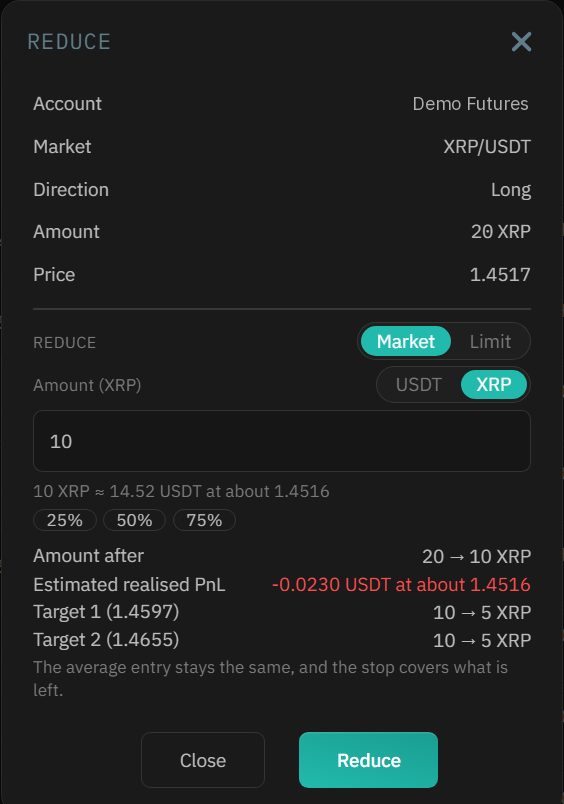
- Click Reduce on the Smart Trade's row. The window shows the account, market, direction, amount and current price. When the trade is a lot, the window's title names the lot, and the reduce sells from that lot only.
- Type an amount (in coins or in USDT), or pick 25%, 50% or 75%.
- Choose Market or Limit; for a limit, enter the price.
- Check the summary (below).
- Click Reduce. A market reduce sells at once: "Smart Trade reduced - Sold at market. The Smart Trade holds 10 XRP now."
Reduce is only on the row. The Edit window has Close now, and lists any waiting reduces, each with a Cancel link.
Reading the summary
Before you click, the window shows the trade after the reduce:
| Line | Example | What it tells you |
|---|---|---|
| Amount (XRP) | 10 XRP ≈ 14.52 USDT at about 1.4516 | How much you're selling, and roughly what it's worth |
| Amount after | 20 → 10 XRP | The trade's size before and after |
| Estimated realised PnL | −0.0230 USDT at about 1.4516 | Roughly what this part of the trade makes or loses |
| Target 1 (1.4597) | 10 → 5 XRP | Each target keeps its share of the smaller trade |
| The note underneath | "The average entry stays the same, and the stop covers what is left." | Your entry and stop don't move |
Targets keep their share. With two targets of 50% on 20, a reduce of 10 leaves two targets of 5. The stop covers what's left, and the average entry doesn't change, so PnL keeps counting from the same price.
A limit reduce
A limit reduce waits on the exchange with the Source Smart Trade · Reduce, and the row says "1 reduce waiting at 1.4580". A message confirms it: "The reduce is waiting at 1.4580. The Smart Trade shrinks when it fills." On the Marketview chart, it's drawn as a blue, dotted Reduce line. The trade shrinks only when it fills; Close now cancels it first.

Fills adds a Reduced line; Smart Trade history lists the reduce and counts it in the trade's Amount and PnL.
When a reduce can't go ahead
- The whole amount: the window says "That is everything this Smart Trade holds. Use Close now to sell it all and end the trade."
- A limit for everything is refused: "A limit order for everything this Smart Trade holds is a take profit. Move the target to that price, or use Close now."
- Too little left: a reduce can't leave less than the market's minimum. The window says so and offers Close now, for example "That would leave 0.0014, below the smallest amount this market takes, so the target and the stop could not sell it. Use Close now to sell everything."
- The exchange refuses it: nothing is sold and the row says why: "A reduce was refused by the exchange: ... The trade is still open and its stop and targets are still in place."
On a short (futures), a reduce buys back part of the position. On a hedge-mode account a reduce only sells from the trade's own side.
Close it with your own order
On the same account and market in the Execute trade panel:
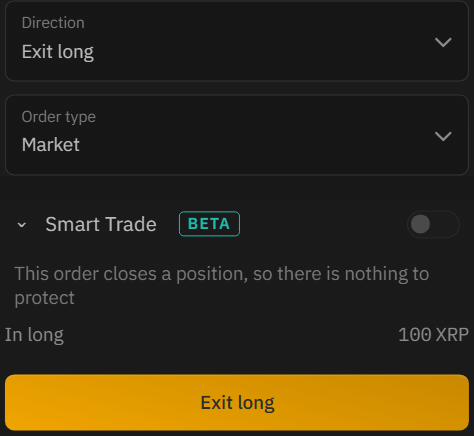
- Set the Direction to Exit long or Exit short, or tick Reduce only and trade the other way (on spot, Sell the coins you hold).
- Enter the amount to close: the full position to close it completely.
- The Smart Trade section can't be switched on and says "This order closes a position, so there is nothing to protect." That's expected.
- Place the order and confirm.
Keep it in the record
Use Close now or Reduce when you want the exit and its PnL recorded in Smart Trade history. A trade you close with your own order, or on the exchange, ends with the outcome Closed and no PnL, because the closing order wasn't the Smart Trade's own.
HaasOnline tidies up for you
When the position is fully closed, HaasOnline ends the Smart Trade automatically. It leaves the SMART TRADES section and appears in Smart Trade history.
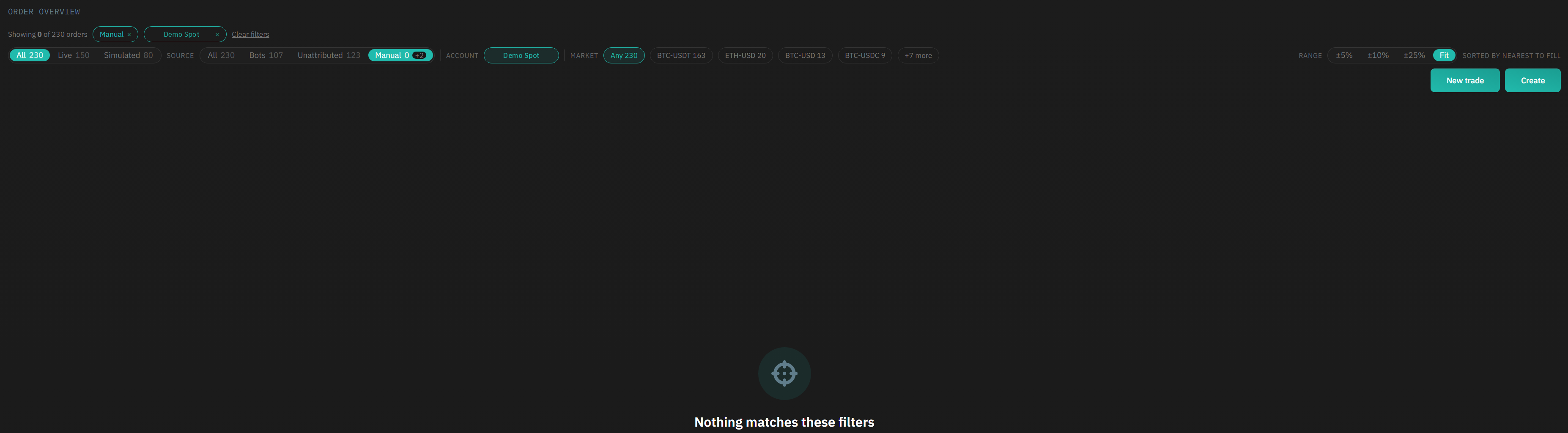
If you closed only part of the position, the take profit and stop loss stay in place for the rest. If you closed it with your own order or on the exchange, HaasOnline notices within a few minutes and ends the Smart Trade with the outcome Closed and no PnL.