Monitor your Smart Trades
Where to see a Smart Trade's status, all your Smart Trades and their PnL at once, and what happened after one closed your trade.
The status block in Execute trade
With the same account and market selected, the Execute trade panel shows the Smart Trade's status, along with your Entry, the amount covered, your Stop and your Target(s).
| What you see | What it means |
|---|---|
| Protection is waiting for your entry | Your entry order (for example a limit order) hasn't filled yet. The take profit and stop loss start as soon as it fills. |
| This position is a Smart Trade | Your position is open and HaasOnline is watching your take profit and stop loss. |
| This Smart Trade can't be covered | The entry filled, but what it bought is below the market's minimum at the exit price, or there is nothing to cover. No price is watched and no exit will fire. End it with Close now or Remove. |
| This position is not protected, followed by a reason | The take profit and stop loss have stopped. Read the reason and set new levels if you still want them. |
Where the exchange can't hold the exit order itself, the block adds "Held by HaasOnline, not by the exchange. It stops working if HaasOnline stops."
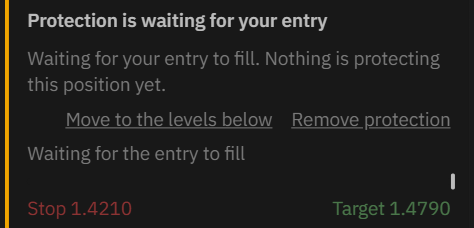
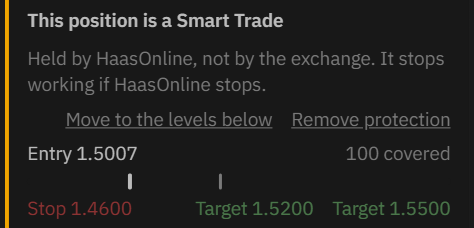
A limit entry shows as waiting until it fills: "Nothing is protecting this position yet." A market entry fills straight away, so it goes directly to This position is a Smart Trade.
Once it's live, the block lists your entry, the amount covered, your stop and each target, with the Move to the levels below and Remove protection links.
Order Overview: every Smart Trade on one page
Open Order Overview (in the Trading menu). The SMART TRADES section lists every active Smart Trade: market, account, direction, amount, entry, stop, each target and its status (Armed, or Waiting for entry), drawn on a price ladder.

Each row has Fills, Edit, Add buy (Add sell on a short), Reduce, Close now and Remove (see Manage and Close or reduce). Click the market name, or the chart icon beside it, to open the trade on the chart. New trade and Create sit above the section. A lot has its own row with its name, for example ADA/USDT lot #8.
PnL and the bar

- PnL: once the entry has filled, the profit or loss so far, as a % and a value. Green in profit, red at a loss; it updates live.
- The bar runs from the stop to the target and fills from your entry to the current price: green toward the take profit, red toward the stop.
- PnL is measured from the exchange's average entry, so it matches the exchange.
- A trailing stop shows on the row as Stop at its current level.
Fills and waiting orders
- Fills on a row lists everything that has filled for the trade: Time, Kind, Amount, Price and the Average entry after each fill. Kinds include Entry, Added buy, Reduced and Target 1. A trade you took over starts with Taken over (no order). On spot, where the exchange takes its fee in the coin, the amount reads, for example, "0.0073 bought, 0.0072 kept".
- Waiting orders: while an added order or a limit reduce waits, the row says so, for example "1 buy waiting at 776.60" or "1 reduce waiting at 88000.00". A waiting added order is also marked on the colored bar. Hover the marker for, for example, "Waiting add: 0.0185 ETH at 2690.00".
Filters and Needs attention
To show only your manual trades, set the Source filter to Manual. To show one account, pick it in the Account drop-down, between Source and Market. Live accounts are listed first, then simulated ones, each A to Z. The Account filter also narrows the SMART TRADES section. Your Smart Trades show beside Manual as +n, for example Manual 0 +2.

Needs attention flags:
- Within 1% of firing
- Unpaired stop / take profit (a Smart Trade is missing one side)
- Unprotected entry
- Partially filled
- Not acknowledged (the exchange hasn't confirmed the order yet)

On a dashboard
Add a widget from the ORDERS group on your dashboard:
- Manual Orders Overview: your manual orders and the SMART TRADES section, with the same PnL, bar and buttons as the Order Overview page.
- Order Overview: all your orders, including bots.
- Smart Trade history.
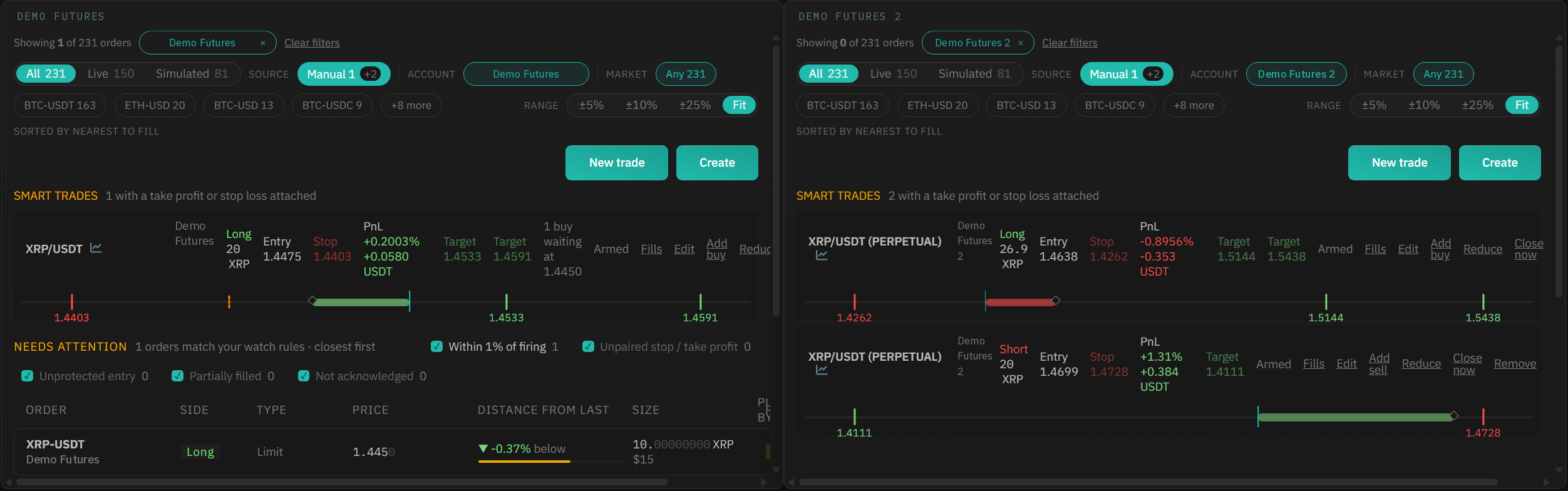
Give each widget a Title when you add it; you can change it later with the gear icon. Each widget remembers its own Account filter, so you can add one per account and name each one after its account. Make the widget wide enough to show every row button: in a narrow one, the last buttons are cut off.
After it closes
When a target or the stop is reached, HaasOnline places the closing order and shows a Smart Trade message, for example "Target 1 of 2 reached on XRP/USDT Short (Demo Futures): part of the position closed, the rest is still open."
The Trades list
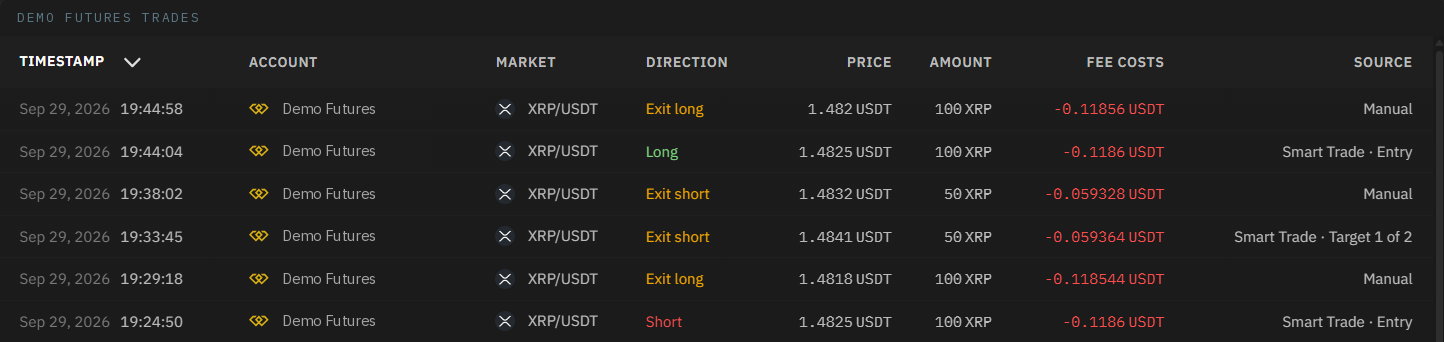
In the Trades list, the Source says which part of the Smart Trade each fill was: Smart Trade · Entry, Smart Trade · Added buy (or Added sell), Smart Trade · Target 1 of 2, Smart Trade · Take profit, Smart Trade · Stop loss, Smart Trade · Trailing stop, Smart Trade · Reduce or Smart Trade · Closed by you. Hover over it for a one-line summary, for example "Stop loss reached on XRP/USDT (PERPETUAL) Long: 5 closed at 1.5121."
Smart Trade history
Smart Trade history, in the Trading menu, lists your past Smart Trades with the market, entry, stop, target, amount, PnL, Outcome (for example Target hit, Stopped out, Closed by you, Reduced or Cancelled) and when each one closed. It appears straight away, and each row has a chart icon that opens the closed trade on the chart.
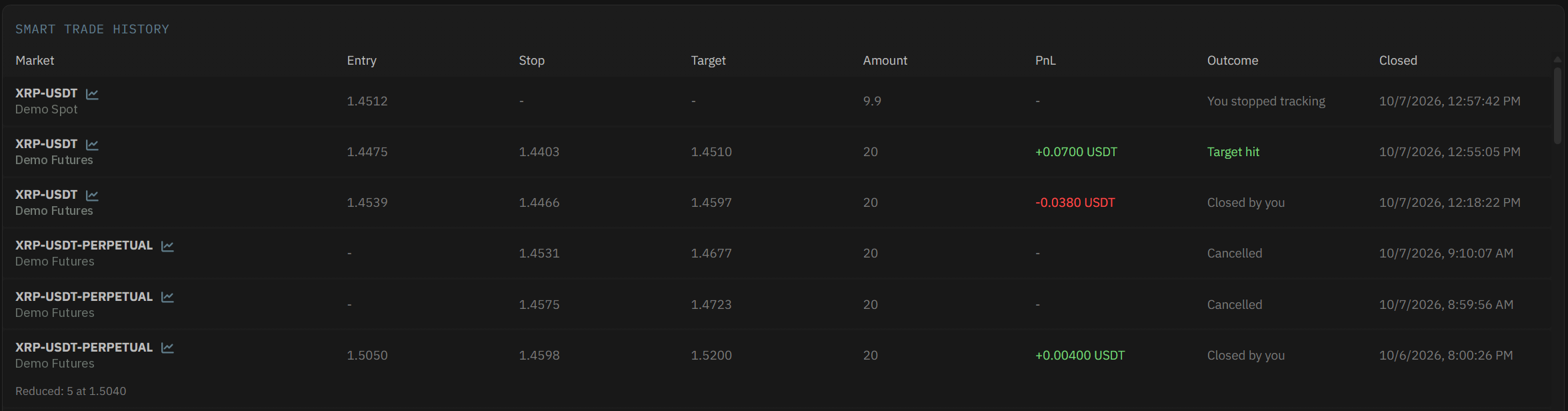
When a Smart Trade closed in more than one step, its row has a line underneath saying what closed where, for example "Target 1: 4 at 1.4858 · Target 2: 4 at 1.4815", and the Outcome reads, for example, Target 1, then target 2 or Target 1, then stopped out. The Amount and PnL are for the whole trade. Further lines list each addition that filled ("Added: 0.00023 at 85884.00") and each reduce ("Reduced: 5 at 1.5040"); the Amount and PnL include what the reduces sold.

PnL in Smart Trade history is before fees. It's worked out from the fill prices; the fees are shown in the Trades list.