Smart Trade on the chart
Marketview draws the Smart Trade you opened, or the lot you selected, one trade at a time: the entry, every target, the stop, any orders still waiting, and every fill. You can manage the trade below the chart, look back at a closed one, or start a new one from a price.
Open it on the chart
- An open trade: on its row in Order Overview, a dashboard widget or the Smart Trades tab, click the market name or the chart icon beside it. Marketview opens on that market with the trade drawn on it.
- A closed trade: in Smart Trade history, click the chart icon on its row (see Look back at a closed trade).
Your trade, drawn in
Each level is a line across the chart, labeled with what it is, the amount and the price. The lines move when the trade changes (an edit, an add, a reduce) and disappear when the trade ends. The yellow marker on the right edge is the current price.
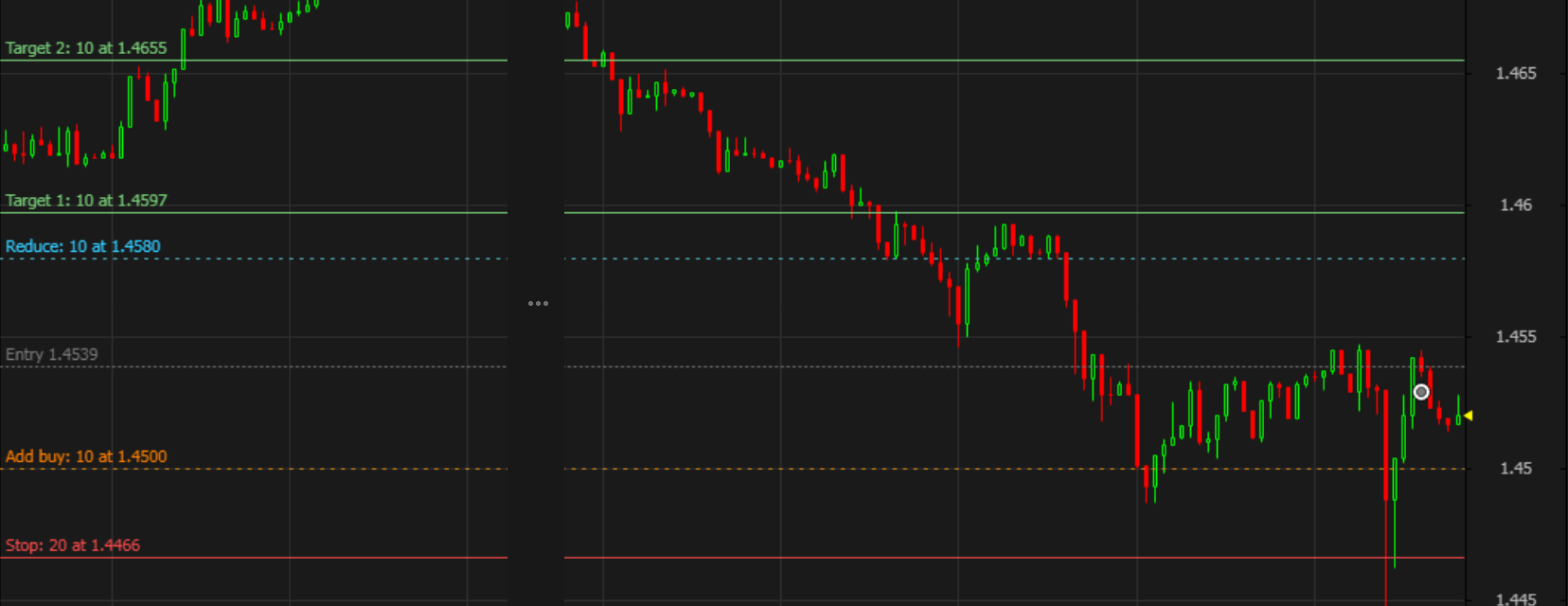
| Line | Example label | What it is |
|---|---|---|
| Gray, dashed | Entry 1.4539 | Where the trade got in. After an add it reads Average entry; on a closed trade, Exit is dashed too. |
| Gray, dotted | Entry waiting at ... | A limit entry still waiting to fill |
| Green | Target 1: 10 at 1.4597 | Each take profit target, with the amount it sells |
| Red | Stop: 20 at 1.4466 | The stop loss and the amount it covers. A trailing stop reads, for example, Trailing stop 3%: 15 at 1.4466 |
| Orange, dotted | Add buy: 10 at 1.4500 | An added order still waiting to fill (Add sell on a short) |
| Blue, dotted | Reduce: 10 at 1.4580 | A limit reduce still waiting to fill |
| Dotted, "New ..." | New entry at 1.4490 | The levels of a Smart Trade you're setting up but haven't placed yet |
| Orange, with a warning | New stop at 1.4519: The price is already past the stop loss | A level that can't work where it is |
When the trade is a lot, each label starts with the lot's name, for example XRP/USDT lot #2 · Stop: 15 at 1.40, and the chart shows that lot only. Tracked coins and the other lots on the same market aren't drawn.
Every fill, on its candle
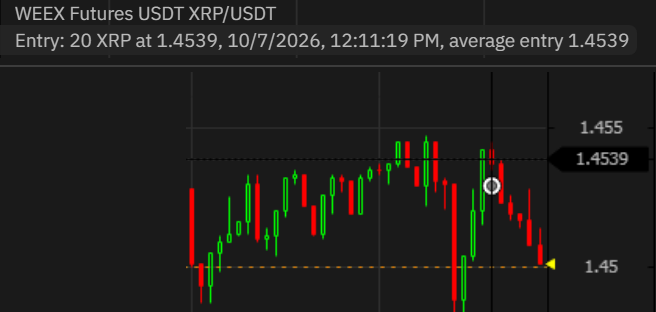
- Each fill is marked on its candle: buys below, sells above.
- Hover a mark. Its details show at the top left of the chart (not next to the mark), for example "Entry: 20 XRP at 1.4539, 10/7/2026, 12:11:19 PM, average entry 1.4539".
- Marks close together? Switch to a shorter interval (for example 1 minute) to tell them apart.
Manage it below the chart
Beside Orders, Positions and Trades, the SMART TRADES tab lists the Smart Trades on this market, with the same row and buttons as Order Overview: Fills, Edit, Add buy, Reduce, Close now and Remove.

The trade drawn on the chart comes first.
Removing on Marketview shows the same Remove window. If an entry is left on the book, cancel it from the Orders tab.
Look back at a closed trade
- In Smart Trade history, click the chart icon on the trade's row.
- The chart opens with every fill mark and dashed Entry and Exit lines, for example Exit 1.4520.
- Hover the marks to see each fill.
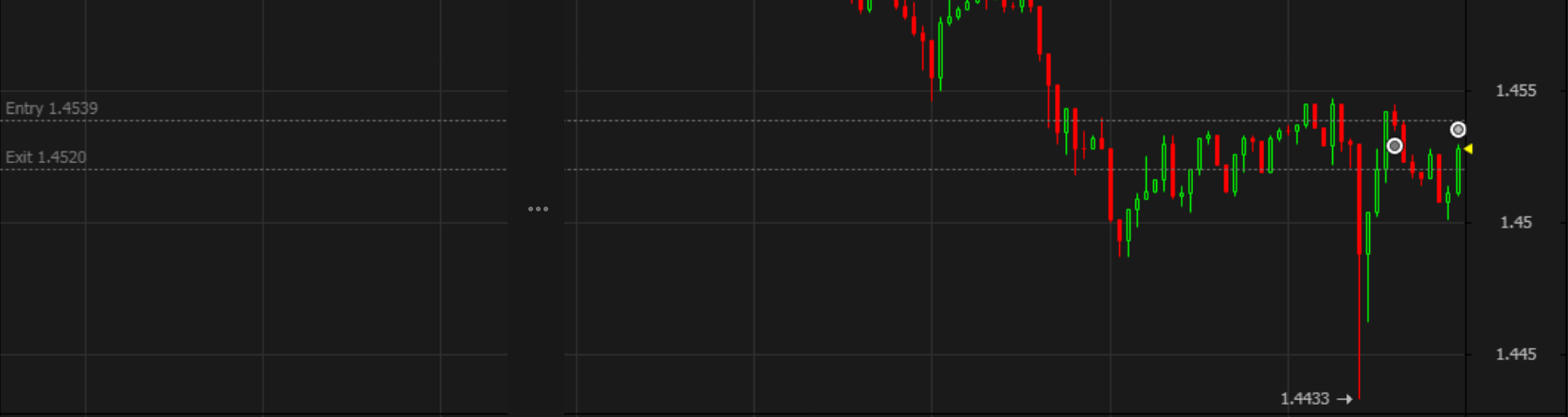
When the entry and exit are close together, switch to a shorter interval (for example 1 minute) to read the labels and hover each mark.
Start a Smart Trade from a price
- Right-click the chart at the price you want and choose New Smart Trade here (it shows the price under the pointer), or click + at the top right of the chart for the current price.
- The Execute trade panel opens with Smart Trade on and a Limit entry at that price.
- The chart shows dotted New entry at ..., New target 1 at ... and New stop at ... lines.
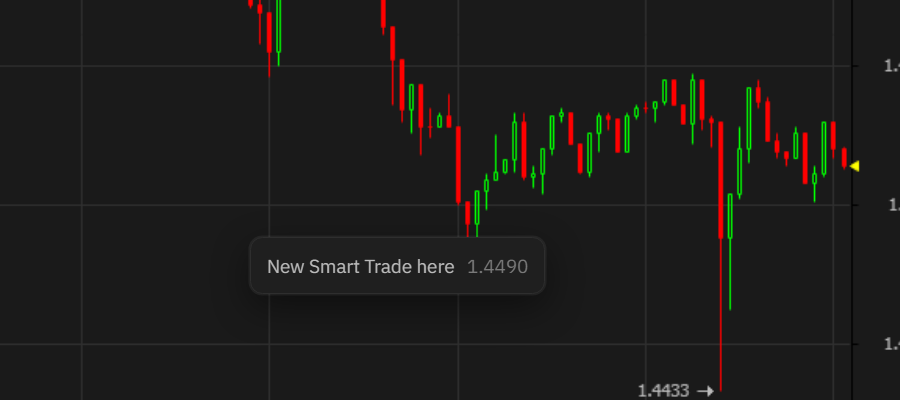
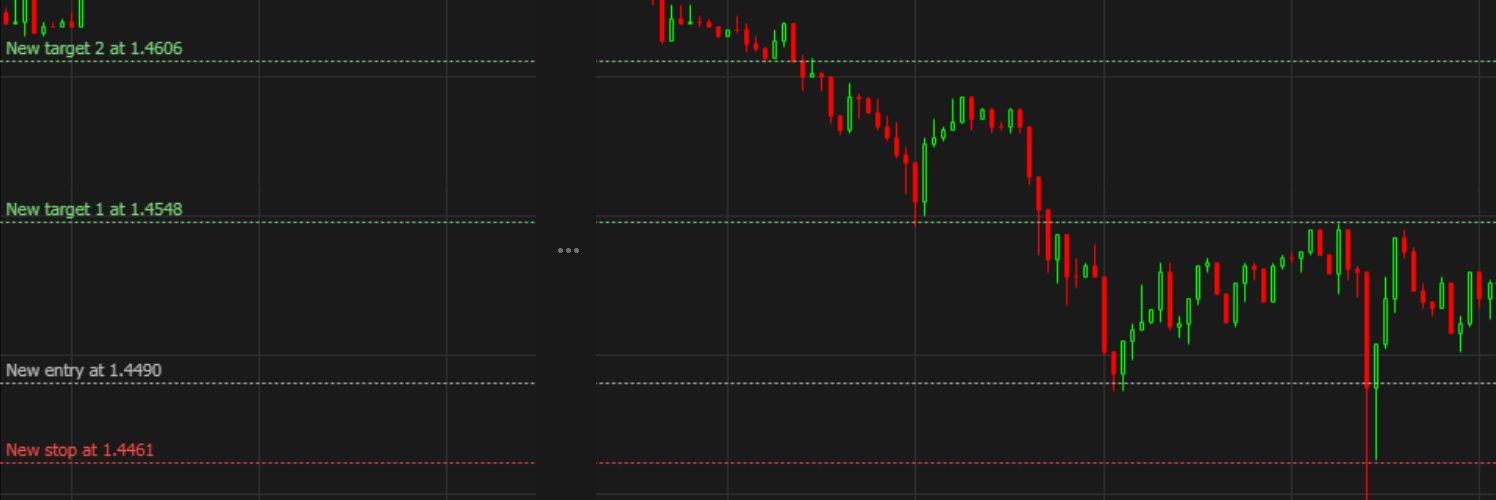
No new lines are drawn while a Smart Trade already holds that market (or that side, on a hedge-mode account): the panel then edits the existing trade, and a live trade can't be dragged. With lots on, starting from the chart always opens a new lot, so the lines are drawn even when other lots hold the market.
Set the levels: drag on the chart, or type in the panel
Each follows the other.
- Drag a line to move it: the panel updates, and the line snaps to the market's price step. Type in the panel: the line moves. A Market entry and a trailing stop can't be dragged.
- A level set in % stays in %, with the same meaning as in the panel (a 2% stop on a long is 2% below the entry). A level you set as a price stays a price.
- Check Risk and Reward at the bottom of the Smart Trade section.
- Click Long (or Short) and confirm as usual. A limit entry then shows on the chart as Entry waiting at ...
Nothing is placed until you click Long or Short and confirm: the dotted New lines aren't a trade yet.
When a level can't work
- Drag the stop past the entry and its line turns orange with "The price is already past the stop loss". The field switches to a price and Long (or Short) is grayed out. Drag it back and the field returns to %.
- Move a long's entry above the market (or a short's below it) and the entry line turns orange with the same warning as the panel: "This limit is above the market, so it fills now at about ..." You can still place it.
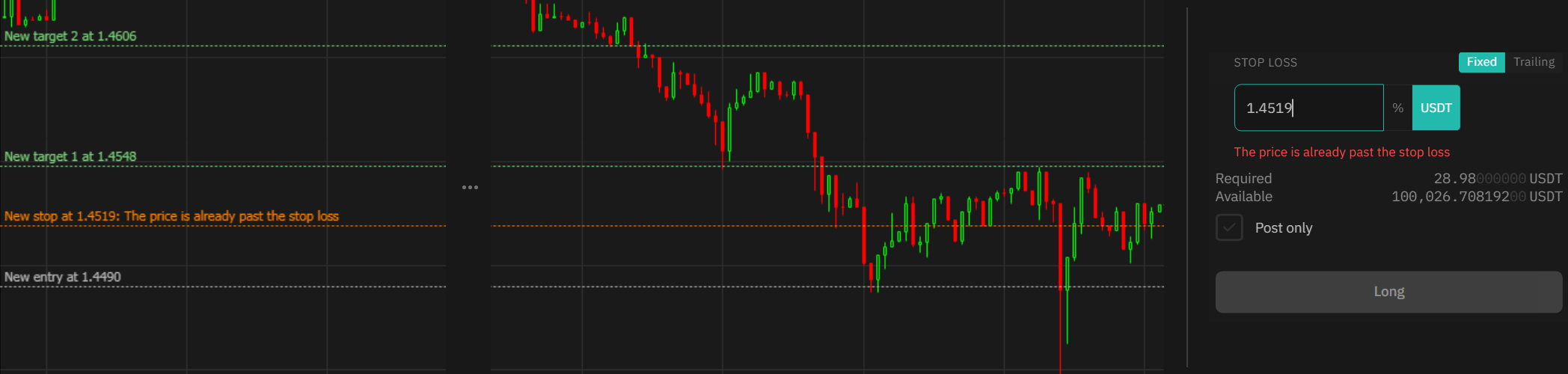
Chart quick reference
| You see | Why | What to do |
|---|---|---|
| No Smart Trade lines on the chart | The trade has ended, or the chart isn't showing that trade's market. | Open the chart from the trade's row, or find it in Smart Trade history. |
| Fill marks or labels on top of each other | The levels are close together at this interval. | Switch to a shorter interval, such as 1 minute. |
| An orange line: "The price is already past the stop loss" | The stop is on the wrong side of the entry. | Drag it back, or type a valid level in the panel. |
| An orange entry line: "...so it fills now at about ..." | A long's limit is above the market (a short's below it). | Place it if you want to fill now, or move the entry. |
| Dotted New ... lines stay on the chart | The Smart Trade hasn't been placed. | Click Long or Short and confirm to place it. |