Open a Smart Trade
Seven steps in the Execute trade panel, from choosing the market to confirming the order.
Step 1: Choose the account and the market
- Pick your Account.
- Pick the Market you want to trade, for example XRP/USDT.
- On futures markets the panel also shows the account's position mode, margin mode and leverage, for example Hedge · Cross · 1x.
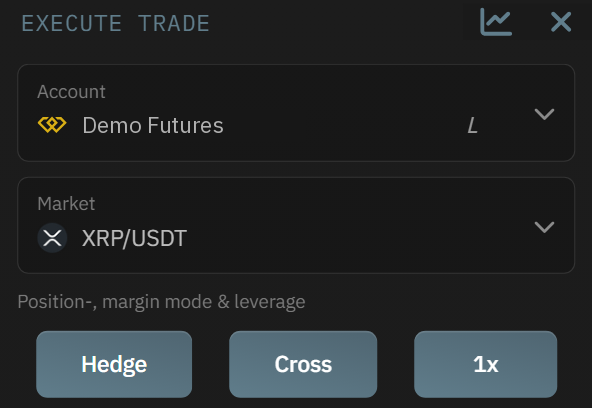
The account and market you choose here also decide which Smart Trade the panel shows you later. Come back to the same pair to check on it or change it.
Step 2: Set up the order
- Direction: Long if you expect the price to rise, Short if you expect it to fall. On a spot market you Buy.
- Order type: for example Market (fills straight away) or Limit (fills at your price or better).
- Amount: for example 100 XRP, or in USDT with the USDT | coin switch beside the box: "50 USDT ≈ 0.0184 ETH at about 2717.02", rounded down to an amount the exchange accepts. Some futures markets are sized in Contract(s).
- Make sure Reduce only is not ticked, and keep an opening Direction (not Exit long or Exit short). Closing orders can't be a Smart Trade.
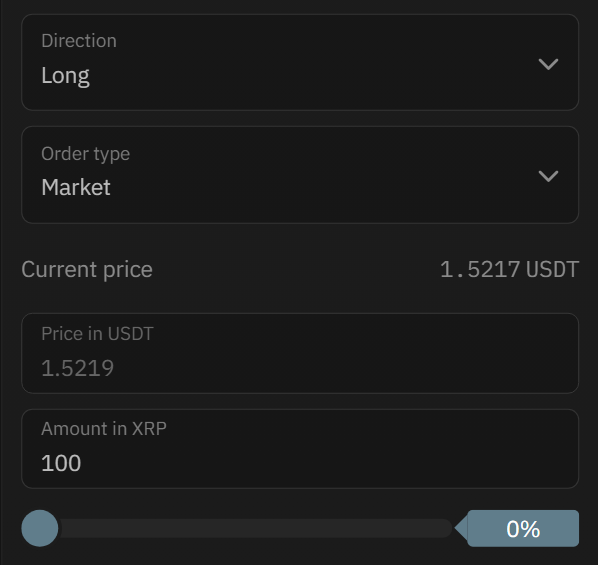
The panel shows Required and Available. A Limit long priced above the market (or a short below it) fills straight away, and the panel says so: "This limit is above the market, so it fills now at about 1.4729."
Step 3: Turn on Smart Trade
- Switch on the Smart Trade toggle.
- The TAKE PROFIT and STOP LOSS sections appear below it.
With lots switched on, the Smart Trade section starts with a Lot selector. Leave it on New lot to open a new trade.
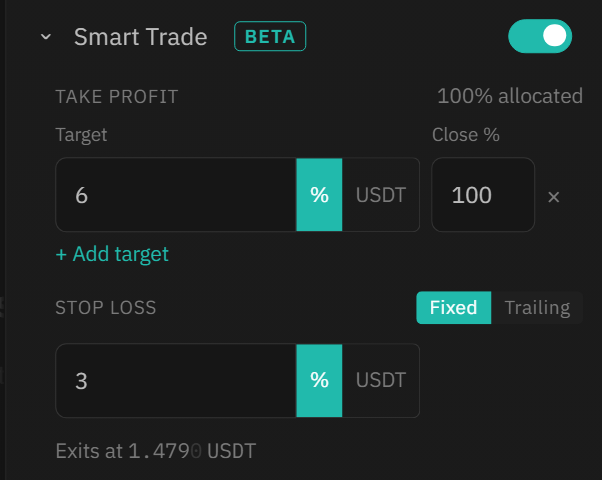
Toggle won't switch on?
Read the message under it. Most often the Direction is set to close a position: "This order closes a position, so there is nothing to protect" or "This order can only reduce a position, so there is nothing to protect."
Step 4: Set your take profit
One target
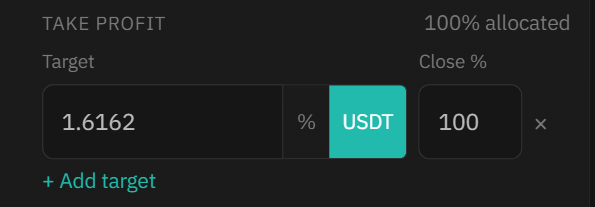
- Choose how to enter the level: % is a distance from your entry price (for example 3%), and USDT (your quote currency) is an exact price (for example 1.6162).
- Enter the Target price.
- Enter Close %: the share of the position to close when this target is reached. Use 100% to close everything at one target.
Stop loss only?
Remove the target row with its ×. The panel then says "No take profit set - this will be a stop loss only."
Or take profit in stages
- Click + Add target to add another target.
- Give each target its own price and Close %, for example 50% at the first target and 50% at the second.
- The header shows how much of the position is allocated, for example 100% allocated.
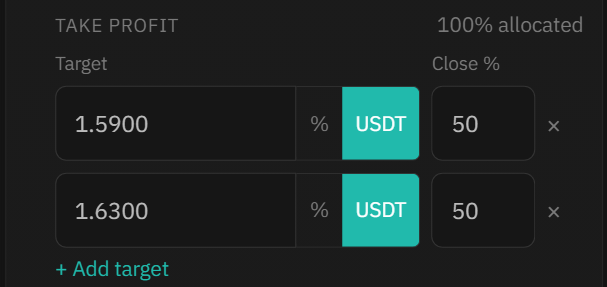
Staged targets let you bank part of a move early and leave the rest to run. This is optional: one target at 100% is fine.
Step 5: Set your stop loss
- Fixed (the stop stays where you put it) or Trailing (the stop follows the price as it moves in your favor).
- % or USDT, as with the take profit.
- Enter the stop level. The panel shows where it will exit, for example "Exits at 1.4906 USDT". In % mode the exit is worked out from your entry price.
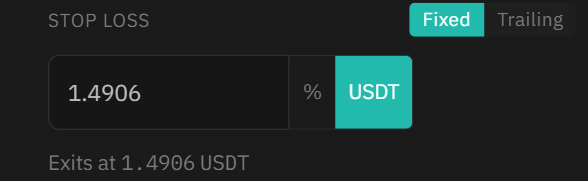
Check the mode before you type
0.30 means 0.30% in % mode, but a price of 0.30 in USDT mode.
Step 6: Check the summary
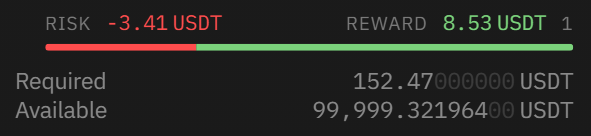
Under your levels, the panel sums up what's at stake, and tells you if something doesn't add up.
- RISK: roughly what you lose if the stop loss is hit.
- REWARD: roughly what you gain if the take profit is hit (NONE SET if you have no take profit).
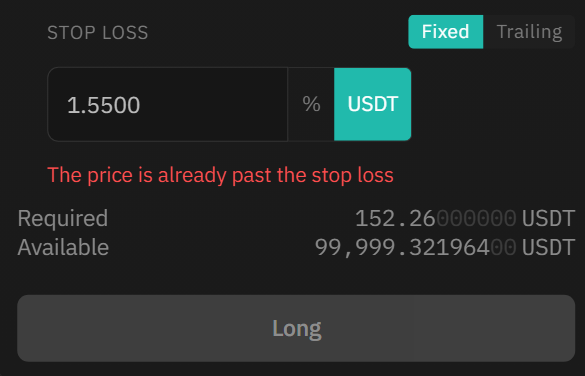
If a level doesn't make sense, the panel says so in red, for example "The price is already past the stop loss" or "...past the take profit", and the Long / Short button (Buy on spot) stays disabled until you fix it.
Step 7: Place the order, then confirm
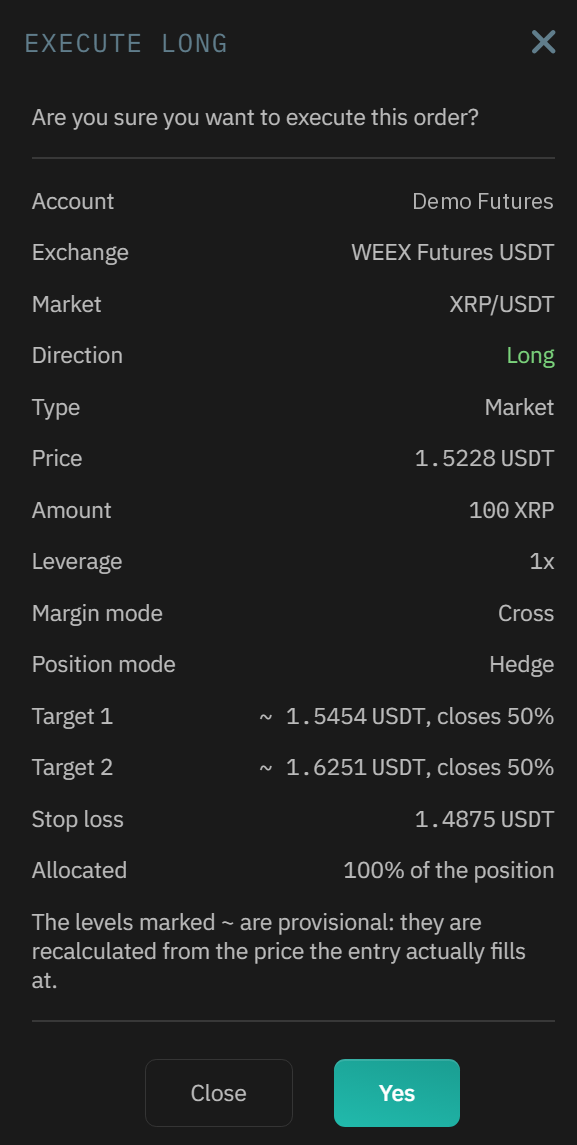
- Click Long or Short (or Buy on spot). A window asks "Are you sure you want to execute this order?" and shows the order, each Target with the share it closes, the Stop loss and how much is Allocated.
- On a market order, levels marked ~ are provisional: they're recalculated from the price the entry actually fills at. On a limit order they're worked out from your limit price.
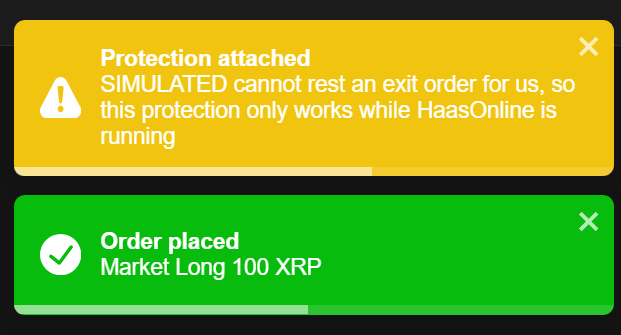
- Click Yes. Messages confirm Order placed and Protection attached. The second one also says when the exchange can't hold the exit itself, so it only works while HaasOnline is running.
Next: monitor your Smart Trade.