WEEX
One WEEX API key covers both markets HaasOnline connects to: WEEX Spot and WEEX Futures USDT. In HaasOnline each market is its own exchange account, so you add the same key twice if you want to trade both.
If you don't have a WEEX account yet, sign up at WEEX.
Obtaining the API Key
Log in to WEEX on the web, open API Management from your account menu and click Create new API.
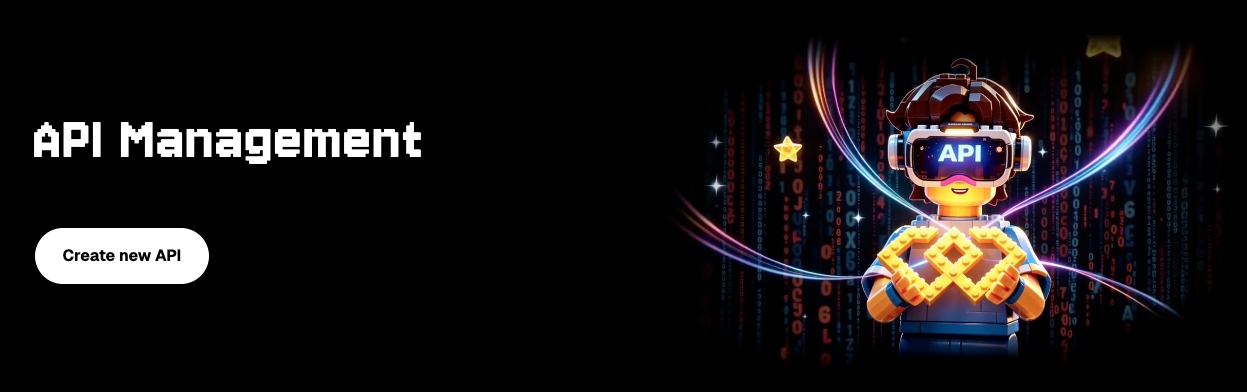
Configure the key
The Create new API form opens.
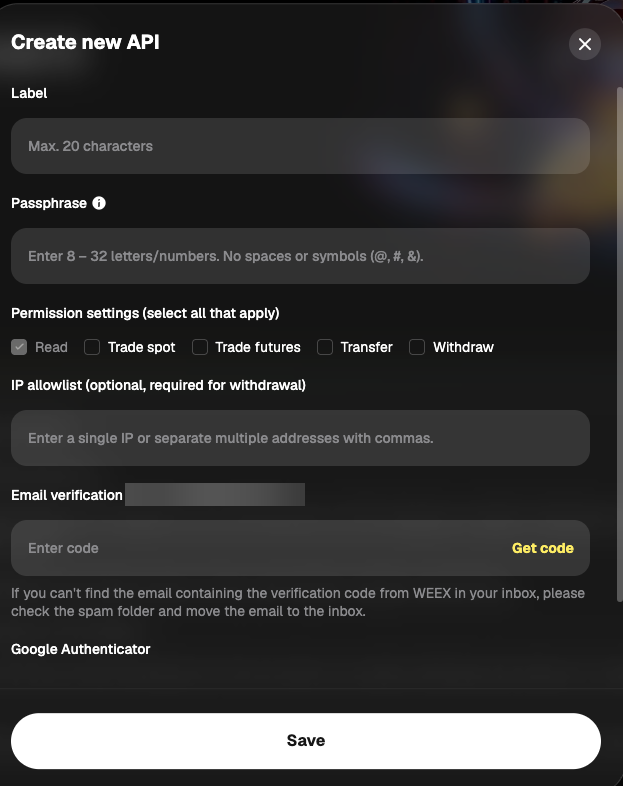
Fill it in:
- Label: any name that identifies the key, up to 20 characters (for example
HaasOnline). - Passphrase: 8 to 32 letters and numbers, no spaces or symbols. You will enter it in HaasOnline later, so note it down now: WEEX does not show it again after the key is created.
- Permission settings:
- Read: always on.
- Trade spot: enable.
- Trade futures: enable.
- Transfer: leave disabled.
- Withdraw: leave disabled.
- IP allowlist: paste the IP addresses shown in HaasOnline, separated by commas. WEEX marks this field optional, but restricting the key to those addresses means a leaked key can't be used from anywhere else.
Danger
Do not enable Withdraw or Transfer. HaasOnline never needs them to trade for you, and a trading-only key limits what a leaked key could do.
Info
For the IP allowlist:
- On HaasOnline TradeServer Cloud, paste the addresses shown under IP addresses to whitelist in the HaasOnline account setup form (use its copy icon).
- On a self-hosted TradeServer license, use the public IP address of your machine or server.
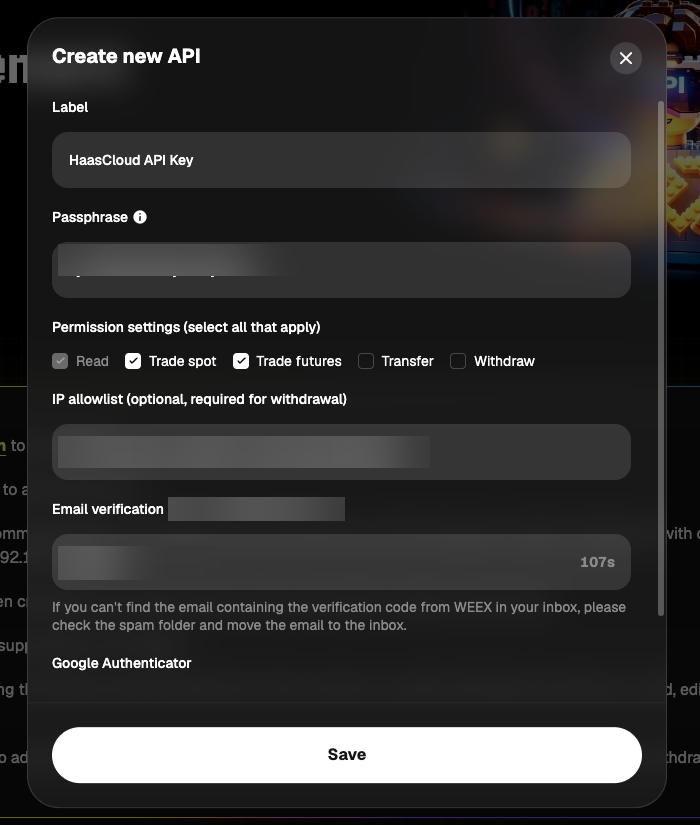
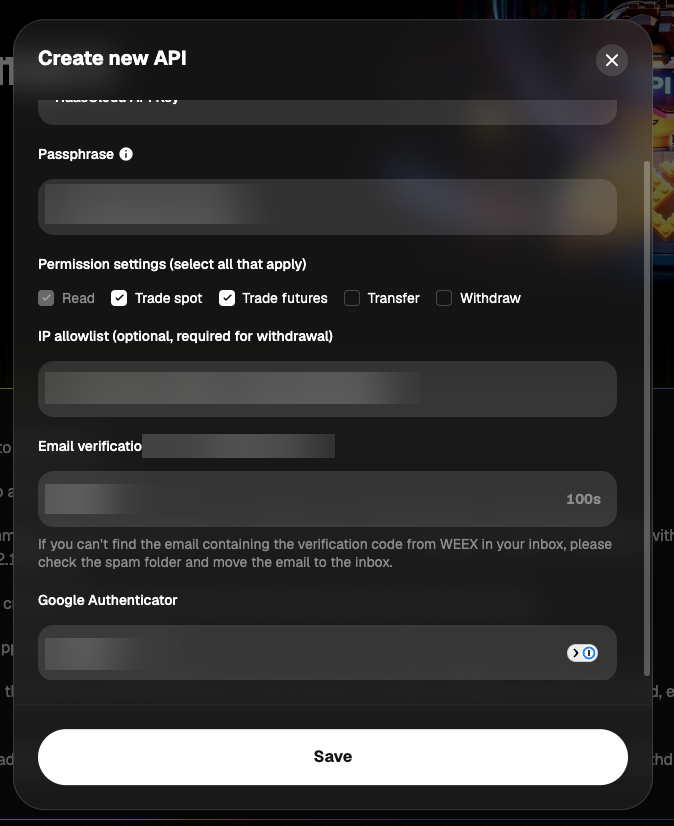
Verify and save
Click Get code next to Email verification and enter the code WEEX emails you, then enter the 6-digit code from your Google Authenticator app. Click Save.
Copy the keys
The Created screen shows the new key:
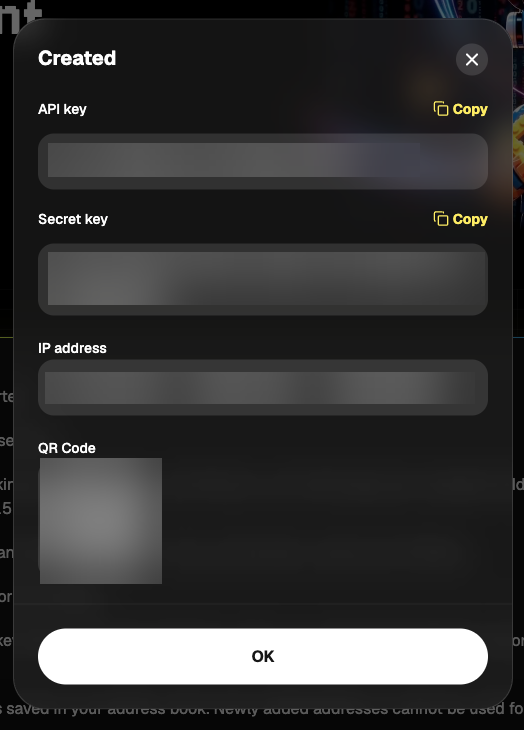
Copy both values with their Copy buttons:
- API key: goes in the HaasOnline API Key field.
- Secret key: goes in the HaasOnline Secret Key field.
The third value HaasOnline needs is the Passphrase you typed in the form. It isn't shown on this screen.
Danger
Save the API key, Secret key and passphrase before you click OK. If you lose the secret key or the passphrase, delete the key and create a new one.
Adding the API to HaasOnline TradeServer Cloud
Log in to HaasOnline TradeServer Cloud and open Exchange Accounts from the user menu in the top right. The Adding an API to the Platform guide shows these first steps with screenshots.
- Click the + button at the bottom of the accounts list (on an empty page it reads Add account)
- Select Exchange account
- In Connect an exchange account, click WEEX
-
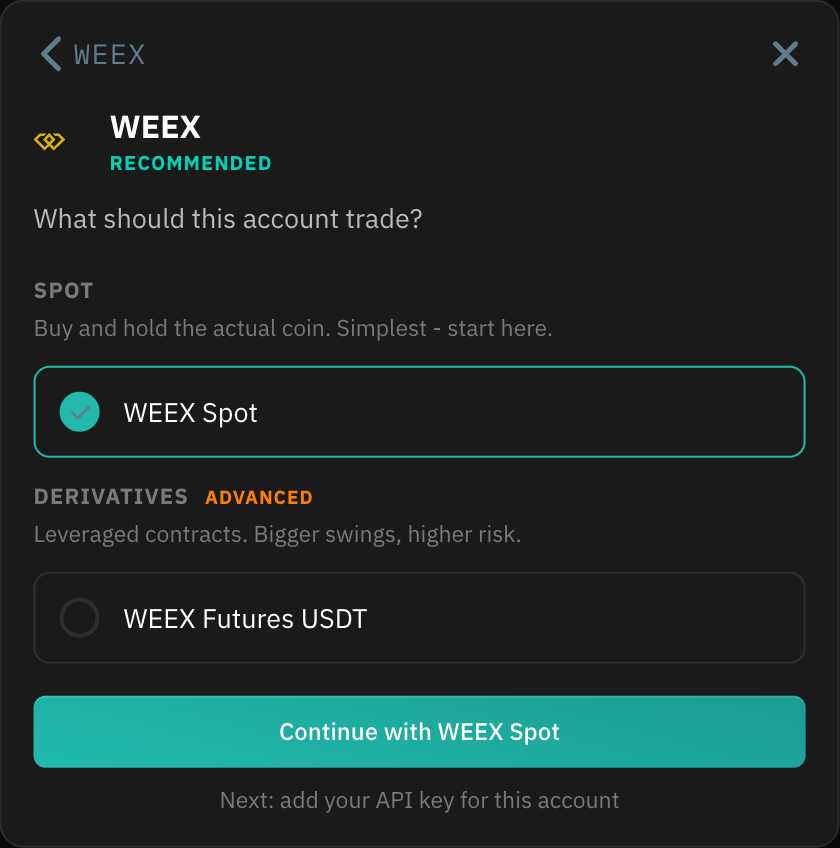
Under What should this account trade?, choose WEEX Spot for spot trading, or WEEX Futures USDT under Derivatives for USDT-margined perpetual futures, then click Continue with .... The same API key works for both, so repeat these steps with the same key to add the other market.
-
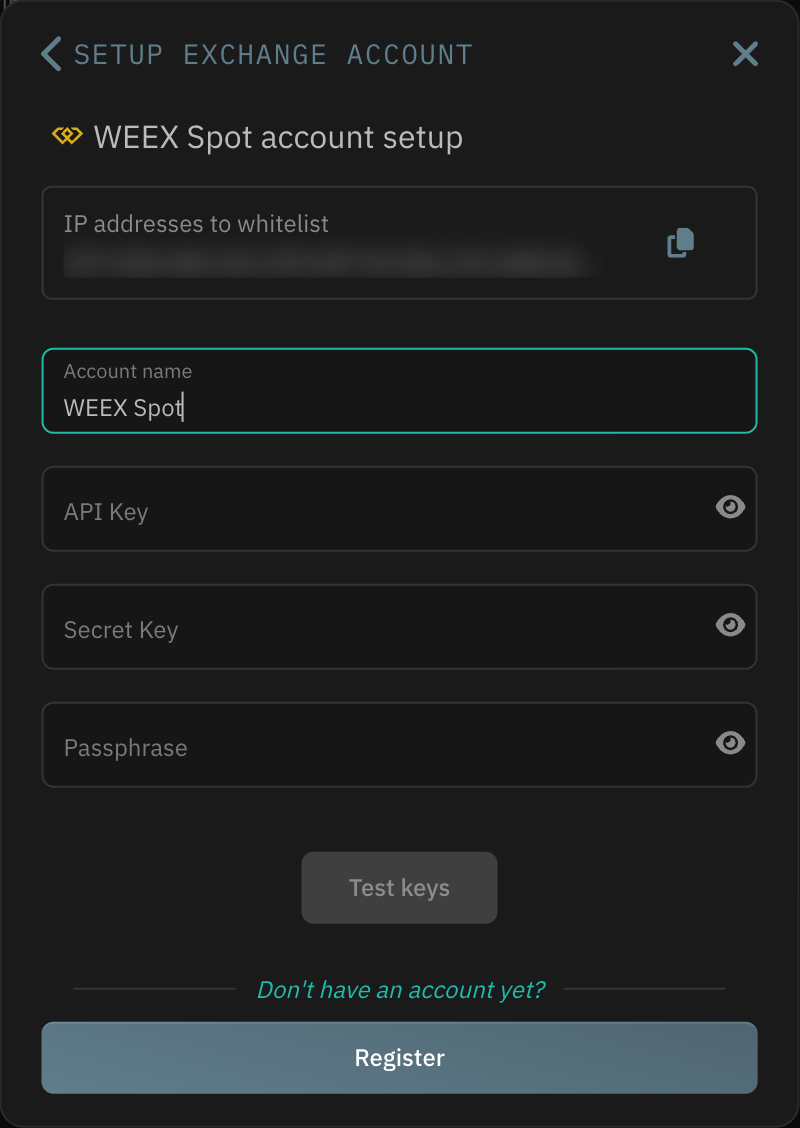
Enter an Account name, then paste the values from WEEX:
- API Key → the WEEX
API key - Secret Key → the WEEX
Secret key - Passphrase → the passphrase you set when creating the key
Info
Check for spaces at the start and end of each value after you paste it. Stray spaces are a common cause of a failed key test.
- API Key → the WEEX
-
Click Test keys. When the test passes, click Save account
If the test fails, check that Trade spot and Trade futures are enabled and that the IP allowlist matches the addresses shown in HaasOnline. A key that was just created or edited can take a few minutes to start working, so wait a moment and test again before deleting it. If it still fails, contact Support.