Smart Trade
A Smart Trade is a normal manual trade with a take profit and a stop loss attached. When you place it, HaasOnline watches the position for you and closes it when the price reaches one of your levels.
Smart Trade is in beta
Smart Trade is live for everyone on TradeServer Cloud and is still marked Beta in the app. Screens and wording may change as we improve it. If something looks different from this guide, or doesn't work the way you expect, let us know on Discord or through support.
What it does
Take profit: lock in the gain. When the price reaches your take profit, HaasOnline closes all or part of the position at a profit. Use one target, or several targets to take profit in stages.
Stop loss: cap the loss. When the price reaches your stop loss, HaasOnline closes the position to limit your loss. Use it with a take profit, or on its own as a stop loss only. It can be fixed, or trail the price as it moves in your favor.
Any time: start, change or remove. Start a Smart Trade when you open a trade, turn a position you already hold into one, or take over a trade opened somewhere else. Change its levels at any time, add to it with Add buy, sell part of it with Reduce, close it with Close now, follow it on the chart, or remove it.
Smart Trade and 'protection'
Some buttons and messages call the take profit and stop loss a protection, for example Remove protection and Protection attached. In these pages, "protection" means the take profit and stop loss of a Smart Trade.
How it runs
On most exchanges, HaasOnline holds your take profit and stop loss itself rather than placing them on the exchange. It watches the price and, when a level is reached, sends a market order to close.
- HaasOnline needs to be running. When the exchange isn't holding the exit, the panel says so: "Held by HaasOnline, not by the exchange. It stops working if HaasOnline stops."
- Exits are market orders, so the fill price can differ slightly from your level.
- Some exchanges can't be used yet. Where an exchange can't take the market order an exit needs, the confirmation refuses the Smart Trade and nothing is placed.
Before you start
You need three things:
- A connected exchange account, or a simulated account if you want to practice first.
- The Execute trade panel. Click the $ (Execute trade) icon in the top-right corner of the app.
- Your levels, decided in advance: where you want to take profit, and where you want to get out if the trade goes against you.

Practice on a simulated account first
Everything in these pages works the same way on a simulated account, and nothing is at risk while you learn where the buttons are. Deciding your levels before you trade is the point: a stop loss chosen while the price is moving against you is rarely the one you would have chosen calmly.
Shortcut: start from a balance row
Wherever your balances are listed (the Balance tab in Account Data, the Balance widget, or the Wallets tab in the header), each currency has a ⋯ button. You can also right-click the row, or press and hold it on a touch screen.
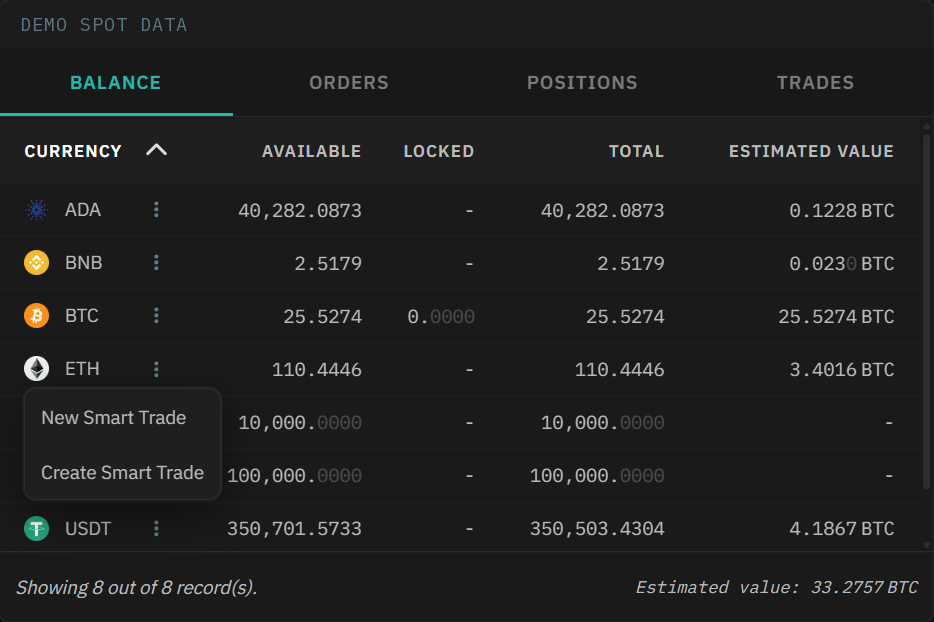
- New Smart Trade opens the Execute trade panel on that account and market, ready to open a Smart Trade.
- Create Smart Trade opens the CREATE SMART TRADE window to take over coins or a position you already hold. On spot, the Amount is filled in with the coin's Available balance.
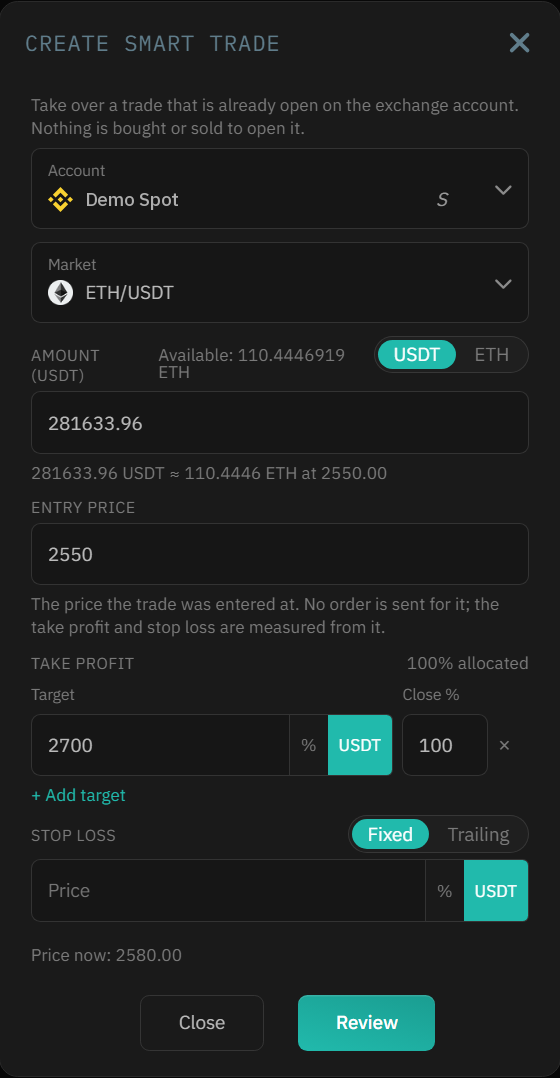
Both open with the account and market from the row. If the coin trades in more than one market, the menu lists them so you can pick one. On a futures account, the margin coin (for example USDT) lists the markets settled in it.
In this section
The pages follow the life of a single Smart Trade. Read them in order the first time; after that, jump straight to what you need.
| Page | What it covers |
|---|---|
| Open a Smart Trade | Choose the account and market, set up the order, switch on Smart Trade, set your levels, check the summary and confirm. |
| Monitor your Smart Trades | Read its status, see every Smart Trade with its PnL on Order Overview or a dashboard, and check what happened after it closed. |
| Manage a Smart Trade | Move or edit your levels, add to the trade, protect a position you hold, take over a trade, or remove the levels. |
| Close or reduce | Close everything with Close now, sell part with Reduce, or use your own closing order. |
| Tracked spot coins | Spot only. Add a take profit and stop loss back to coins a Smart Trade bought, or stop tracking them. |
| Smart Trade on the chart | See a trade on Marketview, manage it below the chart, look back at a closed one, or start one from a price. |
| Lots: several trades on one spot market | Switch on lots, open and name them, and see how they share your coins. |
| Good to know and troubleshooting | Limits, quick fixes for common messages, and the vocabulary. |