Lots: several Smart Trades on one spot market
On a spot market you can run more than one Smart Trade at the same time on the same account, for example one for a short swing and one you hold longer. Each one is a lot, with its own entry, take profit, stop loss and name.
- Each lot runs on its own. Edit, Add buy, Reduce, Close now and Remove act on one lot only.
- One wallet. All lots on one coin draw on the same wallet, per account. A new lot you buy brings its own coins; one made from coins you already hold can only use unclaimed coins.
- Off by default, spot only. At the default of 1, a market works as described in the rest of this section. Futures keep one Smart Trade per side of a market.
Switch on lots
- Open Settings (in the menu at the top right), go to General and find Lots per spot market.
- Enter a number from 1 to 20 and click Save. It applies to every spot market on every account, counted per market and per account: at 10, you can run 10 lots on LTC/USDT and another 10 on XRP/USDT.
- When you raise it from 1, the More than one lot per spot market window asks you to accept three points: the newest lot gives way first, exits depend on HaasOnline, and each lot runs on its own. Click Accept; a message confirms Lots per spot market saved.
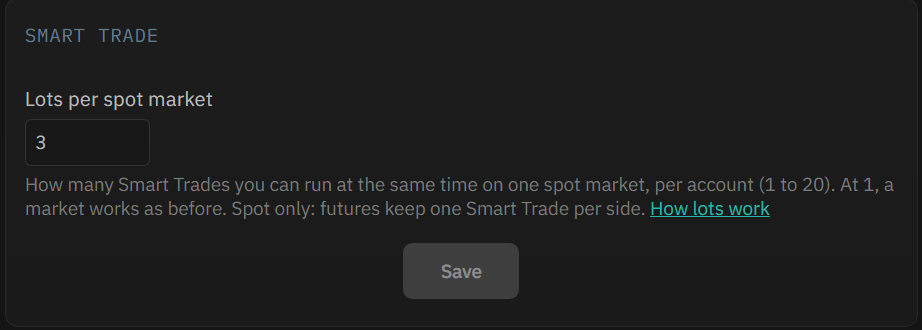
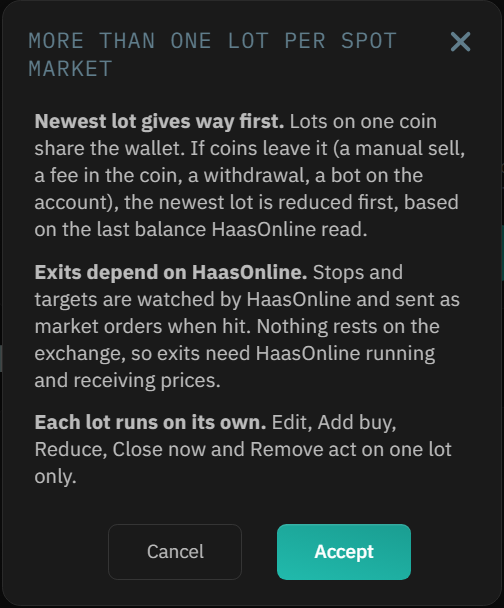
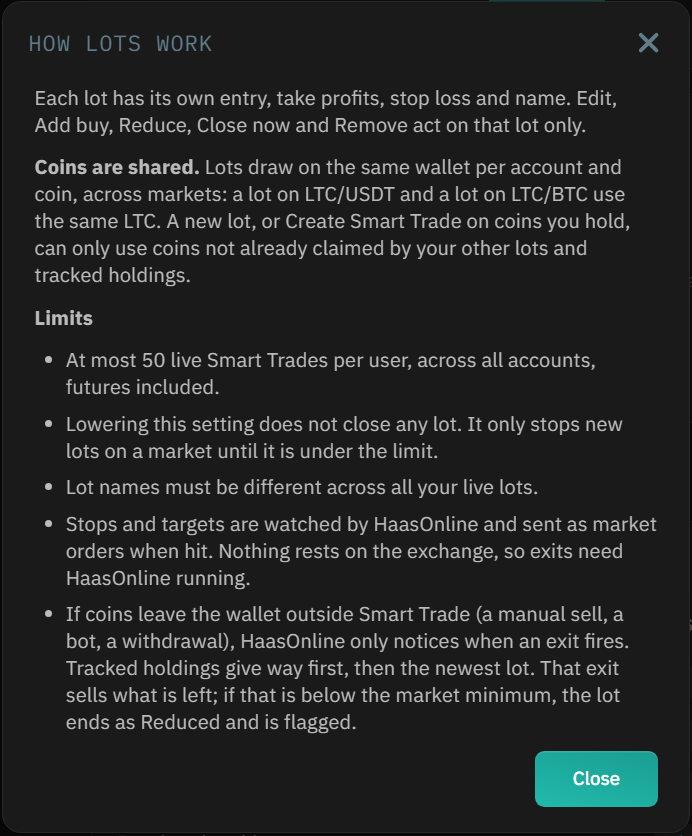
How lots work, beside the setting, opens a short summary of the rules:
- At most 50 live Smart Trades in all, across all your accounts, futures included.
- Lowering the setting doesn't close any lot. It only stops new lots on a market until that market is back under the limit.
- Lot names must be different across all your live lots.
- At 1, every screen works as described in the rest of this section.
Open a second lot
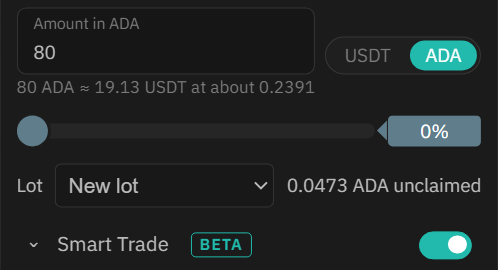
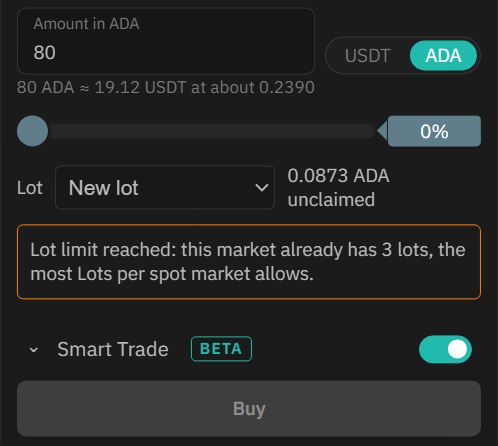
- Open the Execute trade panel on the spot account and market and set up a Buy with Smart Trade on. The Smart Trade section starts with a Lot selector: leave it on New lot. Beside it, the panel shows how many coins no lot or tracked holding on this market has claimed, for example "0.0473 ADA unclaimed". That figure leaves out lots on other markets that use the same coin (an LTC/BTC lot when you are on LTC/USDT), so a Smart Trade made from coins you already hold can be refused for less (see How lots share your coins).
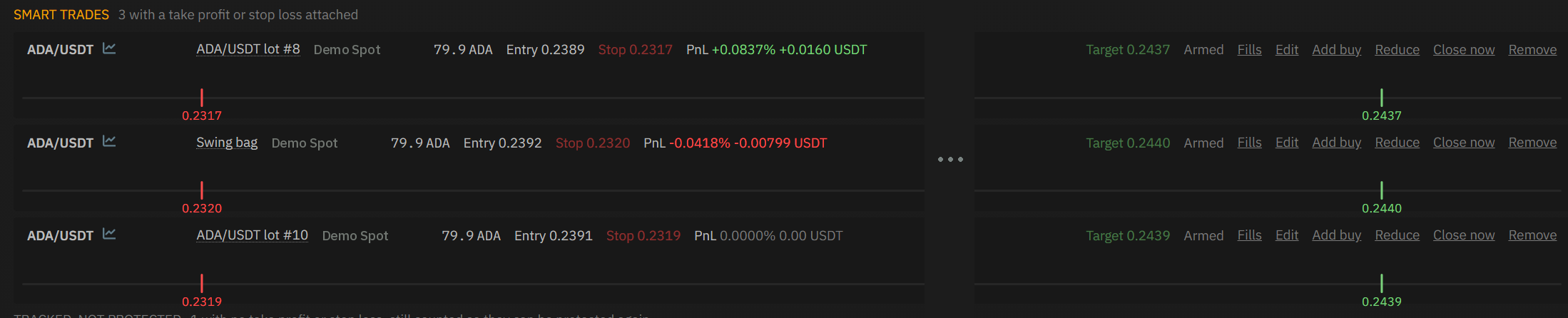
- Set this lot's take profit and stop loss, then place and confirm as usual. The lot gets its own row, named after the market and its number, for example ADA/USDT lot #8. Numbers keep counting and aren't reused: a lot opened after lots #1 to #7 have closed is lot #8.
- When the market has as many lots as the setting allows, Buy is grayed out: "Lot limit reached: this market already has 3 lots, the most Lots per spot market allows." Close a lot, or raise the setting.
Work on a lot that's already open
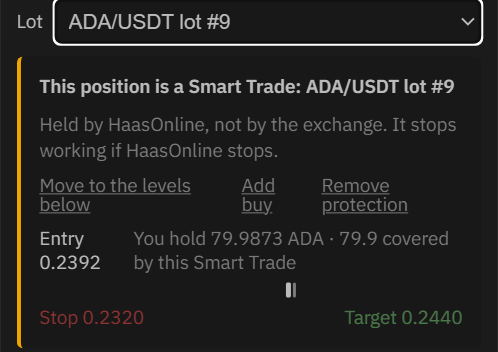
- Choose the lot in the Lot selector. The status block names it: "This position is a Smart Trade: ADA/USDT lot #9".
- Move to the levels below, Add buy and Remove protection then act on that lot only.
- With an existing lot picked, the panel won't open a new one: "... is selected, so this order would not open a new lot. Choose New lot in the Smart Trade block to open another, or use Add buy on that lot."
- The selector goes back to New lot when you change the account or market. Starting from the chart always opens a new lot.
Name your lots
- Click the lot's name on its row ("Click to rename this lot"), type the new name and press Enter or click away. Escape keeps the old name; clear the box and save to go back to the automatic name.
- Up to 40 characters, different from all your other live lots on every market and account. Capitals and spaces at the ends don't count, so Swing bag and swing bag are the same: "Another of your Smart Trades is already called "swing bag". Pick a different name."

The name shows everywhere the lot does:
- Its row in the SMART TRADES section (Order Overview, the dashboard widget and the Smart Trades tab on Marketview), where the rows of one market are kept in lot-number order.
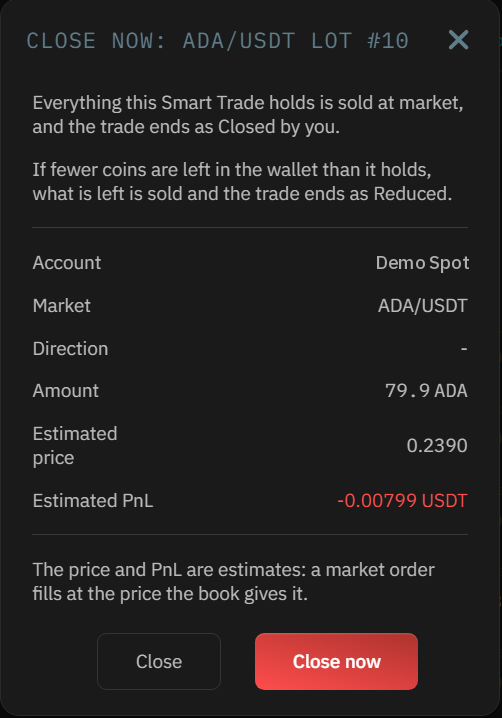
- The title of the Edit, Reduce, Close now and Remove protection windows, for example CLOSE NOW: ADA/USDT LOT #10.
- The messages and notifications for that lot, its row in Smart Trade history, and the lines on the chart.

How lots share your coins
All your lots on one coin draw on the same wallet, per account and coin, across markets: a lot on LTC/USDT and a lot on LTC/BTC use the same LTC.
- Each lot claims the coins it holds. Tracked coins claim theirs too.
- A new lot bought with Execute trade brings its own coins, so it never takes another lot's.
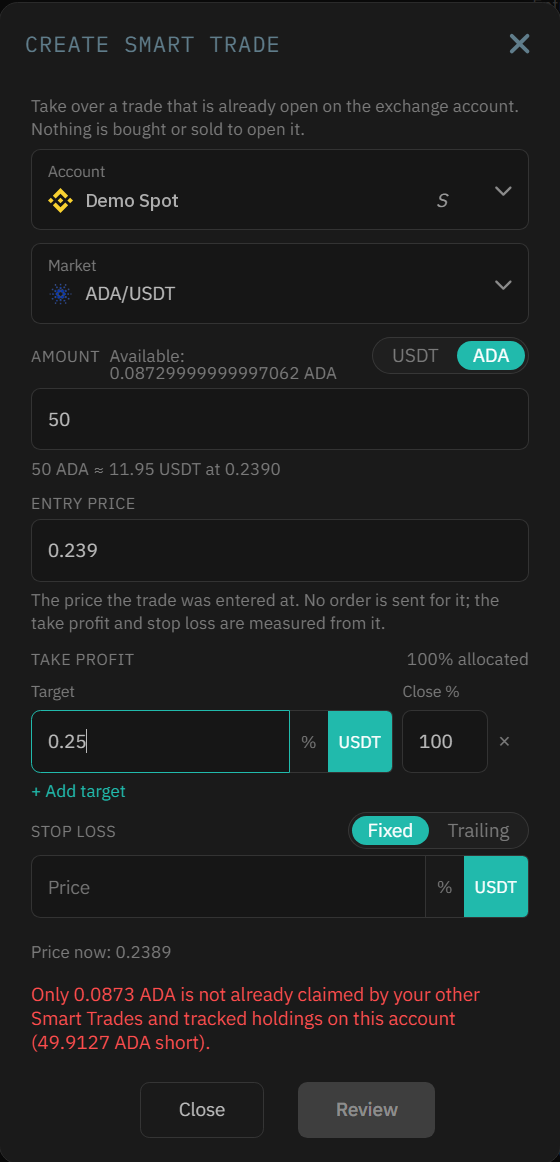
- A Smart Trade on coins you already hold (Create Smart Trade, or Protect for tracked coins) can only use unclaimed coins. A larger amount is refused before anything is attached: "Only 0.0873 ADA is not already claimed by your other Smart Trades and tracked holdings on this account (49.9127 ADA short)." Review stays grayed out.
- Where the exchange takes its fee in the coin, a lot holds what it bought less that fee, for example 79.9 ADA from a buy of 80.
When your wallet runs short
HaasOnline can't tell your coins apart. If coins leave the wallet outside a Smart Trade (a manual sell, a bot on the same account, a withdrawal), your lots can claim more than the wallet holds.
- HaasOnline finds out when an exit fires: a target, the stop or Close now. Nothing changes on screen before then.
- The shortfall is taken from tracked coins first, then from the newest lot. Older lots keep their coins: when an older lot's exit fires, it still sells everything it holds.
- The lot that comes up short is the one that pays. When its own exit fires, it sells what is left for it and ends Reduced, with a warning: "ADA/USDT lot #8 (Demo Spot) ended Reduced: Sold 39.9 of 79.9 ADA with Close now; the rest was no longer in your wallet (sold or moved outside this Smart Trade)."
- If what is left is below the smallest amount the market takes, nothing is sold and the lot still ends Reduced.
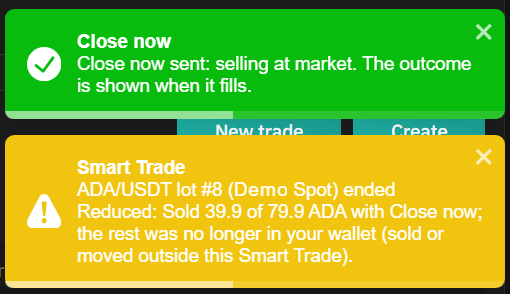
In Smart Trade history, the Outcome is Reduced, the Amount is what sold of what the lot held (39.9 of 79.9), and the reason is on the line underneath. It is never called a stop loss or Closed by you.

- A Needs attention notification gives the same reason, if your notification profile has Needs attention ticked under Smart Trades.
- The reason says where the coins went. When they're still in your wallet but locked in one of your own open orders, it reads, for example, "Sold 0.499 of 0.999 LTC at the stop; the exchange held the rest in your own open orders."
To avoid it
Sell a lot's coins with Reduce or Close now on that lot, not a plain sell, and don't run a bot that trades the same coin on the same account.
Close a lot, or switch lots off
- Close a lot with Close now or Reduce on its own row, or let its target or stop close it. The other lots on the market carry on unchanged.
- On spot, the Close now window warns: "If fewer coins are left in the wallet than it holds, what is left is sold and the trade ends as Reduced."
- To go back to one Smart Trade per market, set Lots per spot market to 1. Open lots keep running and are still shown as lots until only one is left; new lots are refused until then.
Lots quick reference
| You see | Why | What to do |
|---|---|---|
| No Lot selector in the Execute trade panel | Lots per spot market is at 1, or the market is futures. | Raise the setting. Futures keep one Smart Trade per side. |
| "Lot limit reached", Buy grayed out | The market already has as many lots as the setting allows. | Close a lot, or raise the setting. |
| "... is selected, so this order would not open a new lot" | An existing lot is picked in the Lot selector. | Pick New lot to open another, or use Add buy on that lot. |
| "Only ... is not already claimed by your other Smart Trades..." | The amount is more than the unclaimed coins. | Lower the amount to what's unclaimed. |
| "A new lot of ... is ... short" | Protecting tracked coins again needs more coins than are unclaimed. | Protect a smaller amount. |
| A name is refused | Another live lot already uses it, ignoring capitals and end spaces. | Pick a different name. |
| "... ended Reduced" | Coins left the wallet outside the Smart Trade. | Nothing to undo. Sell with Reduce or Close now from now on. |