Manage a Smart Trade
Move or edit your levels, add to the trade, turn a position you already hold into a Smart Trade, take over a trade opened elsewhere, or remove its take profit and stop loss.
Move your levels
From the Execute trade panel:
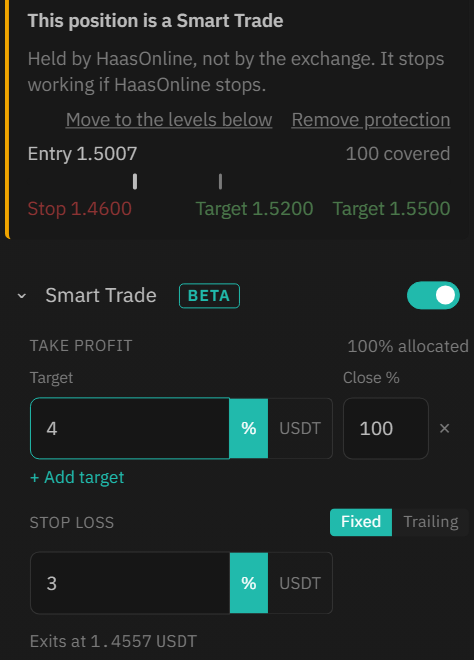
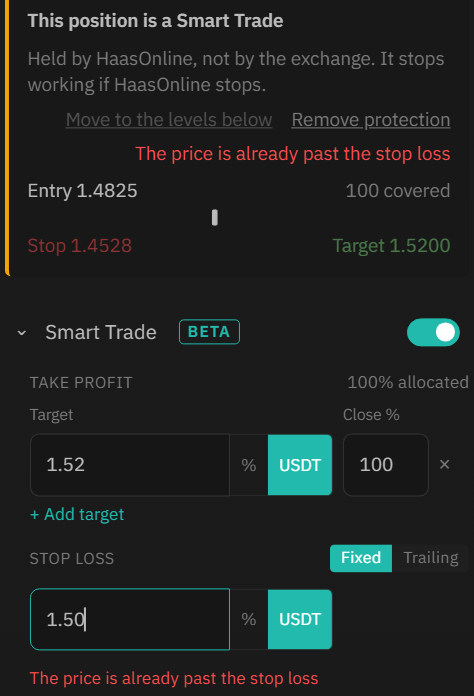
- On the same account and market, change the take profit or stop loss (same % / USDT choices as before), then click Move to the levels below. A message confirms Protection updated · The levels were moved.
- You can move levels before your entry fills. A level you move is kept at the price you set; levels you gave as a % and didn't move are measured again from the real fill price. If a target has already been reached, only the open targets are shown.
- If a new level is already past the price, the panel says so: "The price is already past the stop loss". Move it anyway and it's refused: Nothing changed · The levels could not be moved, and the old levels stay in place.
Edit it from the row
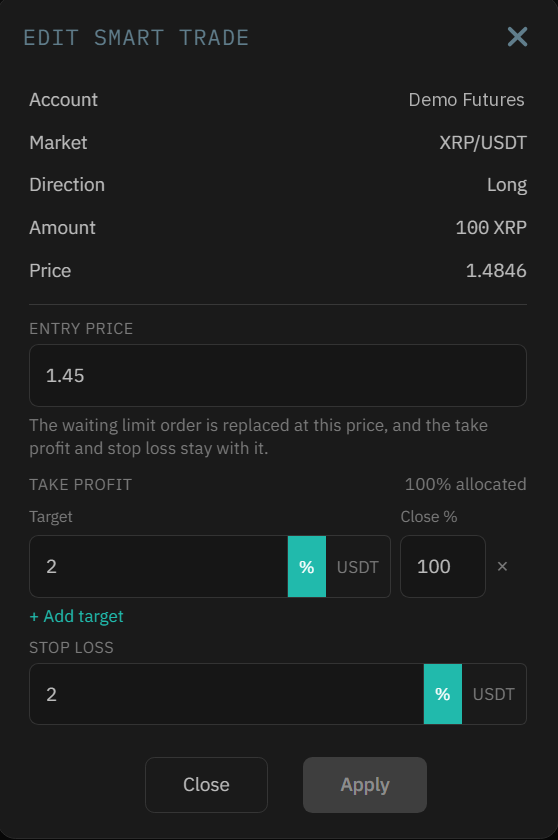
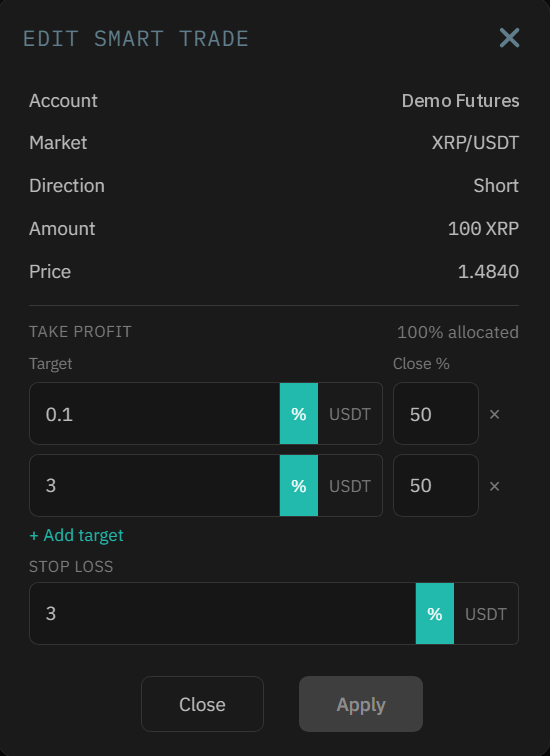
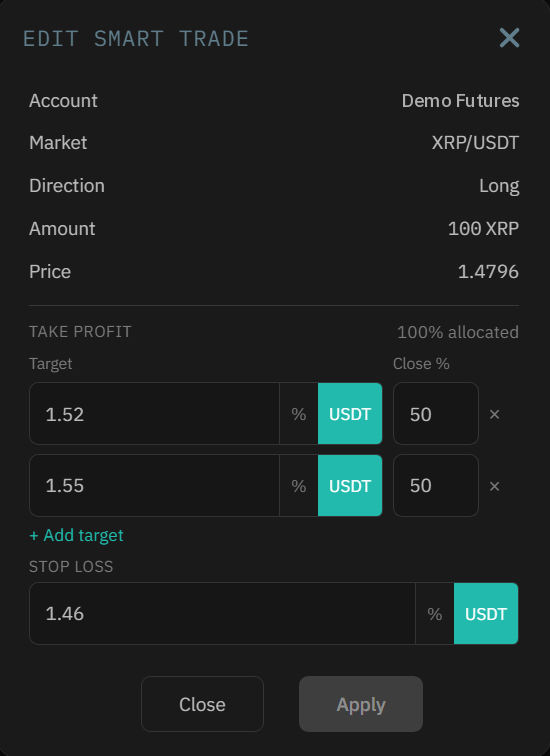
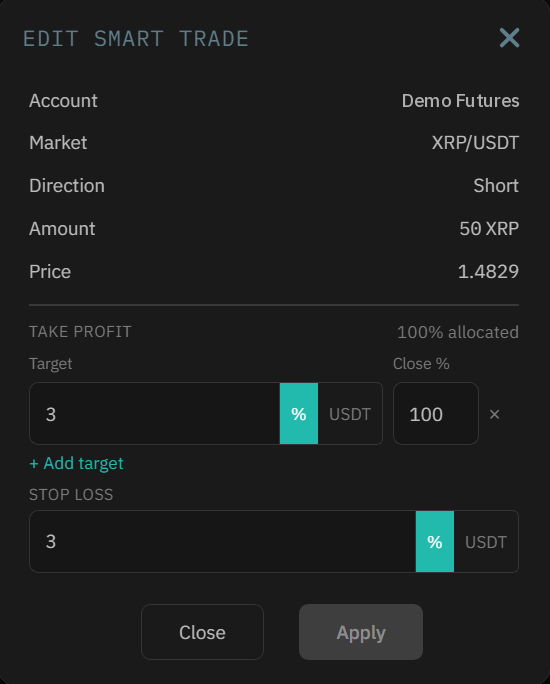
- Click Edit on the Smart Trade's row. The EDIT SMART TRADE window shows the account, market, direction, amount and the current price.
- Change the TAKE PROFIT and/or STOP LOSS, then click Apply. Apply stays grayed out until you change something.
- While the entry is still waiting, there's an ENTRY PRICE field: "The waiting limit order is replaced at this price, and the take profit and stop loss stay with it." Once the entry has filled, it's gone: a filled entry can't be changed.
- You can switch the stop loss between Fixed and Trailing here too. The window warns before you apply, for example "Applying replaces the fixed stop with this trailing stop." A new trailing stop is measured from the entry.
Change, add or remove targets
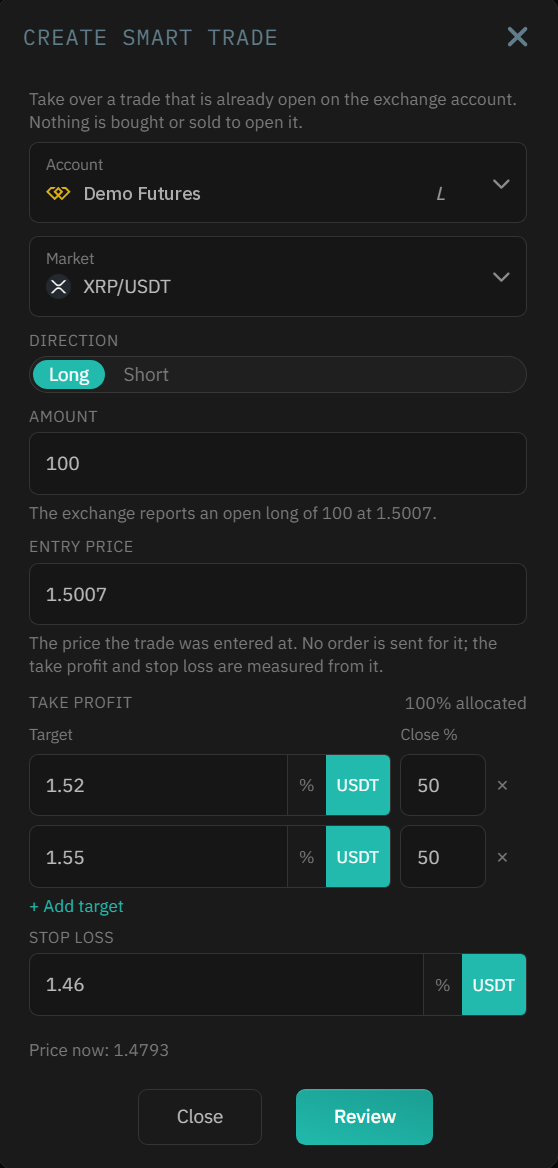
Targets work as when you opened the trade: each has its price or %, and a Close %. Change one, remove one with its ×, or add one with + Add target. The header shows how much is allocated, for example 100% allocated.
- After a target has been reached, only the targets still to sell are shown, and Close % is a share of what's left. The part that already sold stays sold.
- Each level opens the way you set it (% or price). A level on the wrong side is flagged before you apply, for example "The price is already past the take profit".
- While an order added with Add buy waits, the window lists it under WAITING ADDS, for example "Buy 0.0185 ETH at 2690.00", with Cancel. A limit reduce still waiting is listed the same way under WAITING REDUCES.
- The window also has Close now; Reduce is on the row.
Add buy: add to your Smart Trade
Use Add buy to buy more for a Smart Trade that's already open, for example to lower its average entry (on a short it's Add sell). Click it on the row in Order Overview, or in the Execute trade panel.
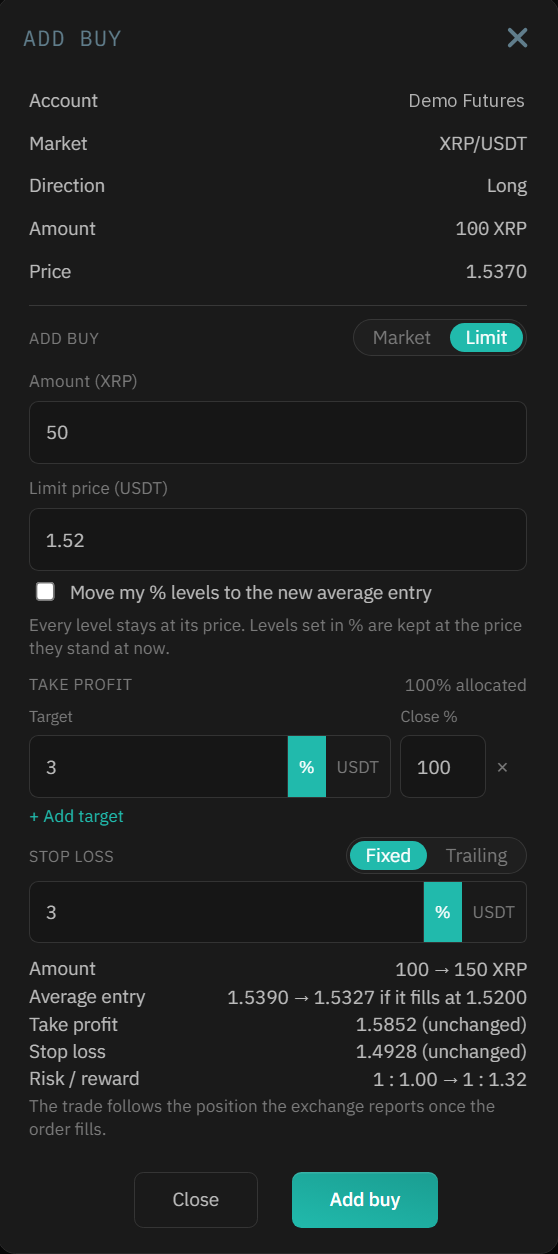
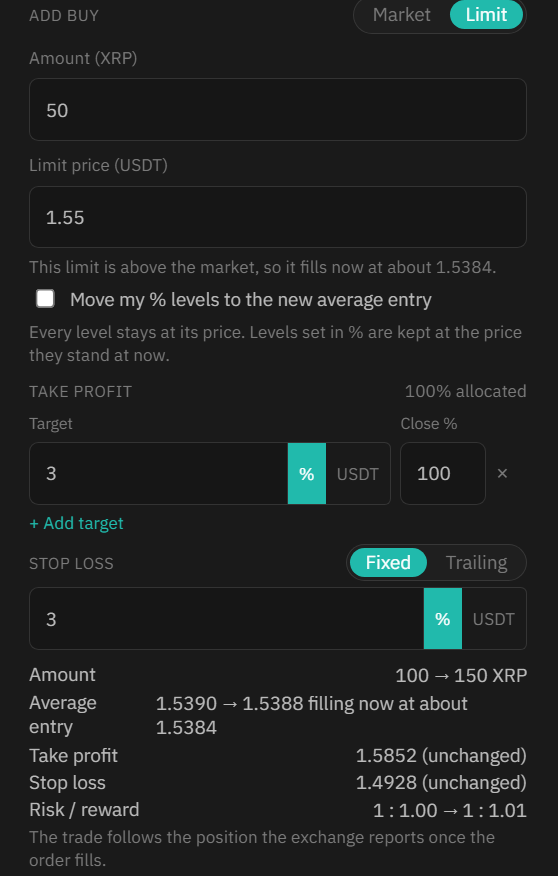
- Choose Market or Limit, enter the Amount (in coins or in USDT) and, for a limit, the Limit price.
- Leave Move my % levels to the new average entry unticked to keep every level where it is, or tick it to measure your % levels again from the new average. You can change the levels here too.
- Check the summary: the amount before and after, the Average entry ("if it fills at" your limit), each level marked (unchanged) if you haven't moved it, and the Risk / reward.
- Click Add buy. There's no separate confirmation window: the summary is your check.
A buy limit above the market (or a sell limit below it on a short) fills straight away, and the window says so: "This limit is above the market, so it fills now at about 1.5384." The summary then uses the market price: "filling now at about ...".
Waiting, filled, or refused
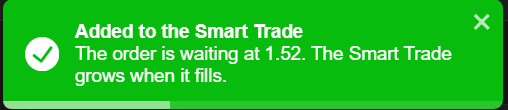
A message confirms the order, for example "The order is waiting at 1.52. The Smart Trade grows when it fills." While it waits, the row says "1 buy waiting at 1.5200". When it fills, the trade grows: on futures it follows the exchange position; on spot it adds the coins you received. Each target closes its Close % of the new amount.


When the trade closes at its take profit or stop loss, HaasOnline first cancels any order still waiting to be added. Add buy isn't shown while the trade's own entry is still waiting.
Orders that can't help the trade are refused, and nothing is placed:
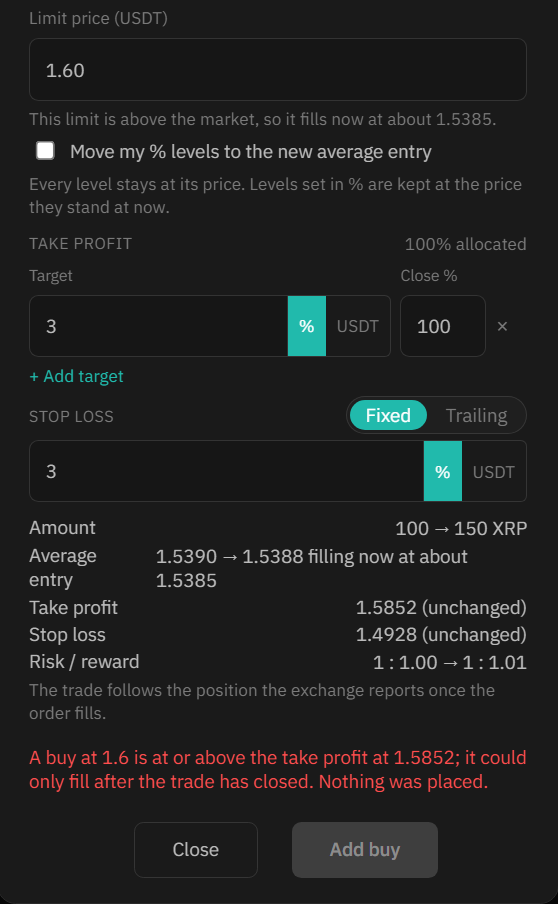
- A buy at or above the take profit could only fill after the trade has closed: "A buy at 1.6 is at or above the take profit at 1.5852; it could only fill after the trade has closed. Nothing was placed."
- On a short, a sell at or below the take profit is refused the same way.
- An amount too small for the exchange is refused too.
Turn a position you hold into a Smart Trade
For a position you opened without Smart Trade:
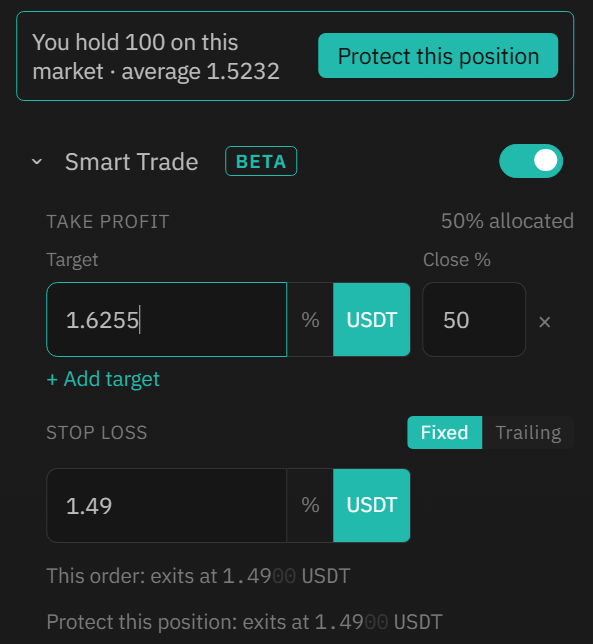
- Open the Execute trade panel on that account and market. The panel shows You hold ... on this market · average ...
- Set your take profit and stop loss in the Smart Trade section, as when opening a trade. The panel shows where the stop will exit: "Protect this position: exits at ..."
- Click Protect this position. It uses the levels in the Smart Trade section straight away.
- A message confirms Smart Trade started: "Your open position is now a Smart Trade."
Take over a trade opened somewhere else
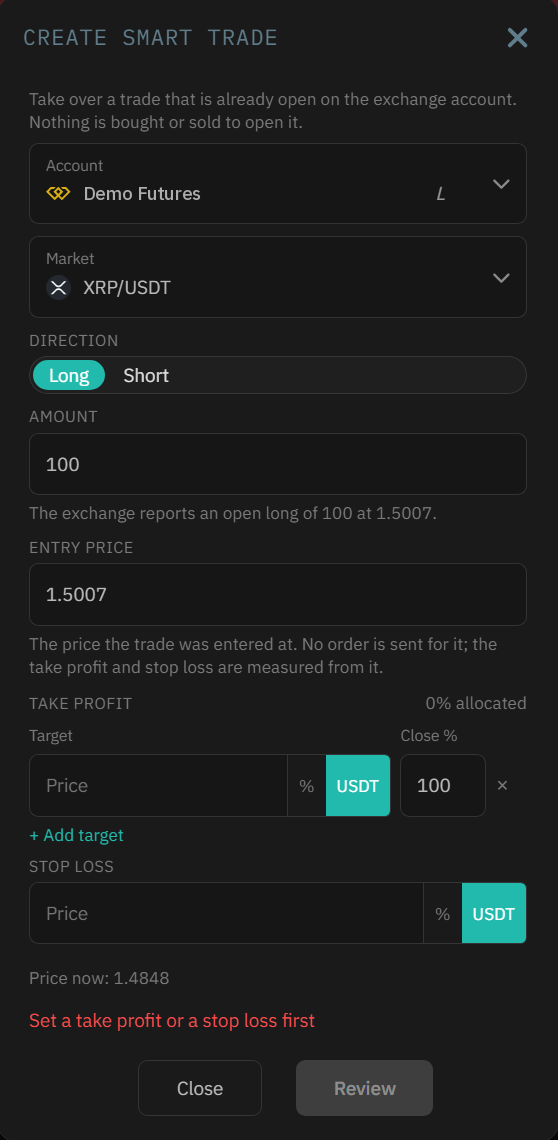
For a trade already open on your exchange account, for example one opened on the exchange itself. On Order Overview, click Create (next to New trade), or choose Create Smart Trade from a balance row's ⋯ menu. The window says "Nothing is bought or sold to open it."
- Choose the Account and Market. On futures the window shows what the exchange reports, for example "The exchange reports an open long of 100 at 1.5007."
- Check the Direction and Amount: the amount can be smaller than the position, but not larger. Next to it, Available shows how much you can take over: free coins on spot, less any coins your other Smart Trades and tracked coins already claim (see Lots), or the open position less any part already covered on futures. On futures the window also shows the position mode, margin mode and leverage, for example Hedge · Cross · 20x.
- ENTRY PRICE is filled in with the exchange's average entry on futures; keep it. On spot, type the price you bought at. Then set your take profit (one or more targets) and stop loss, Fixed or Trailing, and click Review.
Review, then confirm
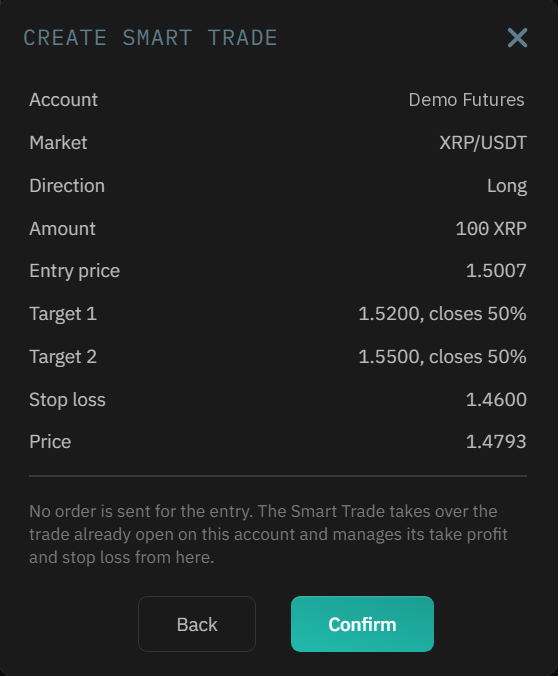
The review lists each target with the share it closes and says "No order is sent for the entry. The Smart Trade takes over the trade already open on this account and manages its take profit and stop loss from here." Click Confirm; the trade appears in the SMART TRADES section.
- If the entry you typed differs from the exchange's average entry, a warning shows both. The levels are placed from your price; the Smart Trade records the exchange's average as its entry.
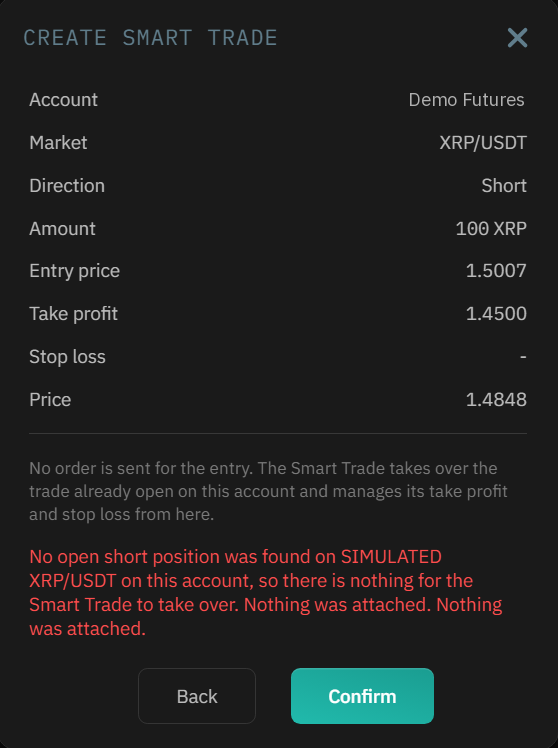
- If there's nothing to take over, the window says why and nothing is attached: no open position in that direction, an amount larger than the position, or a position that's already a Smart Trade.
Remove the take profit and stop loss
Click Remove protection in the Execute trade panel, or Remove on the Smart Trade's row (Order Overview, a dashboard widget or the Smart Trades tab on Marketview). Removing them does not close your position.
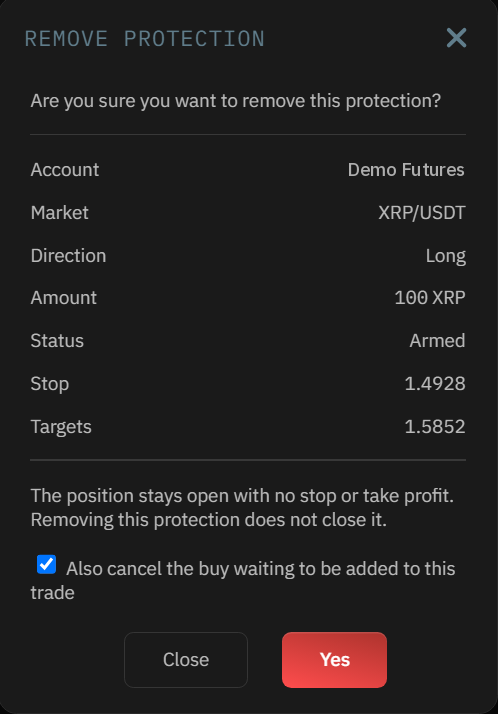
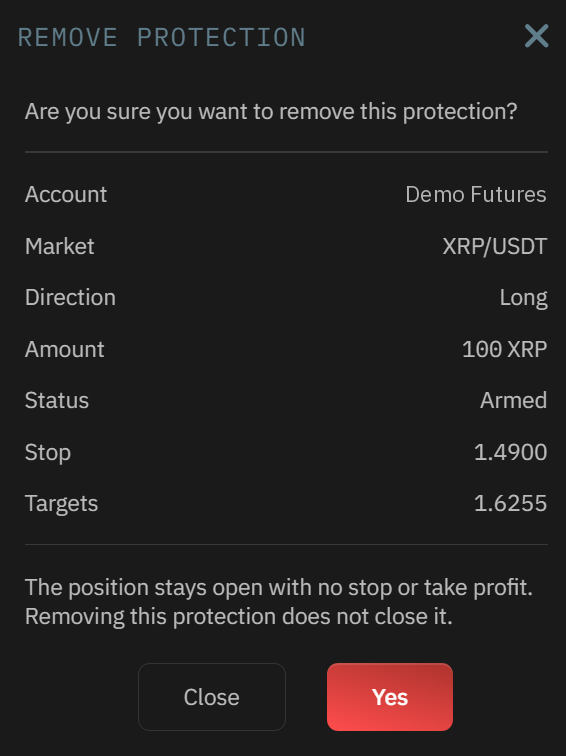
On Order Overview, a Remove protection window shows the account, market, direction, amount, status, stop and targets: "Removing this protection does not close it." Click Yes; a message confirms Protection removed.
A waiting entry stays on the exchange
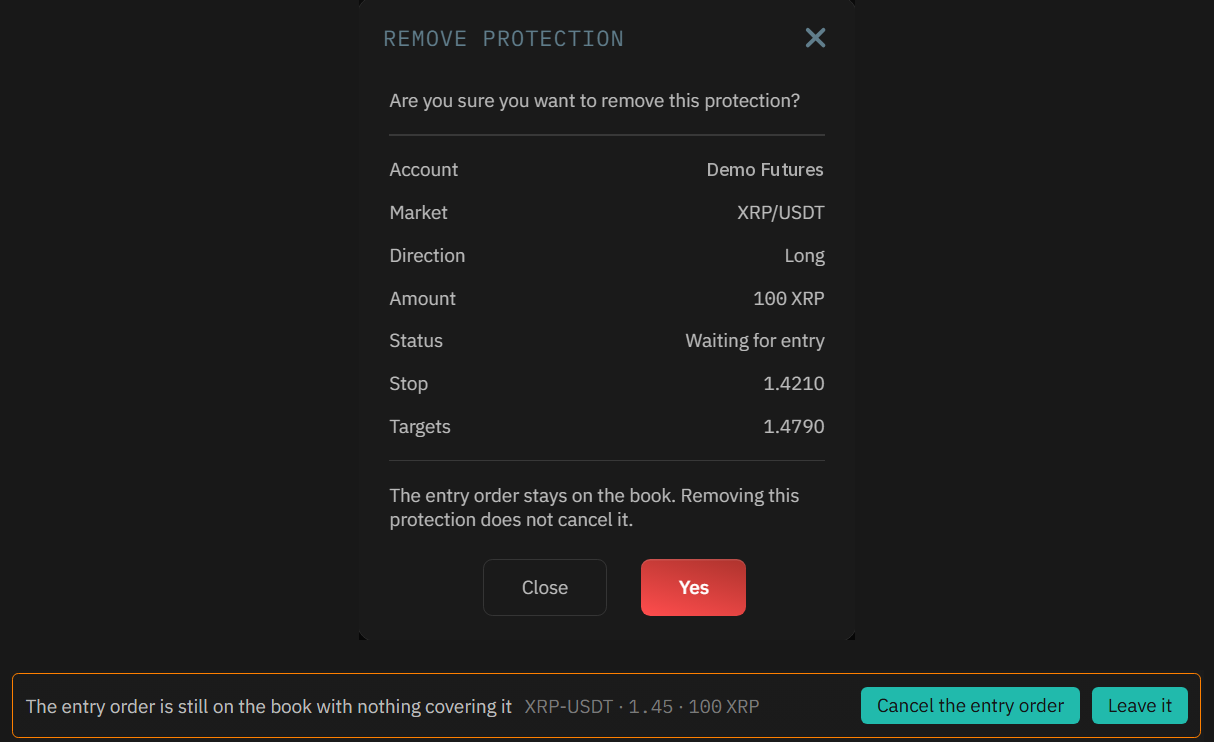
If the entry hasn't filled yet, the window says "The entry order stays on the book. Removing this protection does not cancel it." After you click Yes, Order Overview shows the order left behind, for example "The entry order is still on the book with nothing covering it · XRP-USDT · 1.45 · 100 XRP", with Cancel the entry order and Leave it. If you leave it, it stays on the exchange as an ordinary order (Manual in Open Orders) and can still fill, with no take profit or stop loss. On Marketview's Smart Trades tab there's no notice: cancel the order from the Orders tab there.
To cover the position again, use Protect this position, or close it. On spot, the coins a Smart Trade bought stay tracked after you remove it.
Removing a trade with a buy waiting
- If an order you added with Add buy is still waiting, the window has a ticked box: Also cancel the buy waiting to be added to this trade (on a short, the sell; with several, for example the 3 sells).
- Leave it ticked to cancel those orders. Untick it to leave them on the exchange: "Left on the book, a buy that fills afterwards is not covered by any stop or take profit."
- The Protection removed message says what became of them, for example "The sell waiting to be added is still on the book, and nothing covers it if it fills."