Moving from Docker to a Normal Install
TradeServer no longer ships as a Docker bundle. The current installers for Windows, macOS and Linux run TradeServer directly on the computer, with its data in local files instead of three MySQL databases and Redis. This page moves an existing Docker install to one of them without losing your accounts and bots: you create one file in Docker and import it in the new install.
Do this when your bots can sit idle
Creating the migration file stops the Docker TradeServer, and bots stop while it is down. Start the new install as soon as the import is done. Keep the Docker bundle and its volumes until you have checked the new install: they are your backup.
What moves and what does not
Moves with the migration file: exchange accounts and their API keys (the file carries your TradeServer certificate too, which is what decrypts the keys on the new install), balances and open orders, bots with their positions and logbook, trades, dashboards, your settings, and the Telegram, Slack and Discord notification setups.
Does not move:
- Scripts. They are kept in your HaasOnline cloud account and are listed under your license, so they are there when the new install signs in. Open the Scripts page after the import to check.
- Your license and login. The new install keeps its own
settings.env. Use the same license email and key you used in Docker. - Local API keys. Create new ones where you created the old ones.
- Backtest and Labs history, chart alerts and exit protections. Run them again where you need them.
- Price history. The new install downloads it again. Pick the markets under
History statusafter the import.
Before you start
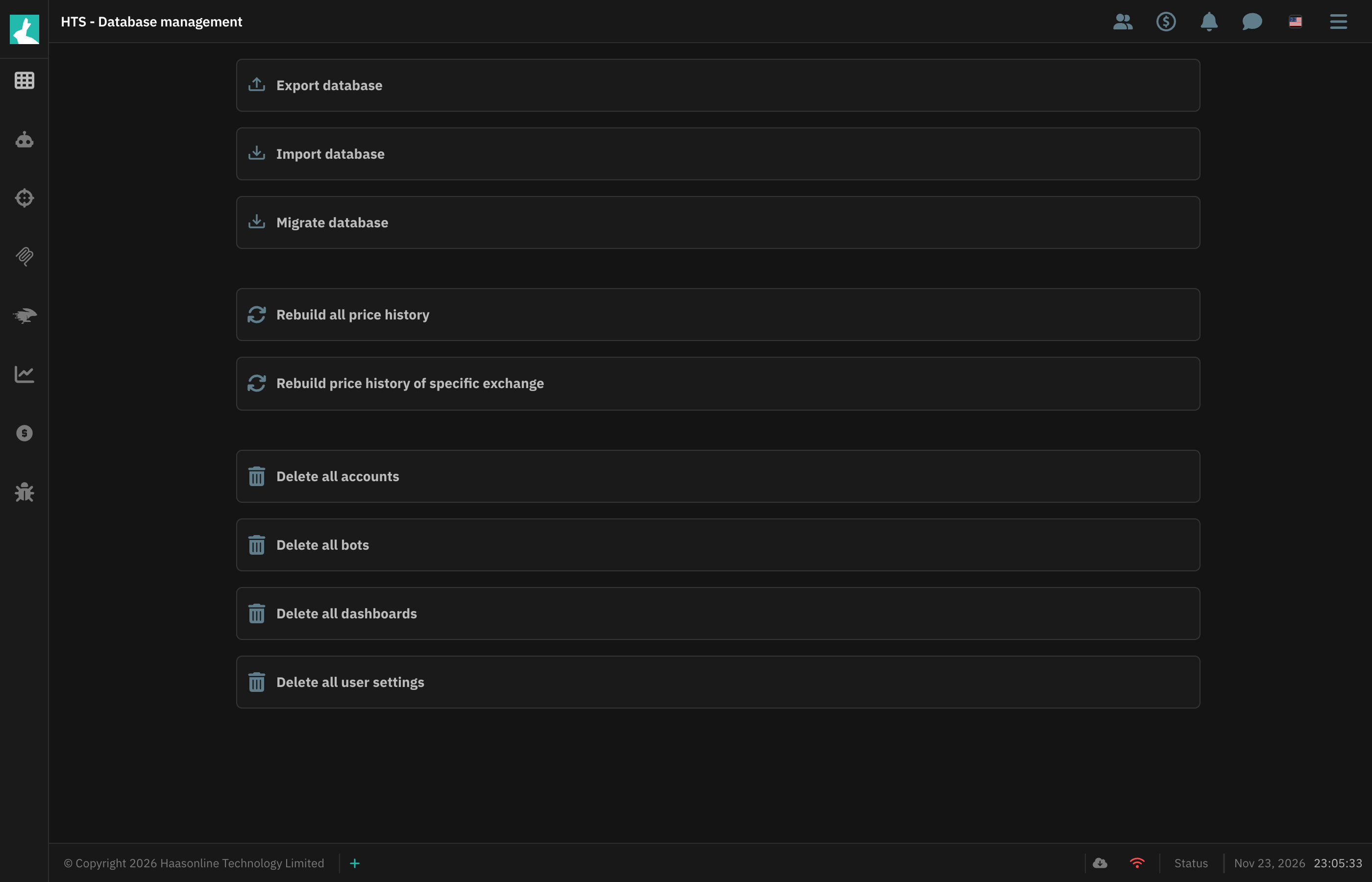
Your Docker TradeServer must show Migrate database on the Database management page (step 1). If it does not, it is on an older build that cannot create the migration file.
1. Create the migration file in Docker
In the TradeServer interface, open the menu and choose Database management, then Migrate database.
Read the window and choose Create file.
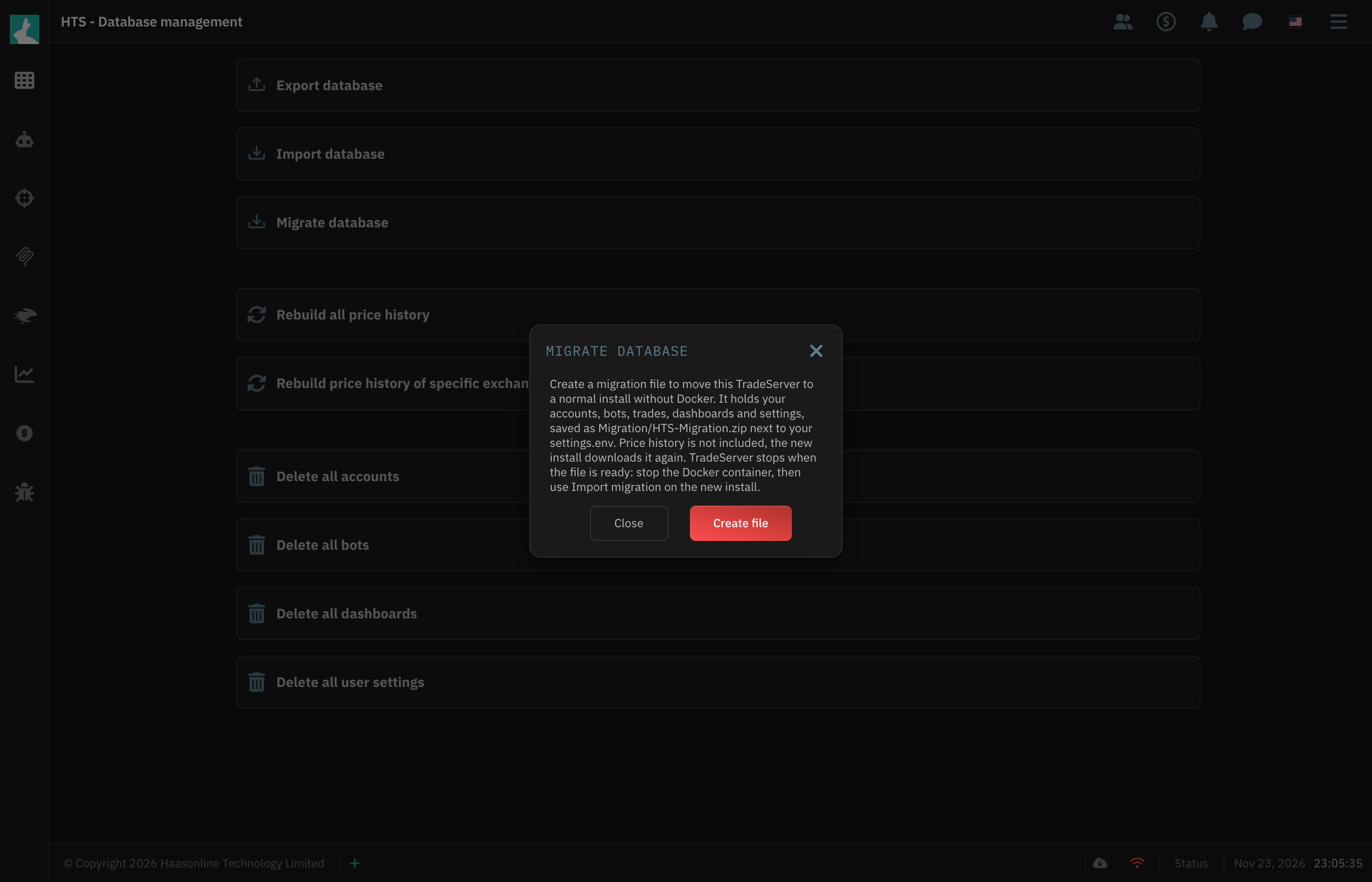
TradeServer builds the file and then stops by itself, and the Docker container exits with it. When it has, your file is here, next to your settings.env:
If the container is still running a minute after the file appears, stop it yourself (./stop.sh, docker compose stop, or the stop button in Docker Desktop). A TradeServer holds your license while it runs, and the new install cannot start until the old one has stopped.
2. Install TradeServer without Docker
Install TradeServer for your operating system from haasonline.com/account/downloads. The steps are on the page for your system: Windows, macOS or Linux. Use the same license email and key you used in Docker, and sign in.
3. Import the file
In the new TradeServer, open Database management, then Import migration. The page shows the button that fits your install: Migrate database in Docker, Import migration in a normal install.
Choose HTS-Migration.zip and select Import.
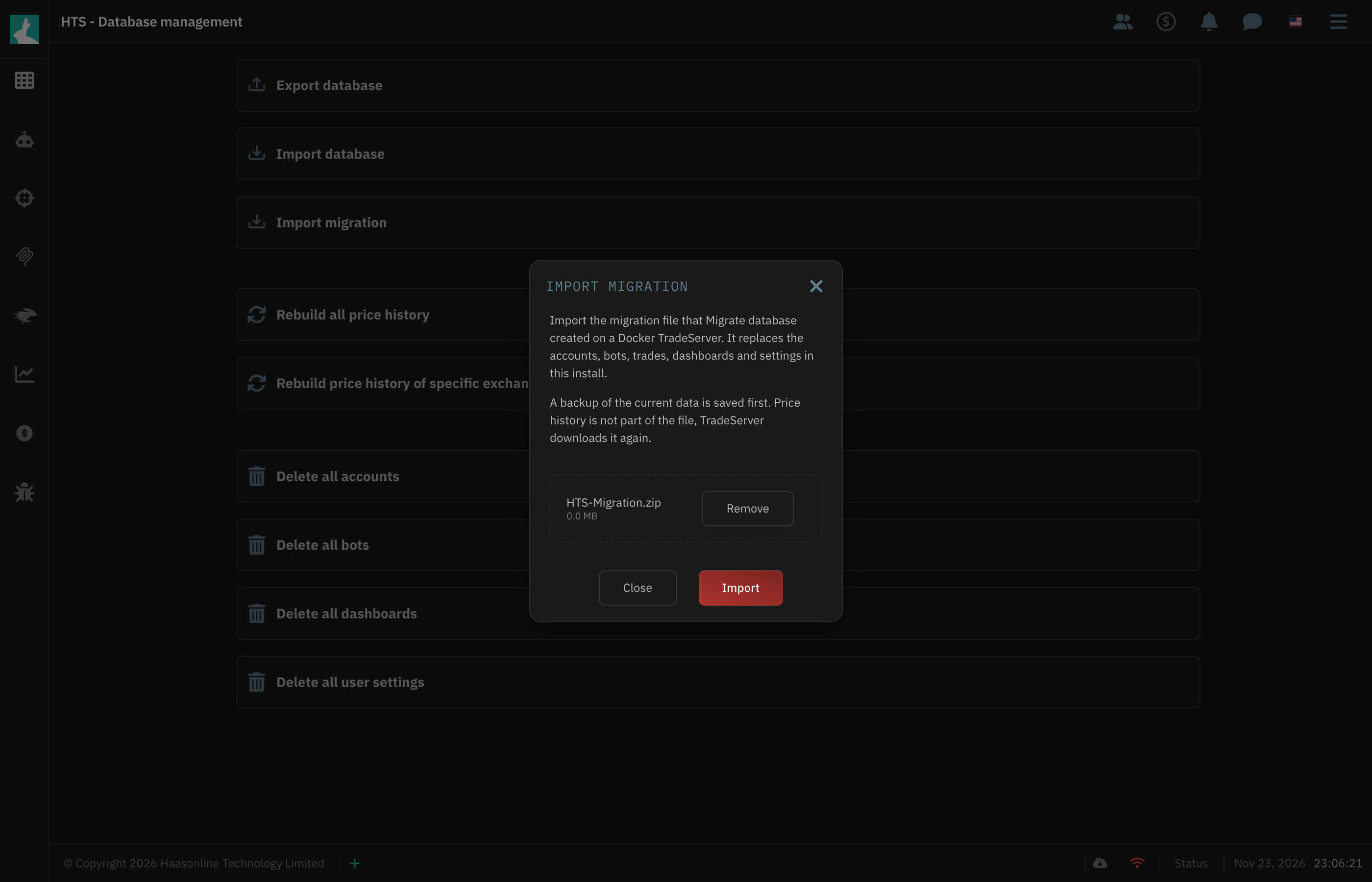
TradeServer checks the file before it touches anything, saves it, and stops.
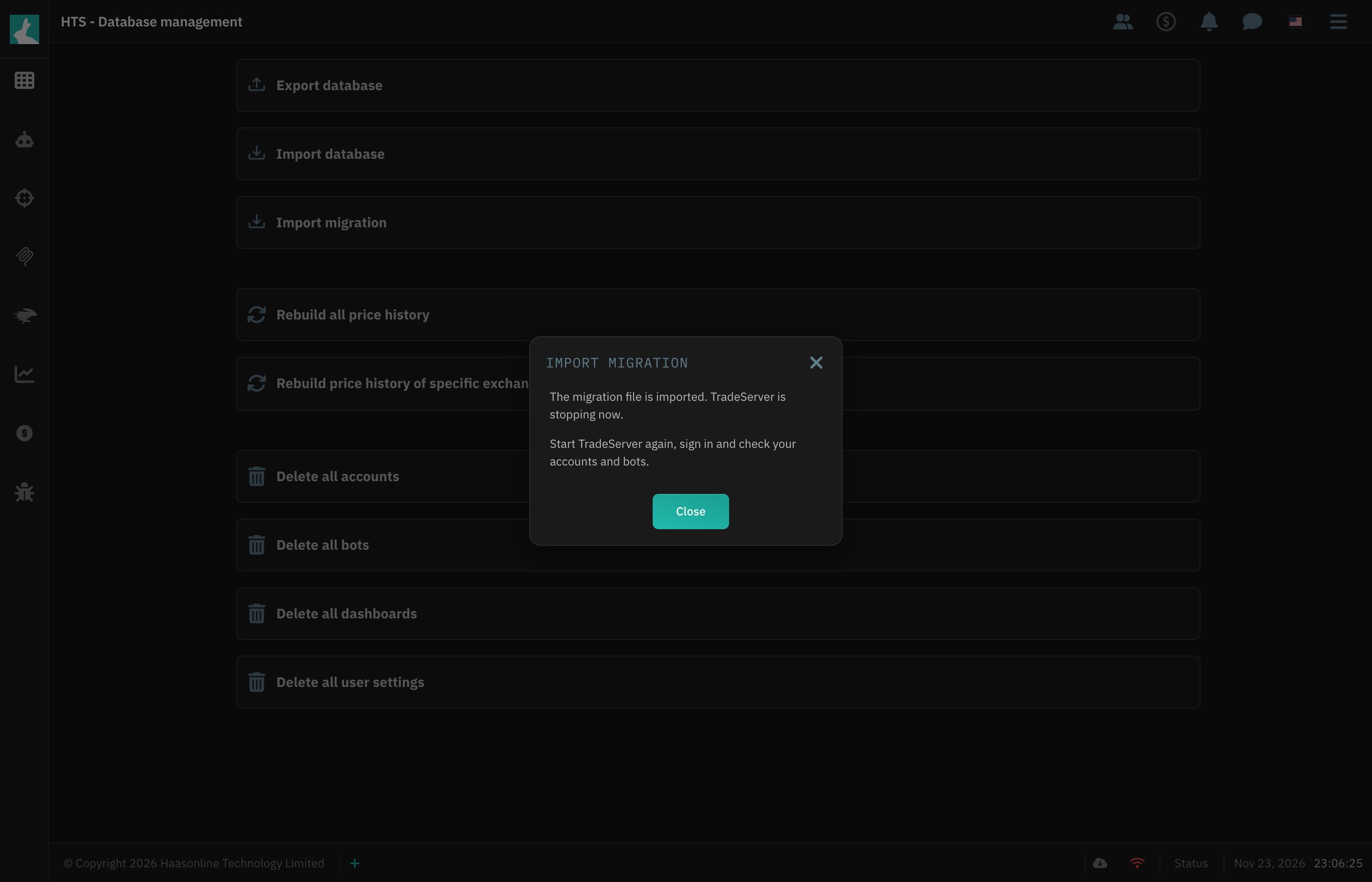
Your data is swapped in the next time TradeServer starts. Before it does, TradeServer copies what the install has into a Backup/Import- folder next to its program files, so nothing is lost if you change your mind.
4. Start it and check
Start TradeServer again (sudo systemctl start hts4 on Linux with the installer from the downloads page, the usual way on macOS and Windows). The console shows Importing the migration... [OK] and the name of the backup folder. Open http://127.0.0.1:8090/ and sign in (if you have not set up a custom domain or SSL certificate, and you are on the same computer; on a VPS use the address you used for Docker or an SSH tunnel, see Linux VPS hosting).
Check that:
-
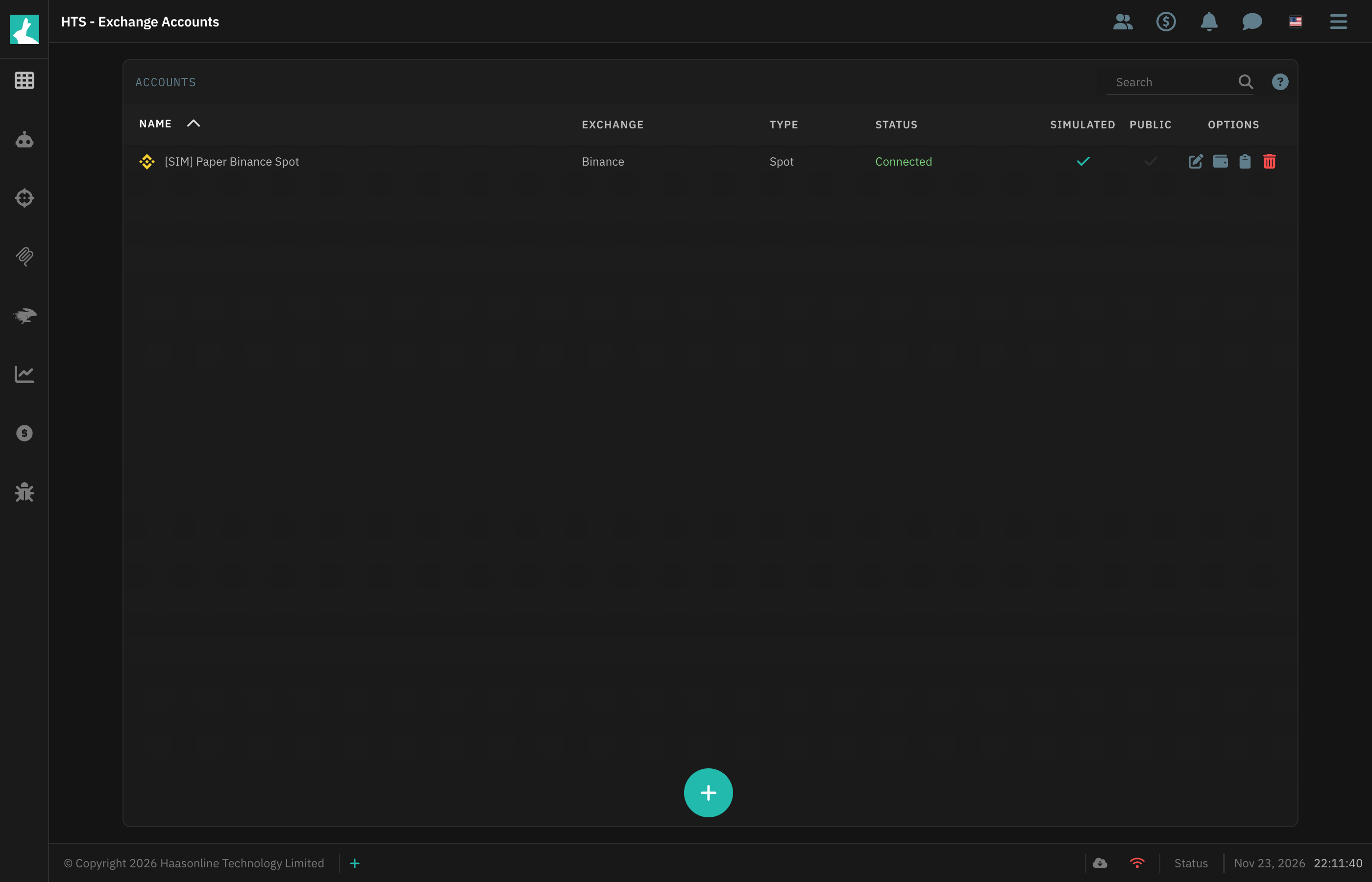
Accounts lists your exchange accounts, and each one connects.
-
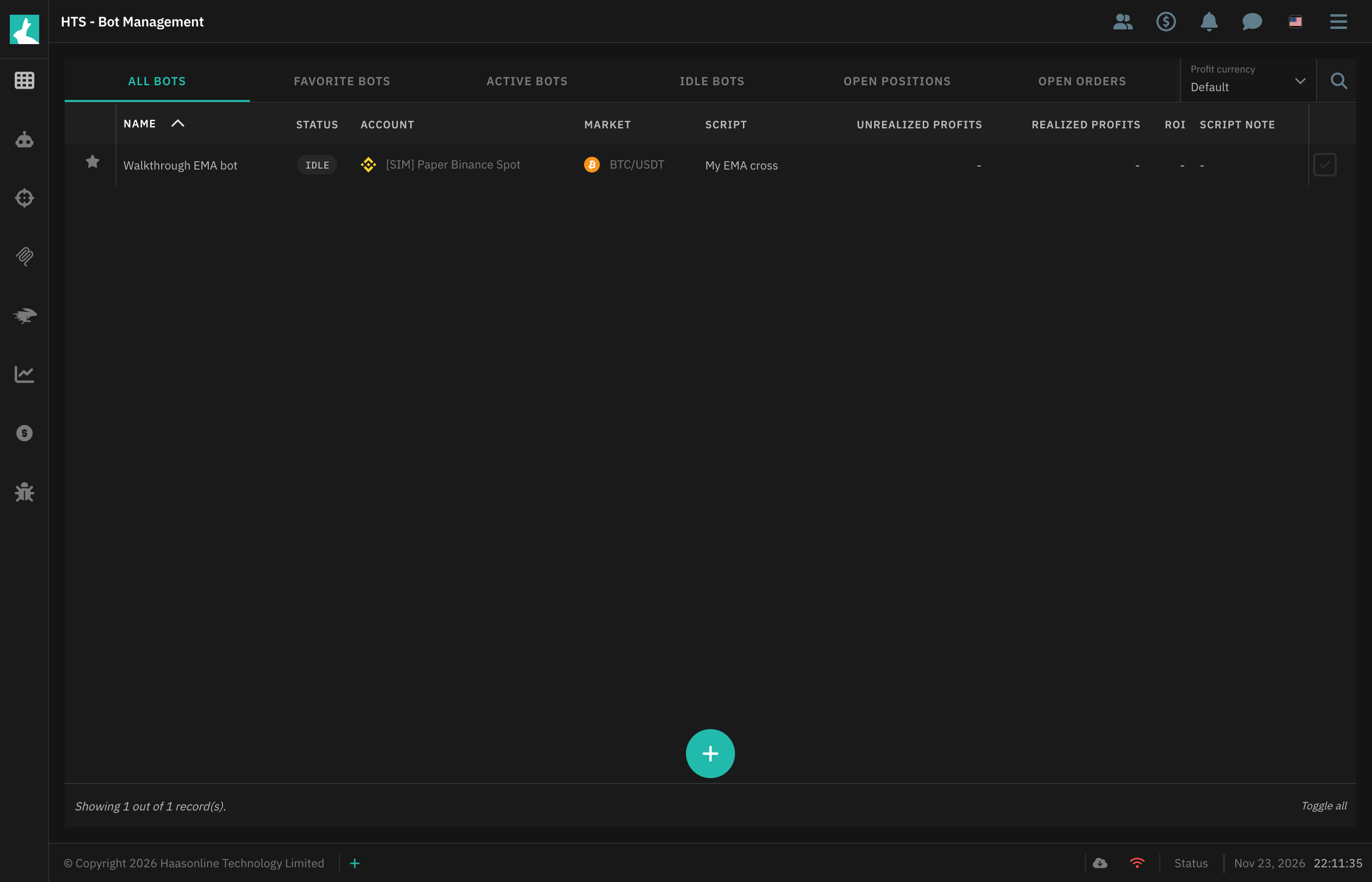
Bots lists your bots with the right account, market and script.
-
Scripts lists your scripts.
Then open History status and choose the markets and how much price data to download. Start the bots you want running once you are happy with the check.
When everything checks out, you can remove the Docker bundle and its volumes.
Troubleshooting
"This is not a migration file", or "damaged". The file is not the one Migrate database created, or it was damaged on the way. Create it again in Docker and import the new file. Nothing in the new install changed.
"This migration file was made by a newer TradeServer". Update the new install, then import again.
"This license is in use by ..." The Docker TradeServer is still running. Stop it, or release it at haasonline.com/account/licenses. See Installs and Moving Your License.
The license is blocked. Moving to a new computer counts as a new activation of your license, and a license is blocked after several of them. Contact support and we will unblock it.
The console shows Importing the migration with a warning instead of OK. The import did not go through and your data is as it was. The message says why, and the staged file is kept in Import/Pending.failed next to its program files, for support. Fix the cause (a full disk is the usual one) and import again.
The console says the import failed and files could not be put back. TradeServer stops instead of starting with half of the old data and half of the new. The message names the files and the backup folder: copy the files from Backup/Import-... back into place, then start again. Contact support if you are unsure.
Something looks wrong after the import. Stop the new install. Your Docker data is untouched, so if you have not traded on the new install yet (bots or by hand), start the Docker bundle again and nothing is lost. If anything has traded on the new install, compare your positions and open orders with the exchange before you run bots in Docker again: it does not know about those trades. Do not run both at once, they share one license.