Webhooks
A webhook sends your notifications to your own server as a signed JSON POST. Use it to feed price alerts, Smart Trade events, orders and bot results into your own tools: a trading journal, a home automation, a spreadsheet, or another app that takes webhooks (n8n, Zapier, Make).
Each request is signed, so your server can check that it really came from HaasOnline and wasn't changed on the way.
These webhooks go out from HaasOnline. To send alerts into your bots instead, for example from TradingView, see Manage Signals.
Plans
Webhooks come with the Standard and Pro plans, and throughout your free trial. Starter doesn't include them. You can have up to 5 webhooks. Self-hosted TradeServer gets them in the release after 4.0.7.135 (see Self-hosted TradeServer).
Add a webhook
- Open Settings, then the Notifications tab.
-
Click Add webhook, next to Where notifications go.

-
Give it a name and the address it sends to, and click Add webhook. On TradeServer Cloud the address must be a public
https://address. Self-hosted TradeServer can also send tohttp://and to addresses on your own network. -
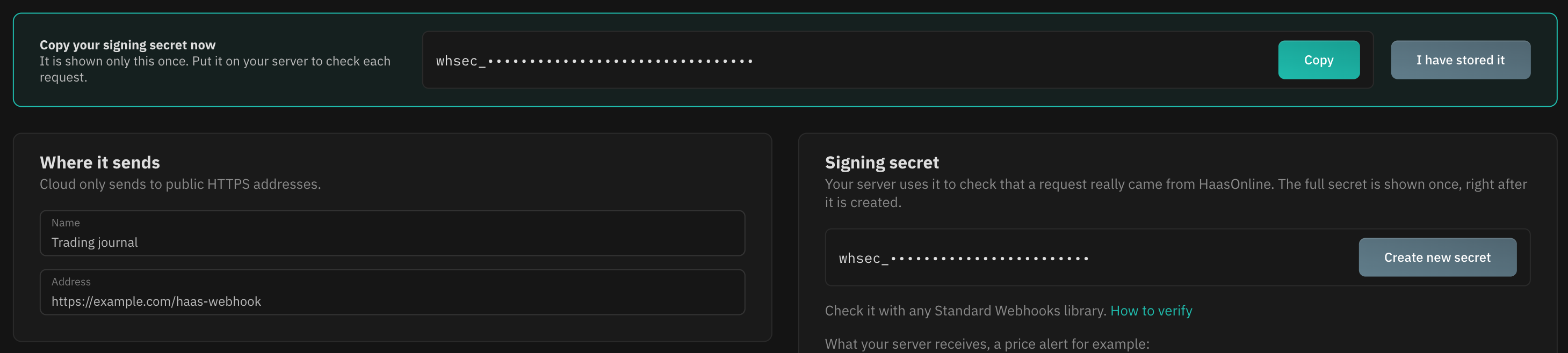
Copy the signing secret from the banner at the top of the webhook's page and store it on your server. It's shown only this once. If you lose it, click Create new secret: the old one stops working right away.
-
Click Send test. Your server gets a
webhook_testrequest, and the page shows the answer it gave and how long it took.
A new webhook starts with general and security notifications, Smart Trades and price alerts.
Choose what it gets
On the Notifications tab, every webhook has its own column in the table, next to In app, Browser, Telegram and Discord. Check the notifications it should get; changes save as you go. The same choices are under What it sends on the webhook's own page.
Simulated account notifications are only sent when Simulated account messages is checked as well.
What your server receives
The webhook's page shows an example of a request, with the real header names and a price alert body:
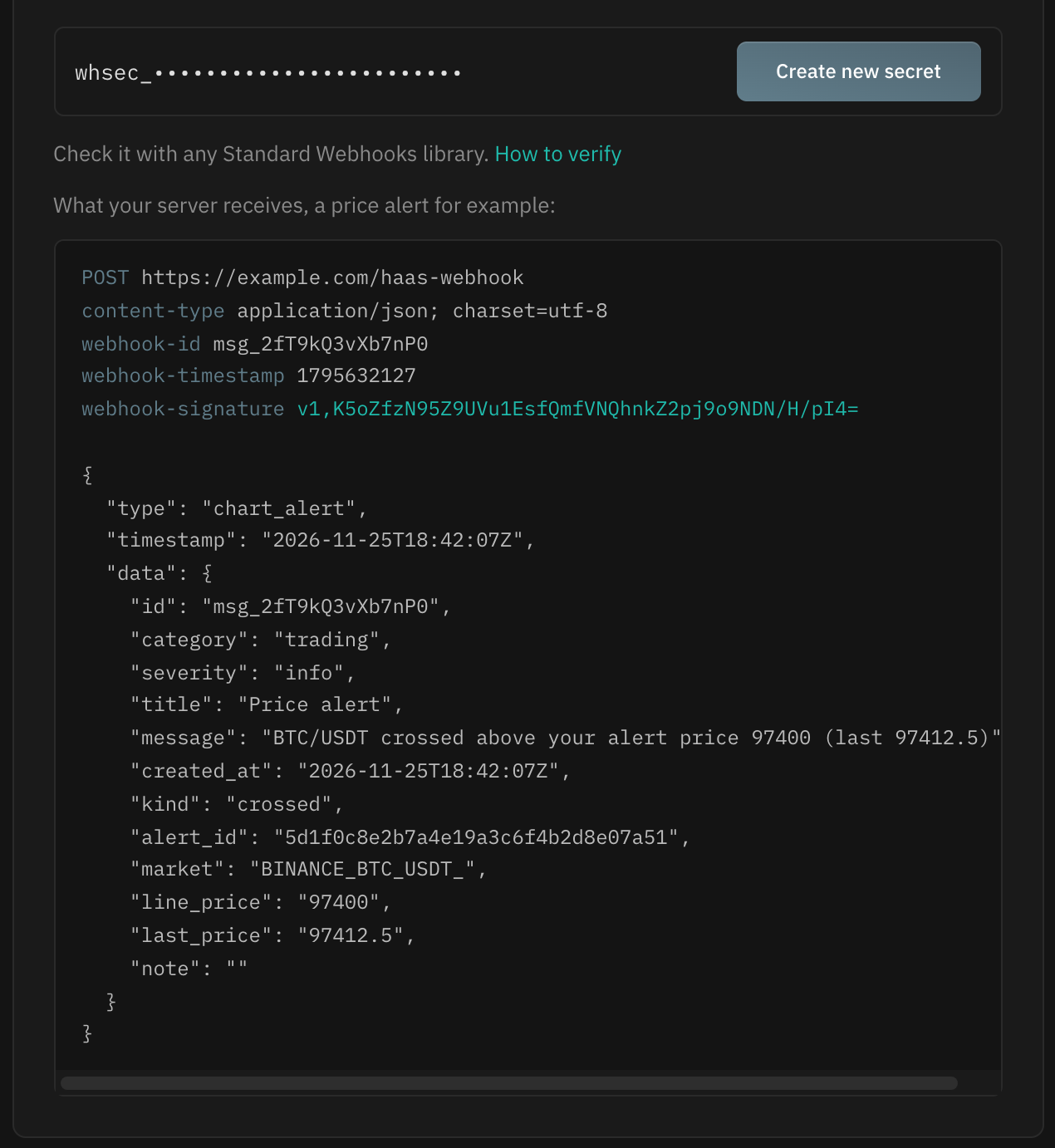
Every request is a POST with a JSON body and these headers:
| Header | What it holds |
|---|---|
content-type |
application/json; charset=utf-8 |
webhook-id |
The delivery's id, for example msg_2fT9kQ3vXb7nP0. A retry keeps the same id, so you can ignore one you already handled. |
webhook-timestamp |
When this try was signed, in Unix seconds. Every try, retries included, is signed again with a fresh timestamp. |
webhook-signature |
v1, followed by the signature (see below). |
The body has a type, a timestamp and a data object:
{
  "type": "chart_alert",
  "timestamp": "2026-11-25T18:42:07Z",
  "data": {
    "id": "msg_2fT9kQ3vXb7nP0",
    "category": "trading",
    "severity": "info",
    "title": "Price alert",
    "message": "BTC/USDT crossed above your alert price 97400 (last 97412.5)",
    "created_at": "2026-11-25T18:42:07Z",
    "kind": "crossed",
    "alert_id": "5d1f0c8e2b7a4e19a3c6f4b2d8e07a51",
    "market": "BINANCE_BTC_USDT_",
    "line_price": "97400",
    "last_price": "97412.5",
    "note": ""
  }
}
data always has id, category, severity, title, message and created_at:
category:general,security,tradingorbots.severity:info,success,warningorerror.
Decimals (price, amount, line_price, last_price) are strings, like the REST API, so no digit is lost to floating point: "97400", "0.00000123". Booleans and ids keep their JSON types.
Some types add more:
type |
Extra fields in data |
|---|---|
chart_alert |
kind, alert_id, market, line_price, last_price, note. kind is crossed (price crossed the line), approaching (the early warning when price comes near it), rate_limited (the hourly alert limit was reached), or for alerts that act: traded, not_traded, unprotected, check_account, bot_acted, bot_not_acted, check_bot. Every chart_alert carries all six fields; for rate_limited, which is about no single alert, alert_id, market and note are empty and both prices are "0". |
smart_trade_armed, smart_trade_entry_waiting, smart_trade_add_filled, smart_trade_target_hit, smart_trade_stopped_out, smart_trade_closed_by_you, smart_trade_needs_attention, smart_trade_trailing_moved, smart_trade_edited |
protection_id, account_id, market, simulated |
order_placed, order_failed, order_cancelled, order_completed |
market, direction (buy, sell, go_long, exit_long, go_short or exit_short), price, amount, simulated |
bot_order_completed, bot_position_completed |
bot_name, market, simulated |
general, security, trading, bots, haasscript |
none |
webhook_test |
none; sent by Send test |
Check the signature
The signature follows Standard Webhooks, so you can use one of its libraries in most languages. To check it yourself:
- Take the secret without its
whsec_prefix and base64-decode it. That is the key. - Build the signed content:
webhook-id, a dot,webhook-timestamp, a dot, then the raw request body exactly as received. - Compute an HMAC-SHA256 of it with the key and base64-encode the result.
- Compare it with the part after
v1,inwebhook-signature, using a constant-time comparison. - Refuse a request whose
webhook-timestampis more than about 5 minutes away from your clock, so an old request can't be replayed.
Node.js:
const crypto = require('crypto')

function verify(secret, headers, rawBody) {
  const key = Buffer.from(secret.replace(/^whsec_/, ''), 'base64')
  const id = headers['webhook-id']
  const timestamp = headers['webhook-timestamp']
  if (!/^\d+$/.test(timestamp || '') || Math.abs(Date.now() / 1000 - Number(timestamp)) > 300) return false

  const expected = Buffer.from(crypto.createHmac('sha256', key).update(`${id}.${timestamp}.${rawBody}`).digest('base64'))
  const given = String(headers['webhook-signature'] || '').split(' ').map((s) => Buffer.from(s.replace(/^v1,/, '')))
  // Compare bytes of equal length only: timingSafeEqual throws on a length mismatch.
  return given.some((sig) => sig.length === expected.length && crypto.timingSafeEqual(sig, expected))
}
Python:
import base64, hashlib, hmac, time

# headers: your framework's case-insensitive headers object (Flask's request.headers), or a dict with lowercase keys.
def verify(secret: str, headers, raw_body: bytes) -> bool:
    key = base64.b64decode(secret.removeprefix("whsec_"))
    msg_id = headers.get("webhook-id", "")
    timestamp = headers.get("webhook-timestamp", "")
    try:
        if abs(time.time() - int(timestamp)) > 300:
            return False
    except (ValueError, OverflowError):
        return False

    signed = f"{msg_id}.{timestamp}.".encode() + raw_body
    expected = base64.b64encode(hmac.new(key, signed, hashlib.sha256).digest())
    given = [s.removeprefix("v1,").encode() for s in headers.get("webhook-signature", "").split(" ")]
    # Compare bytes: compare_digest raises on a str with non-ASCII characters.
    return any(hmac.compare_digest(sig, expected) for sig in given)
Use the raw body as it arrived. Parsing the JSON and writing it out again changes the bytes and the signature won't match.
Deliveries, retries and limits
- Answer with any
2xxcode within 5 seconds and the delivery counts as done. The rest of the response is ignored. - Retries: a timeout, a connection error,
408,429or a5xxis tried again, up to 3 tries over about 5 minutes. Other answers, such as400or404, aren't retried. - Turned off after 10 failures in a row: after 10 deliveries in a row fail every try, the webhook turns itself off and you get a notification saying so. Fix your server and switch the webhook back on.
- Up to 300 deliveries an hour across all your webhooks.
- Redirects aren't followed. Use the final address.
- Recent deliveries on the webhook's page lists every try, with the answer and how long it took, for 7 days.
Self-hosted TradeServer
Webhooks come to self-hosted TradeServer in the release after 4.0.7.135, and work the same there, sent from your own TradeServer. There, a webhook can also use http:// and addresses on your own network, such as a home server.